API & Automation
Drive the app from a script: the TypeScript SDK, worked examples, and how the pieces fit.
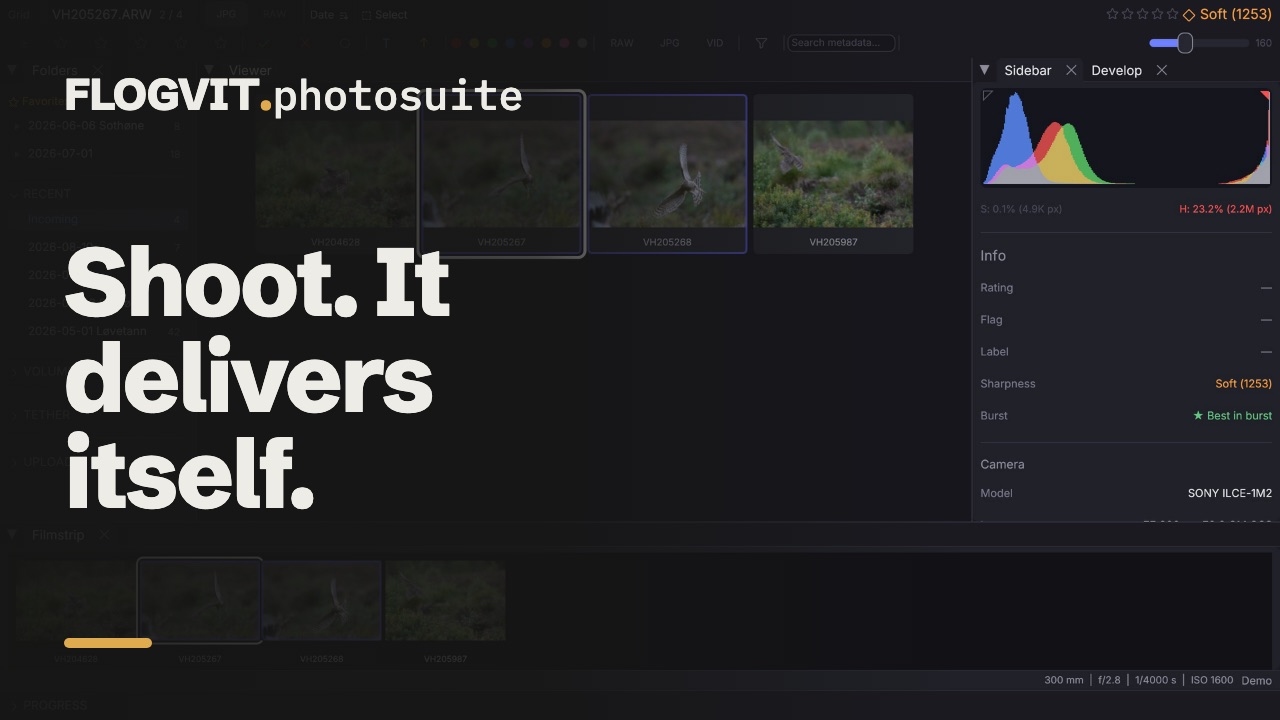 1:45
1:45FLOGVIT.photosuite runs a local REST API, and everything the interface can do is on it. Not most of it: a test in the application fails the build when a route exists without documentation, and another fails when the renderer gains a setting the API does not expose.
That is the point of the rule. A script you write is not working around the app — it is using the same door.
Getting started#
The API listens on 127.0.0.1:9100 while the app is open, and it needs a bearer token. Your machine is not the only thing on your machine.
export CULLING_API_TOKEN=$(culling --print-api-token)
curl -H "Authorization: Bearer $CULLING_API_TOKEN" \
  http://127.0.0.1:9100/api/status
Set CULLING_API_TOKEN before launching the app and it uses that token instead of the one in the keychain — which is how you run it unattended, on a machine with no keychain to unlock.
With the app running, there is also an interactive browser at localhost:9100/docs, and the raw OpenAPI document at /api-doc/openapi.json. Both are open without a token.
The TypeScript SDK#
The SDK is one file, with nothing to install. Save photosuite-sdk.mjs next to your script, and photosuite-sdk.d.mts beside it if you want the types in your editor:
curl -O https://photosuite.flogvit.com/sdk/photosuite-sdk.mjs
curl -O https://photosuite.flogvit.com/sdk/photosuite-sdk.d.mts
Import it by its path and run the script with Bun (bun hello.ts) or Node 24 (node hello.ts; on Node 22, node --experimental-strip-types hello.ts). With nothing given, it finds the app on this machine and its token by itself, from the file the app writes when its API starts. Ready-made scripts to start from, and the SDK file, are in the script collection.
import { CullingClient } from './photosuite-sdk.mjs'

const client = new CullingClient()   // reads CULLING_API_TOKEN

await client.folder.open('/Users/me/Pictures/2026-06-06 Coots')
const status = await client.status()
console.log(`${status.total_images} frames`)
The SDK is organised the way the app is: client.navigate, client.images, client.selection, client.burst, client.develop, client.export, client.metadata, client.iptc, client.folder, client.catalog, client.library, client.eventphotos, client.upload, client.connections, client.workflow, client.tether, client.setups, client.ui, client.pipeline. Every route the app has is a method on one of them.
Culling from a script#
await client.filter.set({ min_rating: 3 })

// `sharpness` is null until the background pass has scored the frame
const soft = (await client.images.list())
  .filter((image) => image.sharpness !== null && image.sharpness < 400)
  .map((image) => image.index)

if (soft.length > 0) {
  await client.batch.apply({ indices: soft, action: 'set_flag', value: 'reject' })
}
The batch sets the flag. client.images.reject() toggles it on the current image, the way the key does, so a script that runs twice would take its own rejects off again.
Editing from a script#
Every adjustment is here, and so is every tool.
// The same edit across a whole shoot
await client.develop.set({ exposure_ev: 0.4, shadows: 25, vibrance: 15 })
await client.develop.copy()
await client.selection.all()
await client.develop.paste()

// …or just the white balance, leaving each frame's own exposure alone
await client.develop.paste(['color'])
Masks are structures rather than gestures, so they are as easy to write as to draw:
await client.develop.setMasks([
  {
    name: 'Sky',
    components: [
      { geometry: { kind: 'linear', x0: 0.5, y0: 0, x1: 0.5, y1: 0.35 } },
      { geometry: { kind: 'luminance', low: 0.45, high: 1, feather: 0.25 },
        mode: 'intersect' },
    ],
    values: { exposure_ev: -0.6, highlights: -35 },
  },
])
And the tools that read the picture:
await client.images.autoLevel()          // finds the angle from the frame's edges
await client.develop.addSkyMask()
await client.images.constrainCrop()      // crop clear of a perspective correction
Each of these refuses rather than guessing when the picture gives it nothing to go on, and says so in the response — a frame with no straight edge is left alone instead of tilted at random.
Delivery#
The pipeline is a chain of steps, each one consuming a handle and returning a new one.
const session = await client.pipeline.open('/Volumes/Card/DSC00042.ARW')

await session.handle
  .develop()            // the picture, with the edits stored beside the file
  .autoCrop('16:9')
  .resize(2048)
  .export(null, '/tmp/out')   // null: a local folder rather than a connection

await client.pipeline.close(session.session)
develop() is the step that matters and the one people leave out. Without it the pipeline reloads the RAW and renders it as shot — every correction, mask and spot fix the photographer made is dropped on the way to the customer, and nothing fails, because a perfectly good picture still comes out of the other end.
Watching what happens#
The client connects to the app's event stream by itself, with the same token as every other call. Every event, and what it carries, is typed in the SDK's EventMap. A wrong or missing token ends waitFor with a 401 at once rather than a timeout.
client.on('develop_changed', (e) => console.log('edited', e.index))
client.on('rating_set', (e) => console.log(e.index, 'now has', e.rating, 'stars'))
Driving the interface#
Views, overlays and tool modes are on the API too, which is what makes a screenshot script possible — every picture in this documentation is taken by the app itself, driven through these calls.
await client.view.setMode('develop')
await client.view.decodeSource('native-raw')
await client.develop.setTools({ before_after: true })
await client.ui.screenshot('main', '/tmp/shot.png')
Which panel is in front#
Panels docked in the same place are tabs, and only one of them is on screen. Making a panel visible does not make it the one you are looking at, so there are two separate facts to read and one call to set:
for (const panel of await client.ui.panels()) {
  console.log(`${panel.title}: ${panel.visible ? 'shown' : 'hidden'}${panel.active ? ', in front' : ''}`);
}

await client.ui.focusPanel('develop');
focusPanel adds the panel to the layout if it is not there, so it always ends with that panel in view. The names are folders, filmstrip, sidebar, histogram, viewer, develop, scopes and map.
Running without a window#
A machine that only delivers, such as the live pictures at a meet or a script run every night, does not need the window. Start the app headless and drive it through the API alone:
/Applications/FLOGVIT.photosuite.app/Contents/MacOS/culling --headless
On Windows it is FLOGVIT.photosuite.exe --headless in the folder photosuite is installed in. It is the whole app with no window and no Dock icon: the same settings, library, workflows and API, developing on the graphics card as it does with a window. The API answers on the port in Settings even when Settings has it turned off, since it is the only way in, and client.status() says headless: true and names the graphics card.
- The licence has to be activated in the app once on that machine.
- Give the API token in
CULLING_API_TOKEN, or in a.envfile in the app's settings folder (~/Library/Application Support/flogvit/on a Mac), so the app is not left waiting for the keychain with nobody there to answer it. --screen 3840x2160@2sets the screen pictures are decoded for and screenshots are taken at. Without it, a Retina laptop's.- Screenshots and recordings work. What needs a window, such as video playback, full screen, moving the window and menu items that open a file picker, answers 409 and says why. The routes take paths instead.
- Ctrl-C or
killstops it, and it saves as Quit does.
A folder of its own#
Started with --dir, photosuite lives in one folder and sees nothing outside it. Its settings, library, albums, log and models are kept in the folder's .photosuite/, and in everything it is told and everything it answers, / is the folder: /shoot is the folder's shoot, and a path that leads out, with .. or a link, is refused. Several can run on one machine, one folder each, for instance one per event or one per customer.
/Applications/FLOGVIT.photosuite.app/Contents/MacOS/culling --headless --dir /Volumes/Events/nm-2026
- The folder has to exist, and only one instance can run in it at a time.
- When the port in Settings is taken, it takes a free one, and
.photosuite/culling/api.jsonin the folder says which.new CullingClient({ root: '<folder>' })reads it, and--port 9200chooses the port yourself. It is up whenclient.status()saysroot: true. - The API token and other secrets come from the environment, from
.envin the folder or from.photosuite/.env, never from the keychain. What the app saves itself is kept in.photosuite/secrets.json. - The licence is the folder's own if it has one, otherwise the machine's, which it reads and never changes.
- No disk outside the folder is listed or scanned, and a denoise profile that writes outside it is not picked up. With a window, the file pickers open in the folder and refuse a choice outside it.
- Instances take turns at DxO PureRAW, so two never run it at once.
- The API answers on this machine only. The programs the instance starts (a denoise profile's program, the external editors) are set in the folder's own settings or in the window, never over the API, and the instance's own
.photosuite/is not a place the API can name. Library backups go inFLOGVIT.photosuite library backupsin the folder. - To run them as services, give each its own launchd agent: its own
Label, and--headless --dir <folder>inProgramArguments. - To move or copy an instance, stop it, move the folder and start it there: it writes its stored paths over to the new place when it starts. To delete one, stop it and delete the folder; nothing of it is kept anywhere else.
A script written for such an instance calls requireRoot() first. Run against an app without --dir, it stops with a clear message instead of writing to the machine's own /delivery:
import { CullingClient } from './photosuite-sdk.mjs'

// The instance started with --dir /Volumes/Events/nm-2026
const client = new CullingClient({ root: '/Volumes/Events/nm-2026' })
await client.requireRoot()   // throws against an app without --dir

await client.folder.open('/shoot')   // /Volumes/Events/nm-2026/shoot
await client.export.quickJpeg({ output_dir: '/delivery' })
Every route#
API Reference lists all of them, generated from the application's own OpenAPI document, with the fields each one takes and a curl line for each.