Library
Catalogue every disk, find the same picture wherever it is, and know whether deleting a copy loses anything.
On this page
- The Library view
- Search by what is in the picture
- Albums, smart collections and sets
- Disks that are not connected
- Pictures on one drive only
- Shoots
- Keywords
- Disks & Duplicates
- Adding a disk
- Scanning
- Previews of every picture
- Backups
- On your other devices
- When files move or disappear
- What "the same picture" means
- Deciding what stays
- Folder copies
- Removing a source
- Over the API
- Where it is kept
 1:11
1:11Every photographer with more than a few years of work has the same picture in four places: the card import, the folder someone copied to a backup drive, the DNG a converter made from it, and the JPEG that went to a client. The Library catalogues every image on every disk you point it at: you browse all of it in one place, even when a disk is in a drawer, and it tells you which of those files are the same picture — and, for each one, whether deleting it would lose anything.
The Library view#
 0:10
0:10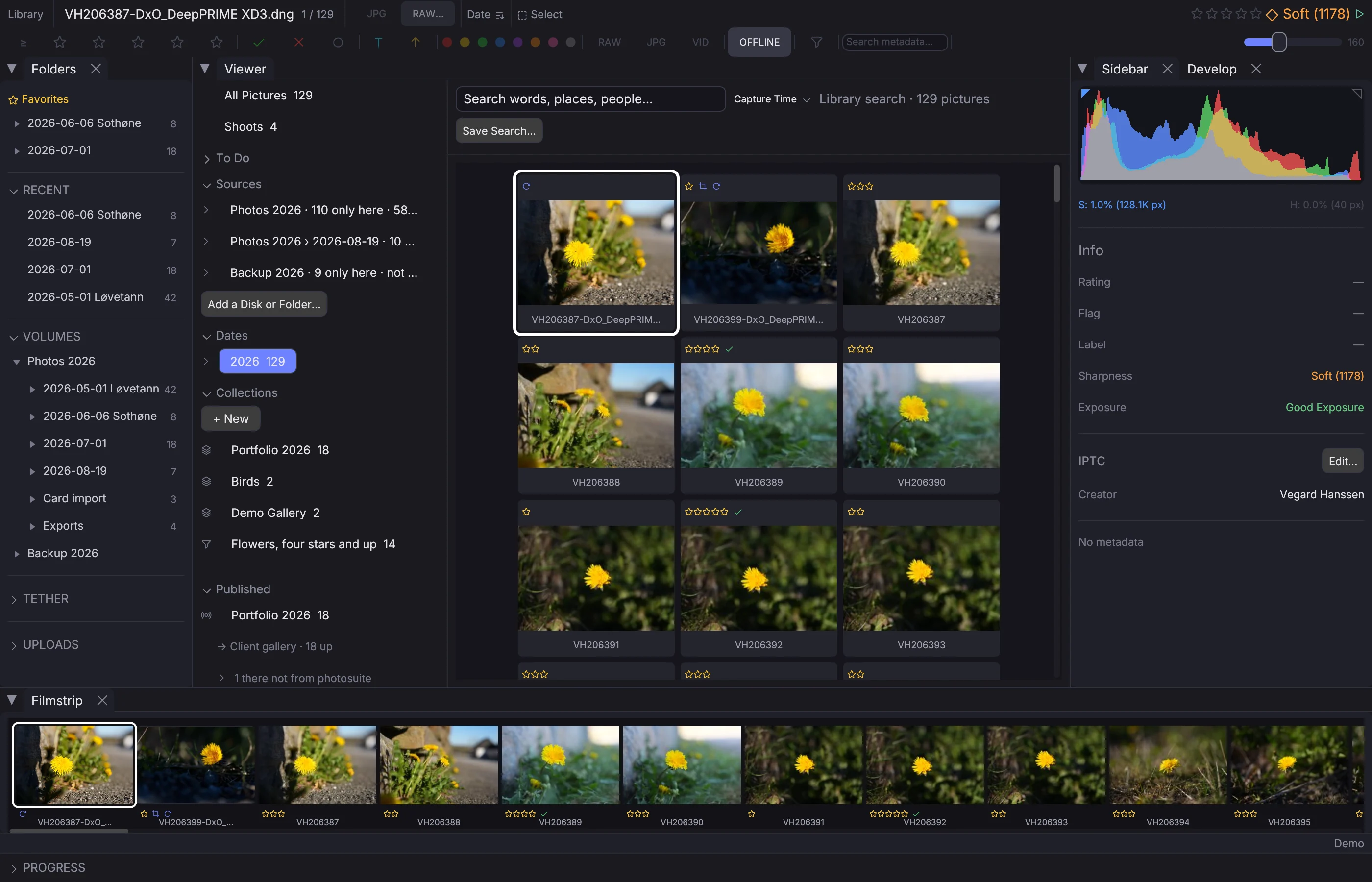
Open it with Cmd+Shift+L, View → Library, or the view menu in the info bar. The panel on the left lists what the library holds, each with how many pictures it has:
- All Pictures
- Sources — each disk or folder, with its free space, or when it was last seen if it is not connected; open one to see its folders
- Dates — years, then months, then days, in your own time zone; Undated for pictures with no capture time
- Collections — your albums and saved searches
- Published — the albums kept on an event or in a folder, and how each is doing; see Publishing Albums
- Keywords, People, Places, Cameras and Lenses
What you pick opens in the grid beside it, as what the window works on: rate, flag, develop, export and publish exactly as in a folder, and each change lands in the picture's own folder. A picture on a disk that is not connected is shown from the library's stored preview, and an action that needs the file says which disk to connect.
The field above the grid searches what is picked — words in captions, titles, keywords, people, places, cameras, lenses and file names. The menu beside it sorts by capture time, name, rating, when the picture was added, or when it was last edited; an album opens in its own order. Save Search… keeps what is picked and searched as a saved search under Collections.
An empty library offers Add a Disk or Folder…, and Import Lightroom Catalog… when one is found in ~/Pictures/Lightroom.
Over the API, POST /api/library/view picks, searches and sorts, and opens it; GET /api/library/browse returns what the panel lists.
Search by what is in the picture#
The search field also finds pictures by what is in them, in plain words and in your own language — a heron in the rain, en fugl på en grein, Siegerehrung — with no keywords written in them. Search by Content… beside the field downloads the content model once (about 230 MB); the library then reads its pictures in the background, from the previews it already keeps, newest first and giving way whenever you cull. The bar says how far it has come, and a search finds the pictures read so far.
The menu beside the field chooses what it searches: Words and Content (the words written in the files first, then the pictures nearest what you wrote), Words, or Content. A search by content is shown nearest first, as Best Match.
Right-click a picture and choose Find Similar in Library to see the pictures that look like it, from every disk in the library, nearest first.
The model reads English, Norwegian Bokmål, Swedish, German, Finnish, French, Spanish and more than forty other languages; Nynorsk is understood as Bokmål is. It is OpenAI's CLIP for the pictures and a multilingual text model trained to match it, both run on this computer: no picture leaves it. Over the API: content and similar_to in POST /api/catalog/search and saved searches, search_by in POST /api/library/view, and GET /api/library/content for how far it has read (SDK: client.library.content()).
Albums, smart collections and sets#
 0:11
0:11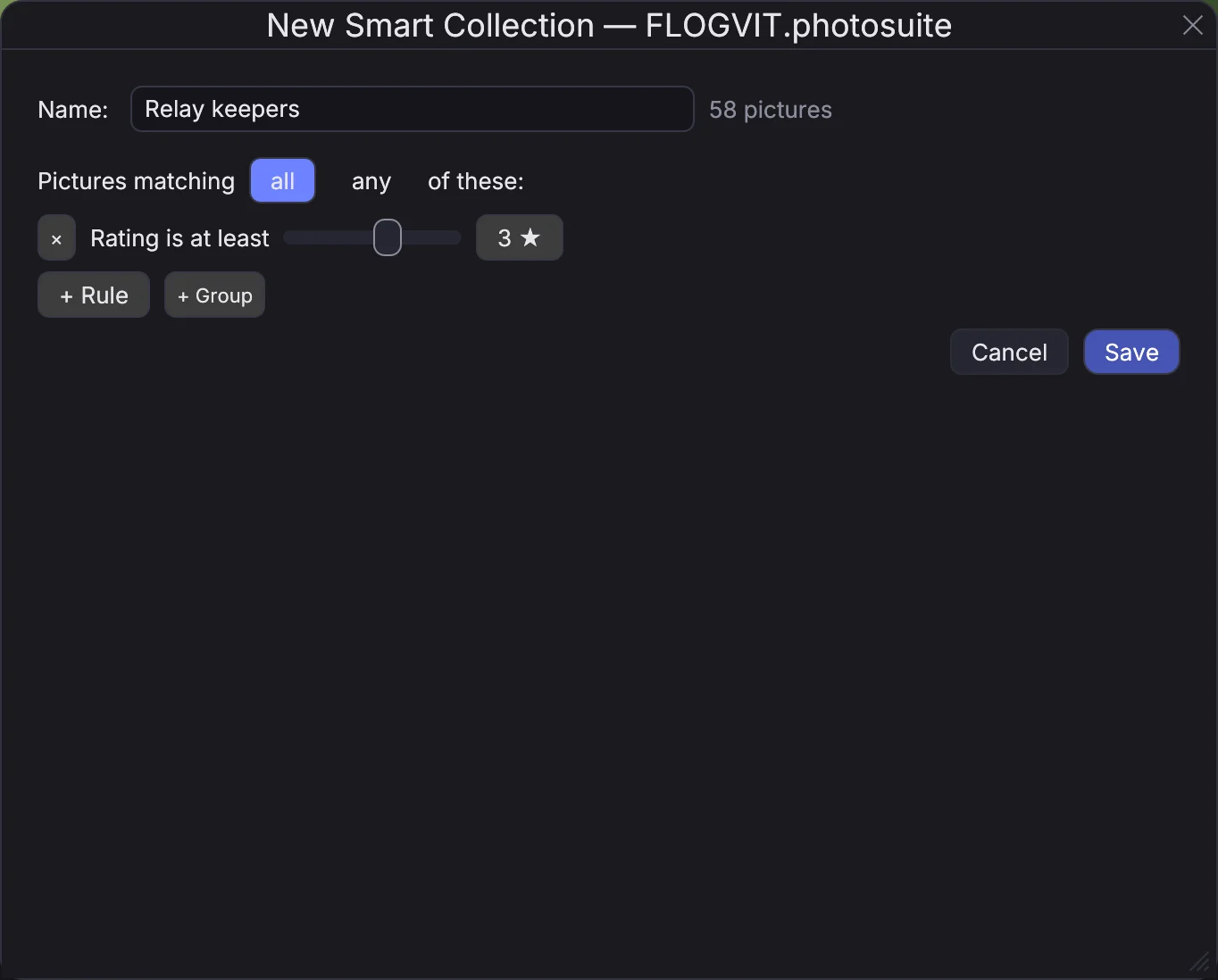
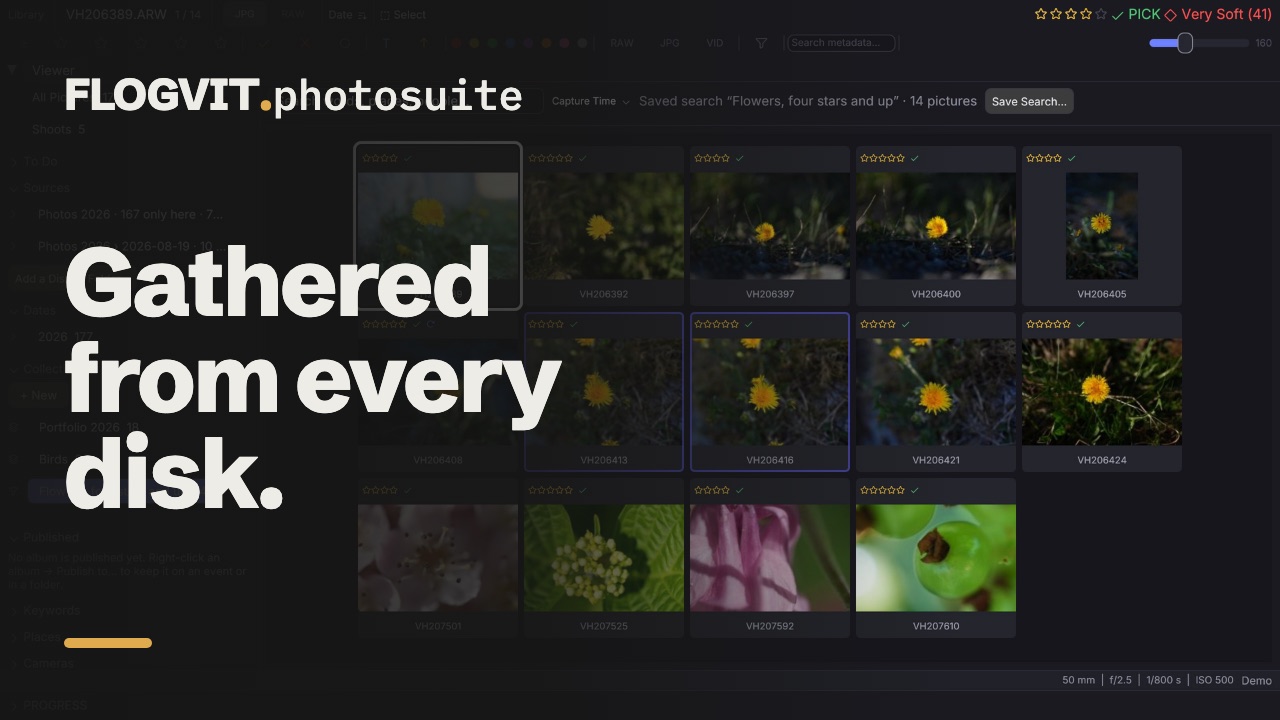
Collections in the Library view's panel holds your albums (pictures you put together by hand, from any folder and disk) and smart collections (saved searches, which find their pictures each time), in collection sets that can hold sets of their own. Each shows how many pictures it holds; a smart collection's count is what it finds now.
- + New makes an album, a smart collection or a set. Right-click a set to make one inside it; drag a collection or a set onto another set to move it there, or onto the empty space below to move it to the top.
- Right-click a collection to rename, duplicate or delete it, to edit a smart collection, or to make an album the target album.
- Put pictures in an album by dragging them from the grid onto it, with Add to Album in the picture's menu (with New Album…), or with Shift+B, which puts the selected pictures — or the one on screen — in the target album, and takes them out when every one is in it already. The info bar shows the target and its count; click it to choose another. With no target, Shift+B makes the Quick Collection the target. In an album, Remove from "…" in the picture's menu takes pictures out.
- A picture in the target album carries a bookmark in the grid, the filmstrip and Survey, and the album's name on the picture in Develop and fullscreen, whatever folder is open. In the filter menu, Album … shows only the pictures in it (In it) or only those not in it (Not in it). With Not in it on, Shift+B takes a picture out of view the moment it goes in, so a pass over a card leaves only what is still to pick. A raw from the card counts as in the album when the album holds the same shot in another file — the DxO DNG a live delivery sent out — known by the camera and the moment it was taken to the fraction of a second. A file without that fraction (an older camera, a screenshot) is only in the album as itself. Putting such a raw in the album leaves it out and says which file is there, so the picture never goes out twice. Replace … in “…” in the picture's menu puts it in that file's place instead: it goes out over the published photo, which keeps its place and its buyers' links. A photo somebody has bought is never replaced. A workflow's Add to Album leaves out a second file of a shot the same way, such as the JPEG of a camera that sends its JPEG and its raw.
- The smart collection editor lists the rules: words, keywords, people, places, captions, camera, lens, rating, flag, label, file type, edited, published, when it was taken (on a date, or in the last so many days), changed in the last so many days, has keywords, has a caption, sharpness, folder, album and disk. The collection matches all or any of them, and + Group adds a group with all or any of its own — "rated three or more, and keyword relay or swim". It counts what it finds while you edit. Save as Smart Collection… in the filter columns saves what the window shows as one.
An album holds its pictures by their place in the library, so a picture moved in Finder is still in it after the next scan. A picture moved to the Trash leaves its albums, and the app says which. The sidebar's Info lists the albums and smart collections the picture on screen is in. Deliver → Deliver Event Folder… can run its workflow over an album's or a smart collection's pictures instead of a folder.
Over the API, /api/library/collections lists, makes, changes and deletes collections, puts pictures in an album or takes them out, and sets the target; /api/library/collection-sets does the same for sets.
Disks that are not connected#
Pictures on a disk that is not plugged in are still found by every search, filter, collection and shoot, shown from the library's stored preview with the disk's name on them. The info bar and the sidebar say where they are — "On Archive-3 (not connected, last scanned 12 March 2026)" — and OFFLINE in the filter bar leaves them out of the window, or shows them again.
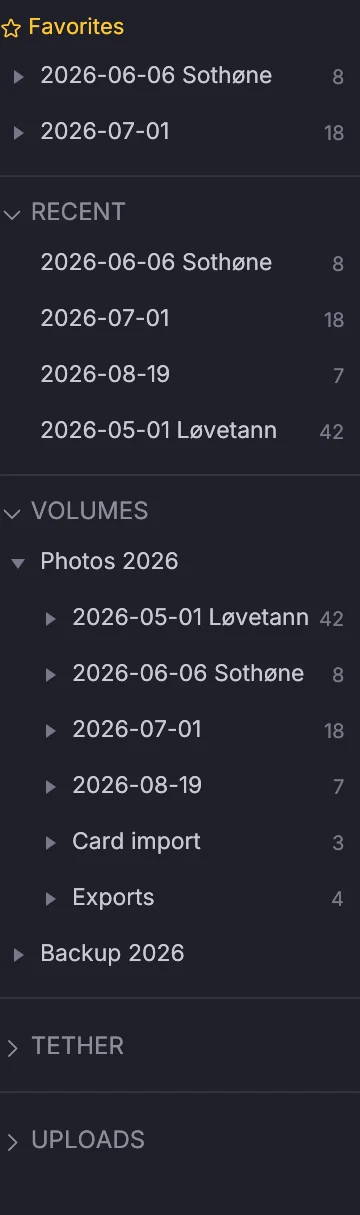
What can be done without the file is done: stars, flag, label, keywords, the caption and the other IPTC fields, and albums change in the library at once, and are written to the pictures when the disk is mounted — the info bar says how many changes wait. Only what was changed is written: a field the library does not know stays as the file has it. What needs the file says so: develop, crop, rotate and export answer "Connect Archive-3 to …". When the disk is back, the picture on screen opens on its own.
Over the API, connected is on every file the library routes give, and GET /api/library/pending-writes lists what waits; hide_offline in POST /api/filter leaves those pictures out.
Pictures on one drive only#
Disks are cheap; lost pictures are not. Once your disks are scanned, the library knows which pictures exist on only one physical drive. A copy counts when it is the same file, or the same picture with other metadata (a DNG with new XMP in it), or the same sensor data; an exported JPEG is another picture, not a copy. Two partitions of one drive are one drive, and a drive that is not connected still counts.
To Do → Not backed up opens those pictures, the Sources list says how many on each disk are only here, and a shoot's card says how many of its pictures are on one drive. Back Up to… under To Do copies them all to a folder on another drive, into <folder>/<disk>/<their path on it> with their sidecars, checks each copy against the original, and scans the folder, so the count goes down. Pictures on a disk that is not connected are left for when it is. Right-click a disk under Sources, or a shoot, to back up only its pictures. A picture that is on one drive in several folders is copied once.
Over the API: GET /api/library/backup-coverage, POST /api/library/backup-copy ({"scope": {"kind": "all"}, "dest": "/Volumes/Backup"}, or a source's or a shoot's), and unbacked on every shoot.
Shoots#
 0:12
0:12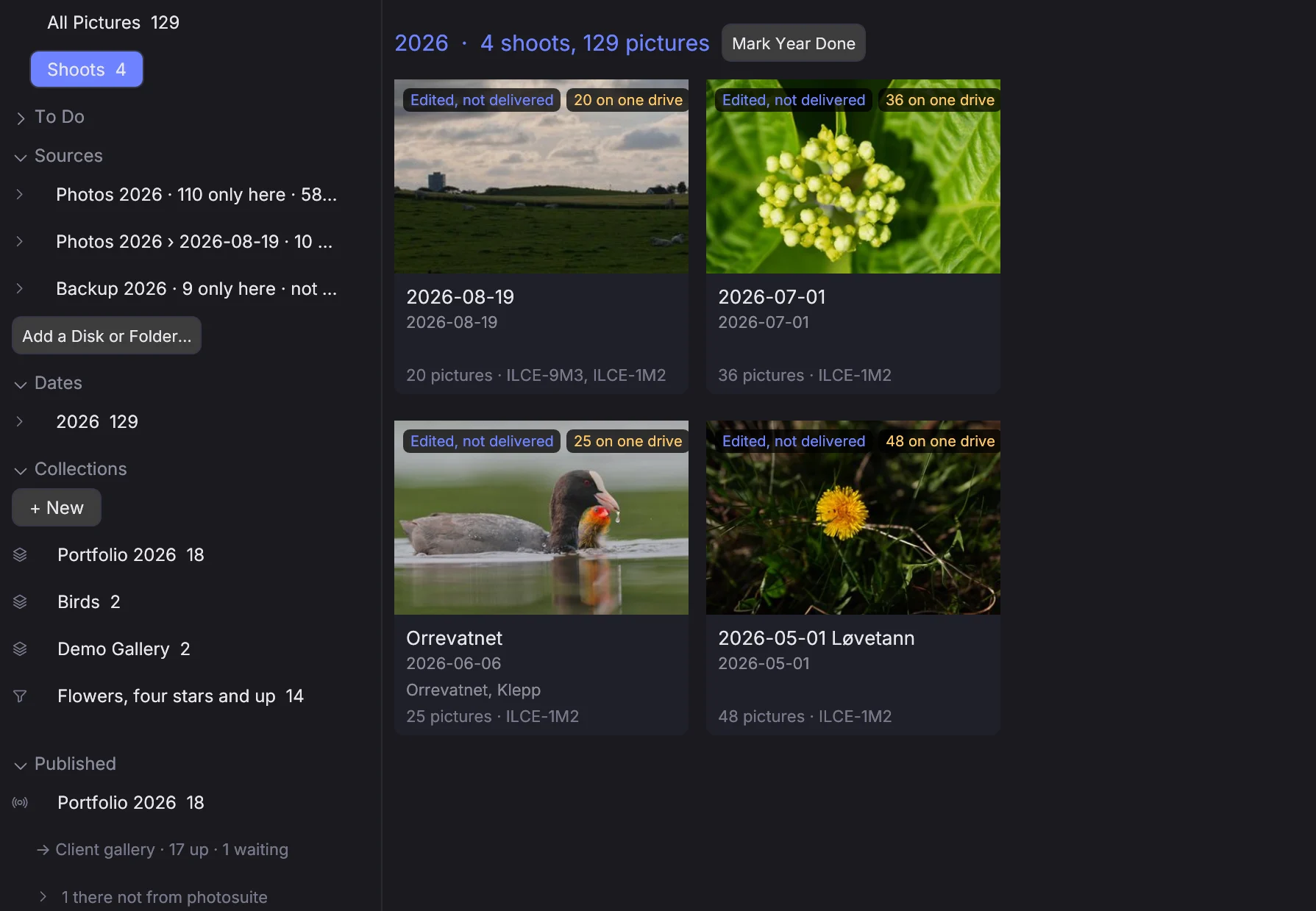
Shoots in the Library view's panel shows years of pictures as what you remember: "the Kystjegerløpet finish", "Kari's wedding", "Lofoten in March". A shoot is found from when the pictures were taken, every camera together: a gap of more than an hour, or a move of more than 25 km between two pictures with a position, starts a new one (both can be changed over the API, PUT /api/library/shoots/rules). The timeline goes back year by year with a card per shoot: its cover, name, dates, place, how many pictures and which camera bodies. Click a card to see its pictures.
- A shoot is named by an album that holds most of its pictures (one published to eventphotos, or a delivery's pick), else the folder that holds at least half of its pictures, else the place most of it is at, else its dates.
- Right-click a card to Rename it or Merge with the Shoot Before. On a picture, Shoot → Start a New Shoot Here splits its shoot at that picture, and Use as Shoot Cover makes it the cover; otherwise the cover is the highest rated picture, then a pick, then the sharpest. What you change stays when the library is scanned again.
- The filter's Shoot column and the smart collection rule In the shoot pick pictures by shoot.
Over the API: GET /api/library/shoots, POST /api/library/shoots/edit (rename, merge with the shoot before, split at a picture, cover) and PUT /api/library/shoots/rules (the hours and kilometres); open a shoot with POST /api/library/view and the pick {"kind": "shoot", "at": <startMs>}.
What is left to do#
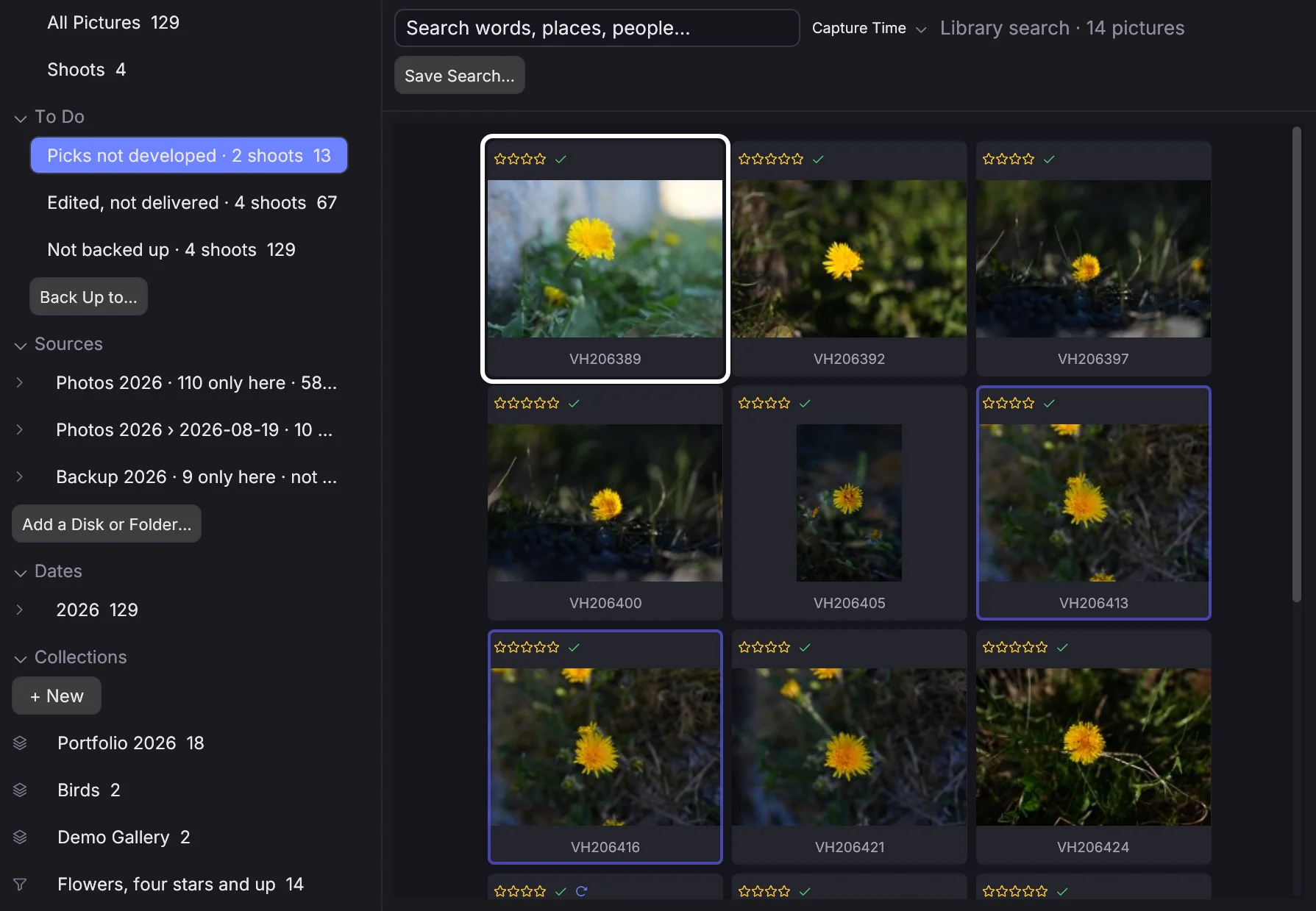
Each card says how far its shoot has come, from what the library knows (no file is read): Not culled (no picture has stars, a flag or a label), Culled (marked, nothing edited; Picks to develop when picks are not developed), Edited, not delivered, or Delivered (a picture exported, uploaded or published to eventphotos or the newspaper). The filter's Shoot Status column picks pictures by it.
To Do in the panel lists the shoots not culled, the picks not developed and the edited pictures not delivered, with how many; click one to see those pictures. Right-click a card to Mark Done — off the lists, without changing a picture — and use Mark Year Done on a year to take an archive finished long ago off them in one go.
Over the API: GET /api/library/todo, the status in GET /api/library/shoots, done and done_between in POST /api/library/shoots/edit, and the pick {"kind": "todo", "list": "not_culled"} (or picks_not_developed, edited_not_delivered).
Keywords#
 0:13
0:13Keywords in the Library view's panel lists every keyword your pictures have, on every disk, as a tree with how many pictures have each — the hierarchy is the one Lightroom writes (Places|Norway|Stavanger), so a keyword list made there looks the same here. Keywords in your keyword list that no picture has yet are greyed. Click one to see every picture with it or with a keyword under it.
- Right-click a keyword to Rename, Merge Into another, Move to the Top, give it Synonyms, leave it out of exported files (Include on Export), Paint with It, or Delete it. Drag a keyword onto another to put it under it.
- A rename, merge, move or delete is written into every picture that has the keyword, in its sidecar or in the file, with the rest of its metadata as it was, and the line under the header says how far it has come. Undo puts every picture's keywords back as they were. Pictures on a disk that is not connected are written when the disk is back; the panel says how many wait.
- A search for a synonym finds the keyword's pictures, and an exported file carries the synonyms. A keyword not included on export stays in your own files and is left out of the exported ones.
- + New adds a keyword to the list, and imports or exports the list in Lightroom's text format (Metadata → Export Keywords and Import Keywords in Lightroom): a keyword a line, a tab deeper per level,
{synonym}and[not exported]. - Paint with It makes the keyword the painting keyword: Shift+K or Metadata → Paint Keyword puts it on the selected pictures — or the one on screen — and takes it off when every one has it. The info bar shows it; click it there to stop painting.
Over the API, /api/library/keywords gives the tree with counts, and its routes rename, merge, move and delete a keyword, undo, set synonyms, read and write the list in Lightroom's format, and set and paint the painting keyword (client.library.keywords(), renameKeyword() and the rest).
Disks & Duplicates#
 0:15
0:15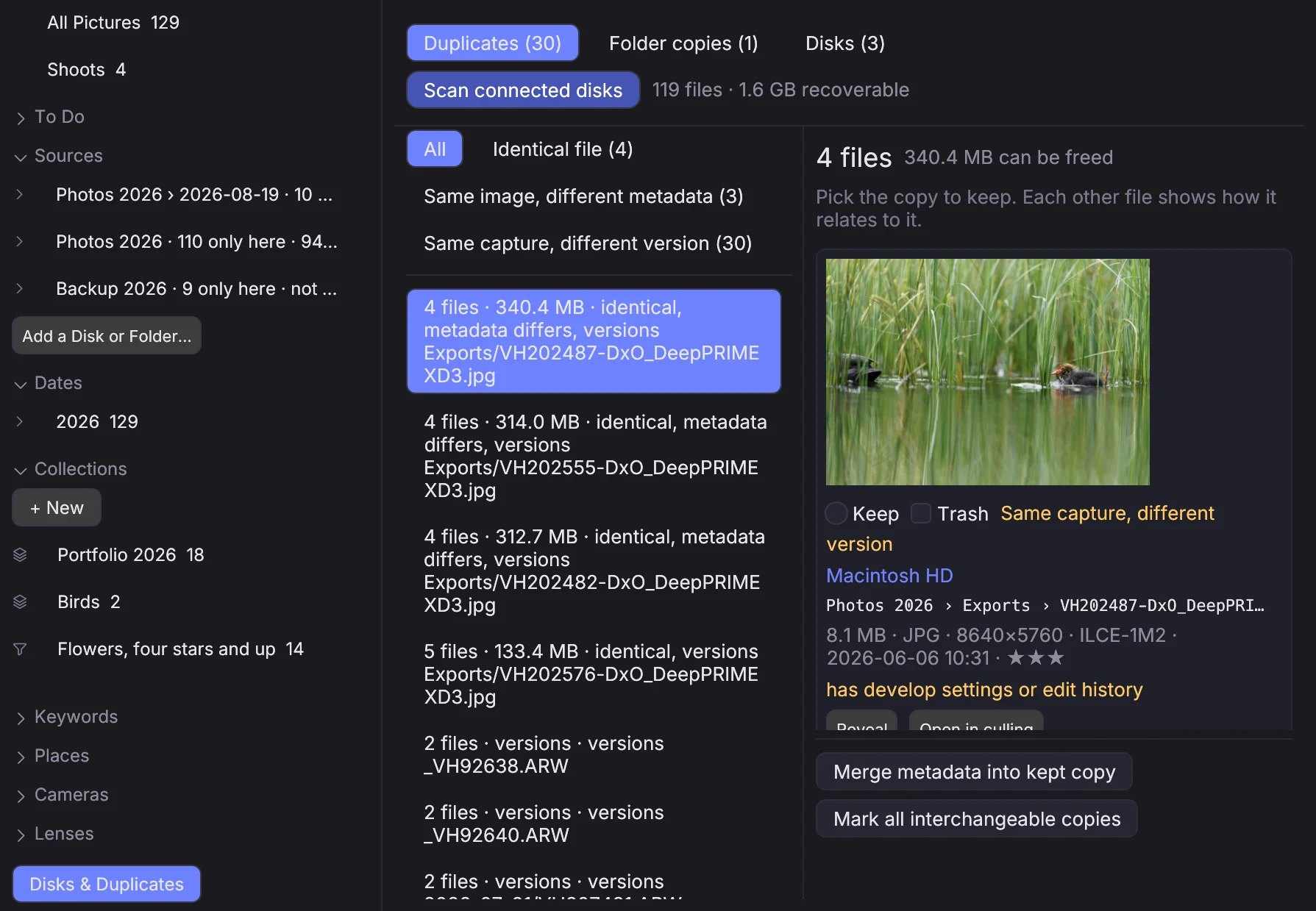
Disks & Duplicates at the bottom of the panel, or Library → Disks & Duplicates, holds the tools for copies and disks.
Adding a disk#
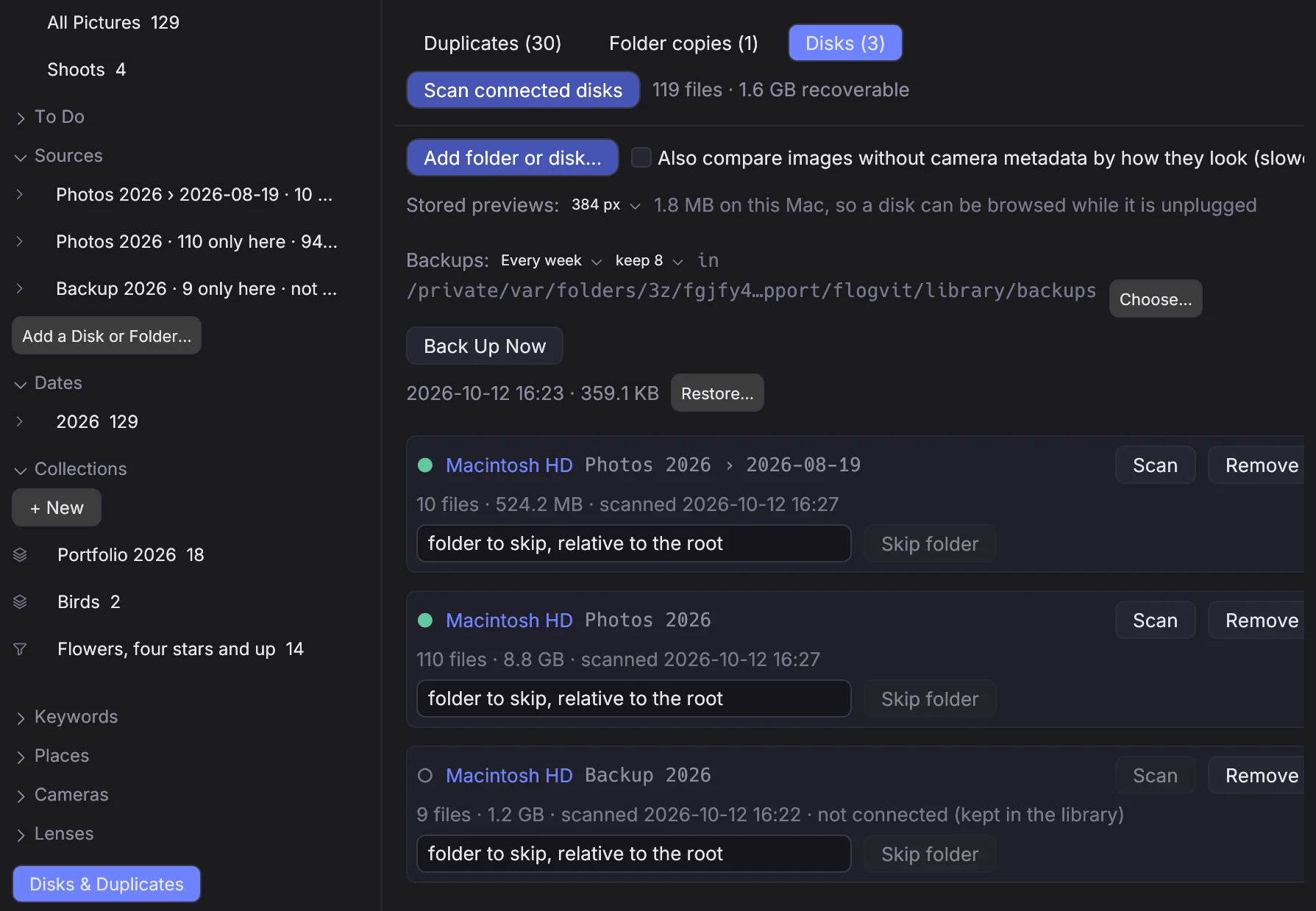
On the Disks tab, press Add folder or disk… and pick a folder or the root of a drive. That is a source. Mounted drives that are not sources yet are listed below under "Connected, not in the library", with an Add button each.
A source is identified by the disk's volume UUID rather than by its path, so a drive that mounts somewhere else next month is still the same source, with everything already scanned on it intact.
Sources may not overlap. If /Volumes/Archive is a source, /Volumes/Archive/2019 cannot also be one — the same file under two sources would be found as a duplicate of itself. Remove the first if you want the second.
To leave a folder out, type its path relative to the source root into "folder to skip" and press Skip folder. Skipping deletes what is already catalogued under it straight away, and says how many files that was. Un-skipping does not bring them back; the folder is walked again on the next scan.
Some places are never walked: system folders, ~/Library, the Trash, Photos libraries, .git and node_modules.
Scanning#
Scan connected disks scans every connected source; each source card has its own Scan for just that one. The button becomes Cancel scan while one runs, and a cancellation takes effect at the next file.
A scan runs in five passes, and the status line names the one it is in:
- Listing files — directory entries only. Nothing is read.
- Reading headers — the container, the capture time, the rating, and a cheap fingerprint of the first 64 kB.
- Comparing possible copies — the whole file and its image payload are hashed, but only for files whose cheap fingerprint already matches something else. Most files are never read past their header.
- Comparing raw data — the sensor values are decoded, for a capture that exists as two files with different payloads. This is what pairs a CR2 with the DNG made from it.
- Comparing images without metadata — off unless you ask for it. See below.
Results appear while the scan is still running: the groups are recomputed every few seconds as new hashes land, and once more at the end.
Only one scan runs at a time, and a source cannot be removed while one is going.
Images with no camera metadata#
The Disks tab has one setting: Also compare images without camera metadata by how they look (slower). With it on, the scan adds a perceptual hash for files that carry no capture identity at all — screenshots, downloads, anything stripped of its EXIF — and matches them by appearance.
It is off by default because it decodes a preview of every such file. The threshold is deliberately tight: a re-encoded or resized copy of one picture stays within a few bits, while the frame taken half a second later does not.
Settings apply from the next scan, not retroactively.
Previews of every picture#
The library keeps a small preview of every picture on this computer, so a disk can be browsed with it unplugged. A scan makes them from the preview the camera put in the file while it reads the file anyway; a folder opened in photosuite gets them without a scan. A picture you develop, crop or turn is shown that way once the change is saved, and as shot again when you reset it.
Stored previews on the Disks tab sets their size — 256, 384 or 512 pixels on the long edge, or none — and says how much room they take. A new size is made at the next scan. A camera that puts no preview in its files (some from before 2005) gets none.
Backups#
Most of what the library knows comes back with a scan, because the marks and words are in the pictures. Your albums, saved searches and what moved where do not, so the library is backed up — every week unless you choose otherwise, and before every update that changes how it is stored. The Disks tab says how often, how many backups are kept (eight unless you choose), and where they go: a folder you choose, or else a folder on another disk in the library than this computer's, so one failing disk does not take both. Each backup also holds every album as a plain list of its pictures.
The library is checked before every backup, and a damaged one is never backed up over the good copies. If it is damaged, the info bar says so and offers Restore from Backup…; if backups have stopped for twice their interval, it offers Back Up Now. Restore… beside a backup puts the library back as it was then, with its albums and saved searches, and scans the connected disks so what changed in the pictures since comes back.
On your other devices#
Your phone and your other computers can browse the albums and folders you choose, without the files, with FLOGVIT.plus. Right-click an album or a folder in the Library view and tick Available on My Devices: a preview of each of its pictures — developed, cropped and turned as it is here — goes to photosuite's site, with when it was taken and with what. Untick it, and they come down again. Nothing goes there unless you put it there, because the previews take room on the site.
Stars, flags, labels, develop, crop and IPTC follow you between your computers anyway, for every picture, when Keep marks and edits in step with my other devices is on in Settings.
When files move or disappear#
A disk in the library is scanned in the background when it is plugged in; the info bar says what the scan is doing and has a button that stops it. Only what changed since the last scan is read again.
A folder renamed or moved in photosuite, pictures moved to another folder, and a batch rename change the library at once, and albums keep their pictures at the new paths. Moved in Finder instead, a picture is found again at the next scan wherever it now is on a disk in the library: the same file content, or the same capture from the same camera, at a new path. It keeps everything attached to it, and the albums follow.
A file the scan cannot find anywhere is missing, not forgotten. Each source card on the Disks tab lists its missing files with their last path. Locate… asks for the folder one of them is in now, and every missing file from its old folder that is there by name follows it. Forget is for files that are gone for good. Missing files are left out of searches and of the duplicate groups.
What "the same picture" means#
Two files can be the same in six different ways, and which one it is decides whether you can safely throw one away. The relation is shown beside every file, green when the copies are interchangeable and amber when they are not.
| Relation | What it means | Safe to delete one? |
|---|---|---|
| Identical file | Byte for byte the same file. | Yes |
| Same image, different metadata | The same pixels; the ratings, keywords or IPTC differ. | Yes, but merge the metadata first |
| Same raw data, different file | The same sensor values in another container or compression — a raw and its lossless DNG. | Yes |
| Same capture, different version | One exposure, two images: an export, an edit, a lossy DNG. | No — the pixels differ |
| Looks identical (no metadata) | No capture identity on either side, but they look the same. Only appears with the perceptual setting on. | Judge it yourself |
| Related | In this group only through another file. | Judge it yourself |
The first three are what the app calls interchangeable: deleting one loses at most metadata. The rest are versions, and a version is a different picture.
Capture identity is the camera make and model plus the capture time down to the sub-second. Without sub-seconds a whole burst shares one key, so those never count as the same capture. The body serial number is deliberately left out of the key, because exports strip it — but when both files do carry one and they disagree, the match is refused.
Deciding what stays#
The Duplicates tab lists groups, largest recoverable first, with a filter chip per relation present. Pick a group and every copy is laid out on the right with a preview and its facts: size, dimensions, camera, capture date, rating, and which disk it is on.
- Keep marks the one that stays. It starts on the first connected file in the group.
- Trash marks a file to go. A file on a disconnected disk cannot be marked.
- Mark all interchangeable copies ticks every file that is the same image as the one you are keeping — the common case, in one press.
- Move N files to Trash asks once more, then moves them.
Badges warn you before you lose something: has .xmp sidecar, has develop settings or edit history, disk not connected, inside a folder copy.
Two guards you cannot skip past by accident. A whole group can never be trashed — one file always remains. And marking something that is not the same image as the keeper — an export, an edit — requires ticking Yes, trash those versions too, because those pixels exist nowhere else.
Trashing means the system Trash. The files are recoverable until you empty it; the catalogue forgets them immediately. Sidecars go with their file, except a sidecar shared with another file in the same folder, which stays.
A file whose size or modification time no longer matches what the scan recorded is never trashed — it is reported as "file changed since it was scanned" instead.
Merging metadata first#
Merge metadata into kept copy brings the rating, flag, colour label, GPS, keywords, people, IPTC text and the Copyrighted mark from the other copies into the one you are keeping. The keeper's own values win; the others only fill what it lacks. Keywords and people are unioned. When the keeper is open in the main window, its stars and flag change there at once.
What a merge does not move is listed for you: crops, develop settings and orientation stay where they are. If a copy you are about to trash carries an edit, the merge will not rescue it.
Folder copies#
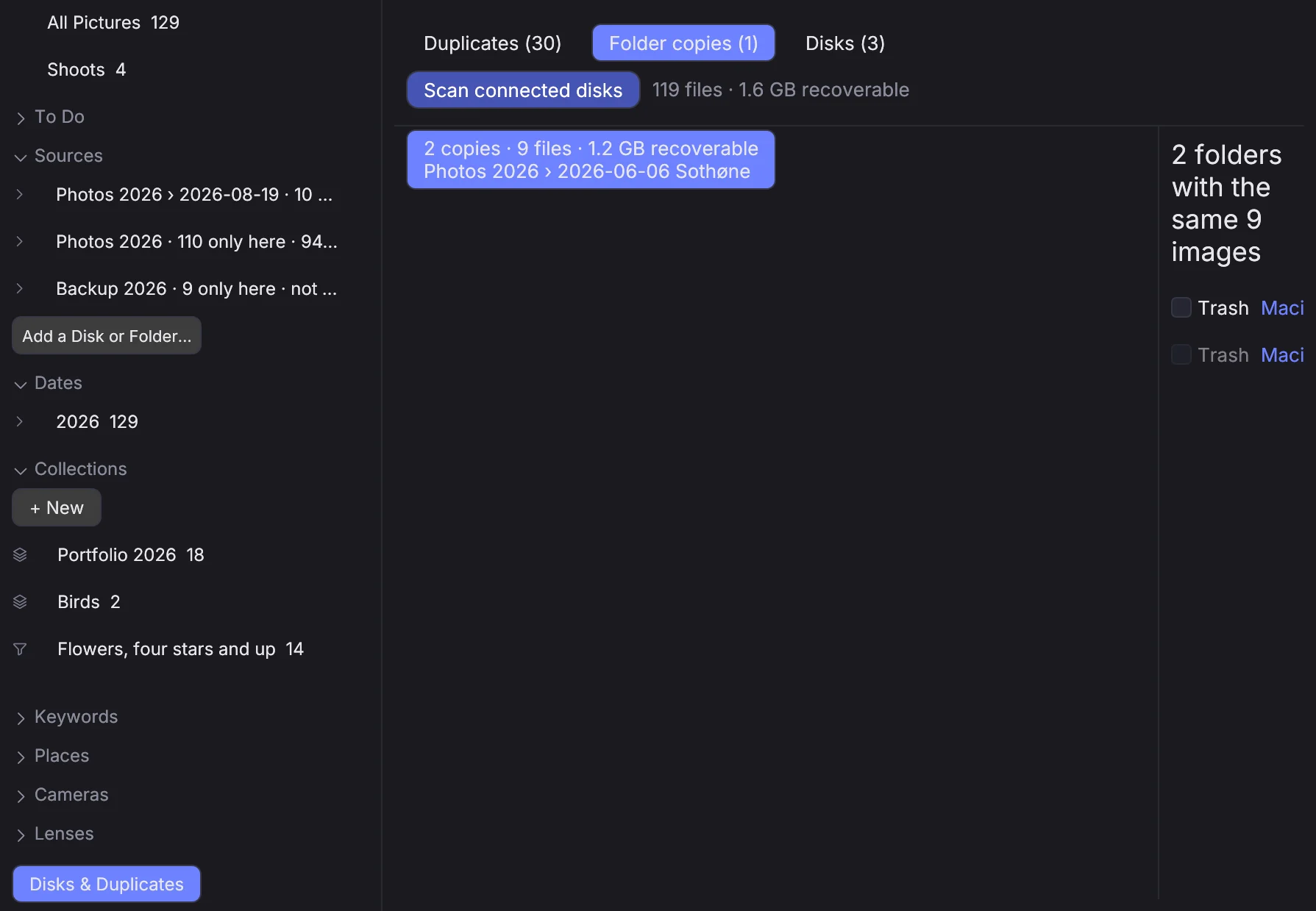
The Folder copies tab works one level up: whole folders whose images are the same set. A backup folder still matches after a converter wrote new metadata into its DNGs, because the comparison is on interchangeable sets rather than on bytes.
Nested matches roll up to the outermost folder. One folder of a match must always remain, and the root of a source is never trashed — remove the source instead.
When the copies are not all identical you are told so, in those words, before anything moves: the images are the same, but some copies carry ratings, keywords or edits the others do not.
Groups that lie entirely inside a matched folder pair are hidden from the Duplicates tab, since the folder row already represents them. That is why the two counts do not add up.
Removing a source#
Remove forgets the source and everything catalogued on it. The files on the disk are not touched.
A disk you disconnect stays in the library. Its files still appear in groups, marked disk not connected, and still count toward what you could recover — they just cannot be trashed until it comes back.
Over the API#
 0:11
0:11Everything above is client.library in the SDK.
import { CullingClient } from './photosuite-sdk.mjs';

const client = new CullingClient();   // 127.0.0.1:9100, token from CULLING_API_TOKEN

const source = await client.library.addSource('/Volumes/Archive');
await client.library.exclude(source.id, 'Proofs');

// Scans, then waits for the grouping that follows it.
await client.library.scanAndWait();

const page = await client.library.results({ relation: 'identical', limit: 50 });
if (page.stats) {
  console.log(`${page.stats.groups} groups, ${page.stats.recoverableBytes} bytes recoverable`);
}

for (const group of page.groups) {
  const [keeper, ...rest] = group.files;
  if (!keeper) continue;
  await client.library.mergeMetadata(keeper.id, rest.map((f) => f.id));
  const report = await client.library.trash(rest.map((f) => f.id));
  for (const skip of report.skipped) console.warn(`kept ${skip.path}: ${skip.reason}`);
}
scanAndWait exists because a scan finishing is not the same as the results being ready: the grouping runs after it. Polling scanStatus() alone will find an empty results() for a moment.
Progress arrives as events too — library_scan_started, library_scan_progress, library_scan_finished, library_results_changed and library_sources_changed:
client.on('library_scan_progress', (p) => {
  console.log(`${p.phase}: ${p.hashDone}/${p.hashTotal}`);
});
missing(), relink(id, folder) and forgetMissing(ids) do what the missing-files list on the Disks tab does, and preview(id) gives a file's stored preview as JPEG bytes. backups(), backUp() and restore(path) do what the Backups row does.
Two things to know before automating deletion. trash() refuses the last copy of an image in its group unless you pass allowLastOfCluster — do not pass it to make a script quieter. And results() can come back with ready: false while the first grouping is still running; scanAndWait already handles that, a hand-rolled poll must.
Every route is in the API reference under Analyze.
Where it is kept#
One SQLite file, library.sqlite, in the library folder of the settings folder (~/Library/Application Support/flogvit/), with the stored previews and the backups beside it. It holds paths, sizes, hashes and metadata — never image data. The marks and words come back from the pictures with a scan, but your albums, saved searches, shoots and what moved where live only there: to start again, restore a backup rather than delete it.
If you used FLOGVIT.duplicates, its database is imported the first time the Library opens, hashes and all, so a fresh scan does not have to re-read disks that may not even be connected. It happens once, and only into a library with nothing in it yet.