Denoise Integration
Connect to external denoise tools directly from your culling workflow.
 0:44
0:44FLOGVIT.photosuite sends pictures to an external denoise program — DxO PureRAW, Topaz Photo AI, or another program you name — and finds the result in the folder when it is done, so you never move files by hand. For the denoise built into the app, see AI Denoise under Develop.
Supported programs#
- DxO PureRAW — started the way its Lightroom plugin starts it, with the list of pictures.
- Topaz Photo AI
- Custom Program — any program that takes picture files on its command line.
photosuite looks for these programs on the computer and lists what it finds under Detected in Settings → Denoise; + makes a profile of one.
How it works#
- Select a picture, or several.
- Choose Send to Denoise (Shift+N, Develop → Send to Denoise, or right-click a picture).
- photosuite starts the active profile's program with the pictures.
- When the program has written its result — a DNG beside the original, or in the profile's output folder — photosuite finds it and shows it in the folder.
You go on culling while it runs, and a notification says when it is done.
Keys: send, or go to the denoised version#
- ⇧N — Send to Denoise. Queues the picture (or the selection). You stay where you are.
- ⌘⇧N — Go to Denoised Version. Goes to the picture's newest denoised file, even when it lies in a
DxO/subfolder the folder view does not list. With no denoised version yet, it sends the picture to denoise and goes to the result when it is done, if you are still on the picture then. If you have moved on, a notification says it is done and you stay where you are. On a denoised file, ⌘⇧N goes back to the original.
The same move is POST /api/navigate with {"target": "denoise_counterpart"}. It runs no denoiser.
Setting up#
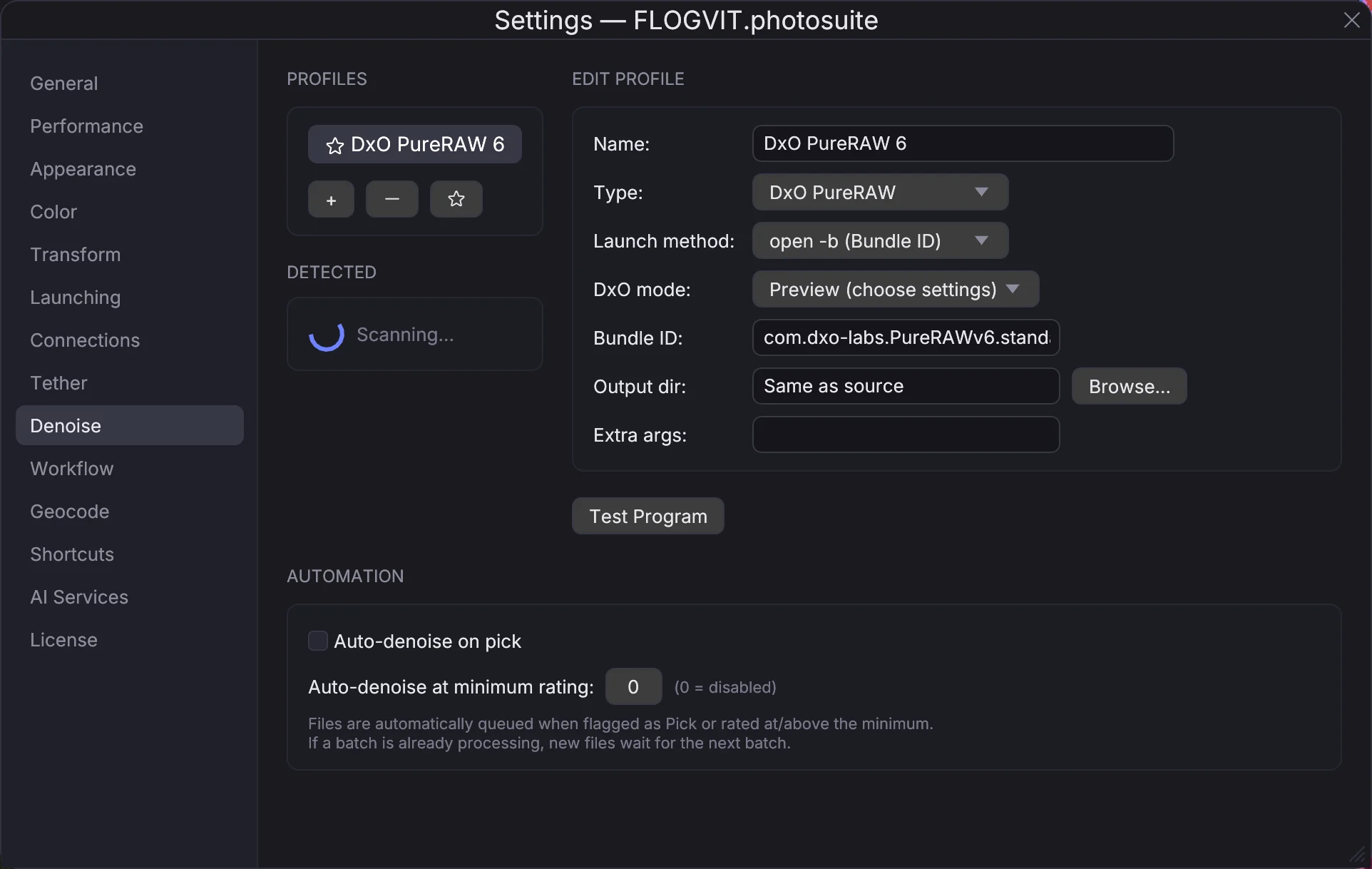
In Settings → Denoise, each profile has:
- Name — what the menu and the notifications call it.
- Type — DxO PureRAW, Topaz Photo AI or Custom Program.
- Launch method — on a Mac, open -a (App Name) or open -b (Bundle ID); anywhere, Direct Executable, the program file itself.
- DxO mode (DxO PureRAW) — Preview lets you choose settings in PureRAW; Instant uses its defaults but still asks you to confirm; Last settings uses the settings you used last, with no dialog — the one to choose when nobody is at the computer.
- Output dir — where the program writes its result. Empty means beside the original.
- Extra args — more command-line arguments, for Direct Executable and open -b.
Test Program starts the program once to show that the profile works. The profile picked in the list is the one every denoise goes to.
DxO PureRAW on Windows#
Choose Direct Executable and point it at PureRAW.exe (for example C:\Program Files\DxO\DxO PureRAW 6\PureRAW.exe), with the type DxO PureRAW. photosuite starts it as its Lightroom plugin does, with a list of the pictures, and knows it is done when it exits. If PureRAW is already open — started by hand or from Lightroom — photosuite waits for it to finish first: two at once hang.
On Mac, photosuite brings PureRAW forward for a moment when it stops on Processing paused, and keeps its window out of sight. On Windows it cannot: if PureRAW sits on Processing paused, click Resume in its window.
Denoise as you rate#
Under Automation in Settings → Denoise, Auto-denoise on pick sends every picture you flag as a pick to the active profile, and Auto-denoise at minimum rating every picture you give at least that many stars (0 turns it off). A picture that comes while a batch is running waits for the next one.
From a script#
| Route | What it does |
|---|---|
POST /api/denoise/send |
Send the current picture or the selection to the active profile |
GET /api/denoise/queue |
What is waiting, and what is running |
POST /api/denoise/flush |
Start the waiting pictures now |
DELETE /api/denoise/queue/{index} |
Take one picture out of the queue |
POST /api/denoise/cancel |
Cancel the batch |
GET /api/denoise/profiles |
The profiles, and which one is active |
A high-ISO event#
- Import from the card.
- Cull and rate your selects.
- Filter to picks (Option+P).
- Select all, then Send to Denoise.
- Work on the metadata while it runs.
- The denoised versions show up in the folder when they are done.