Tethered Shooting
The camera sends each frame to the app over FTP as you shoot.
 0:38
0:38Send pictures straight from the camera to FLOGVIT.photosuite while you shoot. The app runs a small FTP server; any camera that can upload by FTP (most professional bodies, over Wi-Fi or Ethernet) sends each frame to it as it is taken.
Set it up#
 0:10
0:10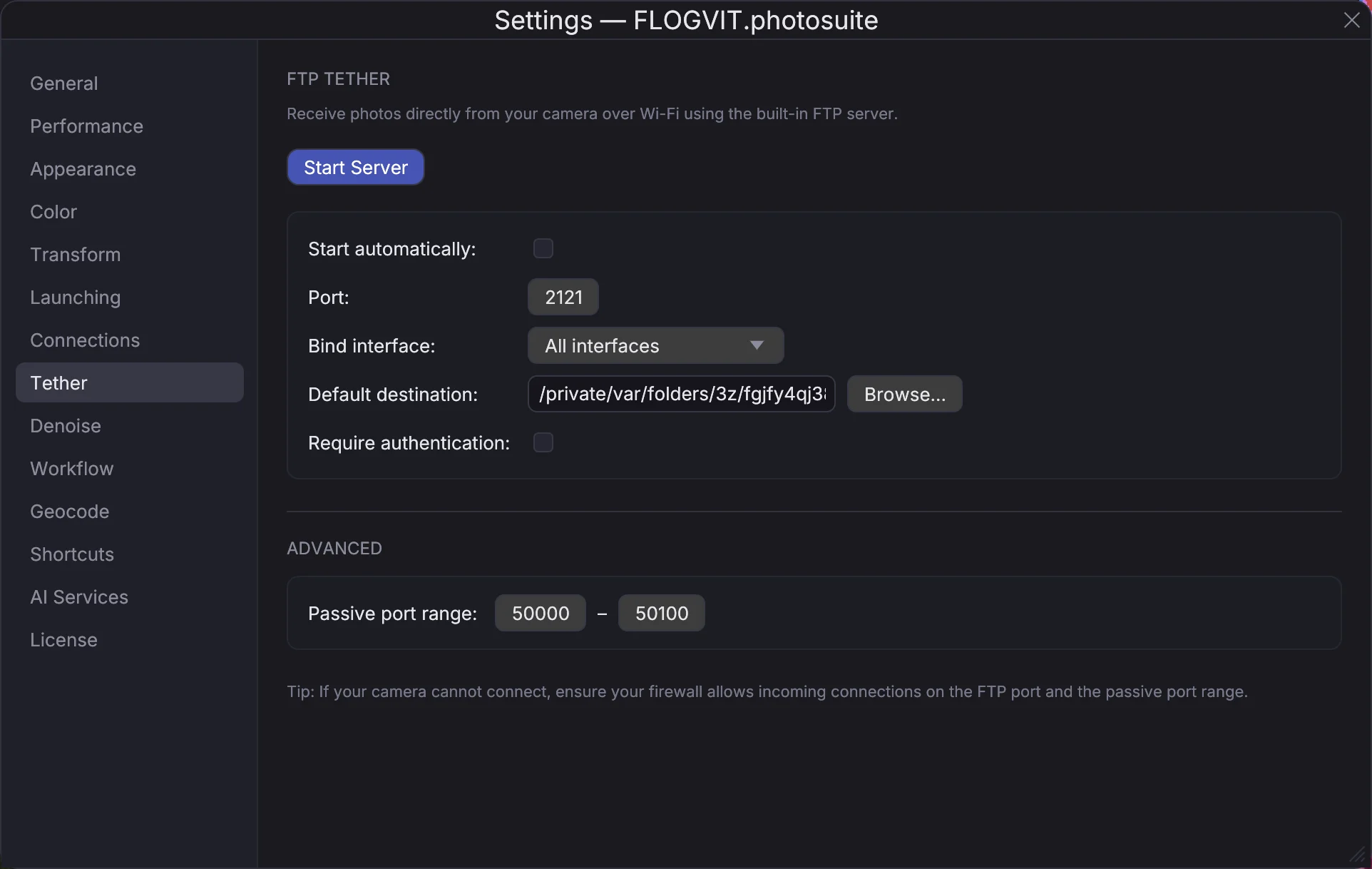
- Open Settings → Tether.
- Set Default destination to the folder the pictures go to.
- Keep the Port (2121) unless something else on the computer uses it. Under Advanced, the Passive port range (50000–50100) must be reachable from the camera too.
- Optionally turn on Require authentication and set a username and password; the camera must then send the same. The password is kept in the system's keychain.
- Choose Start Server, or turn on Start automatically to have it running whenever the app is.
The TETHER section shows the addresses the camera can connect to, one per network interface — click one to copy it.
Set up the camera#
In the camera's FTP settings, enter:
- Server: the address from the TETHER section (for example
192.168.1.20), - Port: 2121,
- Passive mode: on,
- the user name and password, if you set one.
Most cameras can send every frame automatically, or only the ones you mark. Check your camera's manual for "FTP transfer".
When the camera connects, the TETHER section shows it. Each picture lands in the destination folder and appears in the app.
In a workflow#
A workflow can start from the tether folder: use the Camera Tether step as its source, and every frame the camera sends goes through the rest of the workflow — Identify, crop, resize, upload — on its own. See Workflows.
When it does not connect#
- The camera and the computer must be on the same network. Use the address shown for the interface the camera is on.
- A firewall must let the camera reach port 2121 and the passive range.
- If the server will not start, another program is using the port: choose another and enter it in the camera too.