From the Card to the Desk
Put the card in and cull: every picture you pick goes to the newspaper with your by-line and caption, while you keep culling.
 1:14
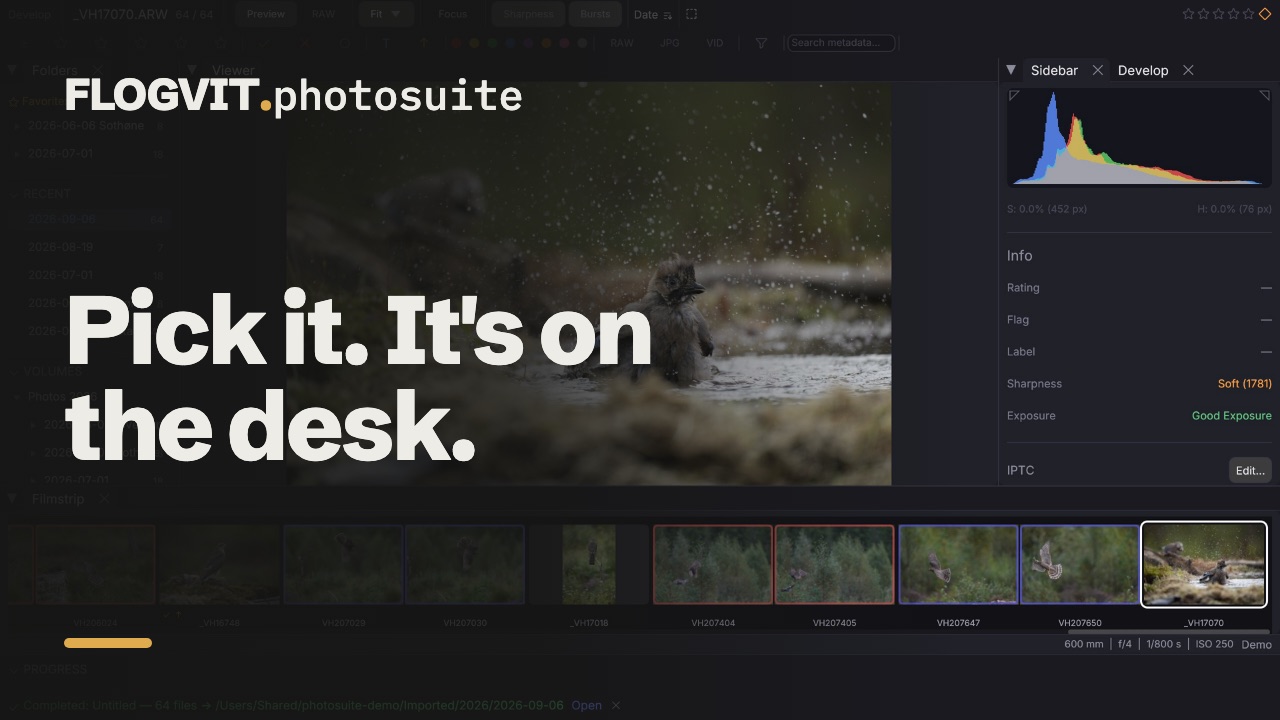
1:14You come in from the job with a card, and the desk wants pictures now. Put the card in and start culling while it is still copying: every picture you pick goes to the newspaper's server as a JPEG, developed from the RAW, with your by-line, the credit, the event and a caption in it. You keep culling while the pictures go.
In the film on this page, 64 raw files came off the card in 4 seconds, and the 11 picks were on the desk 49 seconds after the card went in. The pass there took about half a second a frame; at your own pace, each pick is on the desk a few seconds after you press P.
Once: the desk's server#
- Open Settings → Connections, press + and name the connection after the desk ("Desk", "VG", "Aftenposten").
- Choose FTP or SFTP and fill in the server, the user name and the password the desk gave you. See FTP Upload.
That is all you set up before the day. The rest is set per job, by the script below or by hand.
The job with the script#
The script card-to-desk.ts does the whole job: it saves your caption template, makes the desk an upload destination, waits for the card and imports it with the template, and from then on sends every picture you pick. Save it next to photosuite-sdk.mjs, and start it before you put the card in:
bun card-to-desk.ts Desk inbox --name "Kari Nordmann" --credit "Kari Nordmann / Jærbladet" \
  --event "Bryne – Viking" --city Bryne --caption "Bryne FK – Viking FK at Bryne stadion, {image_date}."
Deskis the connection,inboxthe folder on the server (leave it out for the folder the server logs you into).- The caption takes the same variables as any IPTC template, such as
{image_date}and{camera}. --into <folder>imports somewhere other than the import preset's folder.
Then:
- Put the card in. The import starts at once, into a dated folder, with the template in every picture. Open the folder when the first frames are in; the rest arrive while you work.
- Cull. Step through with the arrow keys, or let Auto-Advance (Shift+A) move on after each mark. Press P on a picture the desk should have: it is on its way. The script says each one that lands, and why one could not be sent.
- Write a caption of its own for a picture that needs one: open the IPTC editor (Cmd+E), write it and save before you press P. The template's caption goes after it.
- Fix a picture before it goes (exposure, a crop): it is sent as you left it, because the JPEG is developed from the RAW with your edits.
Press Ctrl+C to stop the script when the job is done. Bun or Node 24 runs it; the API page says how to get them.
The job without code#
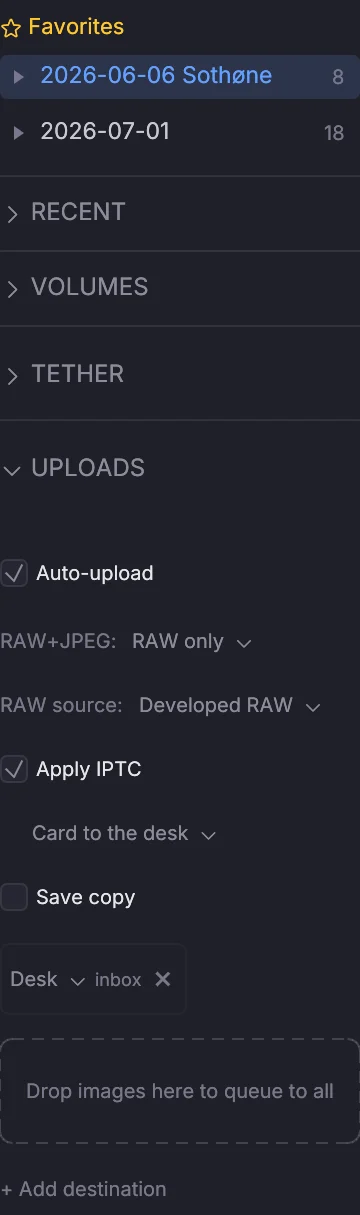
The same job by hand, with the same result:
- Make the caption template in the import dialog: fill in Metadata (IPTC) and save it under a name. See IPTC Templates.
- In the UPLOADS section of the folder tree (L), add the desk's connection and folder, set RAW+JPEG to RAW only, RAW source to Developed RAW, Apply IPTC to the template, and turn on Auto-upload. See Upload destinations.
- Put the card in and import with Apply IPTC template ticked. See Import Workflow.
- Cull with P for picks, show only the picks (Option+P), select them and press U. Uploads run in the background; a picture is never sent twice.
Names from the people in the picture#
 0:32
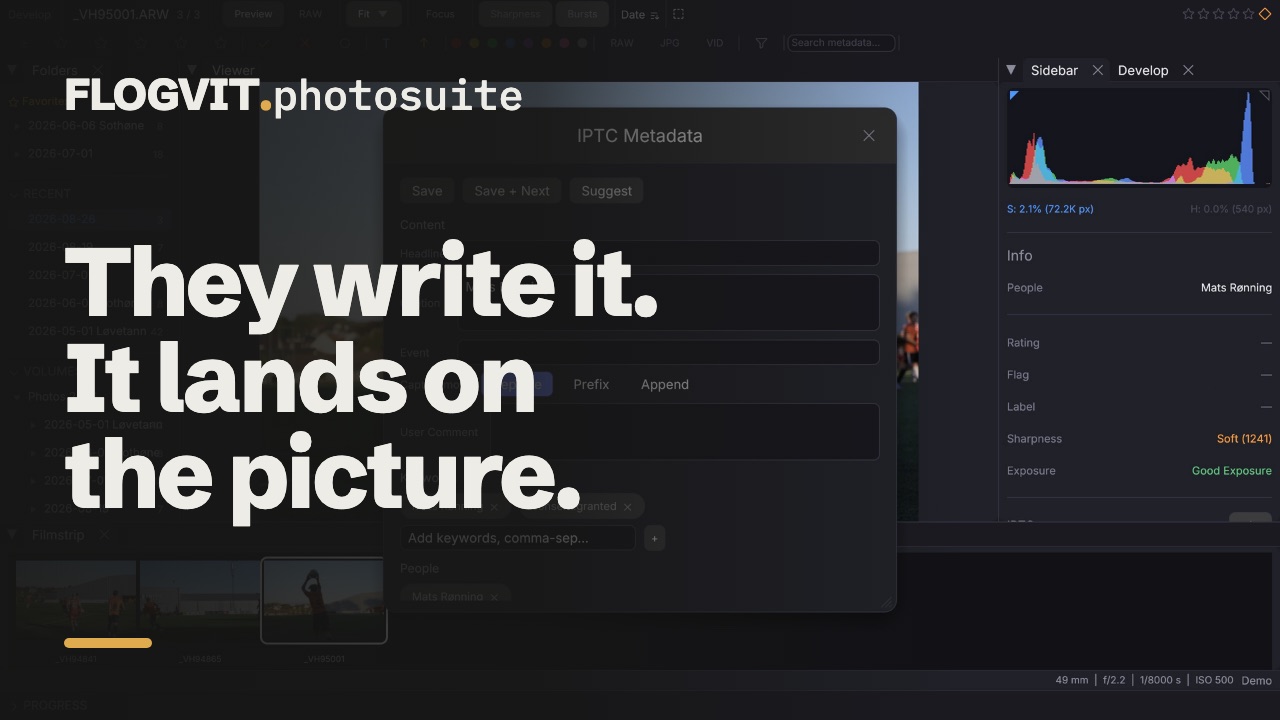
0:32After a picture, hand over the phone: the people in it write their names on photosuite.flogvit.com/capture, and Tag People (Cmd+T) puts them in the picture, the caption with them, before you press P. See Names from the Phone.
When the desk reads no IPTC#
Some desk systems read only a text file. A workflow's Export step can send the caption as a .txt beside each picture; see Caption file for the desk.