Rating & Culling
Star ratings, pick/reject flags, color labels, and filtering.
 1:45
1:45Press the keys on your keyboard, or click them.
The core workflow in FLOGVIT.photosuite: quickly rate, flag, and label your photos, then filter down to your selects.
Star Ratings#
 0:13
0:13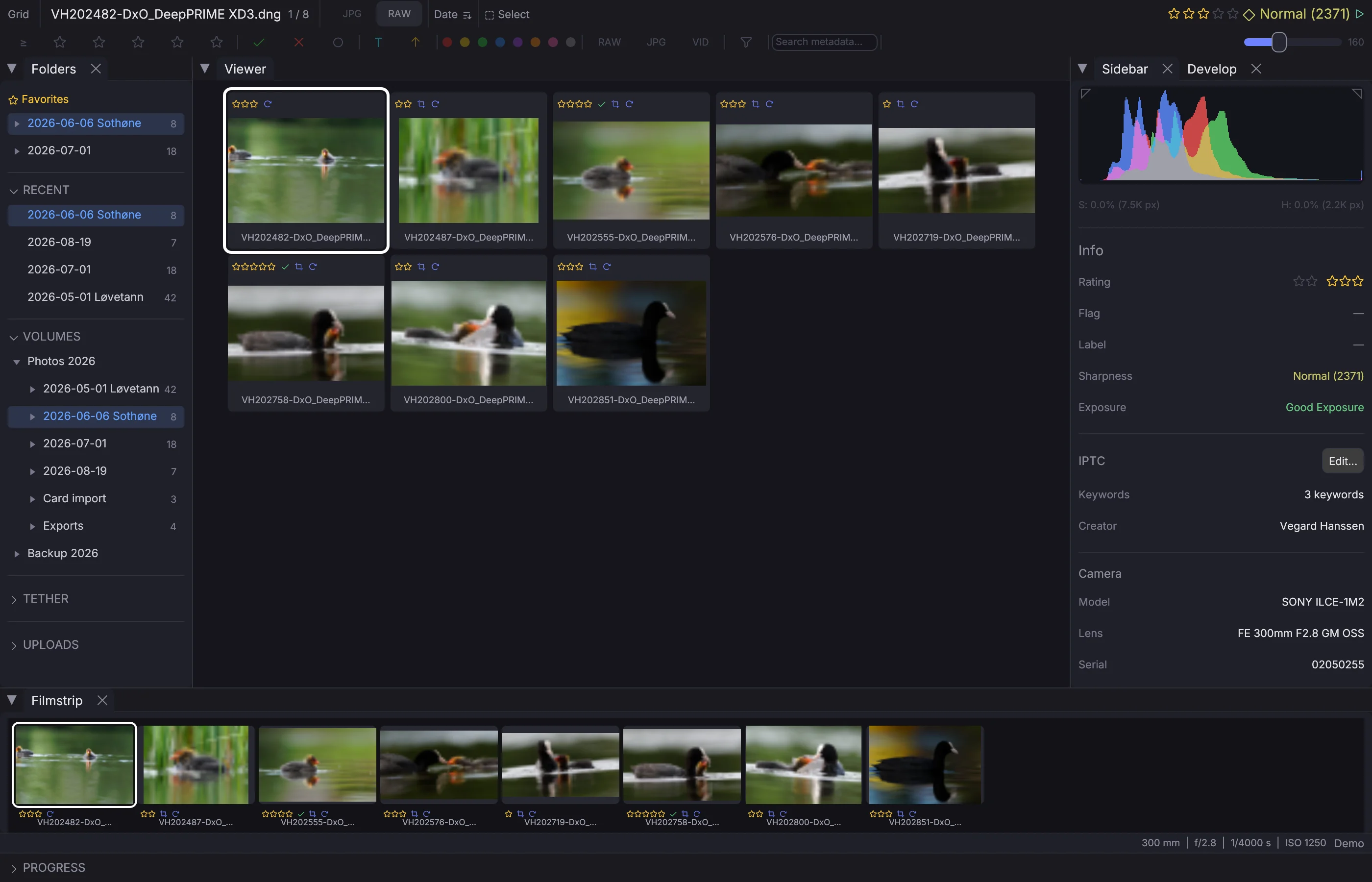
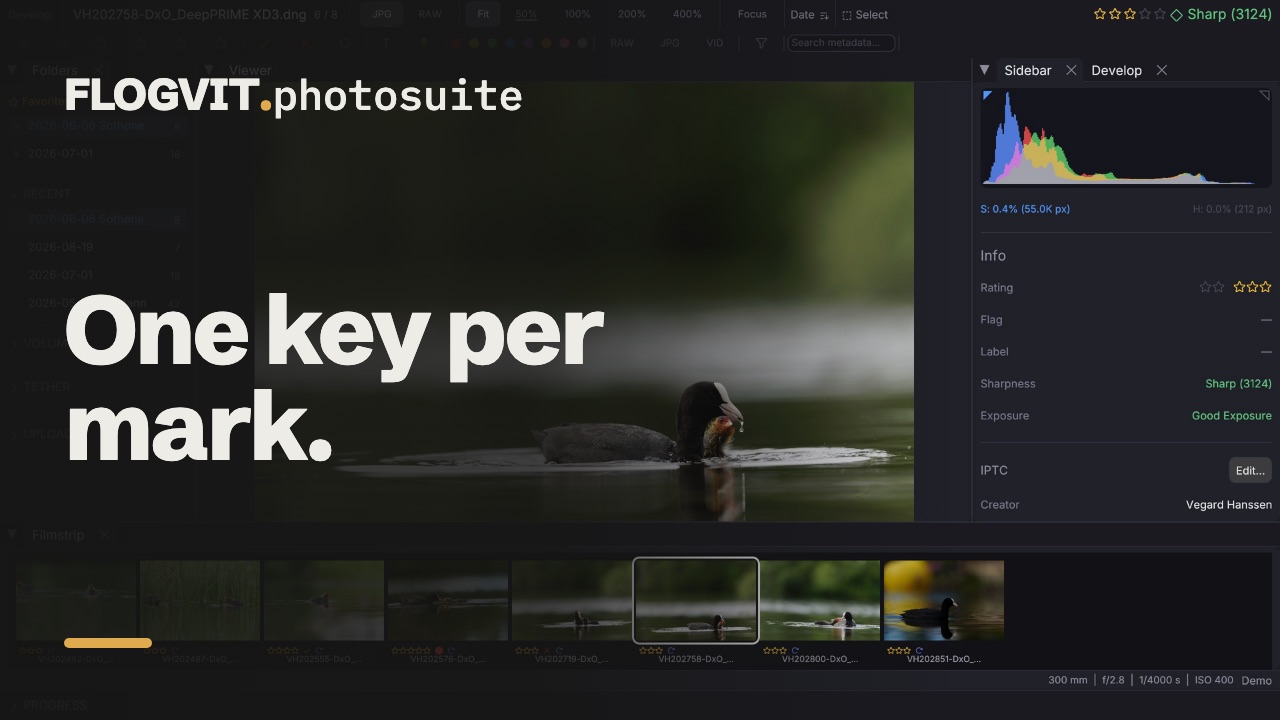
Press 1 through 5 to assign star ratings. Press the same number again to remove the rating. Press 0 to clear.
Ratings are saved to XMP sidecar files and are compatible with Lightroom, Capture One, and other photo managers.
Pick / Reject Flags#
 0:12
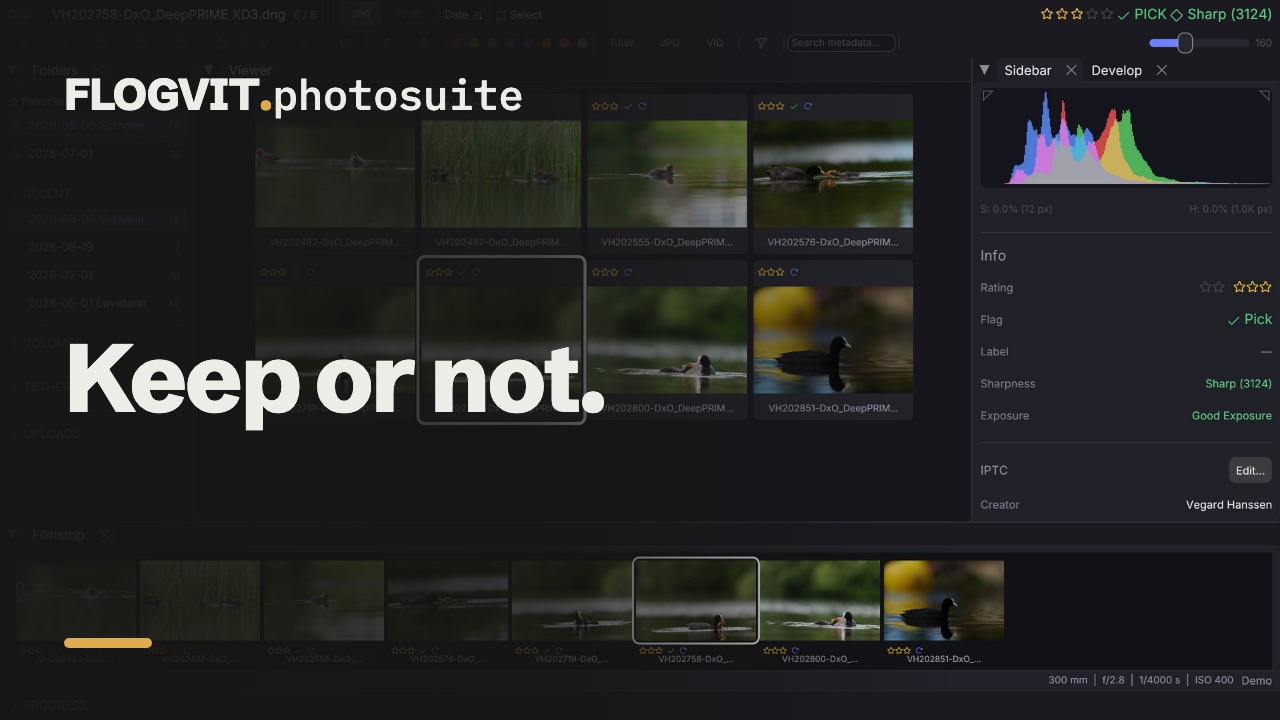
0:12- P — Toggle Pick (green flag). Your selects.
- X — Toggle Reject (red flag). Images to skip.
A typical workflow: go through all images marking picks and rejects, then filter to show only picks.
Color Labels#
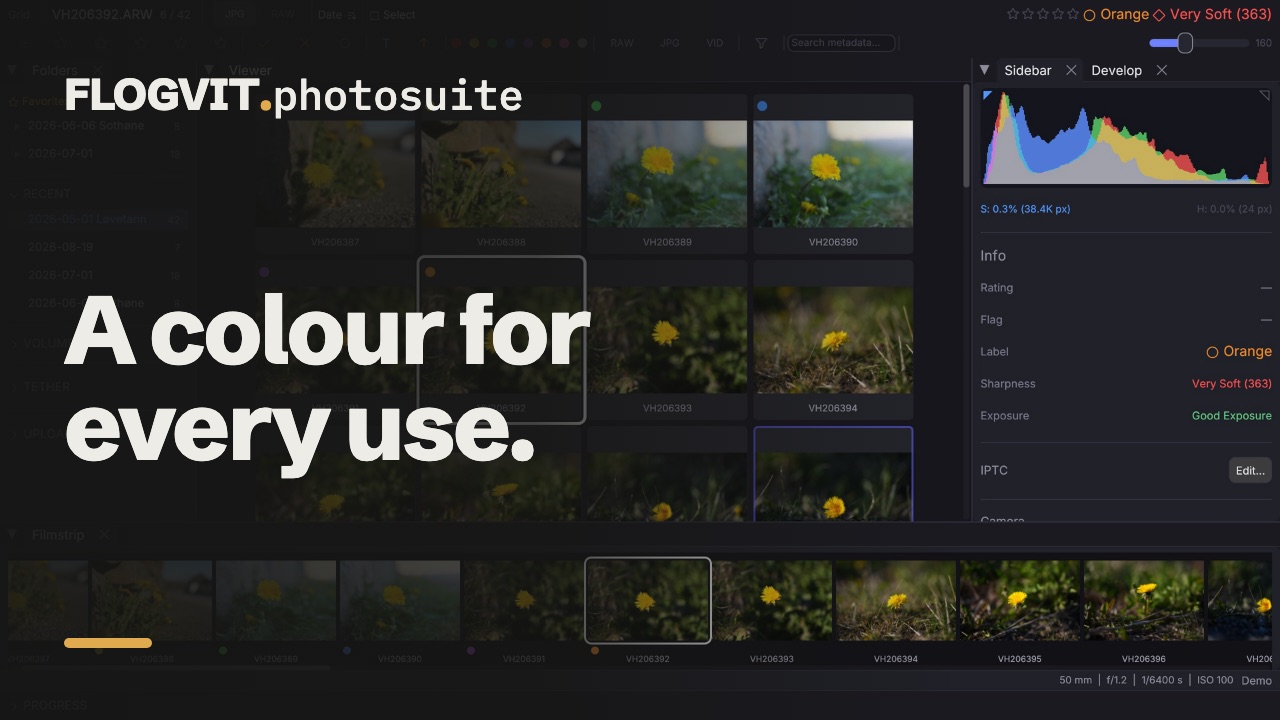 0:10
0:10Eight color labels available for custom categorization:
- 6 — Red (e.g., "Album")
- 7 — Yellow (e.g., "Social Media")
- 8 — Green (e.g., "Print")
- 9 — Blue (e.g., "Blog")
- Shift+6 — Purple
- Shift+7 — Orange
- Shift+8 — Pink
- Shift+9 — Gray
Customize label names in Settings → General.
Auto-Advance#
 0:13
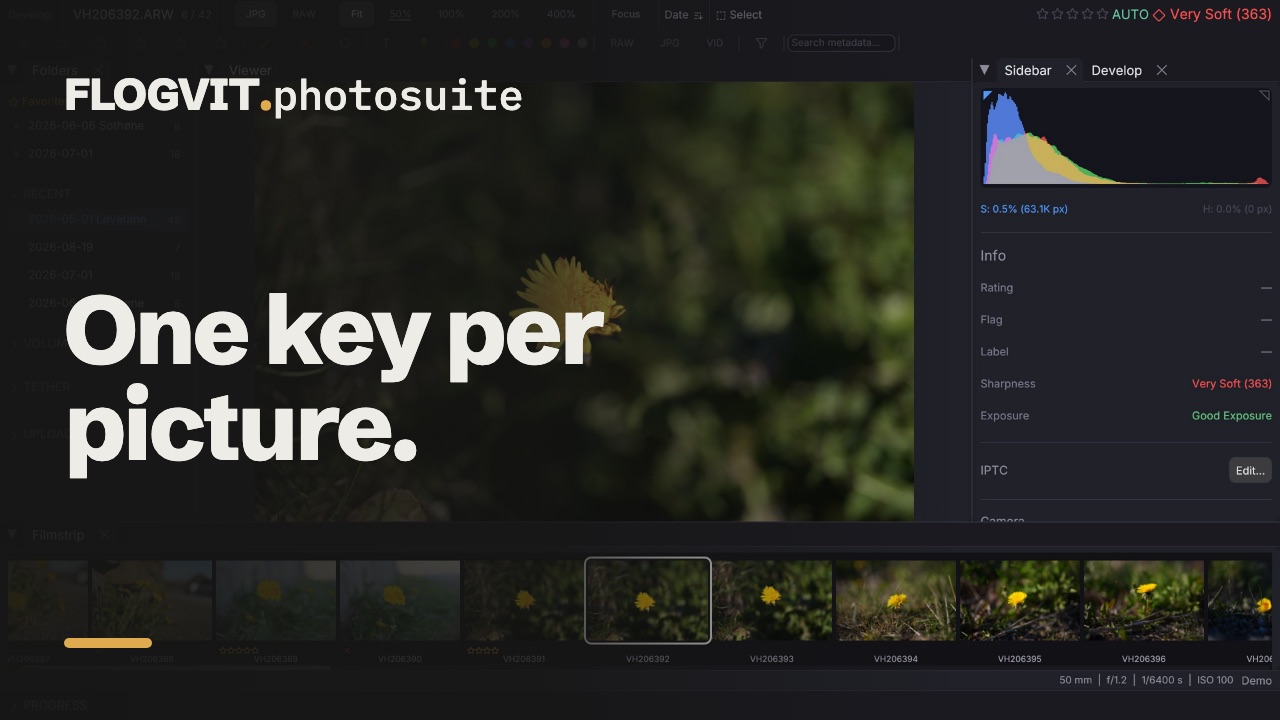
0:13Toggle with Shift+A. When enabled, the app automatically moves to the next image after you set a rating, flag, or label. This saves one keypress per image — significant when culling thousands of photos.
The AUTO indicator appears in the info bar when active. Auto-advance only triggers when setting a value, not when toggling off.
Filtering#
 0:12
0:12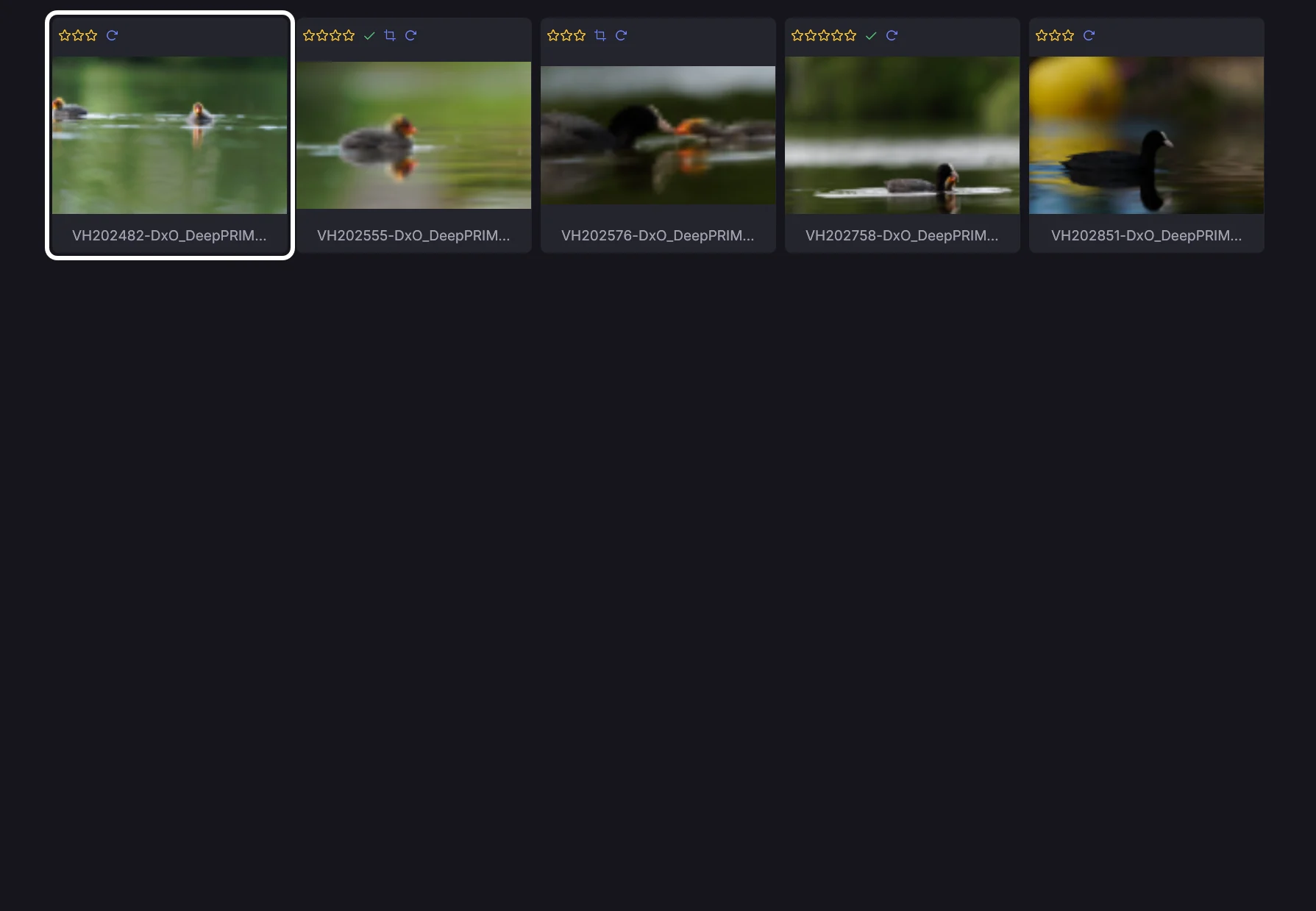
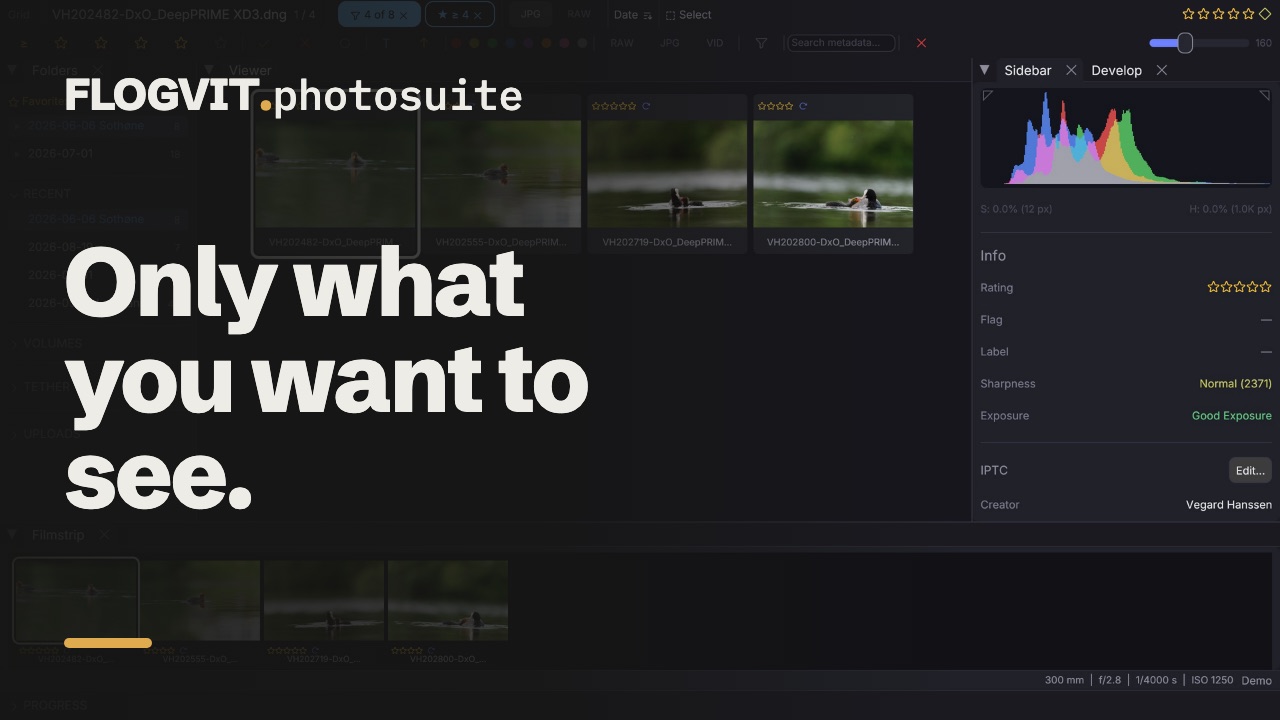
After rating, use filters to narrow your view:
- Option+1 through Option+5 — Show images with this rating or higher
- Option+P — Show only picks
- Option+X — Show only rejects
- Option+U — Show only unflagged images
- Option+R — Show only RAW files
- Option+J — Show only JPEGs
- Option+0 — Clear all filters
Filters work in both grid and single view. The filter bar at the top of the grid provides clickable filter options.
Filter columns#
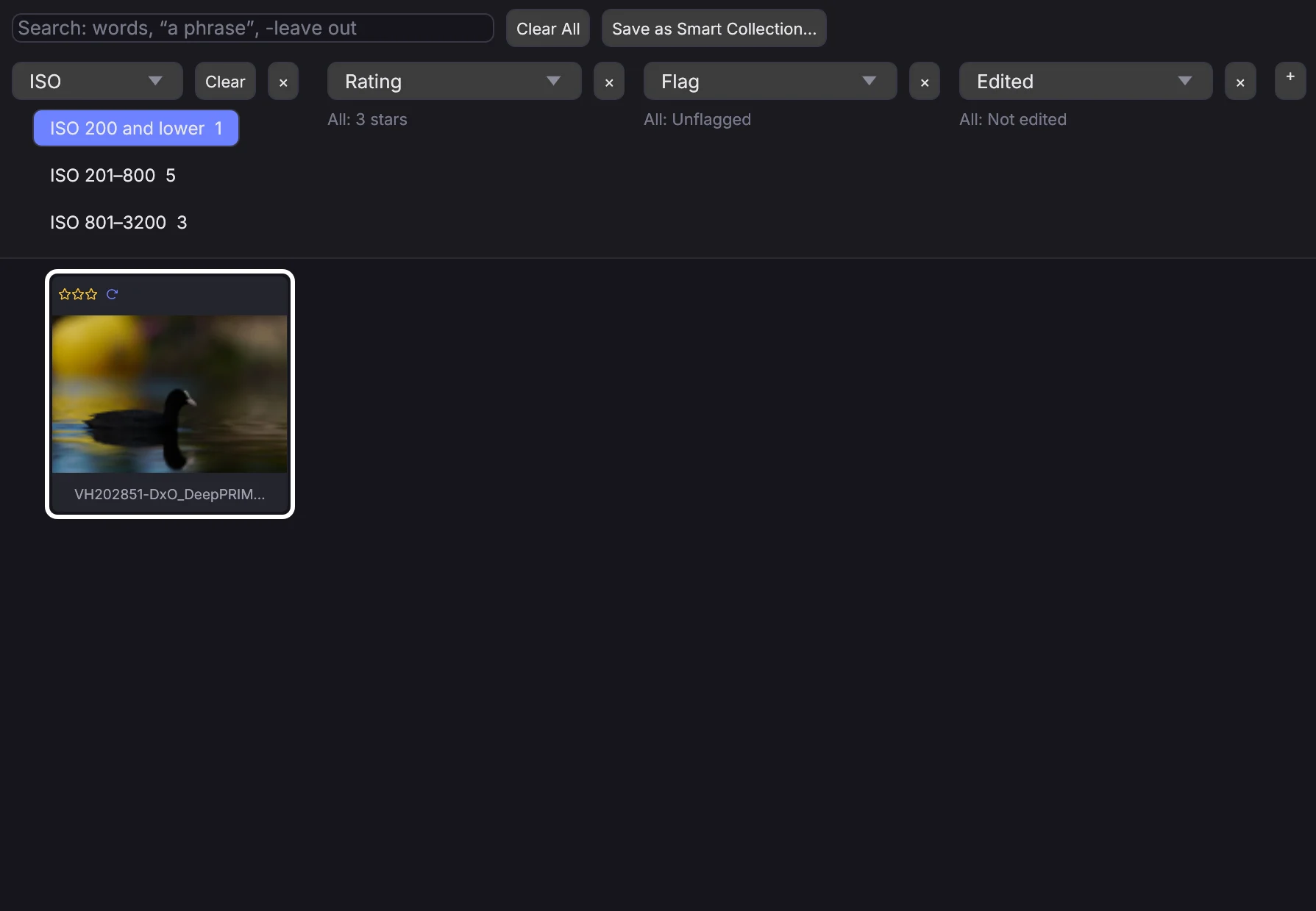
Press </kbd> (or View → Filter Columns) for columns above the grid that list what the pictures in view have — dates, cameras, lenses, focal lengths, ISO, keywords, people, places, file types, labels, ratings, flags, edited or not, published or not, in an album or not, and the disk — each with how many pictures have it. The counts in a column are for what the other columns leave, so picking a camera shows how many of its pictures carry each keyword.
- Click a value to show only pictures with it; click more values in the same column for any of them. Values picked in different columns all have to hold.
- Clear empties one column, Clear All every column. Each column's picks also show as a chip in the info bar, with an × to take them off.
- Change what a column lists from its menu, remove it with ×, and add one with +. A date column opens years into months and days.
- The search field takes words (each found at the start of a word in the file name, caption, title, keywords, people, place, camera or lens),
"a phrase"for words next to each other, and-wordto leave out pictures that have it. It is the same search as the filter bar's. - Save as Smart Collection… keeps what the window shows — the folder, album or library search, the search and the picks — as a saved search.
The columns count from the library, so they work in a folder the library holds (every folder you open, unless that is turned off in Settings) and in the Library view. Over the API, PUT /api/library/filter searches and picks and answers with every column's counts; GET /api/library/filter reads them.
Sorting#
 0:10
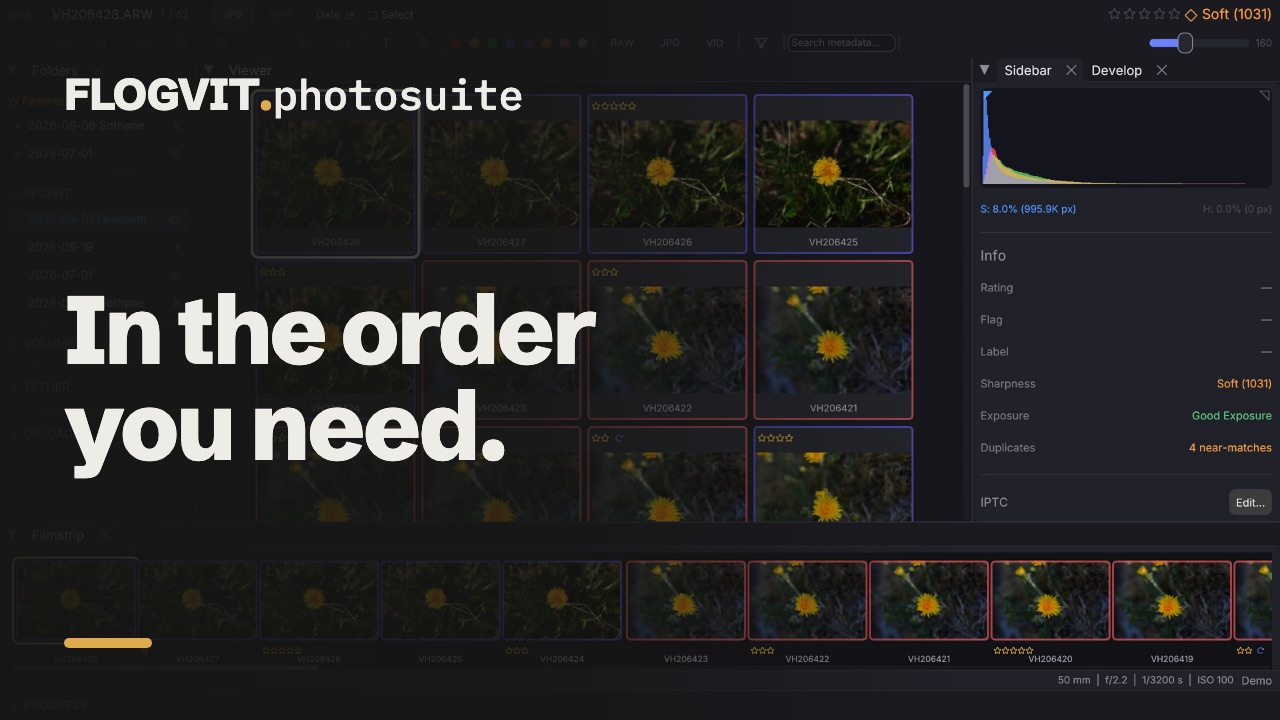
0:10- Ctrl+S — Cycle through sort orders (filename, rating, filetype, date, sharpness)
- Ctrl+Shift+S — Reverse sort direction
Multi-Select#
 0:09
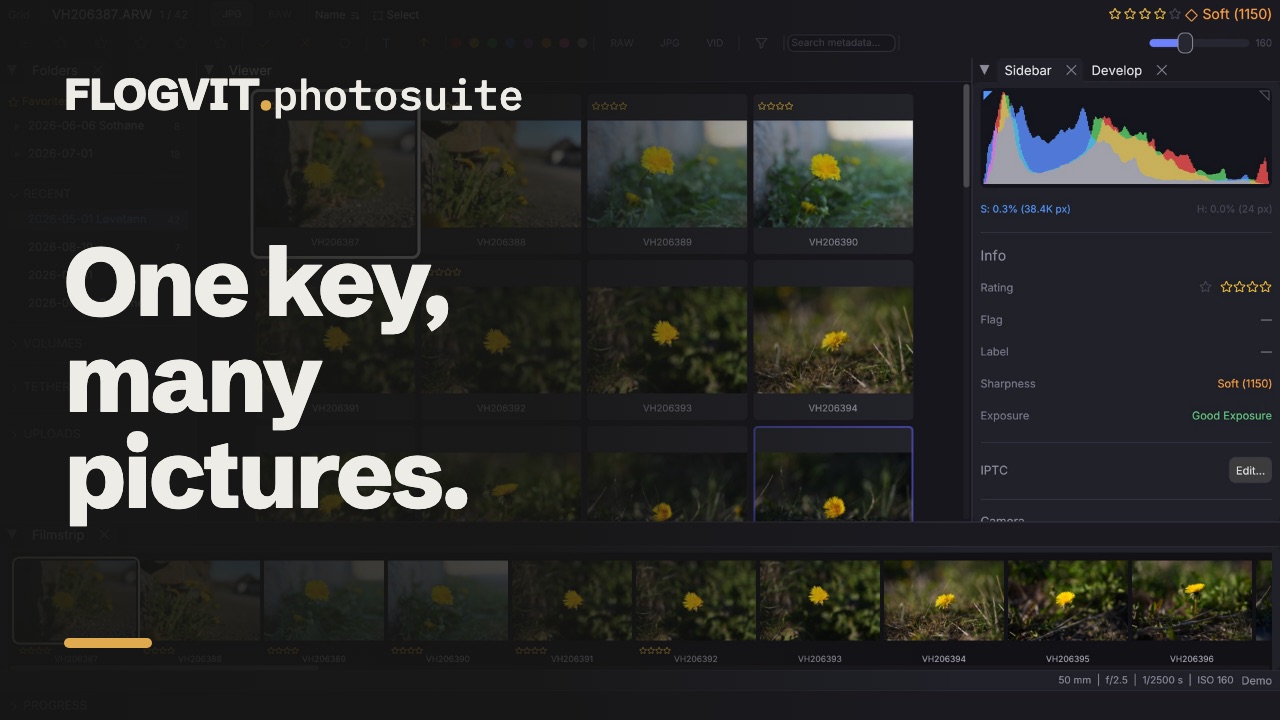
0:09Select multiple images for batch operations:
- Cmd+Click — Add/remove individual images
- Shift+Click — Select a range
- Cmd+A — Select all
- Cmd+D — Deselect all
Apply ratings, flags, or labels to all selected images at once.
Sharpness Analysis#
 0:11
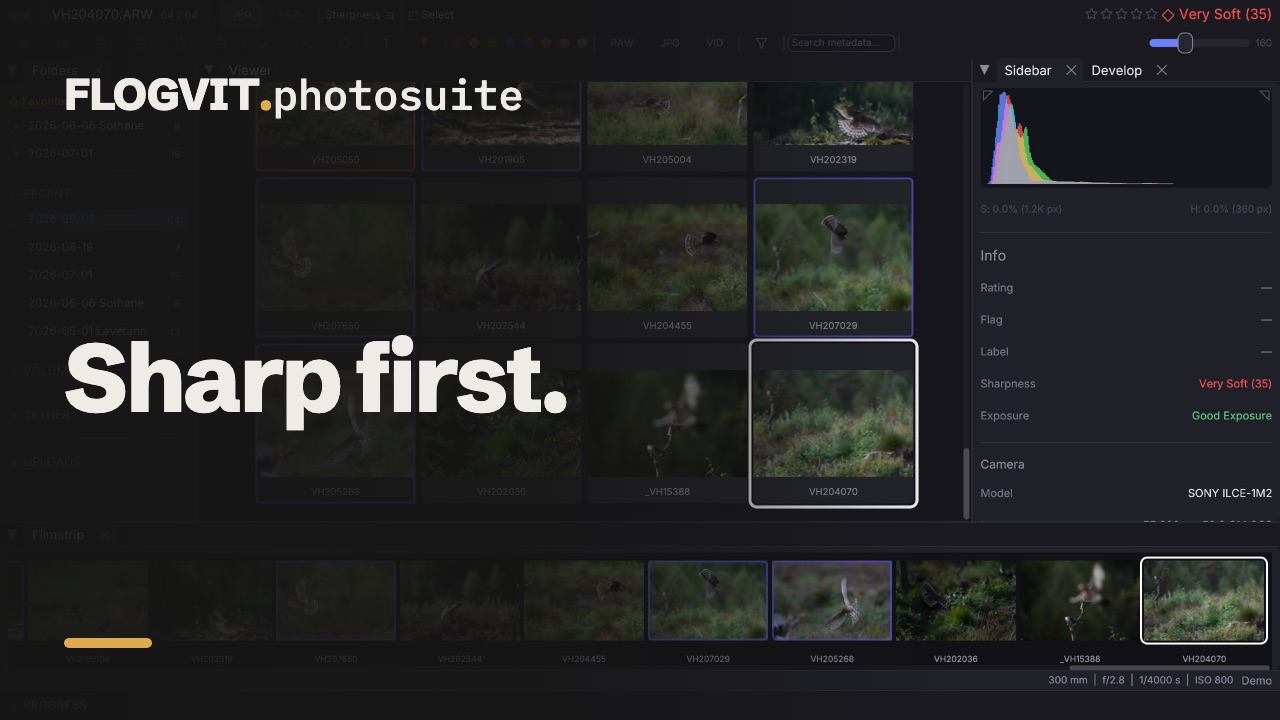
0:11FLOGVIT.photosuite measures how sharp each picture is where the camera focused — with eye AF, the eye — at close to full resolution. If the camera focused past the subject (a person or an animal), the subject itself is measured, so a missed shot scores as soft as it is. Without a focus point in the file, the sharpest part of the subject or the frame is measured. The score appears in the sidebar and can be used for sorting and filtering: under 1000 is very soft, 1000–2000 soft, 2000–3000 normal, 3000–5000 sharp, above 5000 very sharp.
Landscape in the info bar (Option+H, or Photo → Landscape Sharpness) reads sharpness over the whole frame instead: the frame in nine parts, and the weakest part with something in it counts, so a soft corner, a tilted lens or a soft distance pulls the score down. A clear sky or a smooth wall says nothing about sharpness and is left out. Every score is read again the new way, and the focus box shows the weakest part. Off again, the scores at the focus point come back from the cache.
People in the info bar (Option+N, or Photo → Sharpness per Person) outlines each person and animal in the picture with how sharp they are beside the sharpest one: Sharpest, or a share such as 42 %, with their number first when Identify read it. The sidebar's People line says the same in words: 3 people, sharpest: 1234, left. In a race picture with several runners, that is how you see whether the one you deliver for is the sharp one.
Closed Eyes and Smiles#
On a Mac, FLOGVIT.photosuite looks at every face in a picture, as it measures sharpness, and the sidebar's Faces line says how many there are, whether anyone's eyes are closed, and how many smile: Eyes closed (1 of 3) · 2 smiling. A face counts as eyes closed when the eyes do not show: shut, squeezed in a laugh, or the lids lowered over them as someone looks down. A wink does not count, and neither do sunglasses. Faces too small to judge (under about 100 pixels across in the camera's preview) are left out. On Windows there is no Faces line and no Eyes closed filter yet.
- Filter → Faces → Eyes closed shows only the pictures where someone's eyes are closed, to reject or to look at the next frame.
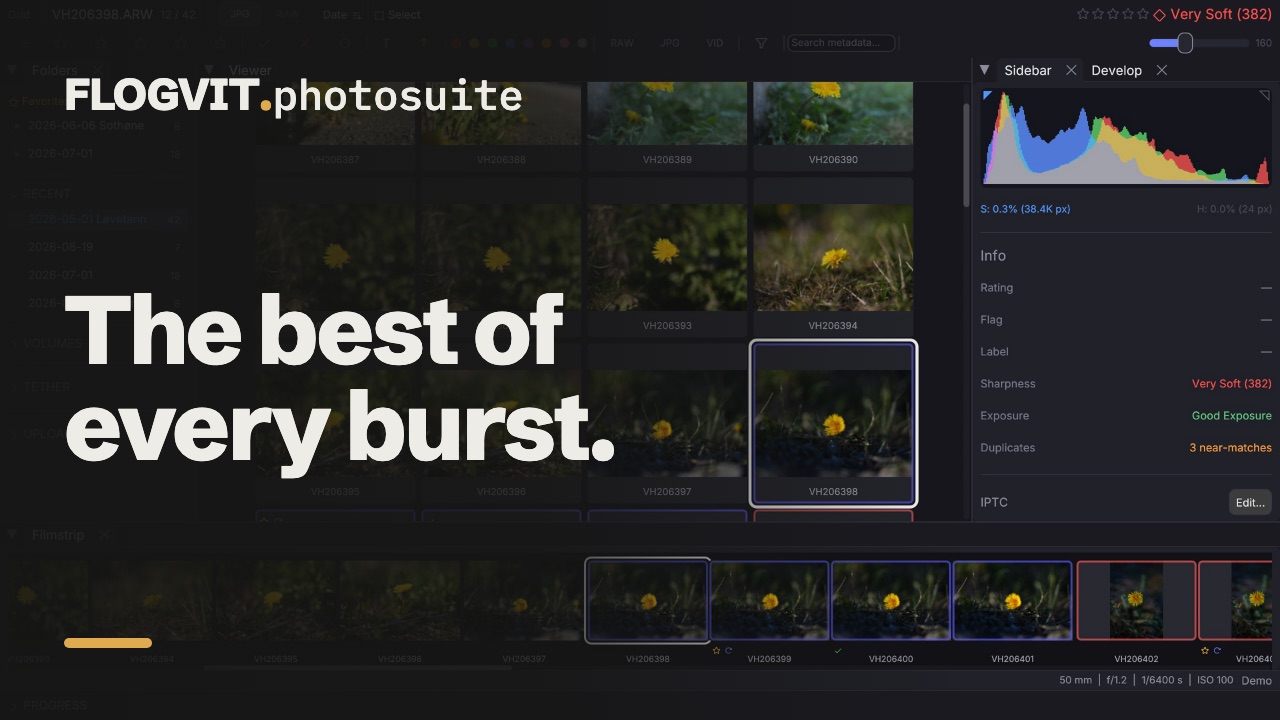
- Photo → Burst Groups → Pick Best in Bursts flags the sharpest frame in every burst, and the sidebar marks it ★ Best in burst. Reject Duplicates (Keep Sharpest), in the same menu, keeps the same frame. Closed eyes do not choose the frame; when someone's eyes are closed in a frame either of them kept, the message says in how many, and Eyes closed in the filter shows them, so you can take the next frame instead.
Learning What You Keep#
 0:10
0:10The app learns from your own culling which of these signals you act on: sharpness, being the sharpest of a burst, faces, smiles, blown highlights and crushed shadows. When you leave a folder where you picked or starred something (or half a minute after your last mark), every picture it has judged is recorded as kept (a pick, or stars without a reject) or passed over. Once 30 of each are recorded, Pick Best in Bursts, Reject Duplicates and ★ Best in burst choose the frame you are likeliest to keep, before the sharpest.
Working through bursts#
The way to cull is to step through every picture. For those who want another way, Bursts in the info bar (and Photo → Burst Groups) holds three ways of working through bursts. Each is off until you turn it on, and the app remembers it.
- Split where the number, camera or lens changes (Option+D). Bursts are found by time: frames less than 1.5 s apart. At a finish line, that puts several runners in one burst. With this on, a burst is split where the race numbers on the pictures change (both frames must have numbers), and where the camera or lens changes. How a frame looks does not split it: on a race checked for this, frames of one runner and of two runners differed alike.
- Show the pick and how far ahead it is (Option+E). The sidebar says what the burst's pick rests on: Sharpest by 18 %, Close call: 3 % sharper, or Your taste prefers it. Within 10 % of the runner-up it is a close call: look at both. A frame you keep yourself (a pick, or stars) is the burst's pick, shown as Your pick.
- Go through bursts one by one (Option+B). Each burst is to do, for later, or done (a frame in it kept or rejected), and the button says Bursts · 12 of 40 left. Next burst to do (Option+G) goes to the first frame of the next one. Keep this frame, reject the rest (Option+K) or Keep the pick, reject the rest (Option+Shift+K) settles the burst and goes on; one Edit → Undo puts every mark back. For later (Option+Z) puts it off. The filter's Bursts section shows only the bursts to do, or those for later, and the folder remembers which were put off.
Over the API: POST /api/burst/split, /api/burst/pick-margin and /api/burst/queue switch them; GET /api/burst/groups has each burst's state and pick; POST /api/burst/next-to-do, POST /api/burst/settle and PUT /api/burst/groups/{id}/state do the rest (SDK: client.burst).
Settings → General → What You Keep shows how far it has come and, once it is used, what weighs most and which way. Forget starts over. The record stays on your computer (~/.culling/taste.json); from a script, client.images.taste() and client.images.resetTaste().
Compare Mode#
 0:11
0:11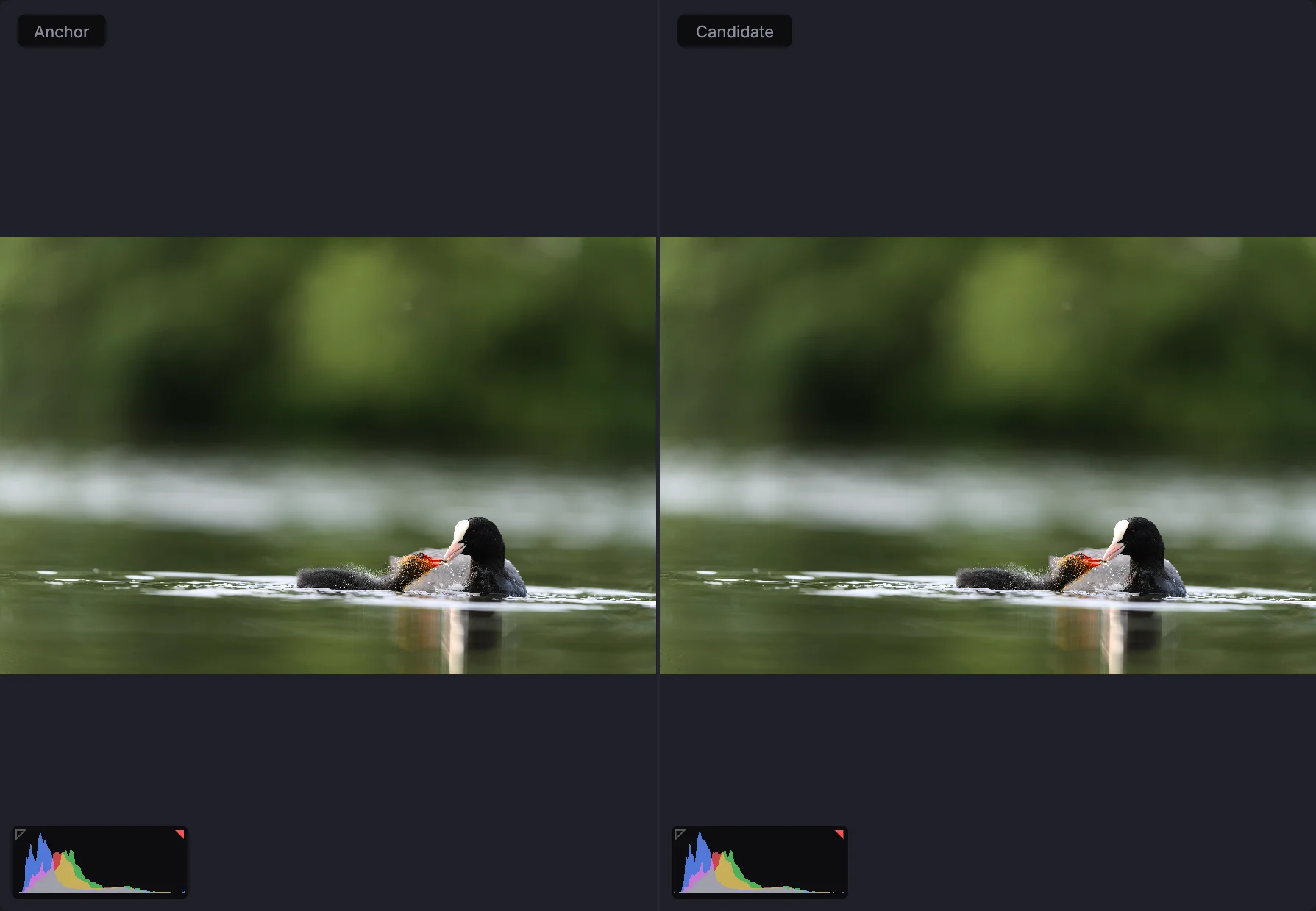
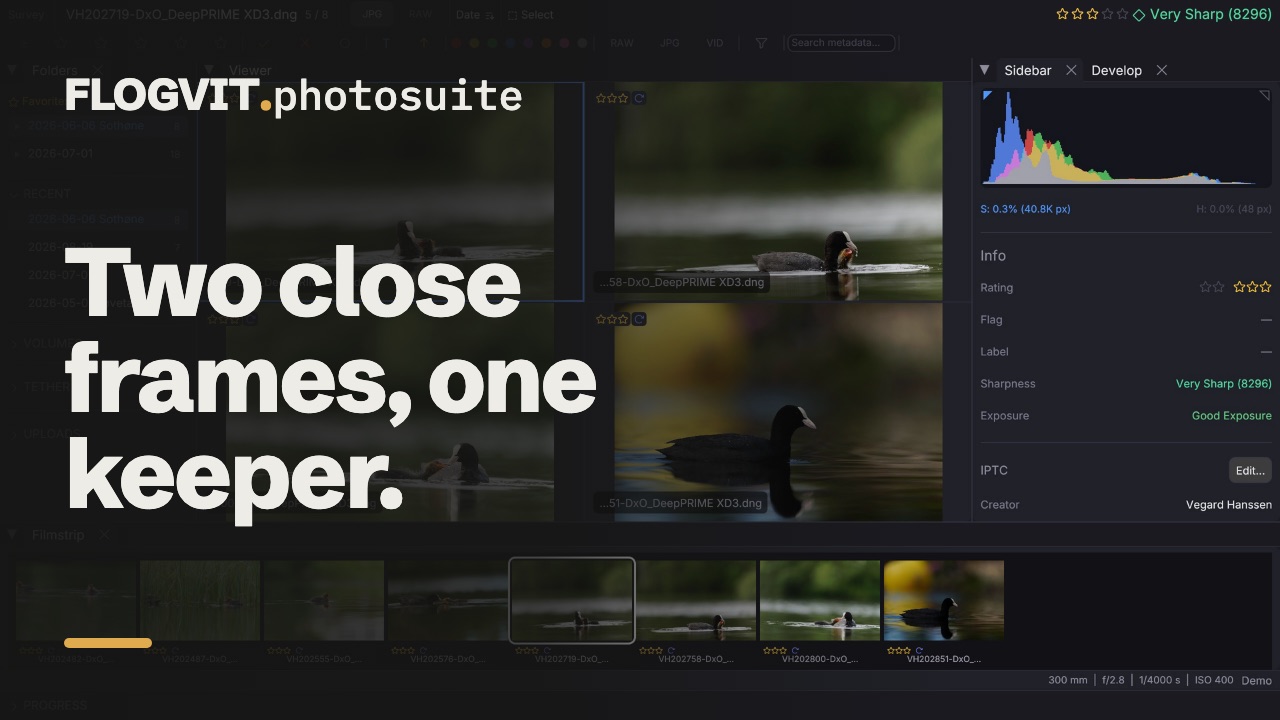
Press C to enter compare mode:
- One anchor image + one candidate
- Use arrow keys to cycle through candidates
- H / V to switch between horizontal and vertical split
- Enter to set a new anchor
- Synchronized zoom and pan
N-up / Survey Mode#
 0:09
0:09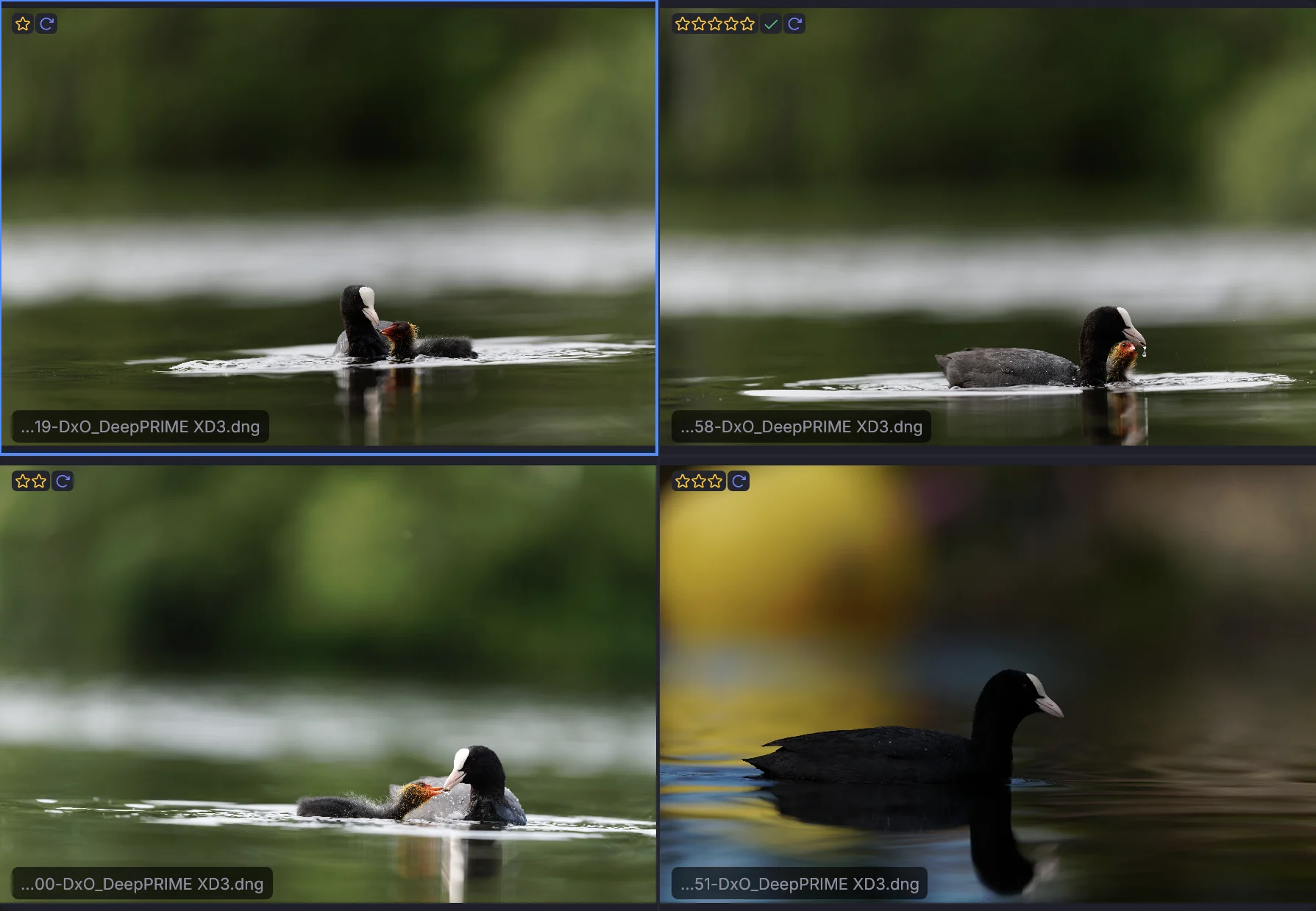
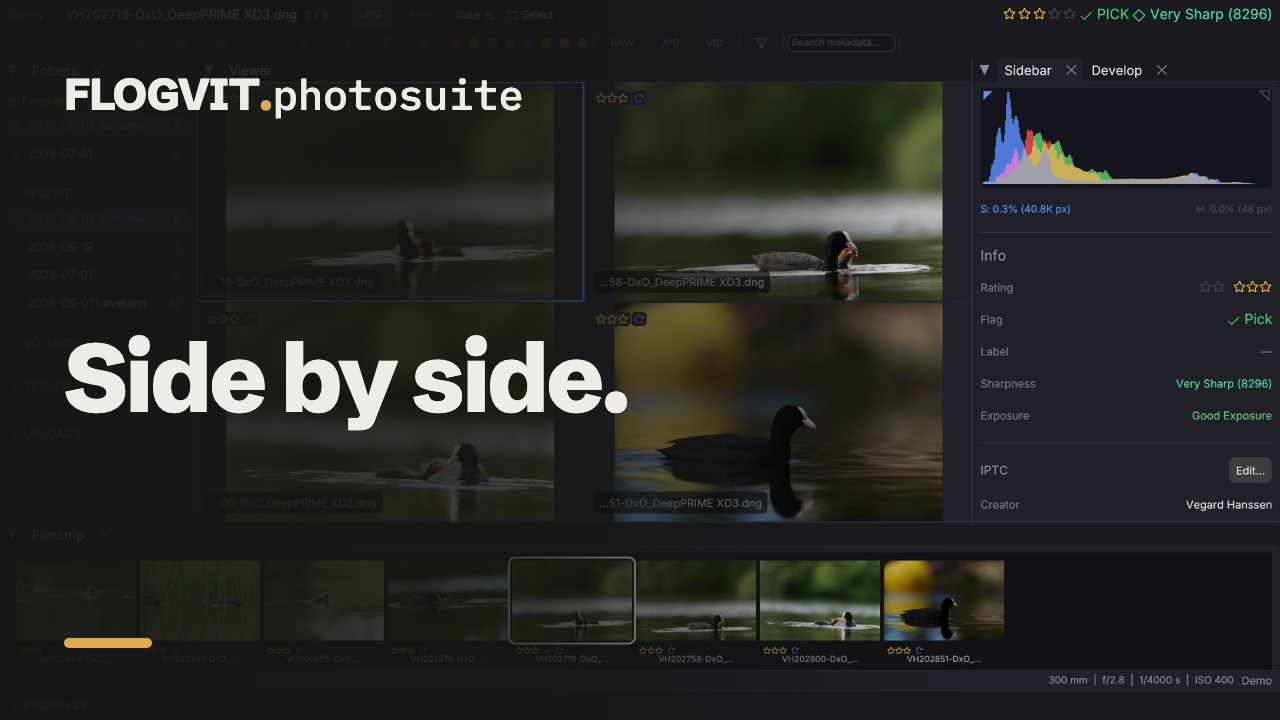
Press N to view multiple images simultaneously:
- + / - to adjust count (2–4)
- Tab or arrow keys to select active cell
- Rate or flag the active image directly