Metadata & IPTC
IPTC editor, hierarchical keywords, GPS tracklog, code replacements, and find & replace.
 0:52
0:52FLOGVIT.photosuite gives you full control over image metadata — from reading EXIF to writing IPTC fields, hierarchical keywords, GPS data, and more.
EXIF Sidebar#
 0:09
0:09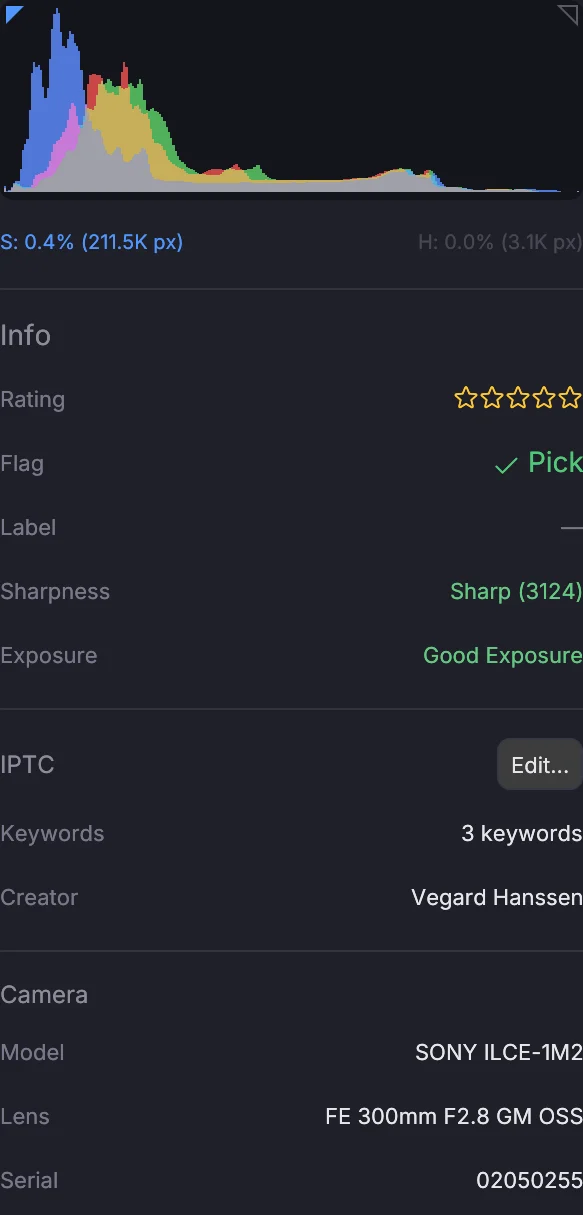
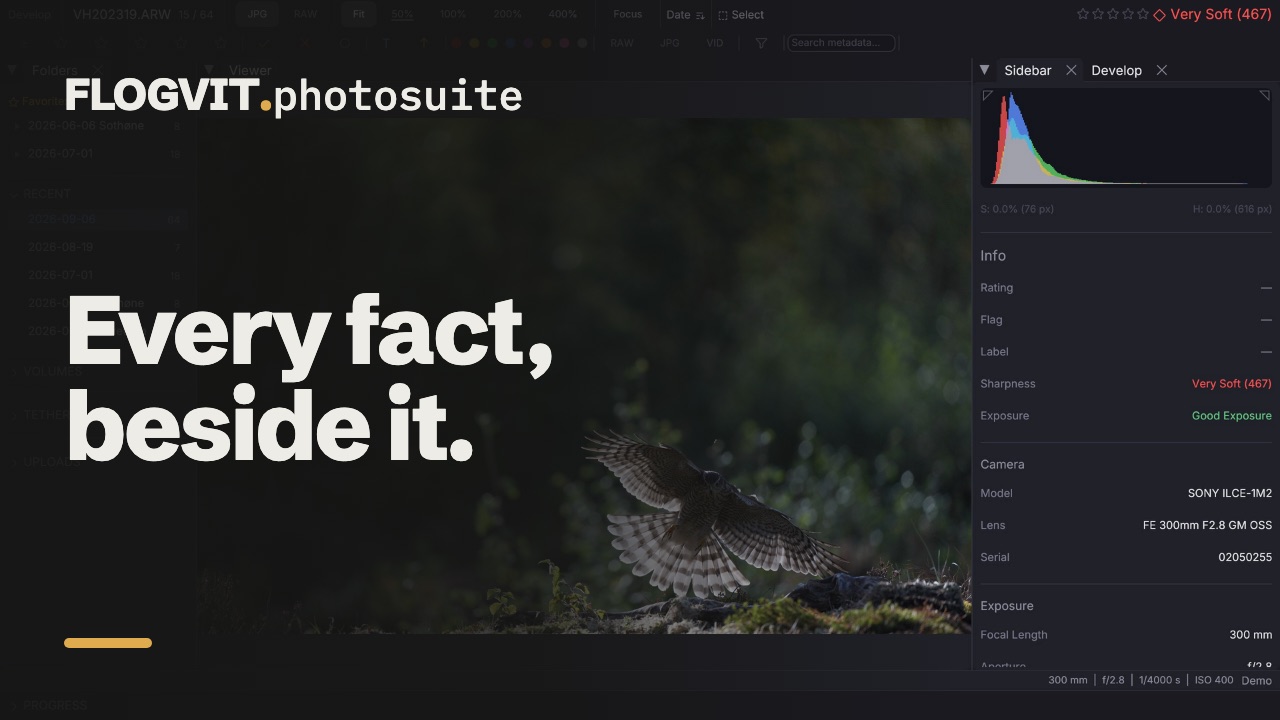
Press I to open the info sidebar. It displays:
- Rating, flag and label of the picture on screen
- Camera — model, lens and serial number
- Exposure — focal length, aperture, shutter, ISO, exposure compensation, program, metering, flash and white balance
- File — name, date taken, dimensions, size, color space and the software that wrote it
- Creator — artist and copyright from the file
- GPS — latitude and longitude, Open in Maps, and Reverse Geocode to name the place
- IPTC — headline, caption and keywords, with Edit... to open the IPTC editor
- Sharpness — how sharp the picture is where the camera focused; Faces, Burst, Exposure, Duplicates and Collections — what the app has found about the picture
- Audio Note — the picture's voice note and its transcription
IPTC Editor#
 0:11
0:11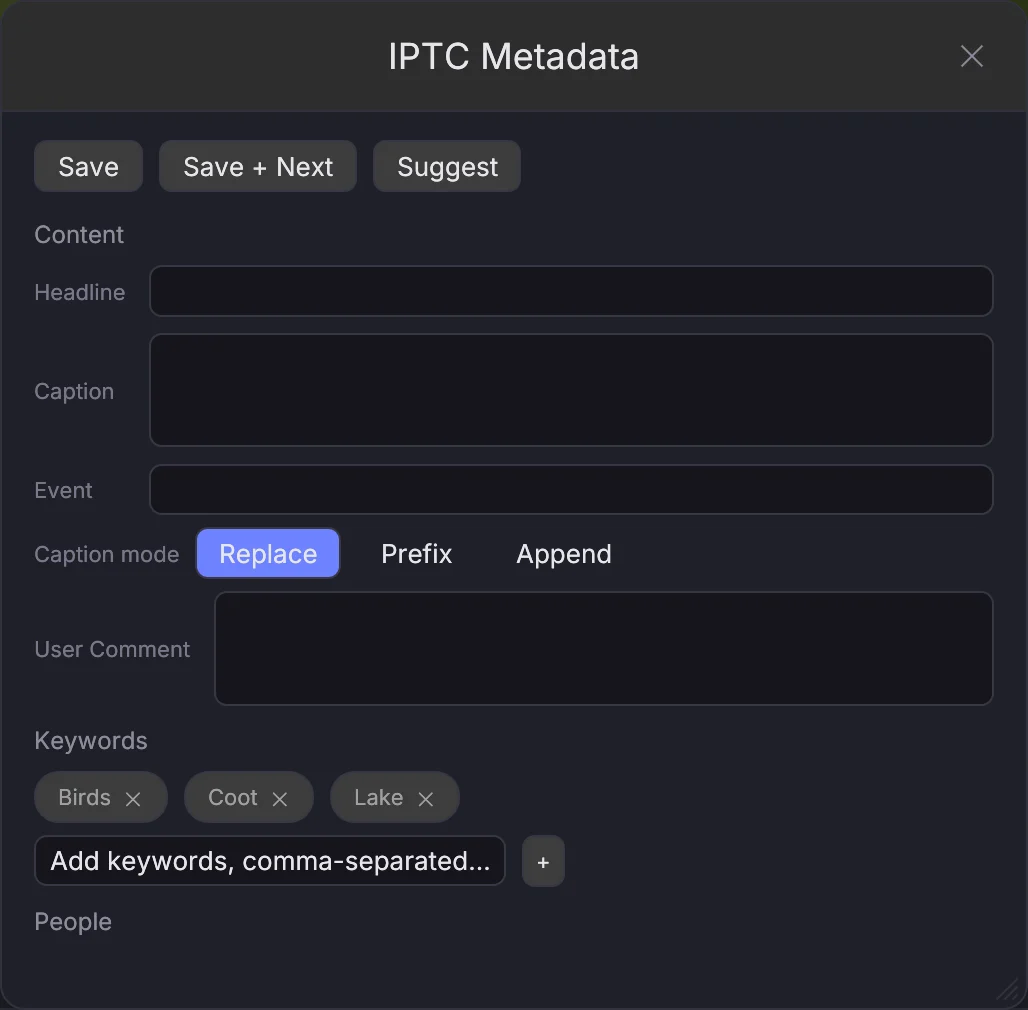
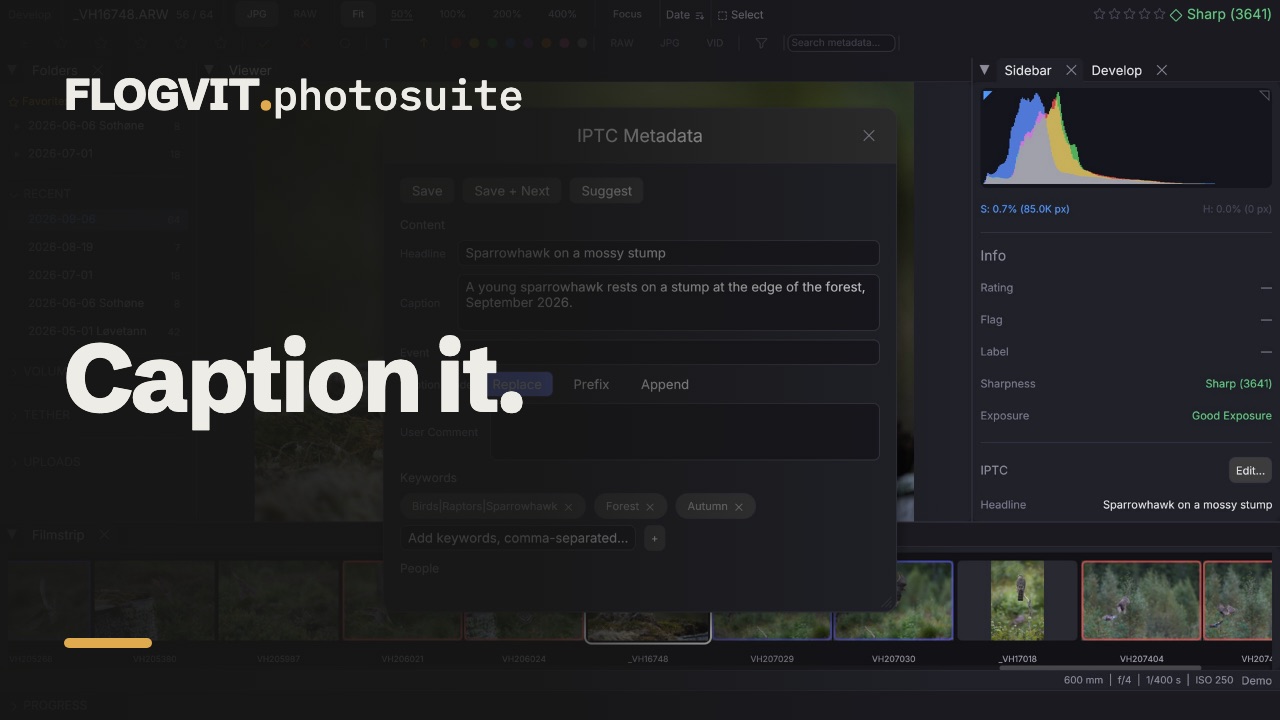
Open the IPTC editor with Metadata → Edit IPTC Metadata... (Cmd+E), from the picture's context menu, or with Edit... in the sidebar. It edits the picture on screen, or every selected picture at once. Its fields:
- Content — headline, caption, keywords and the people in the picture. With several pictures selected, Caption mode says whether the caption replaces theirs, goes in front of it or after it.
- Photographer — creator and the creator's title.
- Credit / Source — credit line and source.
- Copyright — copyright notice, usage terms, the rights URL and whether the picture is marked as copyrighted.
- Location — location, city, state or province, country and country code.
- The event, the instructions to the editor, and the EXIF user comment.
As you type a keyword, the keywords already in your pictures are suggested. Save writes the fields; Save + Next writes them and goes to the next picture.
Suggest a caption and keywords#
Suggest in the IPTC editor writes a caption and keywords for the selected pictures (or the one on screen), from what can be seen in each and what the app knows of it: the people named in it (from race numbers or by hand), the event, the place and the date. It names nobody else, and no team, club, company or sponsor, even one printed on a shirt; names on the never-name list of a start list never appear, and keywords the picture has already are left out.
The suggestion shows at the top of the editor for the picture it was written for. Use caption puts it in the caption field, each + keyword adds that keyword, Add all keywords adds them all; change what you like, and nothing is saved until you press Save (or Save + Next, which shows the next picture's suggestion).
It runs on the model set in Settings → AI Services → Captions and keywords: a local model through Ollama (nothing leaves your network), or Claude with your API key — then each picture, at 1024 pixels, and what the app knows of it, the names included, go to Anthropic under your account. The caption is written in the language set there. A local model takes some seconds a picture; the first one also loads the model.
The API does the same with POST /api/captions/suggest (client.iptc.suggest() in the SDK); its suggestions also show in the editor.
Hierarchical Keywords#
Keywords can be organized in a tree, the way Lightroom writes them (Nature|Birds|Eagle). A picture's keyword paths are read from its file and written back as Lightroom does, so a tree made there is the same here. The tree itself — renaming, merging, moving a keyword under another, synonyms — is kept in the Keywords section of the Library view, across every picture in the library.
IPTC Templates#
An IPTC template is a set of fields saved under a name — "Concert - Rockefeller", "Wedding - Standard". Make one in the import dialog: fill in Metadata (IPTC) and save it under a name. A template is applied when pictures come in or go out:
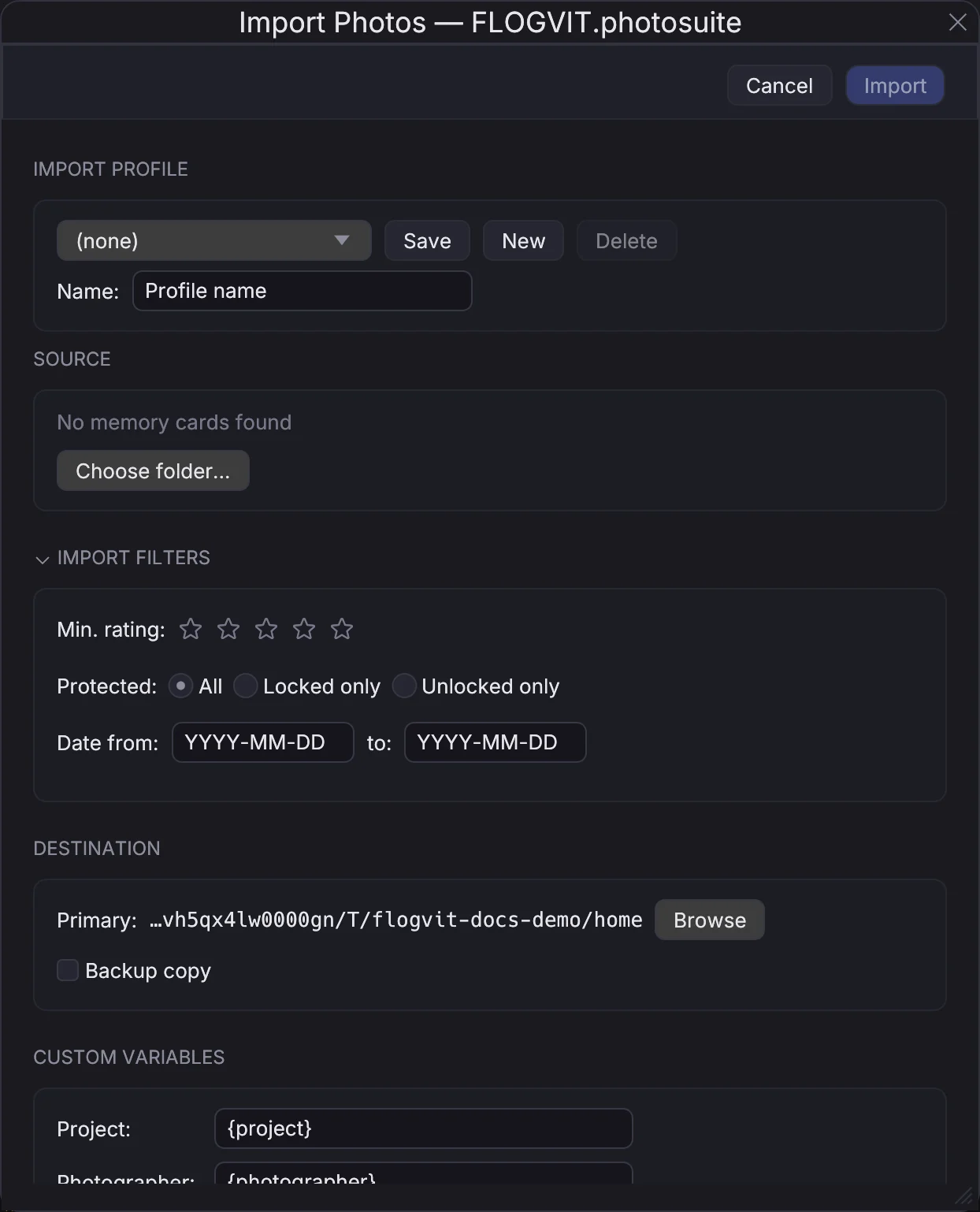
- at import, with Apply IPTC template;
- by the upload queue, which can put a template into each file it sends;
- by a workflow's Inject Metadata step.
Variables such as {image_date} or {photographer} are filled in per picture, and what a picture already has is kept.
IPTC Snapshot#
Copy all IPTC metadata from one picture and paste it to others:
- Go to the source picture
- Metadata → Copy IPTC Metadata (Cmd+Option+C)
- Select one or more target pictures
- Metadata → Paste IPTC Metadata (Cmd+Option+V) — all fields are applied
Useful when a batch of pictures from the same event needs the same caption and keywords.
Find & Replace#
Edit → Find & Replace... (Cmd+Shift+F) searches and replaces text in the metadata:
- in one IPTC field, or in All Fields; in keywords and people, each one on its own
- as plain text, or as a regular expression with Regex
- on the Current picture, the Selected ones or All Visible
Replace All writes the changes, and Edit → Undo takes them back.
GPS & Geo-Tagging#
Viewing GPS Data#
Pictures with a position show it in the sidebar's GPS section: latitude and longitude, Open in Maps to see it on a map, and Reverse Geocode to fill in the place name from the position.
The Map#
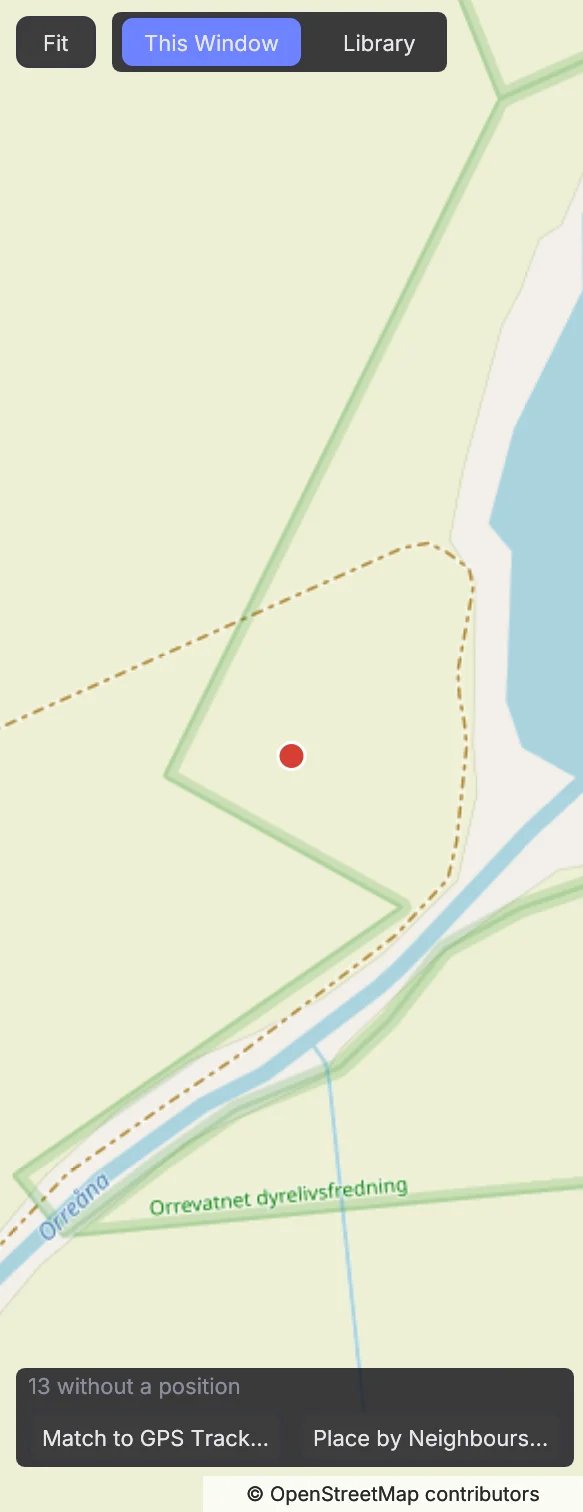
View → Map shows where pictures were taken, as pins on OpenStreetMap. Pins close together are one, with the number of pictures on it; the picture on screen is drawn in the accent colour. Drag to move the map, scroll to zoom, Fit to see every picture again. At the top, choose what it shows:
- This Window — the pictures in the window, as the filter leaves them: a folder, an album, a saved search or a Library view pick. Click a pin to select its pictures and show the first. Shift-drag to mark out an area: only the pictures inside it are shown, with a Map area chip in the info bar to take it off (Clear Area on the map does the same). Save Search… keeps the area in the saved search, and a smart collection has the rule In the map area (Use the Map's View fills it in).
- Library — every picture in the library, on every disk, counted by the library so a million pictures stay smooth. Click a cluster, or Shift-drag an area, to open the pictures there in the window.
Drag pictures from the grid or the filmstrip onto the map to give them that position. It is written to their sidecars as a track log writes it.
When pictures in the window have no position, the bottom of the map says how many, with Match to GPS Track… (the GPS Tracklog tool below) and Place by Neighbours…: a picture taken within a few minutes of one with a position, by the same camera, gets that position. Choose how many minutes; it says how many pictures it places, and nothing is written until you press Place.
The map tiles are downloaded from OpenStreetMap as you look at the map, kept on this computer, and shown offline from there. Over the API: GET /api/map/positions and POST /api/map/position for the window, GET /api/library/map for the library's clusters, POST /api/map/place-by-neighbours, and map_area in POST /api/filter.
Places#
The Library view's Places lists country, region, city and sublocation as a tree, with how many pictures are in each. A place is what the picture's file says; a picture with a position and no place in its file is put where its position is, with the place names you downloaded in Settings → Geocode — nothing is sent anywhere. Hover a place to see how many of its pictures are named from their position. Click a place to see its pictures; the Place column in the filter shows the same places, and a smart collection has the rule Place is in.
The places found from positions are the library's, not written into your files. Write Place Names into N Files (at the top, or on a place's menu) writes them into the files that name no city and no country; the rest are left as they are. Over the API: GET /api/library/places and POST /api/library/places/write.
GPS Tracklog#
Load a GPX or KML tracklog file to geo-tag images that don't have GPS:
- Go to Metadata → Apply GPS Track…
- Select your GPX/KML file
- Check the preview: each image's capture time is put in UTC with the UTC offset the camera recorded, or — when it recorded none — this computer's time zone on the day it was taken. If the camera's clock was set to another zone, tick Use this UTC offset for all instead and type the offset (e.g.
+02:00) - FLOGVIT.photosuite places each image between the track points around its capture time. Images outside the track get its nearest end, and the preview says how many — a sign the time zone is off
- GPS coordinates are written to XMP sidecars
Over the API, POST /api/metadata/gps-tracklog takes the same override as offset ("+02:00", "-05:30"); leave it out to use each image's own offset.
This is especially useful for cameras without built-in GPS when combined with a phone or dedicated GPS logger.
Timezone Adjustment#
If your camera was set to the wrong timezone:
- Select the affected images
- Go to Metadata → Adjust Timezone…
- Set the offset (e.g., +2 hours)
- Timestamps are corrected in the XMP sidecar — original files are never modified
Audio Notes & Transcription#
Some cameras record audio notes alongside images (as companion .wav or .mp3 files with the picture's name). FLOGVIT.photosuite finds them by themselves and shows an audio icon on the picture.
Playback#
Press A to play or stop the audio note for the current image. Playback stops automatically when you navigate away.
AI Transcription#
FLOGVIT.photosuite can transcribe audio notes to text using OpenAI Whisper, turning spoken descriptions into searchable metadata.
How It Works#
- Go to a picture with an audio note
- Press Transcribe in the Audio Note section of the sidebar; the text appears there
- Copy puts it on the clipboard for an IPTC field, and Re-transcribe asks again
If auto-transcription is on, it runs by itself when you go to a picture whose audio note has no transcription yet.
Setting Up#
Go to Settings → AI Services to configure:
- API Key — your OpenAI API key, kept in the Keychain, or read from
CULLING_OPENAI_API_KEYwhen that is set - Auto-transcribe when audio note detected
- Where the text is saved in the picture's metadata: Save as Description (the caption), Save as UserComment, or Don't save to XMP
On first use, a setup wizard guides you through entering your API key.
Caching#
A transcription is kept with the folder's own state, beside the pictures or in the app's cache folder as Store cache locally in image folders says, and used again as long as the audio file is unchanged. Re-opening a folder shows the transcriptions without calling the API again.
Press Workflow#
Audio transcription is especially useful for press photographers who dictate captions in the field:
- Record audio notes on your camera while shooting
- Import into FLOGVIT.photosuite — audio notes are detected automatically
- Transcriptions appear as you browse through your selects
- Copy the transcription into the IPTC caption field, edit as needed
- Upload with complete captions — no manual typing required
Names from the Phone#
 0:32
0:32The people in a picture can write their names on your phone right after you take it, and the names land on that picture.
- On the phone, open
photosuite.flogvit.com/capture, signed in with your FLOGVIT account (?event=<the event>marks the notes with it). - After a picture, hand over the phone. They write their names, one per line, tick OK to use the picture if they agree, and press Done.
- Hold a finger on the page for three seconds and press Send. Without a network the note waits on the phone.
- In FLOGVIT.photosuite, press Cmd+T (Tag People) on the picture and Refresh notes: the note written just after the picture is chosen. Apply writes the names into People, Keywords and the caption, with
consent:grantedwhen ticked.
Scripts: GET /api/images/current/capture-notes, POST /api/capture-notes/refresh, POST /api/images/current/capture-notes/apply.
Batch Operations#
Metadata operations work on every selected picture:
- Cmd+A to select all, then edit IPTC — each field you change is written to all of them
- Select with Cmd+Click, then paste IPTC
- Find & Replace on all visible pictures
XMP Sidecars#
All metadata changes are written to XMP sidecar files (.xmp). Original RAW files are never modified. XMP sidecars are compatible with:
- Adobe Lightroom
- Capture One
- darktable
- Photo Mechanic
- Any software that reads XMP
A JPEG can take its metadata inside the file instead of, or as well as, in a sidecar: set metadata_write_mode with PATCH /api/settings to EmbeddedOnly or EmbeddedAndSidecar. A raw file, DNG included, is never rewritten; its metadata always goes to the sidecar.
Photographers#
When several photographers shoot one event, each picture is credited to the one whose camera took it. In Settings → General → Photographers, list each camera's serial number with the photographer's name and, if you like, the credit line the newspaper prints (for example Kari Nordmann / Jærbladet). Add This Picture's Camera fills in the serial number of the picture on screen.
{photographer}in a template is the name for the picture's camera.- Identify and Inject Metadata fill By-line and Credit from it when the template leaves them empty.
- A camera that is not listed is credited to its EXIF Artist.
Caption file for the desk#
A workflow's Export step can also send the caption as a .txt file beside each picture — the event, the caption and Foto: <credit> — for a desk system that reads no IPTC. Tick Also send the caption as .txt. The Sport / Newspaper template has it on.