Workflows
Real-world scenarios: press, wedding, sports, studio, landscape, and API automation.
 1:10
1:10Real-world scenarios showing how to combine FLOGVIT.photosuite's features for different types of photography.
Press / News Photography#
The fastest path from memory card to published image.
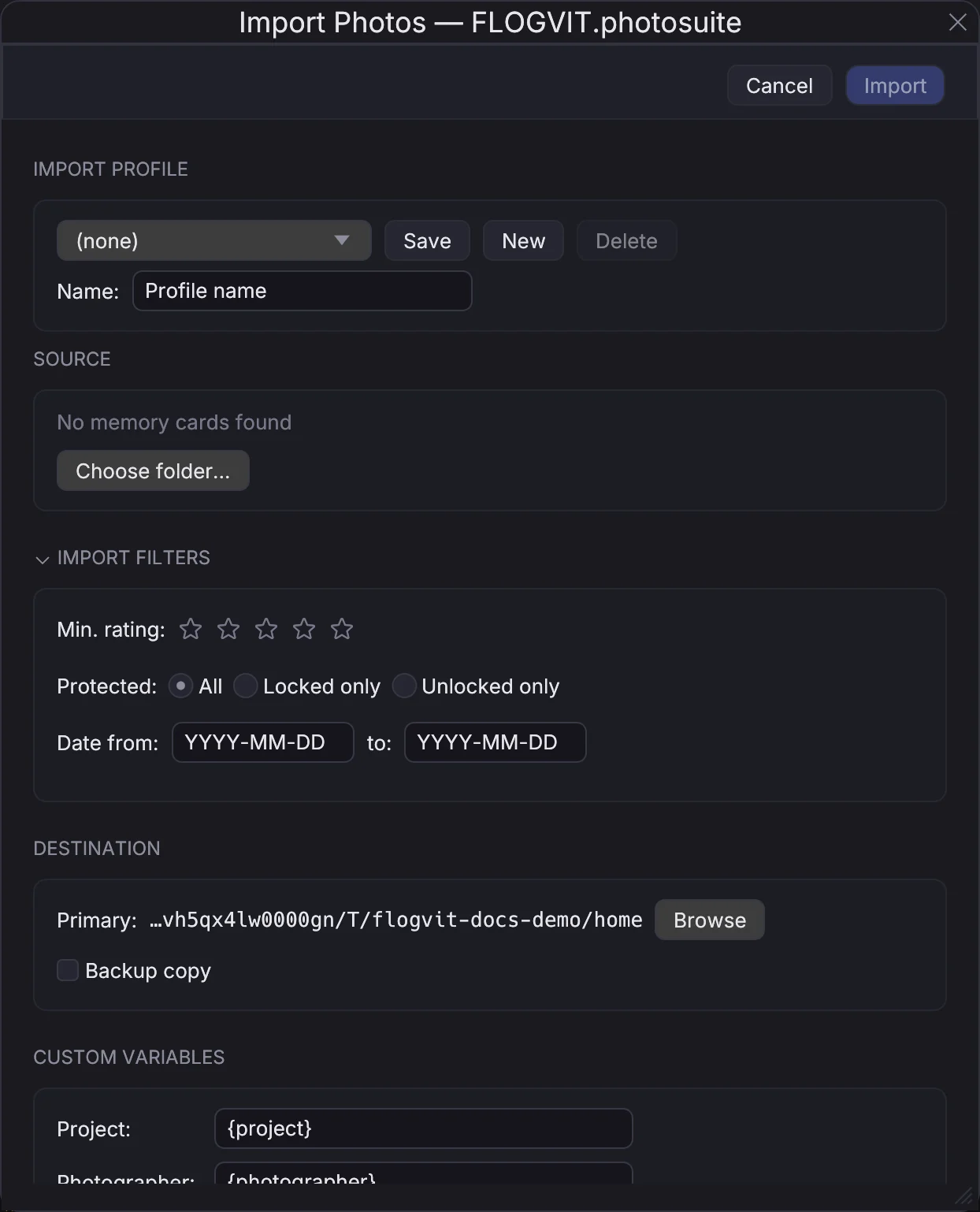
- Import — Plug in the card. FLOGVIT.photosuite auto-detects it. Import with IPTC template pre-filled (publication, photographer, event name).
- First pass — Single view with auto-advance (Shift+A). Press P for picks, X for rejects. Don't overthink — speed matters.
- Filter to picks — Option+P to show only picks.
- IPTC — Add captions and keywords to your selects (Cmd+E). Copy IPTC Metadata and Paste IPTC Metadata carry a caption to the rest of a series.
- Upload — Press U on each image to send via FTP. Uploads run in the background.
- Second card — Plug in the next card while still uploading. The import and the uploads run side by side.
The whole job, with a script that sends every pick to the desk as you make it, is From the Card to the Desk.
A whole race after the day#
When the photographers hand in their pictures after an event, each in a folder of their own (in/Kari Foto/, in/Per Berg/), one run delivers all of it.
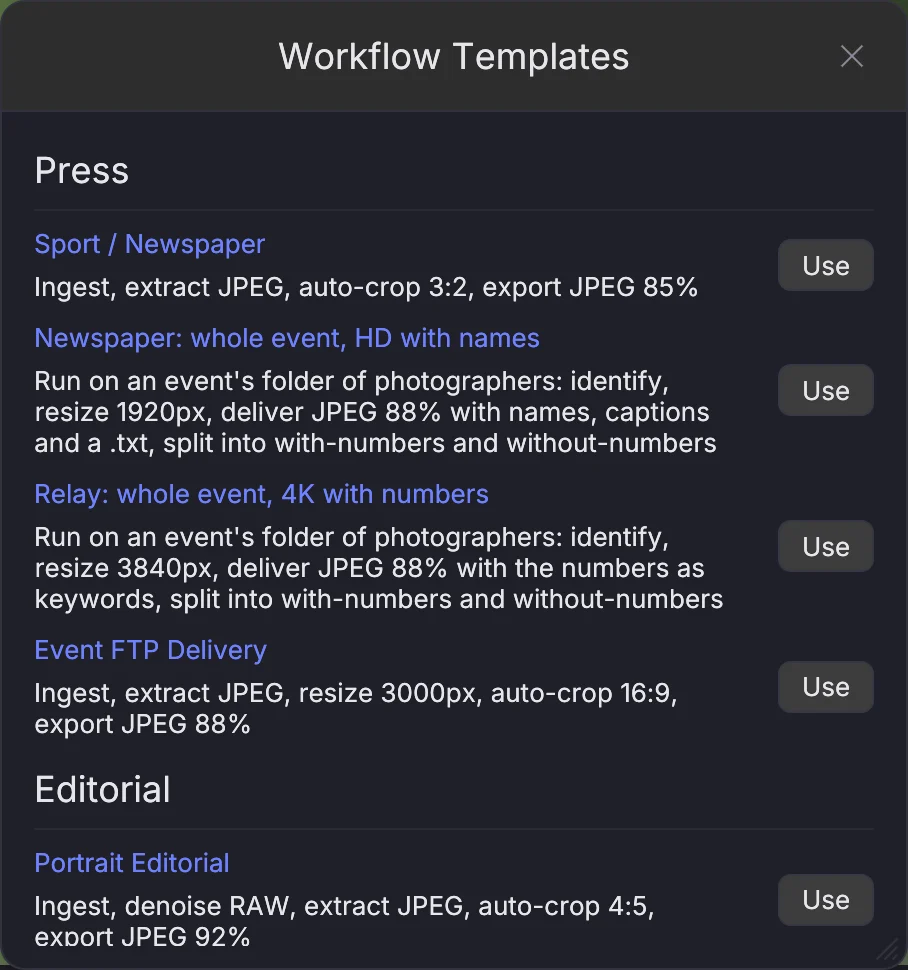
- Make a workflow from Newspaper: whole event, HD with names (or Relay: whole event, 4K with numbers for a relay whose numbers are delivered without names). In its Identify step, fetch the start list or add its folder. When two races were shot on the same cards, give each race its own workflow and put the other race's start list under Also on the cards. Every number is then weighed against both lists, and each workflow names only its own race.
- Deliver → Deliver Event Folder…: choose the workflow, the pictures folder (the event's
in/), where to deliver (besidein/by default) and the credit (e.g.Jærbladet). A picture whose camera has no photographer gets the folder's name as creator, and "© Kari Foto / Jærbladet" as its copyright. Pictures lying right in the event folder, not in a photographer's folder, get the name under Photographer. - Start. The dialog counts the pictures as they go, with and without numbers, and lists failures. The delivery lands in
delivered/with-numbers/anddelivered/without-numbers/(the{identified}variable in the Export step's folder). Each picture that has a name has a.txtbeside it. - Review what was held (Filter → Numbers → Needs review, see Race identification), and run the folder again. What you settled is kept, and each picture's reading is remembered, so a second run reads nothing again.
Over the API: POST /api/workflows/run-on-folder with workflow and folder (and org, photographer), GET the same path for progress, DELETE to stop (SDK: client.runOnFolder).
Pictures shot by others#
Deliver → Download Album… fetches a whole album into a folder, ready for Deliver Event Folder:
- a public Flickr album (no account needed): each picture under the name the photographer's camera gave it, else its title. With One folder per photographer, the first word of the title is the folder (
Grete Jonsson-12→Grete/). The largest size Flickr makes is taken rather than the original, because Flickr limits how much may be fetched and an original uses that up five times as fast. When Flickr refuses, the app slows down and tries again; it never skips a picture. A picture already in the folder is not fetched again, so a stopped download carries on where it left off; - a SmugMug gallery your SmugMug connection can see, by its link or node id, into a folder named after the photographer. Each picture comes in its 4K size, which reads the same numbers as the original at a tenth of the size; Originals fetches the originals.
Over the API: POST /api/albums/download.
The race gallery#
A delivered event's gallery website (jaerbladet.menneske.no and the race galleries) reads one manifest.json per event. Deliver → Build Race Gallery… writes it from the event's folder (over the API: POST /api/event-site): every delivered picture with its sizes from the SmugMug gallery (or sizes written beside the manifest), who is in it, the person boxes the phone view crops to, the editor's picks first, and the indexes the site searches by number, contest, club and photographer. A number on a picture that no start-list entry has stops the build, rather than showing a number with no name. A relay whose event folder has photographers.json (each photographer's name and where on the course they stood) gets the relay gallery instead: teams and companies, and pictures by place along the course. A photographer missing from that file, or a place not on the course, stops the build rather than credit a picture to nobody. The relay's file names carry the photographer (<slug>-<n>.jpg), as SmugMug never sees the folders.
Two choices in the same window use each runner's own sharpness in a picture of several, from Identify's journal: Leave a runner out of their gallery where they are soft takes the number off a picture where that runner reads less than half as sharp as the sharpest person in it, and List each runner's pictures sharpest on them first orders each runner's pictures by how sharp they are in them. Both are off by default (over the API: softRunnerShare and sharpestFirst).
The year's best#
Deliver → Pick the Year's Best… picks the best pictures of a delivered event into <event>_best/, named by rank, with best.json saying why each was chosen. Each location is ranked against itself (a finish line is easier to photograph than an exchange zone). Every photographer gets one picture first, then every location gets its share, then the rest are picked on quality, with a cap per location. A team is shown once and a company at most twice. Apple Vision gives the aesthetic and face scores, so it needs macOS 15 or newer; on Windows it is not there yet. A local vision model, when you name one, judges the shortlist's scene, expression and story and writes a short Norwegian caption, but it is never asked for a name: the teams come from the start list.
To review: delete the pictures you disagree with from the _best folder and pick again. Deleted pictures never come back, the ones you kept keep their place, and only the freed places are filled. Over the API: POST /api/best-of-year.
A meet shown live#
When the photographers send their picks to an FTP server during the event, photosuite can denoise, crop and level each one, put it on sale on eventphotos and show it on the venue's TV, without anyone touching it.
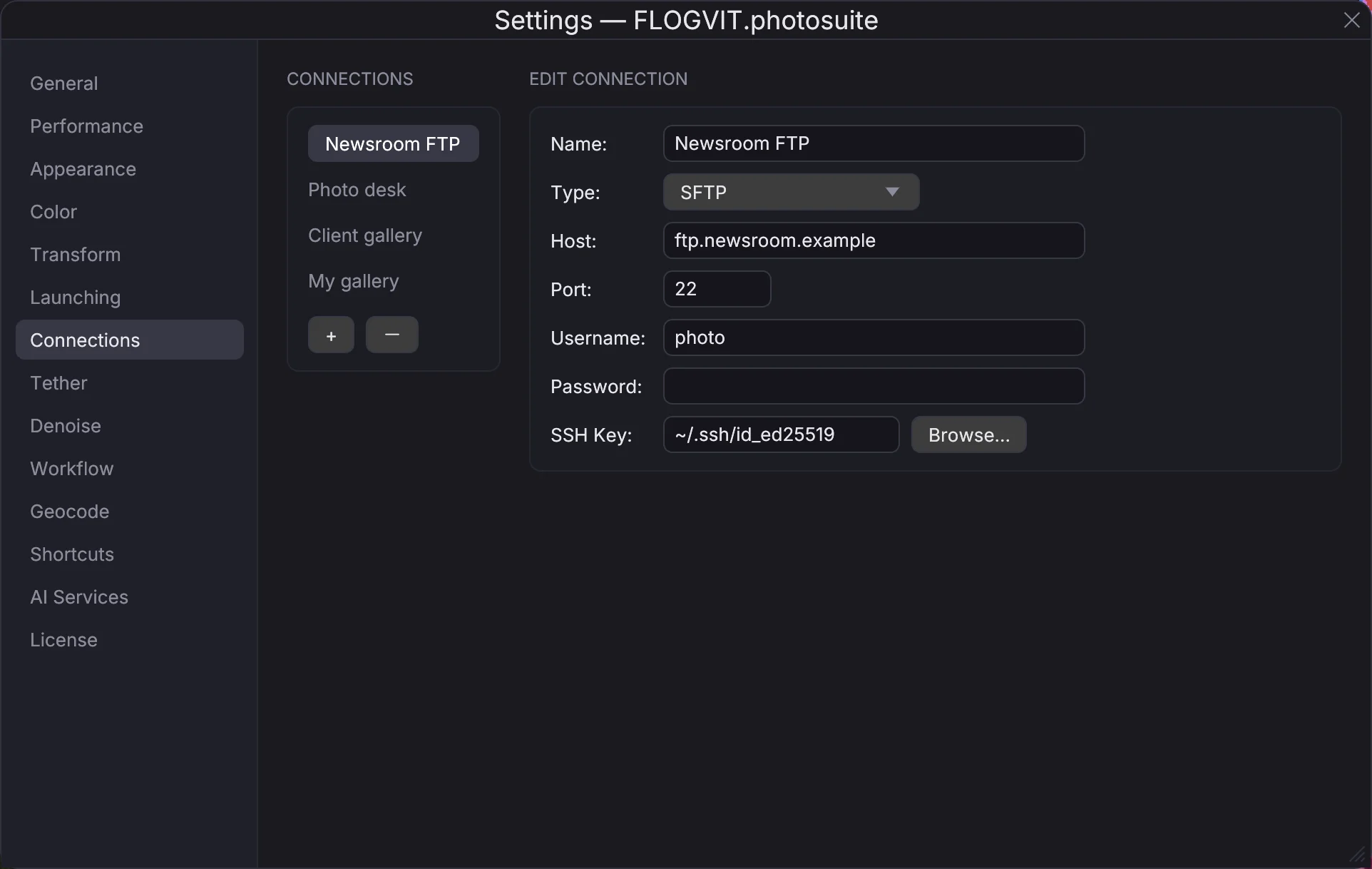
- The workflow. Settings → Workflow → From Template… → Live event: FTP → DxO → album. Choose the FTP connection and folder in Ingest, the DxO profile in Denoise and an album name in Add to Album (e.g.
NM kortbane). - The album on eventphotos. Right-click the album in the Library panel → Publish to… → the event. Every picture the workflow adds goes out by itself: when pictures keep coming, within a minute of the first one waiting.
- The TV. The eventphotos TV app shows the event's live page,
/e/<event>/live. - Start Workflow. The photographers send their picks to the FTP folder.
Each picture gets Auto: the brightest real detail placed high without clipping, the hall's LED lights left out, faces kept in the skin band of a waveform and lifted with Lift when they fall below it, and the black point set per picture. Files shot under for a fast shutter and files shot right come out as one set because each gets what it needs. Nothing needs setting; in the workflow's Develop step a preset can be chosen under Look for unedited files, and Auto for each unedited file turned off.
Each picture is cropped 3:2 (2:3 when the camera was held upright) around the swimmer the camera focused on (from the camera's own focus point, even where nobody is detected in the water), all of the swimmer (the head, the arms, the shoulders and the splash in front), placed by the rules of composition with room around and never smaller than an A4 print, and turned level by the lines in the frame. The crop goes to eventphotos as an edit, so a buyer can widen it; the full picture is the file DxO wrote. A picture that failed lies in the workflow's failed/ folder with the reason.
What the Export step writes#
A workflow's Export step writes what the Export dialog writes. Choose a saved export profile (or the defaults), and set the format, quality, bit depth, colour space or metadata in its place: any format and colour space the Export dialog has, or a copy of the file. The profile's extra sizes and sharpening come along. Without a profile or a metadata choice, the delivered file carries what the workflow's own steps (Identify, Inject Metadata) put there, as before. A script's export() takes the same fields.
Sharing a workflow#
A workflow can go to another machine, or to another photographer, as one file. In Settings → Workflows, select it and press Export…. It is saved as <name>.photosuite-workflow, with the connections, denoise profile, IPTC template and export profile its steps use. No password, token or key goes in the file, and neither does the work folder or a webhook's address, so it is safe to send.
Import… on the other machine adds it. A connection or profile that machine already has, under the same name and pointing at the same place, is used as it is; anything else is added beside it under a free name (Desk 2), and the steps follow. Nothing there is written over. Then it says what to fill in before the workflow can run: the passwords of the connections it brought, the work folder, a webhook's address.
Over the API: GET /api/workflow/profiles/{index}/export and POST /api/workflow/profiles/import (SDK: client.workflow.exportFile, client.workflow.importFile). Workflows other photographers have shared, and the ones the app comes with, are in the script collection.
Watch a running workflow#
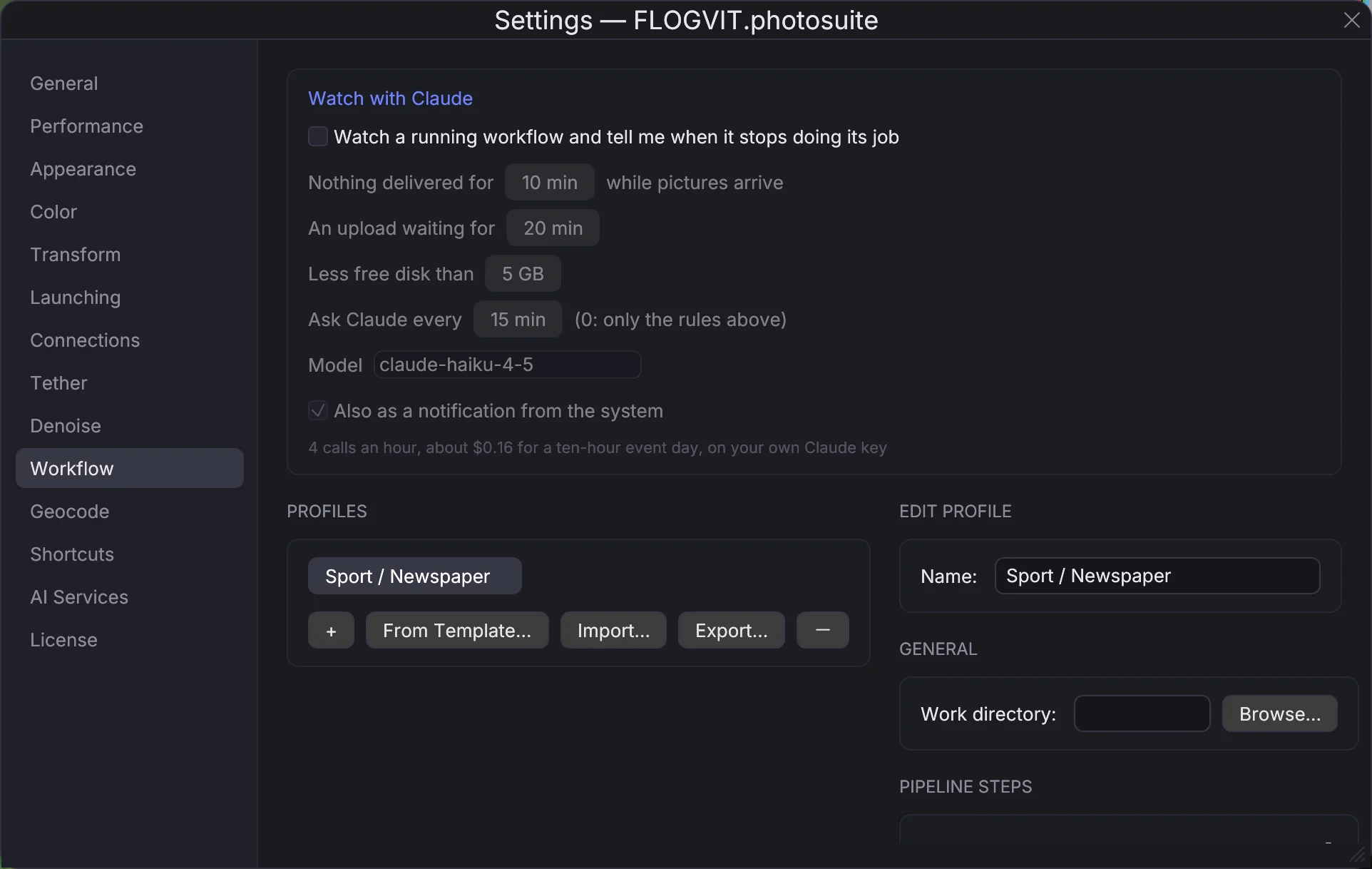
A workflow left running at an event can stop doing its job while it still says it is running: pictures keep arriving and nothing is delivered, one step fails on every picture, uploads wait for an hour, the disk fills. Turn on Settings → Workflow → Watch with Claude, and photosuite watches the workflow while it runs:
- Rules, at once and free: nothing delivered for a set number of minutes while pictures arrive, a step failing on three pictures in a row, an upload waiting longer than you allow, less free disk than you allow, and the workflow stopping by itself.
- Claude, at set times, on your own Claude key: the facts as data — what arrived, what each step did to the last pictures (the crop and what it framed, the exposure, the numbers read and the names given) and what went out (its size, bytes, caption and headline) — to see what a rule cannot: every picture the same tiny size, a crop far smaller than the others, numbers read but nobody named, captions left blank, the same picture sent twice. The setting shows the calls an hour and what a ten-hour event day costs; 0 minutes asks only the rules. With Show Claude the pictures on, it also sees a contact sheet of the pictures delivered since the last check and judges them as an editor would: a crop that cuts someone off, a picture far too dark, the same frame again. A finding about pictures opens the first of them on a click in the info bar.
What it finds shows in the info bar, with what to do on hover, as a notification from the system, and as the watch_finding event: a webhook on that event brings it to your phone. Scripts read it with GET /api/watch (client.workflow.watch()) and change it with PUT /api/watch.
What the workflow did to each picture is kept, the last 5 000 by default (Settings → Workflow): every step's outcome (the crop's rectangle and what it framed, the develop values, the numbers read and the names given, the file written and where it went), when the picture arrived and was done, and the first step that failed. A script or a Claude session reads it with GET /api/workflow/files?since=<id> (client.workflow.files({ since })), and gets each step and each finished picture as it happens in the workflow_step_completed and workflow_file_completed events. The pictures too: GET /api/workflow/files/{id}/picture gives the picture that went out, or with stage=source the one that arrived, at a size a model reads well, and GET /api/workflow/files/sheet one contact sheet of the last ones with each record's id under it (client.workflow.picture, client.workflow.sheet).
Steer a running workflow#
When something is wrong in the middle of an event (a crop that misses, a caption with the wrong race), the workflow does not have to be stopped:
- Pause: Deliver → Pause Workflow (Cmd+Option+P), the pause button in the info bar, or Pause workflow in Settings → Workflow. Pictures keep arriving and wait; the info bar says how many. Fix the workflow, then resume.
- Run a picture again: Run Again beside it in Settings → Workflow. It goes before any new picture, also while paused. A script can set a crop, an exposure, the numbers or a caption for that picture alone. A file store and an album get the new picture in place of the first; Dropbox, Google Drive and Flickr get it beside the first; SmugMug keeps a name it already has. The answer says which.
- Hold a picture back: Hold beside it. It is taken out of the retry queue or a local delivery folder (into the work folder's
held/) and out of its albums, hidden where they are published. What already went to a server is said, to be taken down there. Release puts it all back.
Over the API: POST /api/workflow/pause and /resume, POST /api/workflow/files/{id}/rerun with crop, ev, bibs or caption, POST /api/workflow/files/{id}/hold with reason (and by), and /release (SDK: client.workflow.pause, resume, rerun, hold, release).
Corrections teach the next run. A picture run again with another crop or exposure, or held back, is kept as a correction: what the workflow did, what it became, why and who. A corrected crop is one auto-crop learns from, like your own crops, and the exposure corrections to a develop shape (a preset, or Auto) move the exposure the next pictures get. They are listed under Corrections in the Library panel, where one can be taken away and what was learnt from it with it (GET/DELETE /api/library/corrections). Settings → Workflow turns the learning off.
After the event, the report. Each run keeps what it did: how many pictures arrived and went out (and where), which were held back and why, which were run again, what failed and at which step, the time from arrival to done, what the watcher found, and the notes a Claude session or a script wrote into it (POST /api/workflow/notes). It shows in Settings → Workflow, also after the run has stopped, is saved as report-<start>.html in the work folder when it stops, and is read with GET /api/workflow/runs.
Wedding Photography#
Culling thousands of images across a full wedding day.
- Import — Copy to the working drive and a backup at once. Use the folder template
{image_date}/{camera}to separate bodies. - Overview — Grid view (G) to scan through the day. Use color labels to mark ceremony (6 red), reception (7 yellow), portraits (8 green), details (9 blue).
- Star rating — Switch to single view. Rate the best images 3–5 stars. Use auto-advance.
- Compare mode — For similar shots (group photos, ceremony moments), press C to compare side by side. Scrolling zooms both pictures together, so sharpness is checked at the same spot.
- Auto-crop — For group shots where you also want individual portraits, use auto-crop to generate person crops automatically.
- Metadata — Edit the IPTC of the whole selection with the couple's names, venue and date. Use IPTC Snapshot to copy metadata between similar shots.
- Export — Filter to 4 stars and up (Option+4) and export with the format Original and Copy XMP sidecar files to a "selects" folder for editing in Lightroom or Capture One. The ratings travel in the sidecars.
Sports Photography#
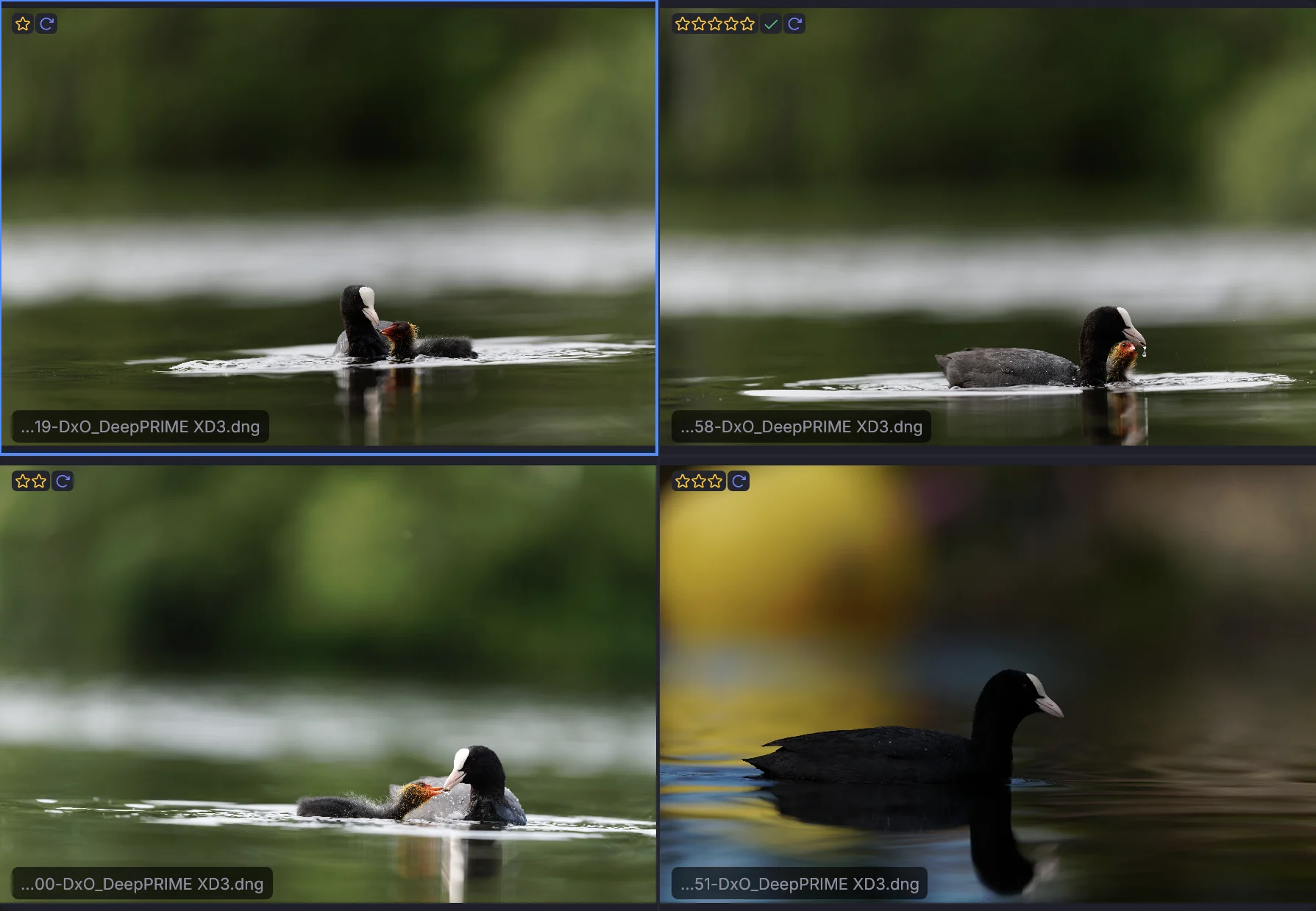
Fast-paced continuous shooting with hundreds of frames per play.
- Import — Import from card with checksum verification. Rename on the way to
{image_date}_{seq:4}. - Grid scan — Grid view with large thumbnails. Quickly identify the action sequences.
- Sharpness sort — View → Sort → Sharpness, descending. Out-of-focus shots drop to the bottom.
- N-up mode — Press N to view 3–4 similar frames at once. Pick the peak action moment.
- Rate fast — Single view + auto-advance. Rate the keepers 3+ stars. Reject the out-of-focus shots.
- Auto-crop — Crop tight around athletes for web use.
- Caption + upload — Add quick captions, then U to FTP.
Studio / Product Photography#
Controlled environment, focus on consistency and detail.
- Tether or import — Open the shoot folder directly. Images appear as they're captured.
- Loupe check — In the grid, hold Space and hover to check details at 100%. Verify focus and sharpness.
- Compare mode — C to compare lighting variations side by side with synced zoom.
- Color labels — Label by setup: Red for setup A, Yellow for setup B, etc.
- Exposure — Keep the info sidebar open (I) to watch exposure from shot to shot. Toggle the clipping overlay (J) to check for blown highlights.
- Metadata — Put product names, SKUs and keywords on the selection in the IPTC editor.
- Export — Copy selects to the retoucher's folder with batch rename to match the product catalog naming convention.
Landscape / Travel Photography#
Large volumes from multi-day trips with mixed cameras and lenses.
- Import — Use the folder template
{image_year}/{image_month}/{image_day}for chronological organization. Apply the GPS track from your phone to geo-tag images. - Filter by camera — If shooting with multiple bodies, pick one in the Camera filter column (</kbd>) to review each body separately.
- Star rating — First pass: flag obvious rejects (X) and strong picks (P). Second pass: refine with star ratings.
- Filter by place — On the map, Shift-drag around a place to keep only the pictures taken there, or pick a place in the Place filter column.
- Noise map — For high-ISO twilight/night shots, check the noise map overlay (H) to decide which images need denoise.
- Denoise — Send high-ISO selects to your denoise tool directly from FLOGVIT.photosuite (Shift+N).
- Keywords — Apply hierarchical keywords: Nature → Mountains → Dolomites. Write Place Names puts the city and country into files that have a position but no place.
- Export — XMP sidecars ready for Lightroom or Capture One with all ratings, keywords, and GPS data intact.
API-Driven Automation#
Build custom workflows using the REST API.
Auto-Flag by Exposure and Sharpness#
Write a script that flags images from what the analysis passes found:
import { CullingClient } from './photosuite-sdk.mjs';

const client = new CullingClient();
const images = await client.images.list();

// Reject what the exposure pass calls underexposed
const dark = images.filter((image) => image.exposure === 'underexposed');

// Flag sharp images as picks (sharpness is null until a frame is scored)
const sharp = images.filter(
  (image) => image.exposure !== 'underexposed' && (image.sharpness ?? 0) > 500,
);

if (dark.length > 0) {
  await client.batch.apply({ indices: dark.map((i) => i.index), action: 'set_flag', value: 'reject' });
}
if (sharp.length > 0) {
  await client.batch.apply({ indices: sharp.map((i) => i.index), action: 'set_flag', value: 'pick' });
}
Webhook Integration#
Listen for events and trigger external actions:
import { CullingClient } from './photosuite-sdk.mjs';

const client = new CullingClient();

client.on('rating_set', async (event) => {
  if (event.rating >= 4) {
    // Queue high-rated images for every upload destination
    await client.upload.queue([event.index]);
  }
});

client.on('import_started', async (event) => {
  // Tell the team on Slack that a card is coming in
  await fetch(process.env.SLACK_WEBHOOK!, {
    method: 'POST',
    body: JSON.stringify({ text: `Importing ${event.files} files from ${event.source}` }),
  });
});
Batch Processing#
Process an entire folder from the command line:
import { CullingClient } from './photosuite-sdk.mjs';

const client = new CullingClient();

// Open folder
await client.folder.open('/Photos/2026/event');

// Crop every image around the people in it
for (const image of await client.images.list()) {
  await client.navigate.to(image.index);
  await client.images.autoCrop();
}

// Filter to 3+ stars and send them to every upload destination
await client.filter.set({ min_rating: 3 });
const selects = await client.images.list();
await client.upload.queue(selects.map((image) => image.index));
The API makes FLOGVIT.photosuite a building block for any workflow you can imagine.