FTP Upload
One-key upload to FTP/FTPS/SFTP. Named profiles for multiple destinations.
 0:37
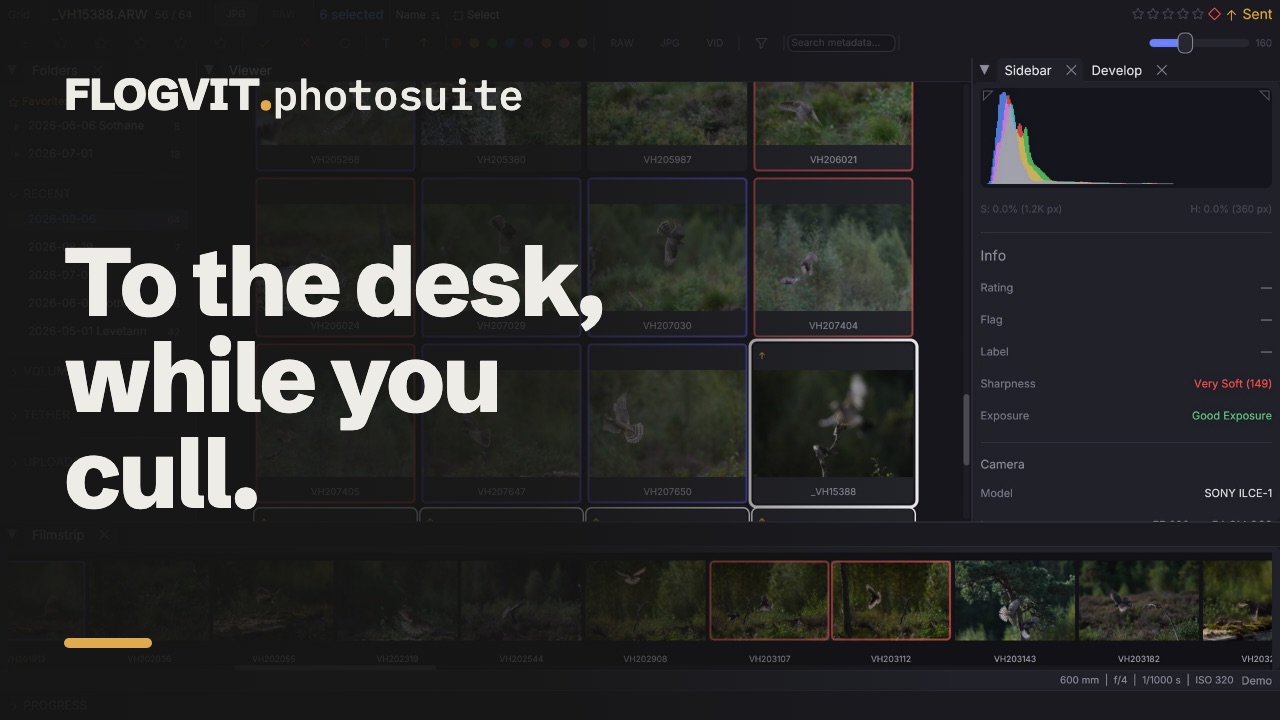
0:37FLOGVIT.photosuite sends pictures to an FTP, FTPS or SFTP server — a newspaper's picture desk, an agency, a client — while you go on culling.
Quick Upload#
Press U (or Deliver → Queue for Upload) to queue the selected pictures, or the one on screen, for every upload destination; pressing it again on pictures that are all queued takes them out. You can also drag pictures from the grid onto the UPLOADS section of the folder tree. The upload runs in the background — you can continue culling immediately.
A connection for the server#
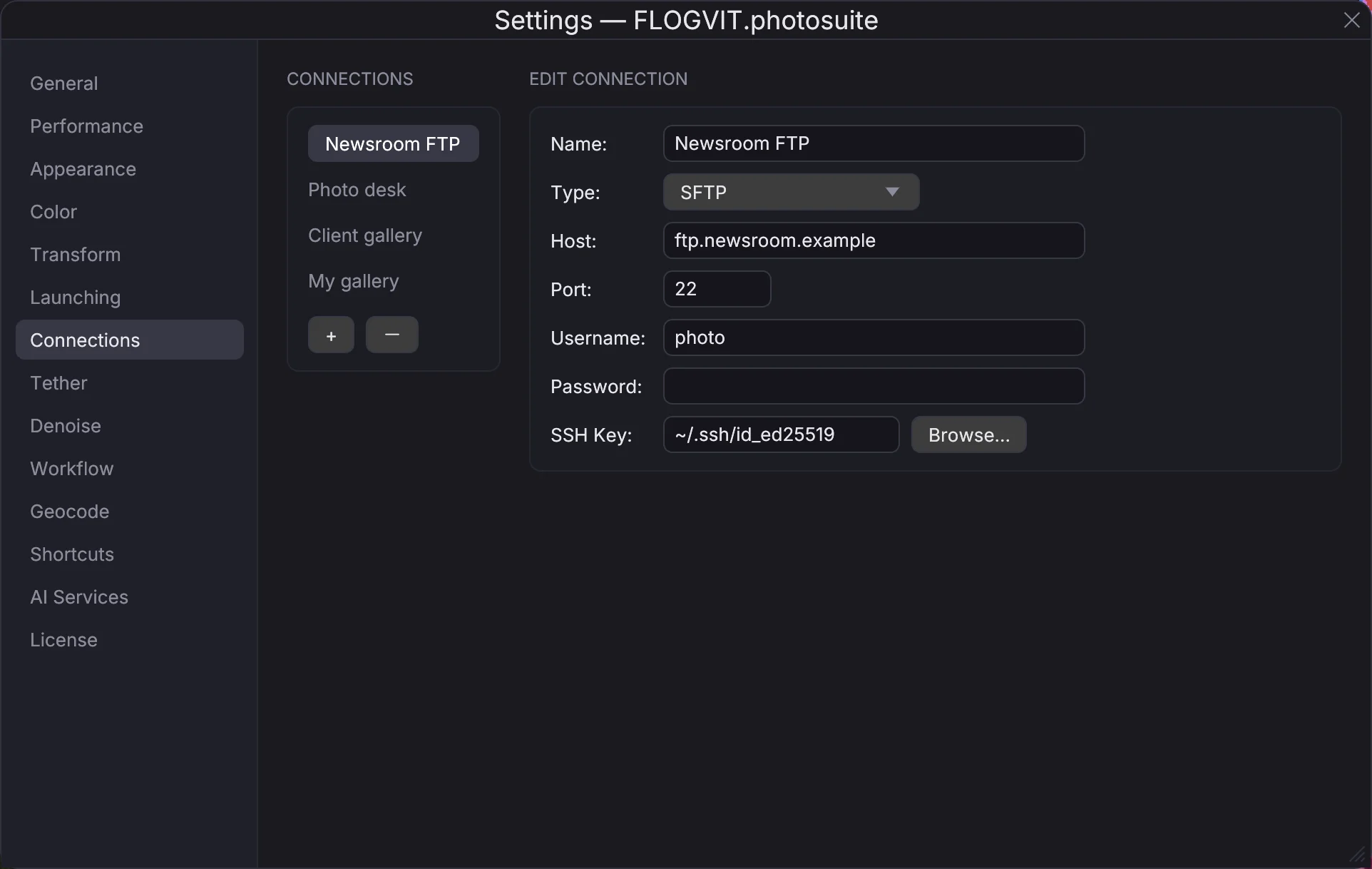
A server is a connection, made once and used by uploads, workflows and the import of a workflow's files alike.
- Open Settings (Cmd+,) and go to Connections.
- Press + and give the connection a name, e.g. "VG", "Aftenposten", "Client FTP".
- Choose the Type and fill in the server:
- FTP — host, port (21), username and password. Use TLS makes it FTPS; Accept an invalid certificate (insecure) is for a server with a self-signed certificate.
- SFTP — host, port (22), username, and a password or an SSH Key.
The connection is saved when you leave a field. Passwords are kept in the Keychain, or read from the environment when it is set there: CULLING_CONN_BRYNE_SFTP_PASSWORD for a connection named bryne-sftp. The same Connections list holds the cloud services.
Upload destinations#
The UPLOADS section at the bottom of the folder tree (L) lists where pictures go. Each destination is a connection and a folder on the connection — empty for the folder the server logs you into. Add as many as you like: a queued picture goes to all of them.
The section also says how the pictures go:
- RAW+JPEG — for a camera shooting both: Send both, JPEG only or RAW only.
- RAW source — what a RAW is sent as when JPEG is asked for: the camera's Companion JPEG, or a Developed RAW, made from its sensor data with your develop settings and crop.
- Apply IPTC — writes one of your IPTC templates into each file as it is sent.
- Save copy — keeps a copy of each sent file, in a Subfolder beside the picture or in a Directory you choose.
- Auto-upload — sends what is queued at once; without it, Upload All (or Deliver → Upload Queue Now) sends the queue.
Convert to sRGB on upload, under Settings → Color, turns every file that is not sRGB into an sRGB JPEG on the way out, with its metadata kept.
Upload Tracking#
FLOGVIT.photosuite remembers which pictures have been sent from each folder, so a picture is not sent twice. The Sent and Not sent filters show either side. In the queue, each file shows whether it is waiting, being sent, done or failed; Retry sends the failed ones again, Clear done and Clear sent tidy the list.
A failure that will not pass by itself — a wrong password, a folder that is not there — is parked rather than tried again and again, so a server does not lock you out. It is sent again when the connection is saved, or after an hour.
Press Workflow#
A typical press workflow:
- Import from card
- Quick cull — rate your selects
- Filter to picks (Option+P)
- Select them and press U
- Continue culling while uploads happen in the background
From the Card to the Desk is the same job from start to finish, with your by-line and caption in every picture and a script that sends each pick as you make it.
Connections are stored in connection_profiles.json in the settings folder (~/Library/Application Support/flogvit/); their passwords are in the system’s password store.