License & Beta
Get the free beta license, activate the app, extend it, and keep it up to date.
FLOGVIT.photosuite is in public beta. During the beta it is free with a FLOGVIT account.
Get a beta license#
- Log in at your dashboard with your FLOGVIT account. If you have none, create one there; it is free.
- Choose Get beta license. You get a license for 60 days, for up to two computers, with everything in the app.
- The download for your computer appears under Downloads on the same page.
Activate the app#
When the app starts without a license, choose Sign in with FLOGVIT. Your browser opens on a page that lists your licenses: choose Use on this computer, and the browser hands the license back to the app. If you have no license yet, the same page offers the beta license.
While the app waits for your browser it says so: Open the page again opens the page if the browser did not, and Cancel stops the wait. A key pasted under Activate License works while it waits, too.
You can also copy the license key from your dashboard and paste it under Activate License.
Extend it#
Choose Extend beta license on your dashboard whenever you like while the beta lasts: the license then runs 60 days from that day. It is the same key, so nothing needs to be activated again — the app picks the new date up the next time it starts.
In its last two weeks the app says when the license ends, in the info bar at the top, with a link to the dashboard.
When a license ends#
The app opens on a screen that says the license has ended and why. Extend it on your dashboard, then choose Check Again. The app also checks with the license server when it starts and once a day, so a license that is extended, revoked or moved to another computer reaches the app by itself.
Two computers#
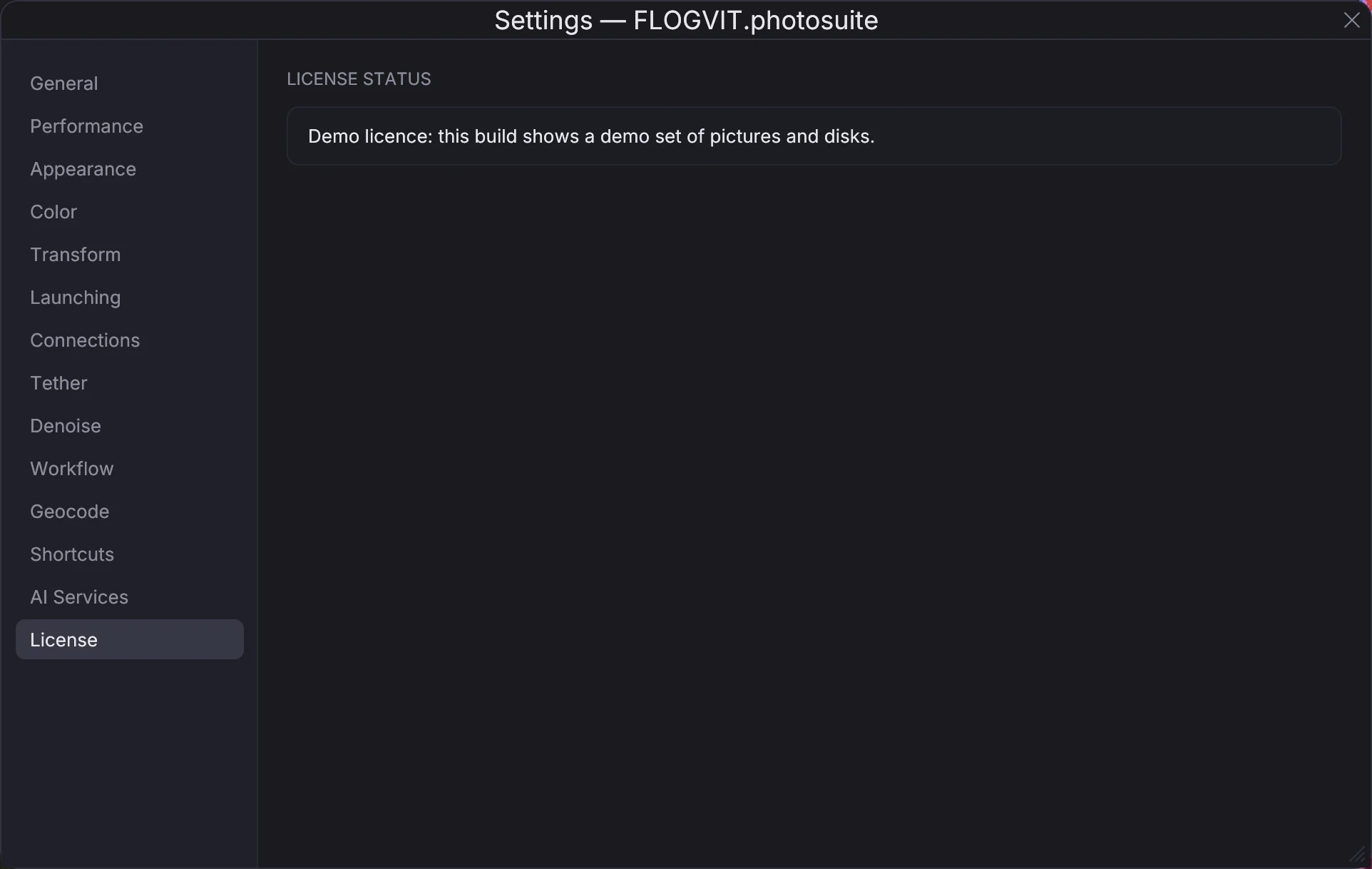
A beta license can be active on two computers at once. To move it, deactivate it in Settings → License on the one you no longer use, or remove that computer on your dashboard.
Updates#
The app checks for a newer version when it starts and once a day. When there is one your license covers, the info bar on a Mac says Version … is out · Install and Restart: click it, and the app downloads the new version, checks that it is signed by FLOGVIT and approved by Apple, puts it in place of the one you have and starts it again. Nothing is changed if a check fails; the info bar says why. On Windows it says the same: the app downloads the new installer and runs it only when it is the file the release names (until the installer is signed, by its checksum; then also by its signer), closes, lets the installer replace it, and starts again. Your settings, library and license stay; they are kept outside the program folder. When your update plan does not cover the new version, it says Renew to get it.
Next to it, What's new shows what the new version brings before you install it. After an update the app shows once what came in it, and Help → What's New… lists every version at any time; the same list is on What's New. To keep it from opening by itself after an update, untick Show What's New after an update at the bottom of it, or in Settings → General, where it can also be opened.
After the beta#
When the beta closes, no new beta licenses are given and beta licenses run to their date.
After that, photosuite is part of FLOGVIT.plus. With plus on your FLOGVIT account, your license runs for as long as plus does. It is the same license and the same key as your beta license, so the computers it is on keep it. Renewing plus extends it and the app picks the new date up by itself; if plus ends, the license ends on the same day.
Third-party notices#
The app lists every third-party licence under About FLOGVIT.photosuite. This product includes DNG technology under license by Adobe. This product includes Gain Map technology under license by Adobe.