Export & Copy
Export images in various formats with control over quality, size, and metadata.
 0:42
0:42FLOGVIT.photosuite exports JPEG, TIFF, PNG, AVIF, JPEG XL, WebP, JPEG 2000, OpenEXR, linear DNG, PSD, GIF, BMP, QOI and TGA (or copies the originals) with control over quality, bit depth, size, colour space and the metadata that goes with them.
Quick Export#
Press Cmd+Shift+J to export the picture on screen at once, with the export profile you used last — into its folder, or beside the picture when the profile has none. No dialog — just fast output.
Export Dialog#
 0:12
0:12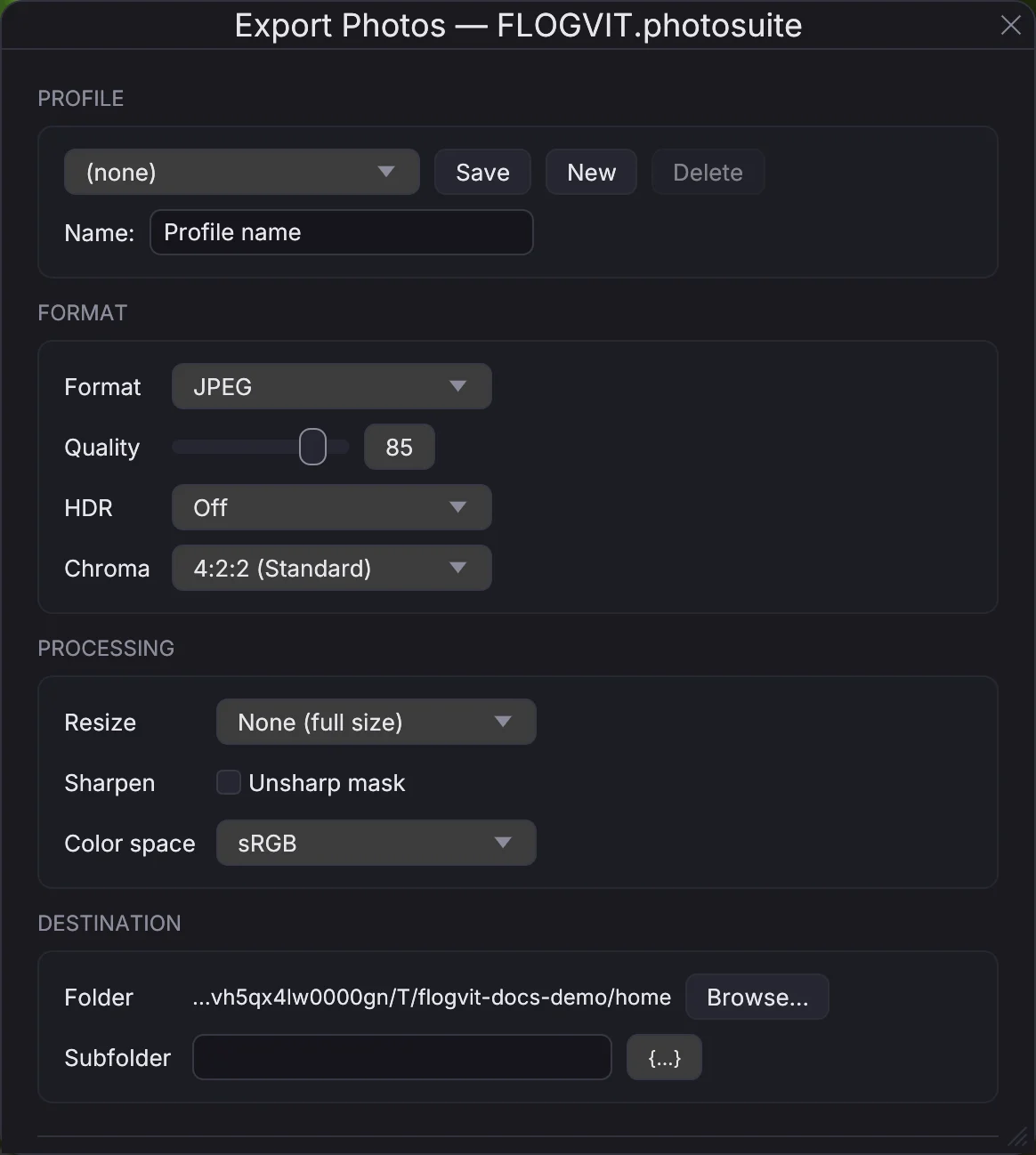
Press Cmd+Shift+E to open the full export dialog. It exports the selected pictures, or every picture the window shows when one or none is selected.
Format#
Every rendered format develops a RAW from its sensor data with your develop settings, crop and orientation.
- JPEG, with a quality slider and chroma subsampling. HDR adds a gain map (+1, +2 or +3 stops): an HDR screen shows the highlights brighter, up to that much above white, and every other screen shows the picture as developed. Midtones and shadows stay as they are. The gain map follows Adobe's gain map specification and ISO 21496-1, as Ultra HDR writes it; JPEG XL and AVIF take the same HDR choice and carry the same gain map in their own way.
- TIFF, 8 or 16 bits per channel, uncompressed or compressed without loss (LZW or ZIP): what an editor (Photoshop, Affinity, Pixelmator), a print lab or a picture agency asks for. At 16 bits a RAW keeps the tones its develop worked in, so further editing does not band.
- PNG, 8 or 16 bits per channel.
- OpenEXR, linear light in half or 32-bit floats, for compositing, HDR work and an external GPU tool. The header names the colour space's primaries; an EXR carries no other metadata. A TIFF can also be written in 32-bit float, linear, with a linear profile.
- Linear DNG: the picture's scene-linear data with the camera's profile, unclipped, so it develops again like a RAW — for a round trip through another tool. Its develop and crop go in the sidecar beside it, as with a copy.
- Photoshop (PSD), flattened, 8 or 16 bits, with its profile, EXIF, IPTC and XMP.
- GIF, BMP, QOI and TGA, 8 bits in sRGB, for an old system or a game engine. They hold no profile or metadata.
- AVIF, 10-bit, for the web. It is written in sRGB, Display P3 or Rec.2020 only (AVIF names its colour space by a code, and Adobe RGB and ProPhoto have none), and carries the EXIF and the XMP, with caption, keywords and copyright.
- JPEG XL, 8 or 16 bits, in any of the colour spaces below but the picture's own (the file names its space rather than carrying a profile). Quality 100 is lossless; below it the file is smaller as the quality goes down, as with JPEG. It carries the EXIF and the XMP, with caption, keywords and copyright.
- WebP, 8 bits, in any colour space (it carries the profile), for the web. Quality 100 is lossless; below it the file is smaller as the quality goes down, as with JPEG. It carries the EXIF and the XMP, with caption, keywords and copyright.
- JPEG 2000 (JP2), 8 or 16 bits, in any colour space (it carries the profile), for archives and cinema. Quality 100 is lossless; below it the file is smaller as the quality goes down. It carries the EXIF and the XMP, with caption, keywords and copyright.
- Original copies the file as it is, with its sidecars when Copy XMP sidecar files is on.
Processing#
- Resize: none, fit to a box in pixels, or a percentage. Extra sizes can be written from the same render, each with its own file name suffix.
- Sharpen after resizing (unsharp mask).
- Color space: sRGB for the web and newspapers, Display P3, Adobe RGB, Rec.2020 or ProPhoto RGB to keep colours beyond sRGB, or the picture's own profile. Rec.2020 is the gamut the develop works in, written under the sRGB curve as it draws it (the file's profile says so); ProPhoto is the widest, for an editor that keeps every colour. A RAW is developed straight into the space you choose.
Metadata#
What each exported file says about itself is written into it: its EXIF (camera, lens, exposure, capture time), its IPTC and XMP (creator, copyright, caption, keywords, people, event), the IPTC-IIM keywords and caption a newspaper's system may read instead (JPEG and TIFF), and its position. Every file carries the colour profile its pixels are in.
- Metadata chooses how much of it leaves the machine: Everything, Everything but the position, Everything but who is in it (people, their names and numbers in the keywords, and a caption naming them), Creator and copyright only, or Nothing.
- IPTC template lays one of your IPTC templates over each picture's own metadata, with its variables filled in per picture.
- Someone a start list says is never named is never written, whatever the template says.
- Copy XMP sidecar files writes a sidecar beside each exported file saying the same as the file. An original is copied as it is.
- Virtual copies chooses whether Originals + copies, Originals only or Virtual copies only are exported; a virtual copy is exported with its own develop and crop.
Over the API, POST /api/export takes format, bit_depth, quality, color_space, metadata and iptc_template in place of the profile's.
Destination#
- Folder — where the files are saved. Left empty, each file goes beside its picture.
- Subfolder — a folder under it made from the picture, with variables such as
{image_year},{image_month},{image_day}and{camera}(theimage_ones are when the picture was taken;{year}and the like are today). - Rename exported files — a name template such as
{image_date}_{seq:4}or{original}_web; the extension is the format's and is added for you. The variables are the batch rename's.
Export Profiles#
Every setting in the dialog belongs to an export profile. Under Profile at the top, give the settings a name — "Web - 2048px", "Newspaper - names", "Sponsor - no names" — and save them; pick a profile there to bring back all its settings. The dialog, Quick Export and POST /api/export start from the profile you used last.
Batch Export#
Select multiple images and export them all at once. Combined with filtering, this is a fast way to export all your selects:
- Filter to picks (Option+P)
- Select all (Cmd+A)
- Open export dialog (Cmd+Shift+E)
- Configure and export
Moving pictures to another folder#
 0:09
0:09To move pictures without converting them, drag them from the grid or the filmstrip onto a folder in the folder tree. Their sidecars and voice notes go with them; when the folder already has files of the same names, the app asks whether to skip those or overwrite them. Edit → Undo moves them back. To copy the files as they are, use Original as the format above.