Folders & Navigation
Folder tree, favorites, recent folders, session persistence, and drag-and-drop.
 0:37
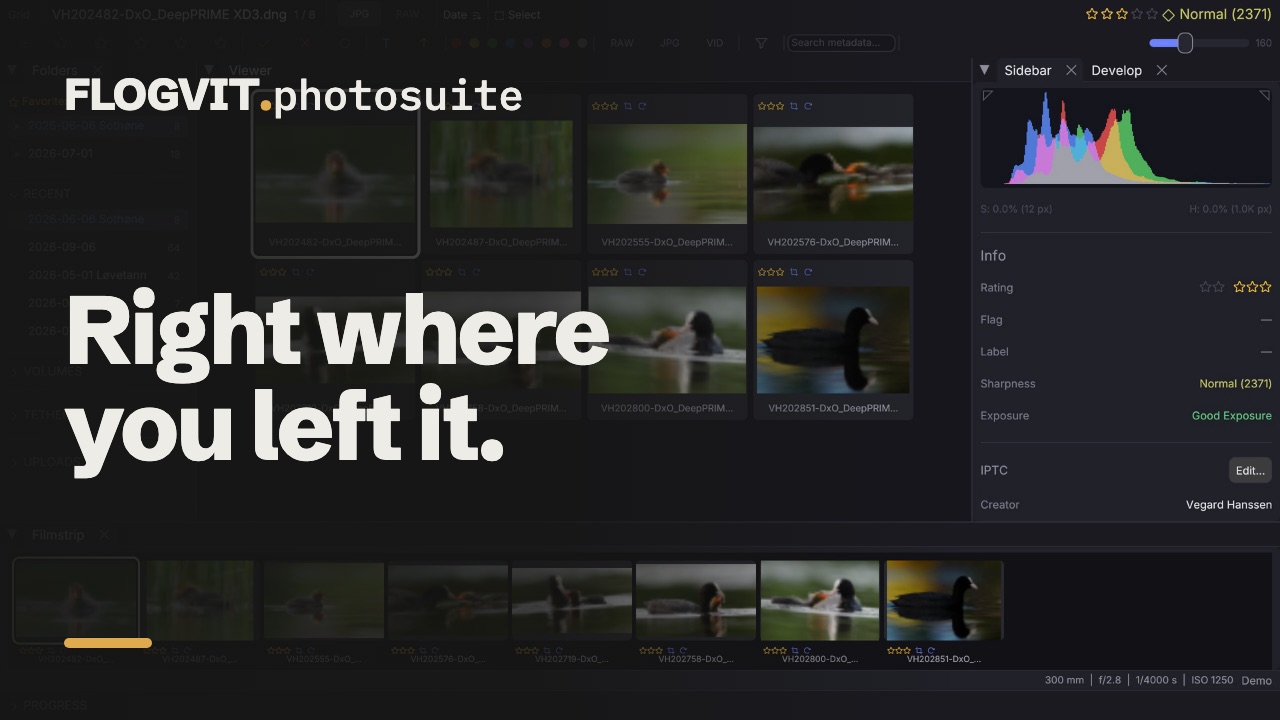
0:37FLOGVIT.photosuite gives you fast access to your photo folders with a built-in folder tree, favorites, and recent history.
Folder Tree#
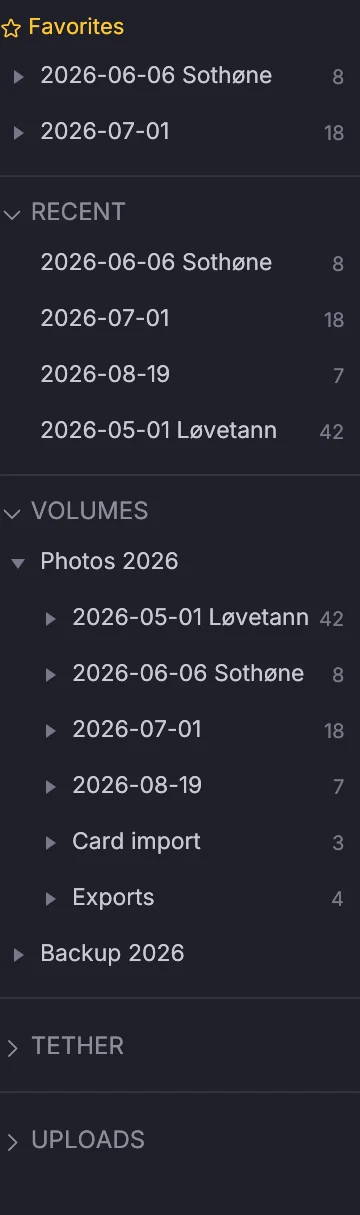
Press L to toggle the folder tree panel on the left side. It shows your file system hierarchy and lets you switch between folders instantly — no need to use the OS file dialog every time.
Click any folder to open it. Subfolders are expandable. The current folder is highlighted.
Opening Folders#
Several ways to open a folder:
- Cmd+O — OS file dialog
- Click a folder in the folder tree
- Drag and drop a folder onto the application window
- Select from File → Recent Folders
- Via the API:
POST /api/openwith the folder's path
Working on more than a folder#
What the window works on can be an album, a saved search or a library search as well as a folder. In the Library view, what is picked in its panel — a disk, a day, an album, a keyword — opens as what the window works on. Over the API, POST /api/source opens an album ({"kind":"collection","name":…}), a saved search (smart_collection), a search (query with the filter) or a folder.
Everything you do to a folder's pictures works the same on these: rating, flags, labels, develop, crops, renaming, exporting, uploading and publishing. Each change lands in the picture's own folder. The folder tree has no folder marked while one is open, and each one remembers its own sort, filter and the picture you were on.
An album has an order of its own. It opens sorted Own Order, and dragging pictures onto another in the grid or the filmstrip puts them before it, kept with the album.
A picture on a disk that is not connected is shown from the library's stored preview, marked with the disk's name. Exporting, moving or trashing it says which disk to connect first.
Favorites#
 0:08
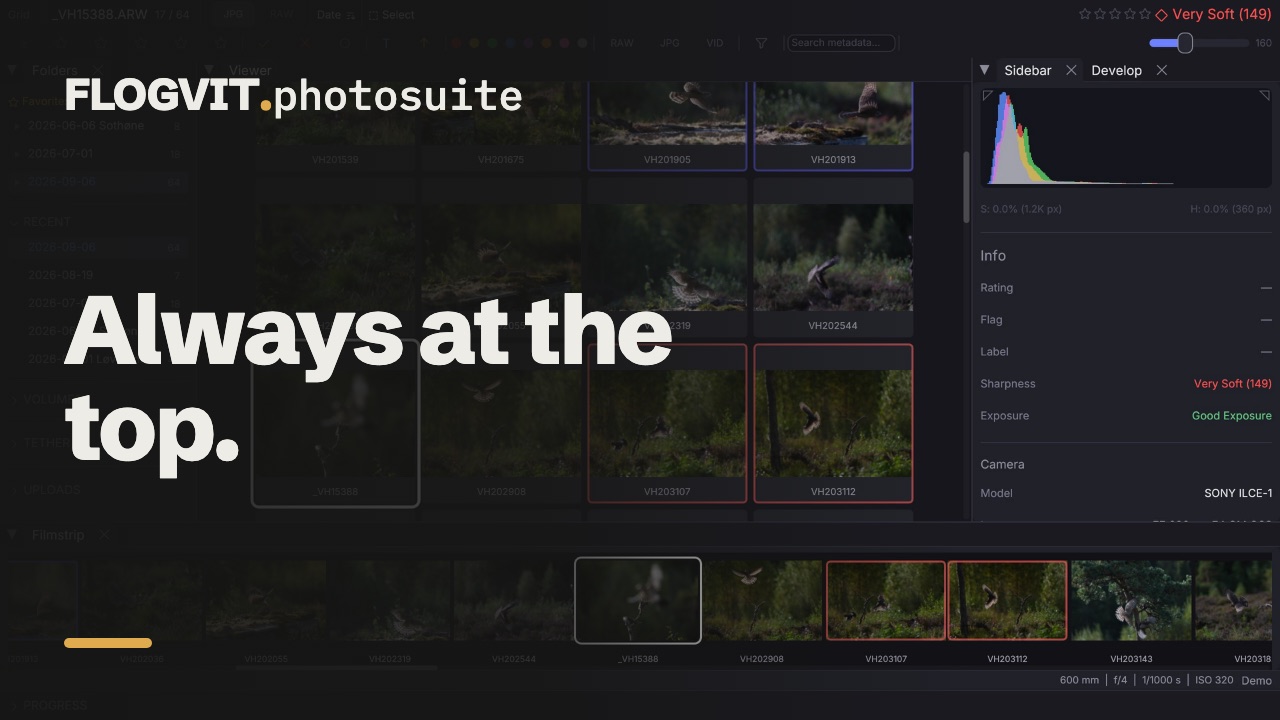
0:08Pin folders you use often as favorites: right-click the folder in the tree and choose Add to Favorites.
Favorites appear at the top of the folder tree for quick access. They persist between sessions and are stored in favorites.json in the settings folder (~/Library/Application Support/flogvit/).
Remove one with Remove from Favorites in the same menu.
Recent Folders#
 0:08
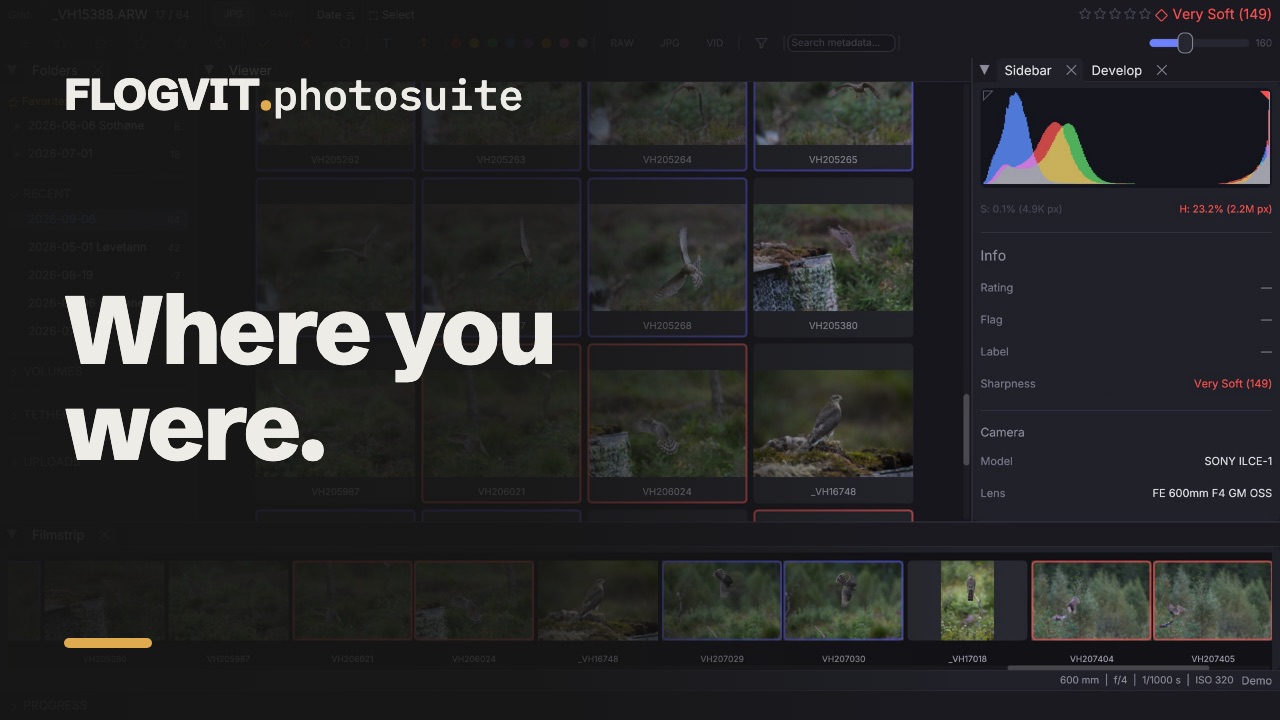
0:08FLOGVIT.photosuite remembers your recently opened folders. Access them from:
- File → Recent Folders in the menu bar
- The folder tree panel (recent section at the top)
The list shows your last opened folders with the most recent first. Recent folders are stored in recent.json in the same folder.
Session Persistence#
When you reopen a folder, FLOGVIT.photosuite restores your previous session state:
- The picture you were on
- The view (Develop, Grid, Compare or Survey)
- Every filter, and the sort order and direction
- The size of the thumbnails in the grid
- Which bursts and virtual-copy stacks were folded up
This means you can switch between projects and pick up exactly where you left off.
Subfolder Browsing#
The folder tree lets you navigate your entire drive structure without leaving the app. When you click a folder with images, they load immediately. The previous folder's state is saved automatically.
Drag and Drop#
Drag a folder from Finder directly into the FLOGVIT.photosuite window to open it.
Drag pictures from the grid or the filmstrip out of the window to copy them somewhere else: into a folder in Finder, a mail, an editor or a browser's upload field. With several pictures selected, the drag takes all of them; a virtual copy is its picture's file. The files go as they are on disk, without their sidecars.
Or copy them: Edit → Copy (Cmd+C) puts the selected pictures on the clipboard as files, or the one on screen when nothing is selected, and Paste in Finder or a mail puts them there. Here each picture takes its sidecar and voice note along, so stars, flags and edits travel with it.