RAW Steps
See a RAW file as the sensor recorded it, and what each step of develop does to it — down to the number in each photosite.
 0:49
0:49A RAW file is not a picture yet. It is one number per photosite, each measured behind a red, green or blue filter. Every picture you have seen from it was made by a chain of steps. RAW Steps shows the file after each of them, so you can see what the sensor recorded and what each step did to it.
Press Shift+W, or choose View → RAW Steps. Press it again to go back to Develop.
The steps#
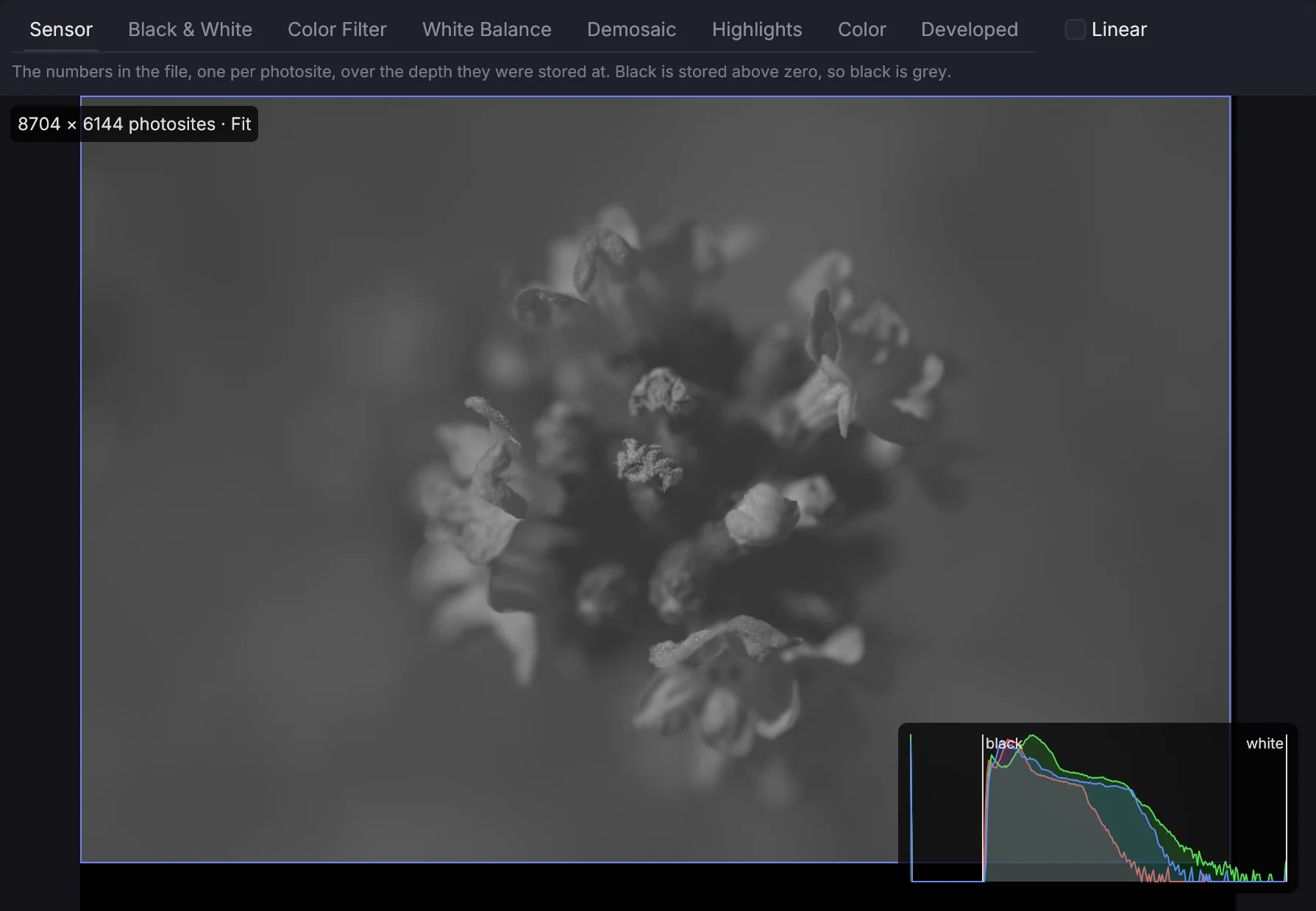
Pick a step in the bar at the top, or step through them with ↑ and ↓. ← and → go to the previous and next picture.
- Sensor — the numbers as the file stores them. The picture is grey because each number is only an amount of light, and it is never fully black: cameras store black above zero.
- Black & White — the black level is subtracted and the white level is scaled to 1. This is the light each photosite measured.
- Color Filter — each photosite in the color of the filter over it. Half of them are green, so the picture is dark and green.
- White Balance — red and blue are lifted until a grey is grey.
- Demosaic — the two missing colors at every photosite are estimated from its neighbours. This is the first step with a full-color picture, still in the camera's own colors.
- Highlights — where a photosite clipped, its color is rebuilt from the channels that did not clip.
- Color — the camera's colors are turned into standard sRGB by the file's color matrix. There is no tone curve yet. Many files carry no matrix, and then this step changes nothing; Develop takes the colors from the camera's profile instead.
- Developed — the finished picture, as Develop draws it with your adjustments.
The picture is shown the way the sensor lies, not turned upright, and the whole sensor is shown. The outline marks the image area. Outside it are the masked photosites that cameras use to measure black.
Turn on Linear to see the values without the display gamma. A linear picture is almost black, and that is how the data really looks.
Zoom in to the photosites#
Scroll or pinch to zoom around the pointer, drag to move, and double-click to switch between the whole sensor and one photosite per screen pixel. Z fits the sensor again.
Above 100 % each photosite is drawn as a square, so on the Color Filter step you see the mosaic itself. Zoom in far enough and every photosite shows its number: the stored value on the Sensor step, and the measured light after that.
The photosite under the pointer#
The panel at the bottom left follows the pointer. It shows that photosite through every step: the stored number, the black and white levels, the white-balance gain, the color after each step, which channels clipped, and the finished color. The step you are on is highlighted.
The histogram at the bottom right counts the photosites in the area shown, on a log scale. On the mosaic steps each photosite counts once, in its own filter's color. On the Sensor step the black and white levels are marked.
From a script#
await client.view.setMode('raw_steps')
while (!(await client.rawSteps.get()).ready) {
  await new Promise((r) => setTimeout(r, 200))
}
await client.rawSteps.set({ step: 'filter', zoom: 64, center: [3000, 2000] })
const p = await client.rawSteps.probe(3000, 2000)
console.log(p.filter, p.stored, p.values.white_balance)
The view reads the sensor data when it opens, so wait for ready before you probe.