Slideshow
Review images at a set pace — rate, flag, or label as you go.
 0:33
0:33FLOGVIT.photosuite includes a built-in slideshow that lets you review images at a set pace — and rate, flag, or label as you go.
Starting a Slideshow#
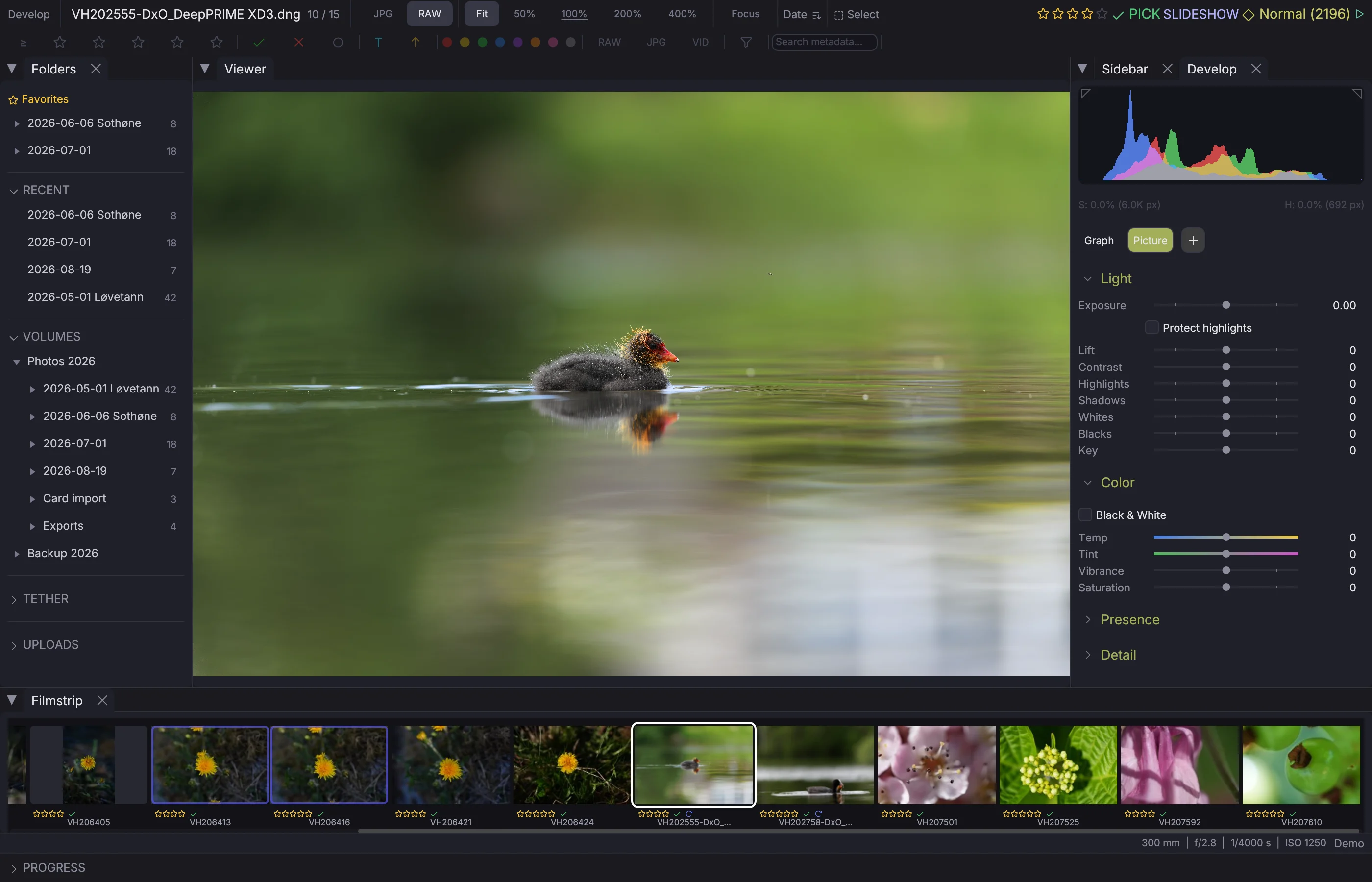
Press Shift+S to start the slideshow. The app switches to the develop view and advances through your images automatically; for the pictures alone, go fullscreen as well (Shift+F). Press Shift+S or Escape to stop.
The SLIDESHOW indicator appears in the status bar when active.
Adjusting Speed#
 0:08
0:08- Shift++ — Increase interval (slower)
- Shift+- — Decrease interval (faster)
The interval ranges from 0.5 seconds to 30 seconds. Default is 3 seconds. You can also set the default interval in Settings → General.
Rating While Viewing#
You can rate, flag, and label images during the slideshow without stopping it:
- 1 – 5 — Set star rating
- P / X — Pick / Reject
- 6 – 9 — Color labels
When auto-advance is also enabled (Shift+A), the slideshow immediately moves to the next image after you set a rating, flag, or label.
Filtered Slideshow#
The slideshow only shows images that match your current filters. This means you can:
- Filter to picks (Option+P)
- Start slideshow — only your selects are shown
Or filter to a specific color label, star rating, or file type before starting.
Auto-Advance#
Toggle auto-advance with Shift+A. When enabled, the app moves to the next image after any rating, flag, or label action — even outside of slideshow mode. The AUTO indicator appears in the status bar.
Auto-advance only triggers when setting a value, not when clearing one.