Publishing Albums
Keep an album on an event or in a folder: what you put in goes out, what you take out comes down, by itself.
 0:49
0:49Keep an album where it should be: in your gallery, on an event on eventphotos, in a SmugMug gallery, in a Flickr set, or in a folder on a connection — FTP, SFTP, WebDAV, S3, Dropbox, Google Drive, rclone or a folder on this machine. The album is what should be there. What you put in goes out, what you edit is sent again, and what you take out comes down, by itself.
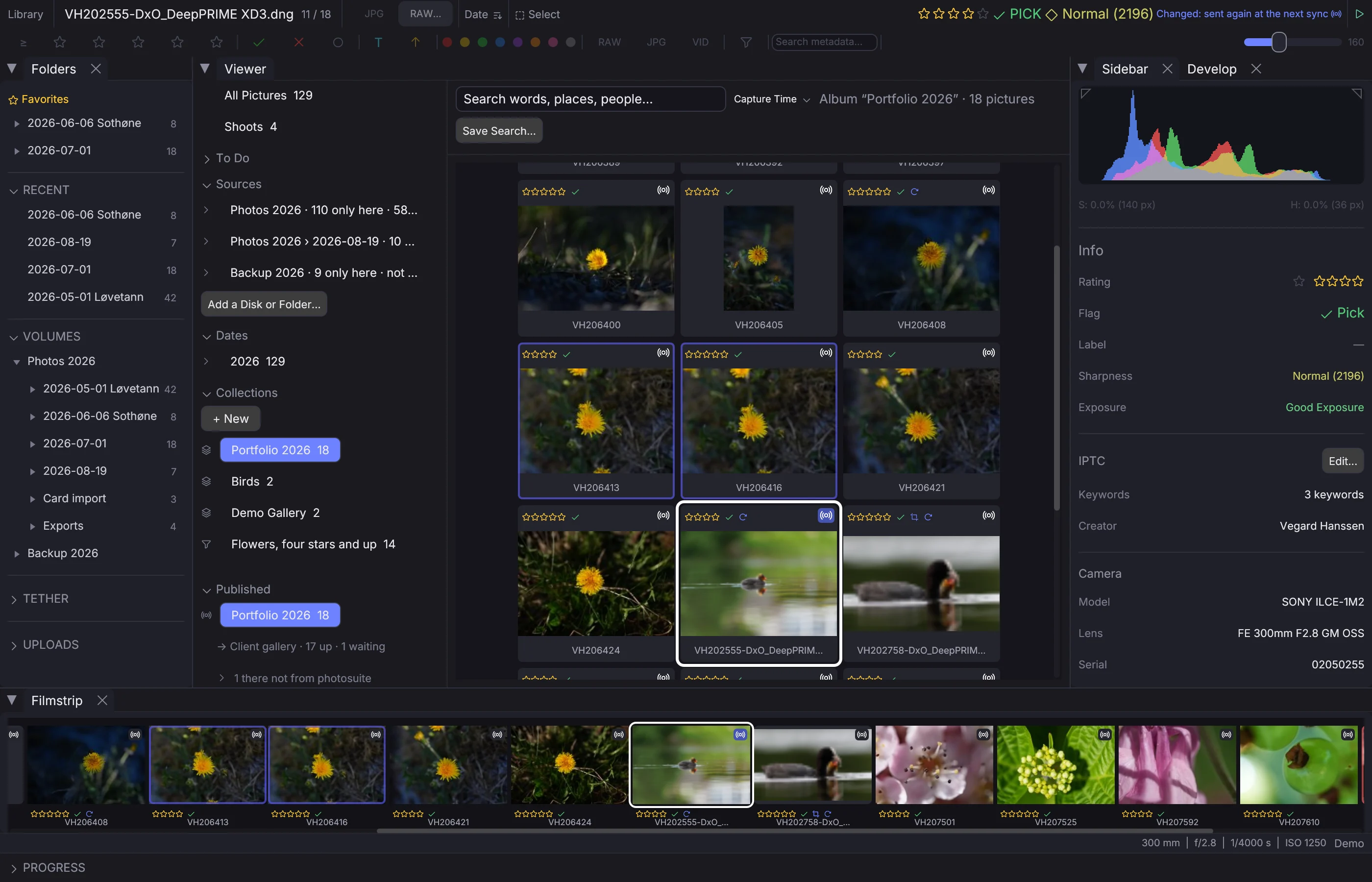
Publish an album#
- Add the connection first, in Settings → Connections. For eventphotos, see Publishing to eventphotos.
- In the Library, right-click the album and choose Publish to… — or choose Deliver → Publish Album… and pick the album there.
- Choose Your gallery, An event on eventphotos, A SmugMug gallery, A Flickr set or A folder on a connection, then the connection. For your gallery, see Your Gallery.
- For an event, choose the event. For a folder, type the folder under the connection's own (leave it empty for the connection's own), and choose what is sent: The original, with its sidecars, or one of your export profiles. For a SmugMug gallery, give its link, its node id, or a folder path ending in its name (made when it is not there); each picture is sent as a full-size JPEG as developed, or by an export profile, and Title, Caption and Keywords say what each image is called — the picture's headline, caption and keywords unless you change them. A Flickr set is given by its id or its title — made with the first picture when there is none — and takes the same title, caption and keywords; a picture taken out is deleted when photosuite uploaded it, and only taken out of the set when it did not.
- Choose Publish. The album goes out within twenty seconds.
Keeping it up to date#
The album syncs once it has stood still for twenty seconds, so dragging in fifty pictures sends them in one go.
- Put in a picture, and it goes out.
- Edit a picture — the file, crop, develop settings or orientation — and it is sent again over the one that is there. In a folder, a SmugMug gallery or a Flickr set, a changed caption or keyword is sent again too; to SmugMug and Flickr, without the picture. Star ratings and labels do not count.
- Edit it on eventphotos as well — a crop, exposure, highlights or shadows in eventphotos' own editor — and the next time photosuite has a new version to send, it takes that edit into the picture first, so the new version carries it instead of writing over it. The crop made there replaces one made here since, and the album's line in the Published section says how many were taken in.
- Take out a picture, and it is deleted there. On eventphotos, one somebody bought is hidden instead, and never deleted.
- Every ten minutes the place is read again, so a picture deleted or sold there in the meantime shows as such. One deleted there is sent again.
A name already taken by another file in the folder gets a free one: IMG_1-2.jpg.
Publish pictures from the grid#
Select the pictures, right-click one and choose Publish To. It lists every published album under where it goes — your gallery, eventphotos, SmugMug, Flickr, folders — and what its sync is doing. The pictures go into that album and out with its next sync, so a set finished for Flickr goes to SmugMug too with one more click. A shot the album already holds in another file is not sent twice (Library).
To send pictures one at a time while you cull, point the target album at the destination: the info bar's target menu lists the same albums first, and Shift+B then puts the selected pictures, or the one on screen, in it.
The Published section#
The Library's Published section lists every published album. A click opens the album. The line under it says where it goes and what it holds there: how many are up, waiting, sold, or missing on this computer.
In the grid each picture of a published album carries a mark — dim when it is out there, coloured while it waits, green when sold, red when it failed — and the info bar says the same for the picture on screen.
Right-click a published album for:
- Sync Now — send what is waiting at once.
- Sync by Itself — untick it to send only when you choose Sync Now.
- Publish to… — change the folder, what is sent, or the place. A new place starts over there; what went to the old one stays.
- Stop Publishing — the album stops syncing; what is out there stays.
What is there besides the album#
A file photosuite did not put there — uploaded in a browser, written by another program, or left by a picture that is gone — is listed under the album as N there not from photosuite, and left alone. Open the list to see each, with a small picture where the place has one. Link… says it is one of your pictures: choose the picture, and it joins the album as that item and is sent over it. Remove deletes it; a sold picture on eventphotos has Hide instead. In a SmugMug gallery, an image uploaded before the album was bound, with a picture's file name and capture time, becomes that picture's and is uploaded over.
When a sync fails#
- Look at the album in the Published section. Last sync stopped: says why the whole sync stopped — a connection that no longer signs in, or an event that is gone. Fix the connection in Settings → Connections, or choose Publish to… and another place. A sync that stopped is not tried again by itself for an hour, so a server that refuses a password is not asked again and again; a change to the album, or Sync Now, tries at once.
- N failed means some pictures did not go out. Hover over it to see each one and why.
- Choose Sync Now. The failed ones are tried again; so they are at every sync.
From a program#
Everything here is in the API (/api/publish/albums) and the SDK:
await client.publish.bind('Client Delivery', { kind: 'files', connection: 'Client folder', place: 'summer' })
await client.publish.items('Client Delivery', { add: ['/Volumes/Card/IMG_1.ARW'] })

// Each picture's state there, the sync running or last run, and what is there besides
const album = await client.publish.album('Client Delivery')
for (const item of album.outside) {
  await client.publish.removeOutside('Client Delivery', item.id)
}