Nodes, Looks & Shot Match
Corrections over the whole picture, side by side or layered, as a graph; looks a whole event follows; one picture matched to another.
 0:50
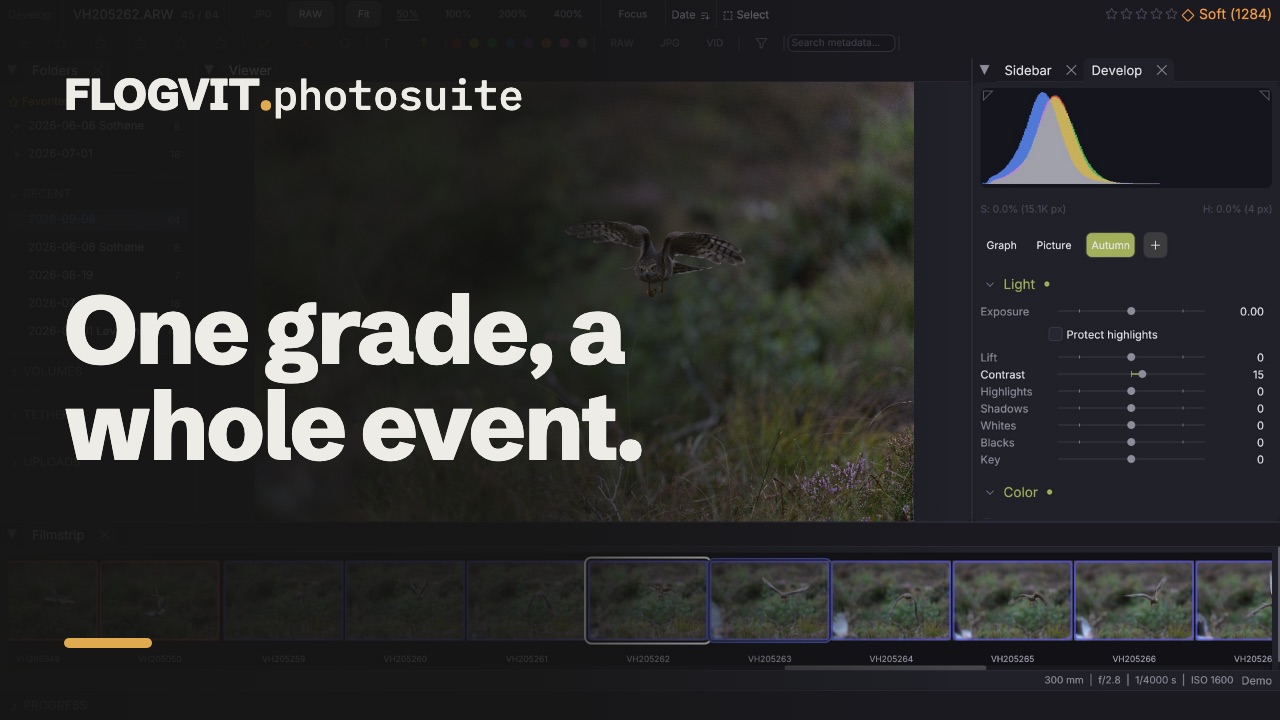
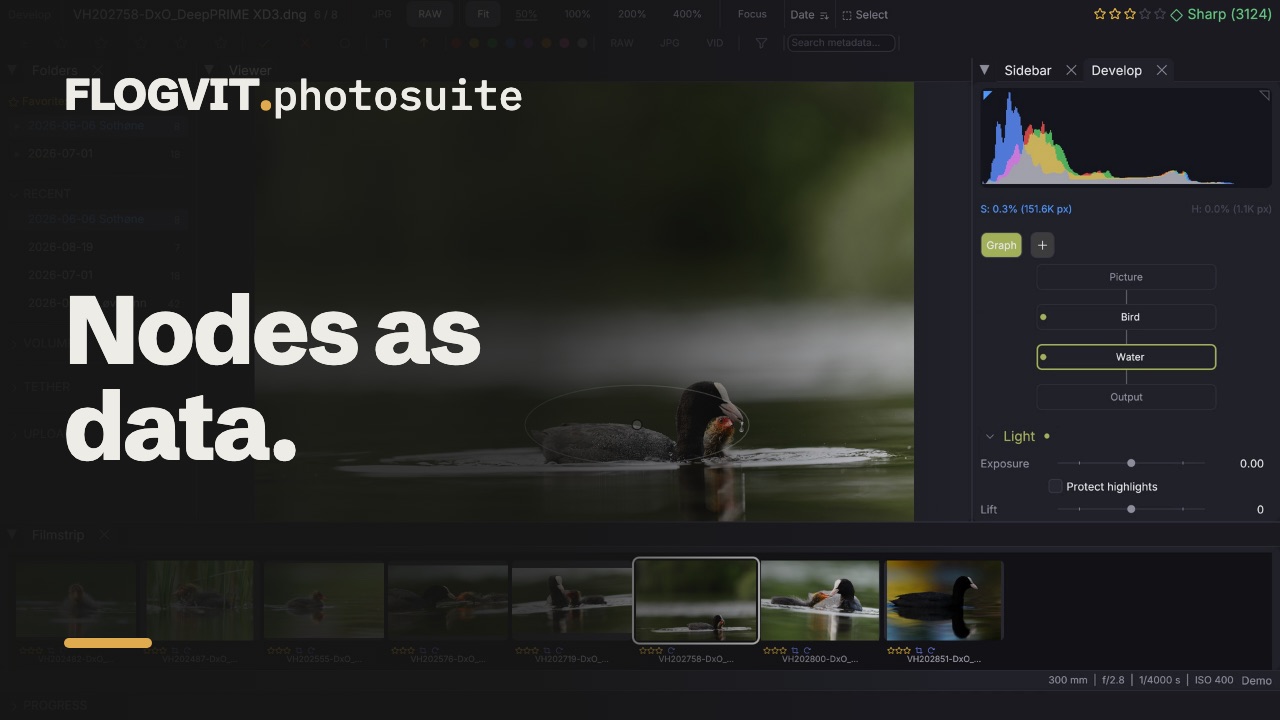
0:50The masks in Develop are a chain of corrections that run after the panel's own sliders, in the order the list shows. That is what a node is in a grading program, and this page is how to use them as nodes: corrections over the whole picture, side by side or layered, saved as looks that every picture of an event follows, and matched from one picture to another.
Editing a node#
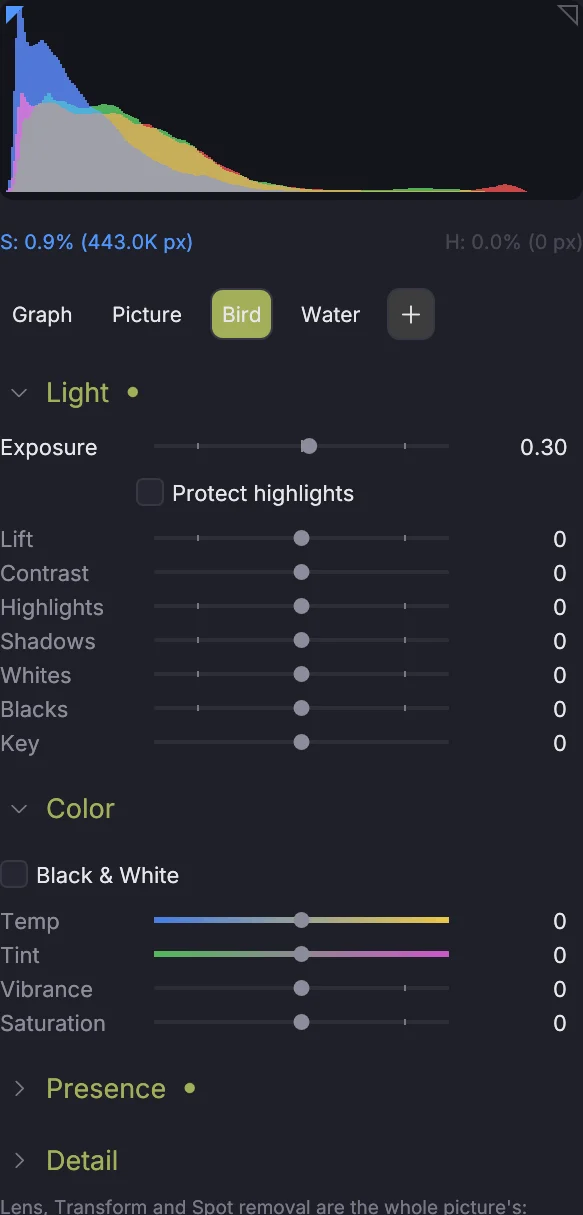
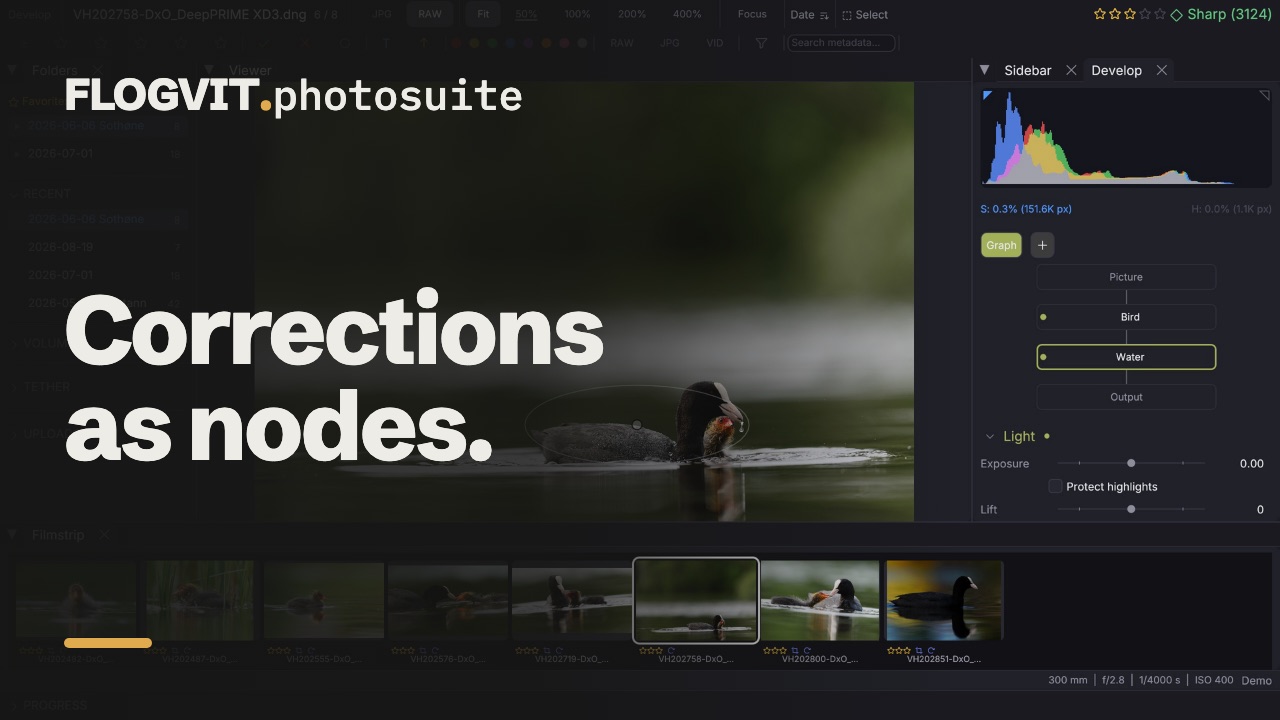
The row at the top of Develop says what the panel edits: Picture, or one of the picture's nodes by name — or, with Node graph on, the graph in its place. Each node carries a small picture of what it covers, white on dark, as in Lightroom's mask list. Click a node and the panel's own sections — Light, Color, Presence, Detail, Tone Curve, Color Mixer, Color Grading and Effects — edit that node; click Picture to go back to the picture's own develop. Clicking a mask in the Masks list or the graph picks it the same way.
A node has every tool in those sections: exposure and tone, white balance, Black & White (its mixer is the mix), saturation, presence, sharpening, noise reduction, the curve, the mixer, the grading, a vignette and grain, each faded in by the node's coverage — a grade inside a gradient fades out with it. Lens, Transform, Spot removal and the crop belong to the whole picture, so they are only there while Picture is picked.
A correction over the whole picture#
 0:09
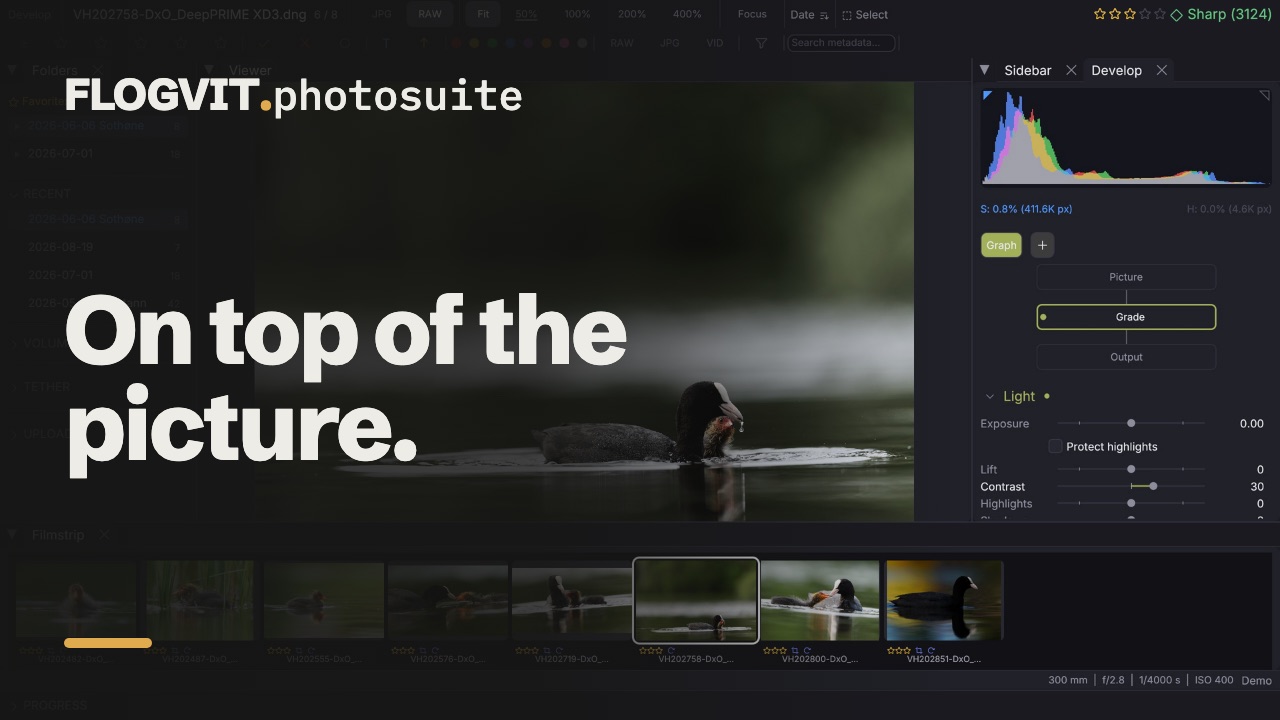
0:09+ Node in that row adds a node and picks it: over the whole frame, or with a qualifier — linear, radial, brush, luminance, colour, the subject or the sky. + Whole frame in the Masks panel does the same as the first. It runs after the picture's own develop and after the nodes above it, so it is the place for a second curve, a grade or a colour change you want on top of the picture rather than instead of it. Give it a qualifier in Masks to make it local.
The panel's own Exposure works on the light before the picture is toned; a mask's works on the picture as it is shown. Set exposure and white balance in the panel, and use masks for what comes after.
Order, on and off#
 0:11
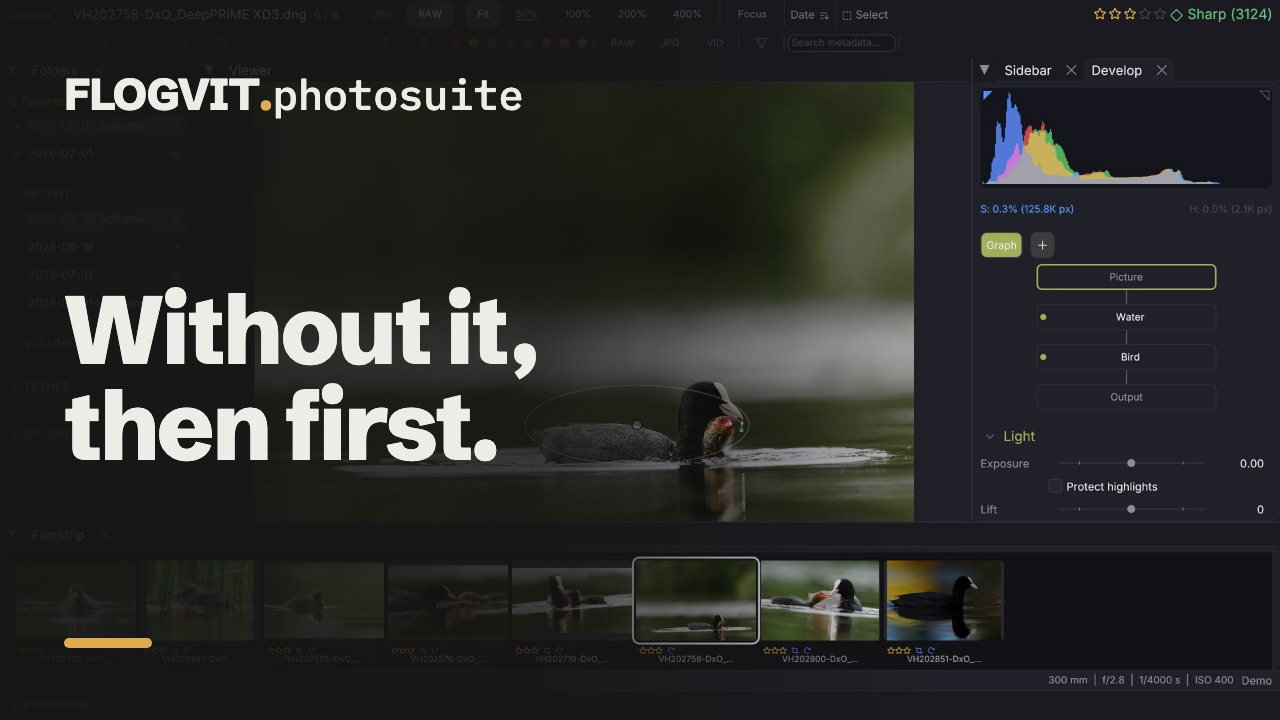
0:11- The list is the order the masks apply in. ▲ and ▼ move a mask; each sees the picture as the masks above it left it.
- The box in front of a mask switches it off without losing it.
- Show here shows the picture as it leaves that mask; Solo shows that mask alone on the panel's values. Show all goes back. The scopes follow what is shown, and the masks left out fade in the list and the graph. Neither is saved.
Beside, over, and one area used twice#
Under a mask's name, Joins says how it meets the mask above:
- After the mask above — the usual chain.
- Beside the mask above — both see the picture as it was before them, and their changes add. Use it for corrections that should not react to each other: brightening a face and darkening a sky, without the second seeing the first.
- Over the mask above — a layer, laid over what is under it with a blend (Normal, Screen, Multiply, Overlay, Soft light, Lighten, Darken, Add) where it covers.
Masks joined this way are marked ‖ (beside) and ▤ (over) in the list.
Add another mask's coverage… adds a part that covers what another mask covers, by its name. Build a qualifier once — a face, a sky — and use it in several corrections. A mask switched off still works as the source, so you can keep one just for that.
The graph#
 0:11
0:11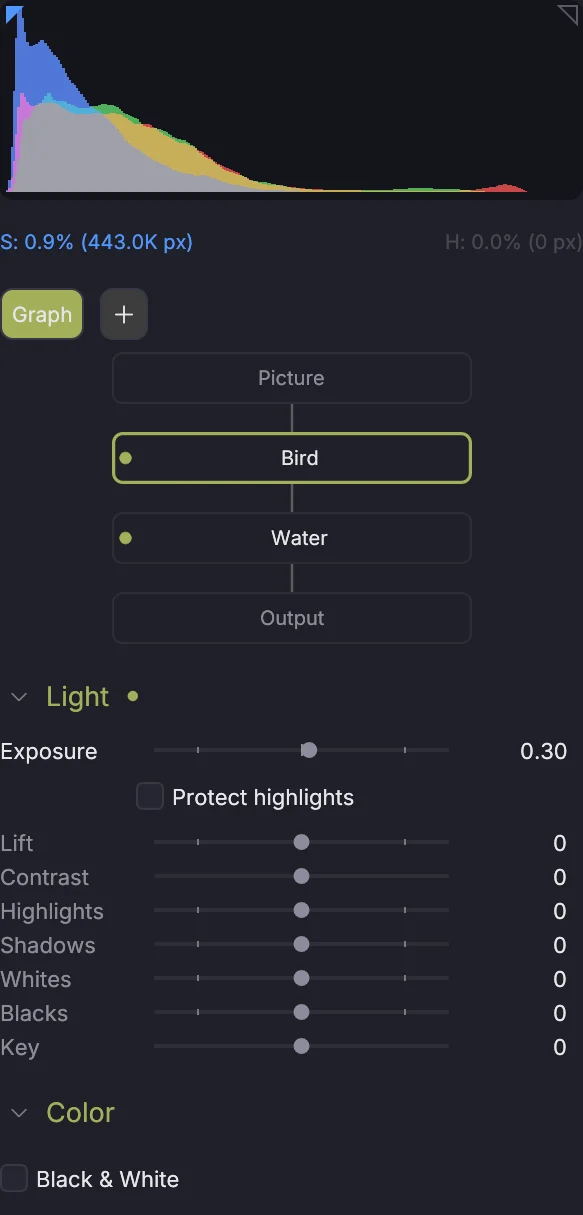
Node graph at the top of Develop, or Develop → Node Graph in the menu bar, shows the nodes: the picture's own develop first, the masks top to bottom in the order they apply, masks beside or over each other side by side in one row with their mixer under them. A layer carries its blend's name, and meets what is under it in a mixer even when it is the only one. It always fits the panel's width.
- Click a node to edit it in the panel, Picture to edit the picture's own develop; double-click to switch a node on or off.
- Drag a node to another column to move it there (it leaves its group).
- Right-click for Show the picture here, Solo, switching off, and delete.
Looks#
 0:09
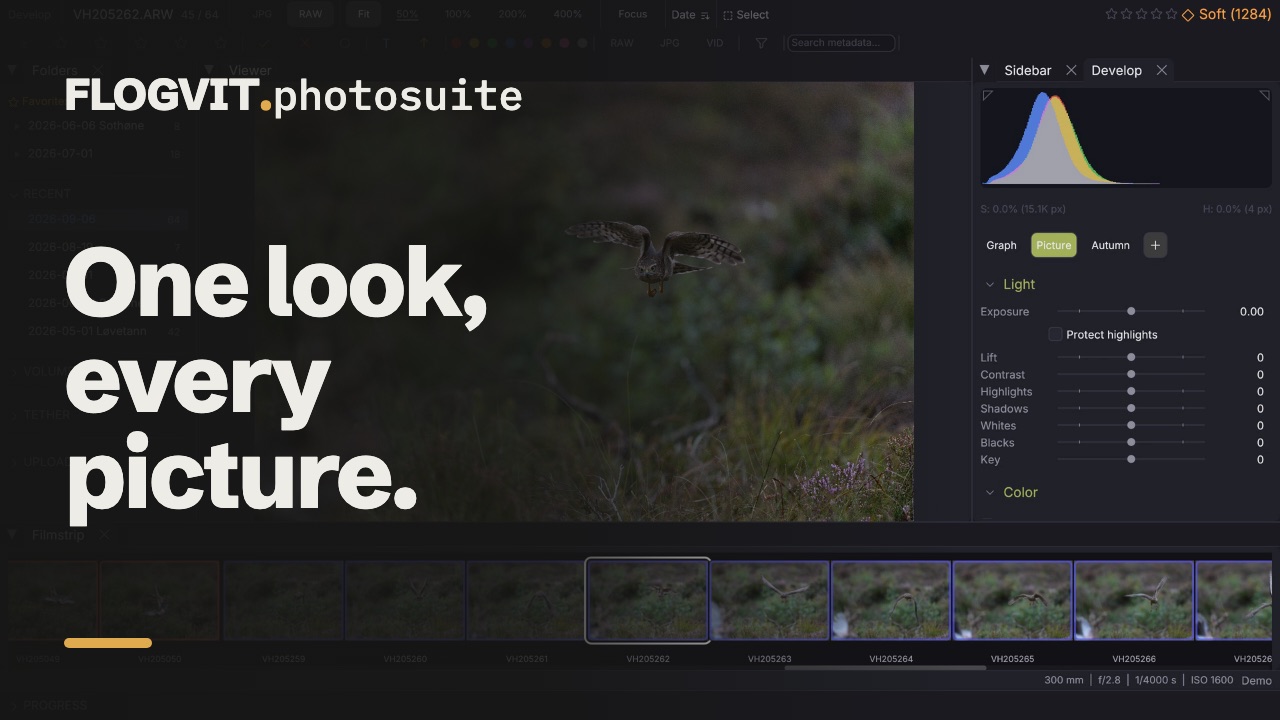
0:09A look is a picture's masks saved under a name. Under Looks, type a name and Save; click a look's name to put its masks on the current picture, after its own. The picture you saved it from has it too, and a picture that already has a look does not get it twice.
A look that has been applied follows the look: save the look again — from any picture that has it, or by changing its masks on one of them — and every picture in the folder that has it changes with it. Pictures outside the open folder change the next time they are opened. This is how one grade covers a whole event while each picture keeps its own exposure in the panel.
What follows is what the masks do — their parts, sliders, names and how they join. Switching one of them off is that picture's own, so you can compare one picture without it and leave the rest alone. Removing one of the look's masks from a picture, or adding a copy of one, makes the look that picture's own instead of changing it everywhere; the app says so when it happens. Your own masks can sit between the look's masks.
Unlink (shown on a look's mask) keeps that picture's copy as it is. A picture always carries the look's masks in its sidecar, so it renders the same on a computer that has never seen the look.
Shot match#
 0:10
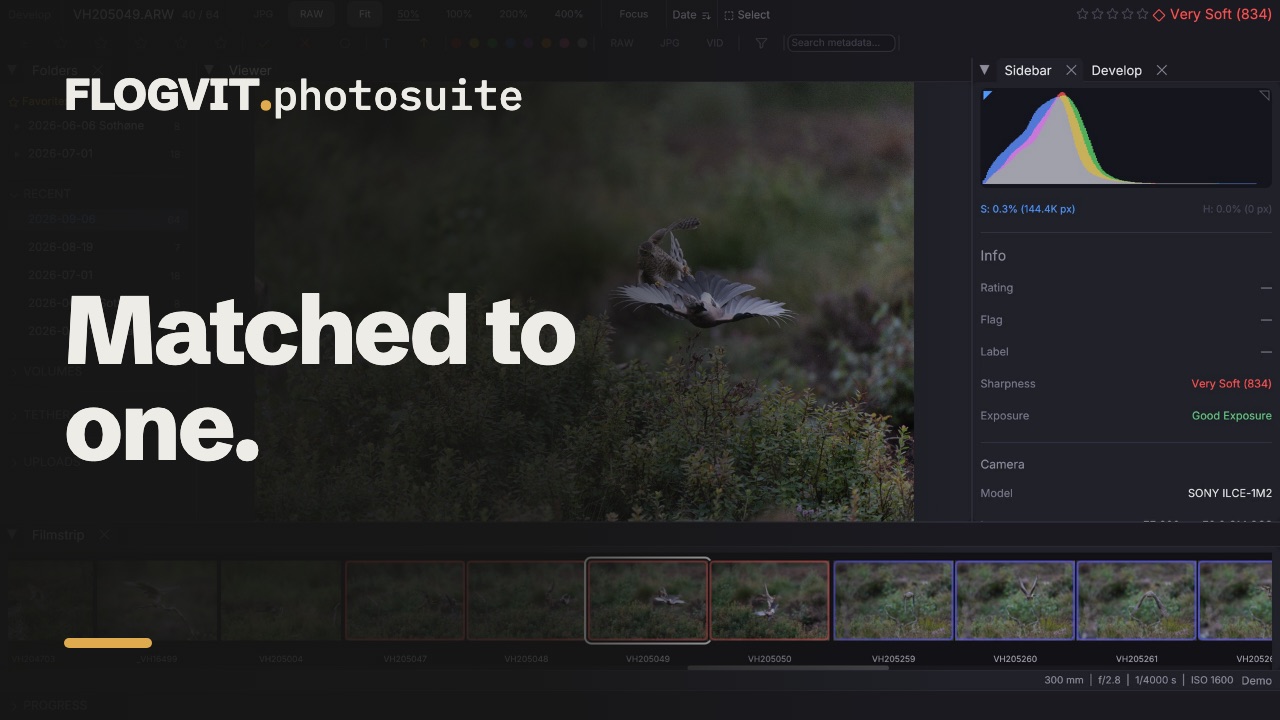
0:10Select the pictures to match, right-click the picture they should look like, and choose Match Selected to This Picture. Each selected picture gets a whole-frame mask named after the reference, with the exposure, contrast, saturation, temperature and tint that bring its tones and colour to the reference's. They are worked out in the background and arrive one by one; the mask is an ordinary mask you can change or switch off.
From a script#
 0:08
0:08await client.develop.setMasks([
// A whole-frame node: a curve and a grade over everything, after the panel.
{
name: 'Grade',
components: [{ geometry: { kind: 'frame' } }],
values: {
curve: { shadows: 12, highlights: -8 },
grading: { shadow_hue: 210, shadow_sat: 25, high_hue: 40, high_sat: 15 },
},
},
// Two nodes beside each other: both see the picture as the grade left it.
{
name: 'Skin',
components: [{ geometry: { kind: 'color_range', hue: 25, hue_tolerance: 20 } }],
values: { saturation: -10, hsl: { lum: [0, 8, 0, 0, 0, 0, 0, 0] } },
mix: { kind: 'parallel', group: 1 },
},
{
name: 'Sky',
components: [{ geometry: { kind: 'linear', x0: 0.5, y0: 0, x1: 0.5, y1: 0.4 } }],
values: { exposure_ev: -0.4 },
mix: { kind: 'parallel', group: 1 },
},
// The sky's area again, used by another correction.
{
name: 'Sky detail',
components: [{ geometry: { kind: 'key', mask: 'Sky' } }],
values: { clarity: 20 },
},
])
// The sky is the mask the panel edits, and its handles are on the picture.
await client.develop.selectMask(2)
// The picture as it leaves the grade, then back to all of it.
await client.develop.nodeView('up_to', 0)
await client.develop.nodeView('whole')
// Save this picture's masks as a look, and put it on the next picture.
await client.develop.saveLook('Event night')
await client.navigate.next()
await client.develop.applyLook('Event night')

// Saving again under the same name changes it on every picture that has it.
await client.develop.saveLook('Event night')

// Keep this picture's copy as it is, whatever the look becomes.
await client.develop.unlinkLook('Event night')
console.log(await client.develop.looks())
// Select the pictures to match, then match them to picture 12.
await client.selection.set([3, 4, 5])
await client.develop.matchTo(12)