Crop & Transform
Crop, straighten and perspective — non-destructive, stored in XMP sidecar files.
 0:53
0:53All crop and rotation changes in FLOGVIT.photosuite are non-destructive — they are stored in XMP sidecar files and your original images are never modified.
Crop Tool#
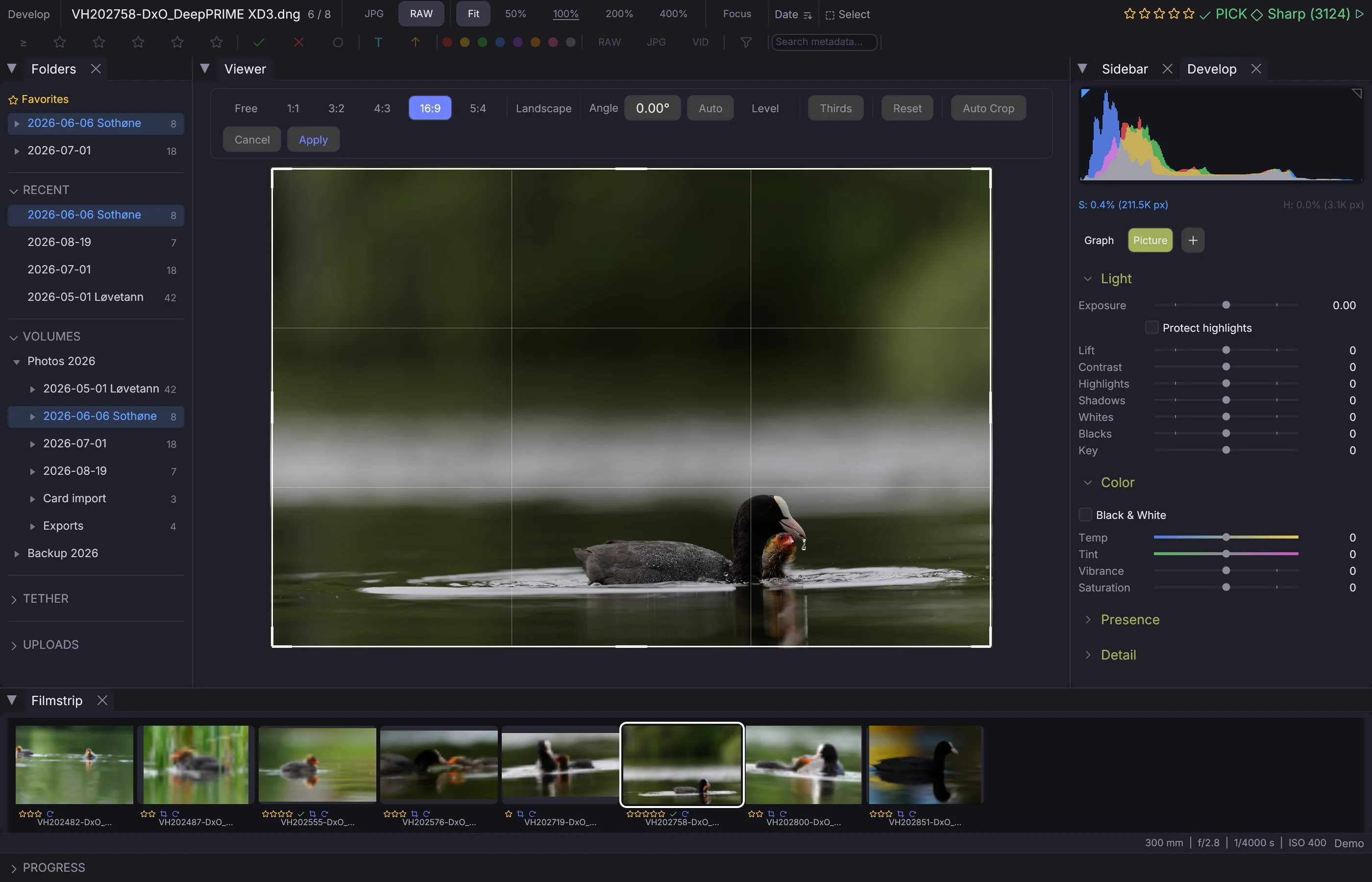
Press R to toggle the crop tool. A crop overlay appears on the image with drag handles at the corners and edges.
Aspect Ratio#
Lock the crop to a specific ratio:
- Free — Any proportion
- 1:1 — Square
- 3:2 — Standard photo
- 4:3 — Four thirds
- 16:9 — Widescreen
- 5:4 — Large format
- Custom — Enter your own width:height ratio
Orientation#
Click the orientation button to flip between landscape and portrait for the selected aspect ratio (e.g., 3:2 becomes 2:3).
Grid Overlay#
The grid button on the crop toolbar steps through the composition guides drawn inside the crop area, the same ones View → Overlays → Composition Guide lays over the picture while you edit:
- Thirds — lines at a third and two thirds each way.
- Golden Ratio — lines at the golden section, 0.382 and 0.618.
- Diagonals — a line at 45° from each corner.
- Golden Triangles — one diagonal, and the two lines that meet it at right angles.
- Golden Spiral — the spiral and its squares.
- Grid — lines close together across the whole frame.
- No Grid — nothing.
Option+O turns the triangles and the spiral to face another corner.
Applying the Crop#
The crop is saved to the XMP sidecar when you confirm. The full original image is always preserved — you can adjust or remove the crop at any time.
Removing the Crop#
Cmd+Shift+R (Develop → Remove Crops) takes the crop off the selected pictures. Develop → Reset Develop (Option+Cmd+R) takes the crop and the develop together.
Straighten#
 0:12
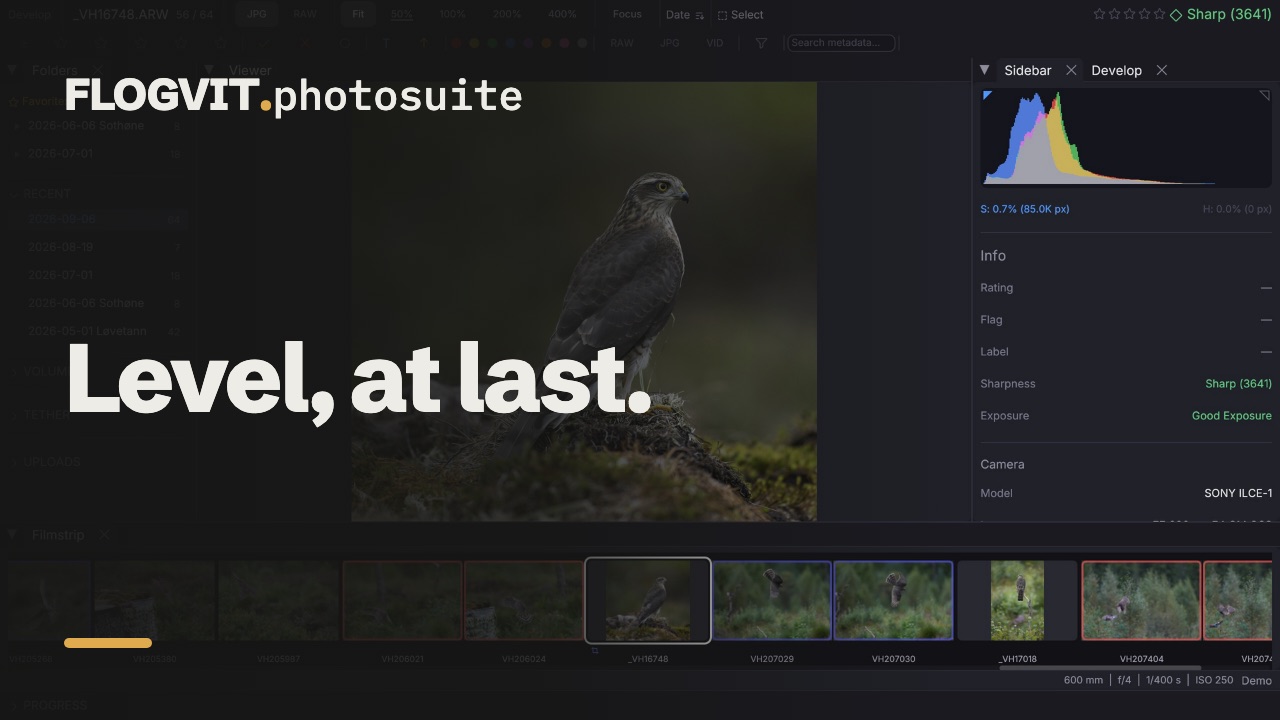
0:12The crop rectangle can be turned, and the picture turns with it. A positive angle turns the picture clockwise. The crop is stored in Lightroom's own fields (crs:CropAngle and the crop's corners), so Lightroom and Camera Raw open it turned the same way.
Four ways to set it:
- Angle — type or drag the value.
- Level — drag a line along anything that should be level. A line drawn steeper than 45° is taken as vertical instead, so a lamp post works as well as a horizon.
- Auto — no line at all. It finds the long straight lines in the frame (a horizon, a railing, the edge of a building, a lamp post) and turns the picture so they are level or upright. Vertical lines count as much as level ones: a leaning lamp post says as much about a tilted camera as a leaning horizon, and a frame of sea and sky may have nothing else to go on.
- Drag outside the frame — past the handles the pointer becomes a curved arrow; drag round the frame and it turns with your hand, as in Lightroom. Outside the picture works too, so a crop of the whole picture can be turned. Hold Option to draw a new crop there instead.
Auto refuses rather than guessing. It turns the picture only when two lines agree, or one long level line runs across it; a frame without them (an out-of-focus background, a close-up of feathers, a crowd) is left alone, because an angle there would tilt a picture that was level. Past 12° it assumes the frame was composed that way. Against 200 pictures a photographer straightened by hand, Auto came within 1° of their angle on 54 %, chose a different angle on 6 % and left 40 % alone.
While the angle changes — the value, the Level line, Auto or a drag — the crop area fills with fine lines that lean with the frame, so there is always one close to the horizon or the wall you are standing up. They give the chosen guide back a moment after you stop.
Turning keeps the crop on the picture: past what the rectangle fits at, it is pulled in about its centre and keeps its shape, as Lightroom's Constrain to Image does. While you drag, turning back gives the size back.
Perspective#
 0:08
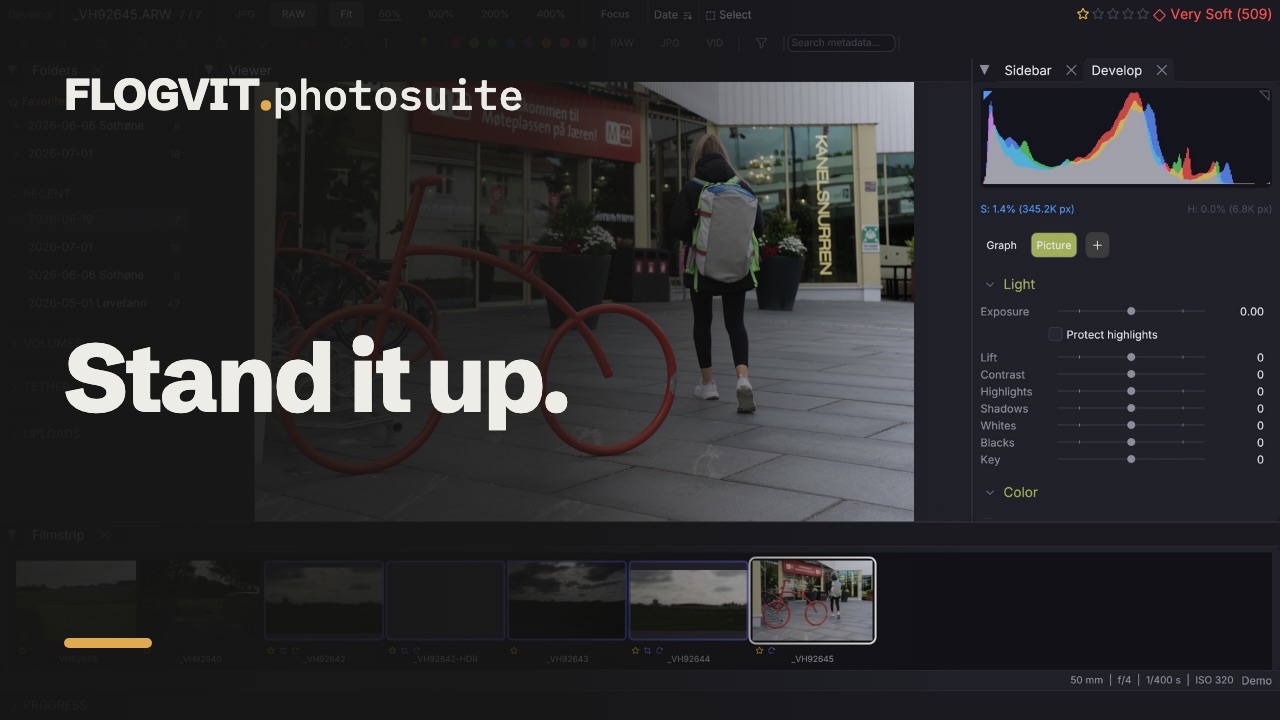
0:08The Transform panel in Develop fixes a wall that leans because the camera was pointed up at it.
- Vertical and Horizontal are the keystone: they lean the frame.
- Aspect stretches one axis against the other.
- Scale pushes the empty corners a correction leaves behind out of the frame.
- Offset X and Offset Y move the frame without changing how it leans.
There is no Rotate here. The crop tool's Angle already turns the picture, and two controls that turn the same frame are two controls that fight.
Corners the correction pulls in from outside come back black rather than smeared from the edge, because an edge stretched inwards reads as detail that is not there. Fit crop pulls the crop rectangle in about its own centre until none of it lands in those corners, keeping its shape and its angle — a 16:9 crop stays 16:9.
Rotation#
 0:10
0:10- [ — Rotate 90° counter-clockwise
- ] — Rotate 90° clockwise
Rotation is persistent and stored in the XMP sidecar. All 8 EXIF orientations are supported.
Auto-Crop#
 0:11
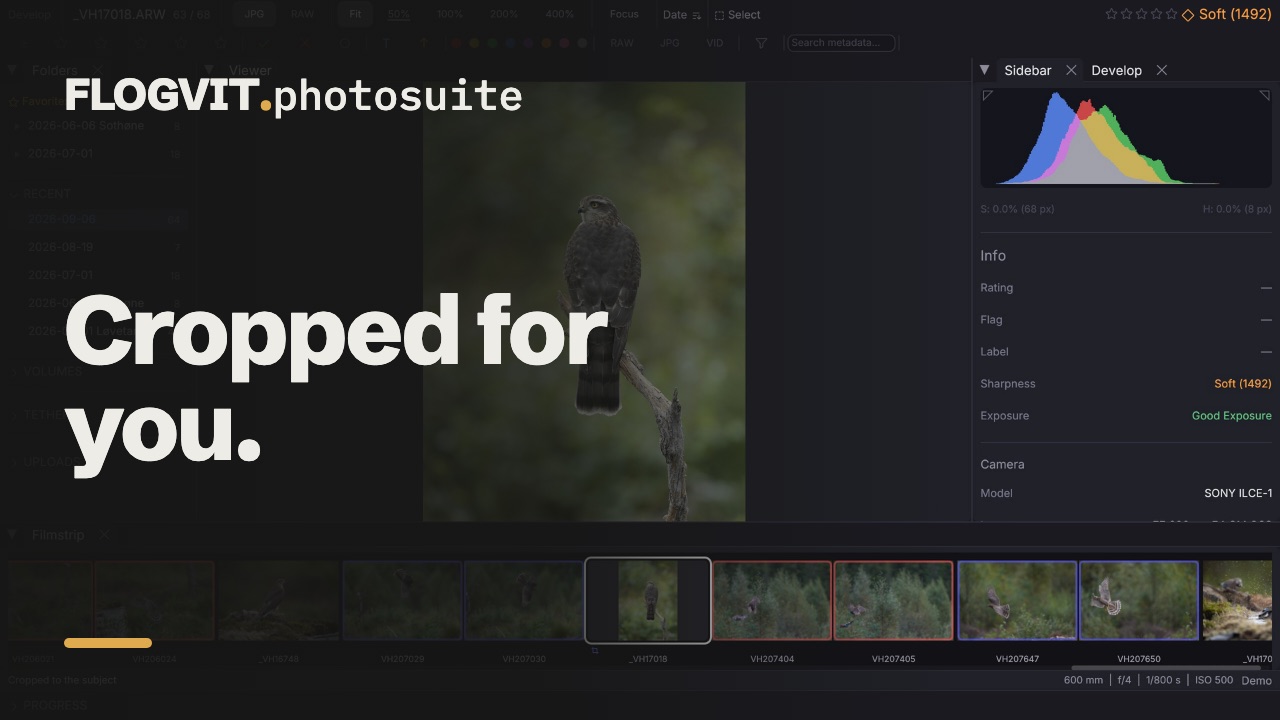
0:11Press Shift+R to crop around the people, or the animal when there are none. It learns from the crops you make. See the Auto-Crop documentation for details.
Exports#
When exporting, you can choose whether to apply the crop. This lets you maintain both a cropped version (for delivery) and the full original (for archiving).
From a script#
 0:08
0:08The crop is four edges as fractions of the full frame, plus the straightening angle. It can be read as well as written, which matters whenever a script is about to do something to a picture and needs to know it is looking at the whole one:
const crop = await client.images.crop();
if (crop.cropped) {
  console.log(`cropped to (${crop.left}, ${crop.top})-(${crop.right}, ${crop.bottom}) at ${crop.angle}°`);
}

await client.images.setCrop({ top: 0.1, left: 0.1, bottom: 0.9, right: 0.9 });
await client.images.autoLevel();      // find the angle that puts it straight
await client.images.constrainCrop();  // pull the edges in until no corner is empty
await client.images.clearCrop();
cropped is false on an untouched frame, and the edges then read 0, 0, 1, 1.