Getting Started
Install FLOGVIT.photosuite, open your first folder, and start culling.
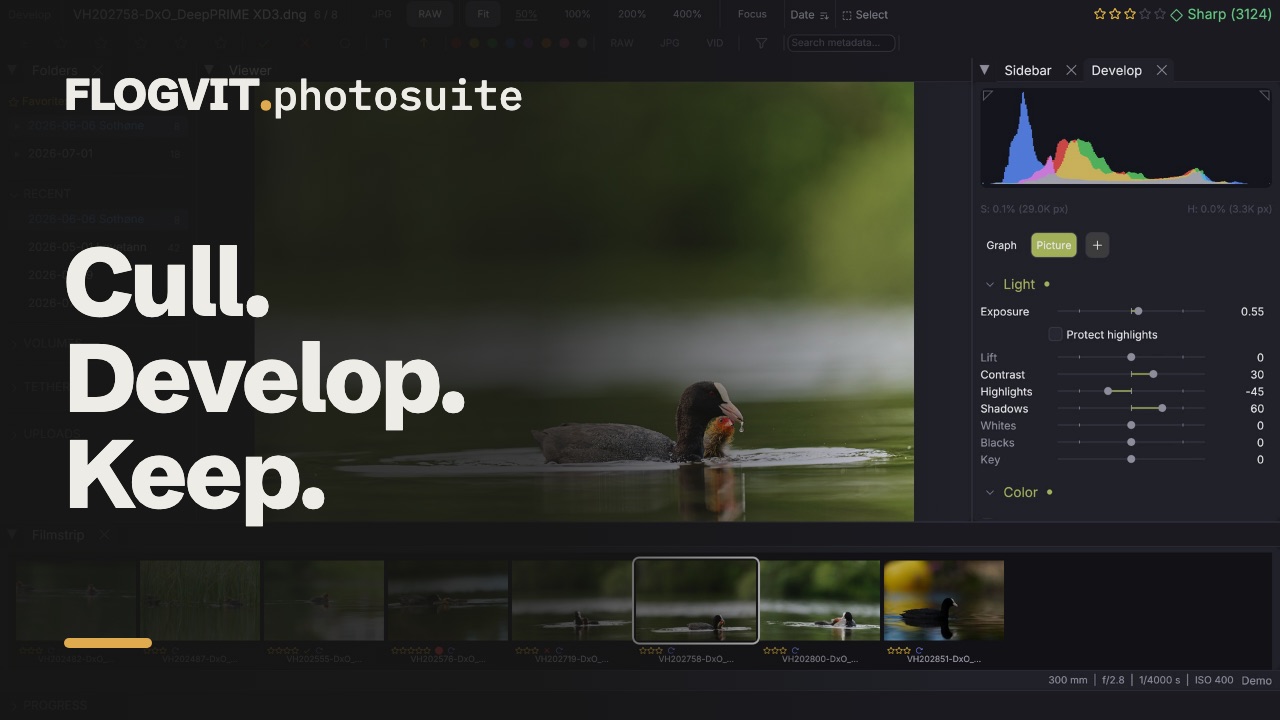 1:41
1:41Welcome to FLOGVIT.photosuite — professional photo culling software built for speed.
Installation#
FLOGVIT.photosuite is in public beta: it is free with a FLOGVIT account. See License & Beta for how the beta license works.
- Log in at your dashboard with your FLOGVIT account (or create one) and choose Get beta license.
- Download the app for your computer under Downloads on the same page.
- macOS: open the
.dmgand drag FLOGVIT.photosuite to Applications. Windows: run the.msiinstaller. - Start the app and choose Sign in with FLOGVIT. Your browser opens; pick the license for this computer, and the app is ready.
The first start opens Downloads: the models and data some features use (the masks for subject, sky, objects, people and landscape, search by content, detection and place names), with their sizes. Tick what you want now, before going out without a network for instance, or close it: each one also downloads by itself the first time its feature is used. Help → Downloads… opens it again, and it opens by itself after an update that brings a new one.
Opening Your First Folder#
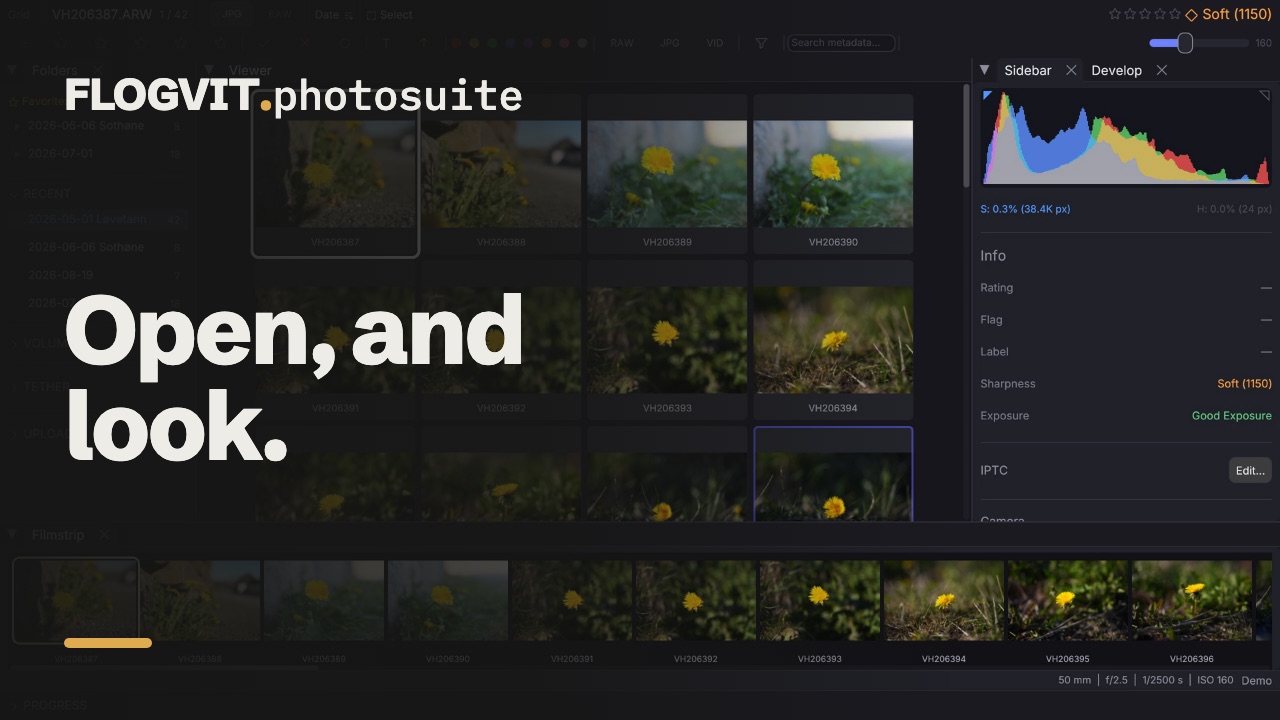 0:11
0:11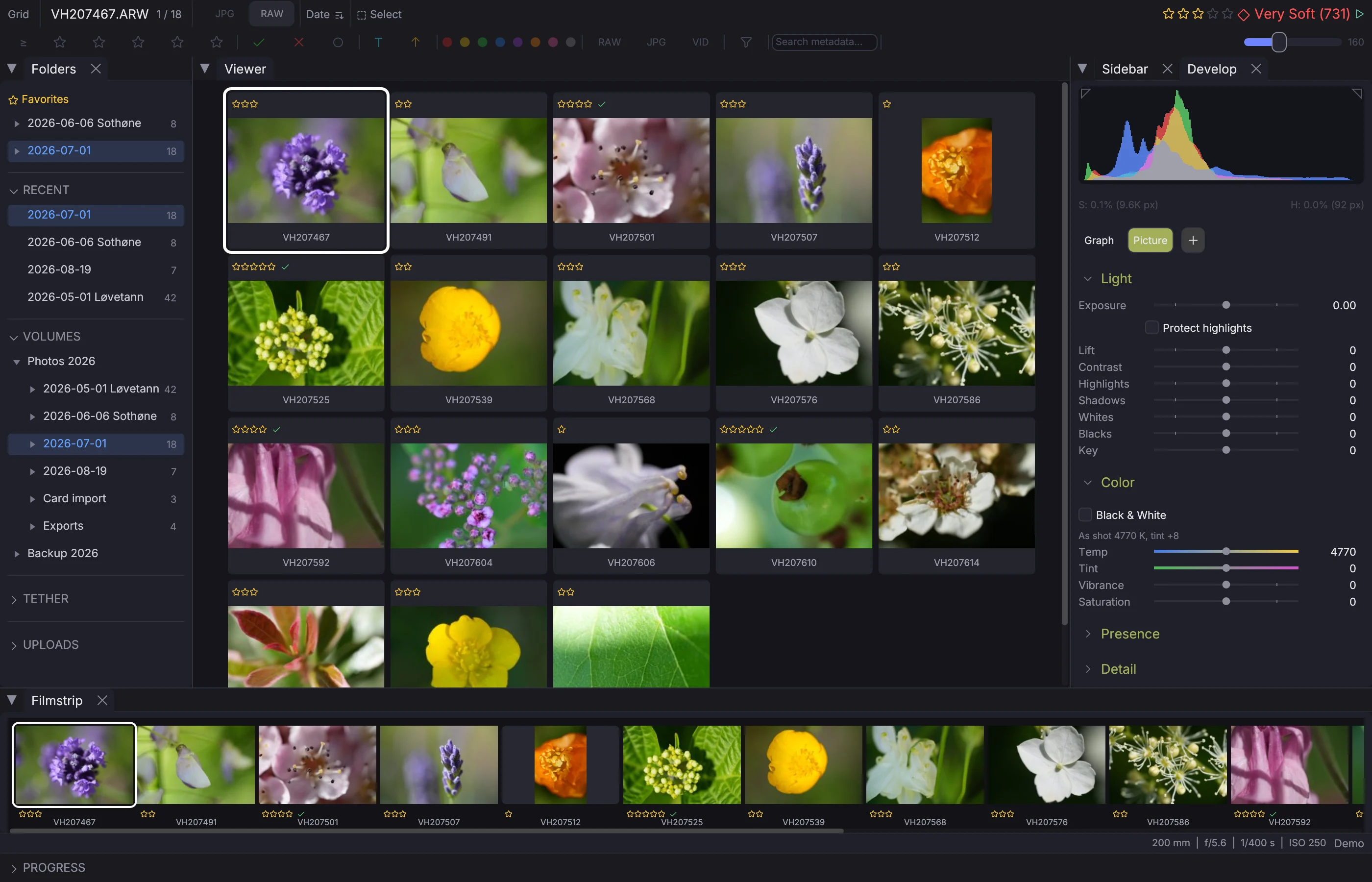
- Launch FLOGVIT.photosuite
- Press Cmd+O to open a folder
- Navigate to a folder containing your photos
- Click Open — your images will start loading immediately
You can also drag and drop a folder directly into the application window.
Quick Tour#
Views#
- Grid view (G): See all your photos as thumbnails. Great for overview.
- Single view (D or Enter): Full-screen preview of the selected image.
- Compare (C): Side-by-side comparison of two images.
- N-up (N): View 2–4 images simultaneously.
The Filmstrip#
The filmstrip at the bottom (or left) shows thumbnails of all images. Click or use arrow keys to navigate. The currently selected image is highlighted with an accent border.
The Sidebar#
Press I to toggle the info sidebar. It shows:
- Histogram (RGB + luminance)
- EXIF metadata (camera, lens, aperture, shutter speed, ISO)
- Sharpness score
- File information
Folder Tree#
The left panel shows your folder structure. Click any folder to switch. Pin frequent folders as favorites with the star icon.
What's Next?#
- Learn keyboard shortcuts for maximum speed
- Set up your import workflow
- Master rating and culling
- Explore metadata & IPTC editing
- Set up multi-monitor for maximum screen real estate
- See real-world workflows for press, wedding, sports, and more
- Fetch start lists and read race numbers: Race Numbers & Start Lists
- Automate with the API
- Something wrong? Report it from the app