Visualization Tools
Clipping display, histogram, noise map, and focus peaking overlays.
 1:37
1:37FLOGVIT.photosuite includes several visual overlays that help you evaluate image quality without leaving the culling workflow.
Clipping Display#
 0:10
0:10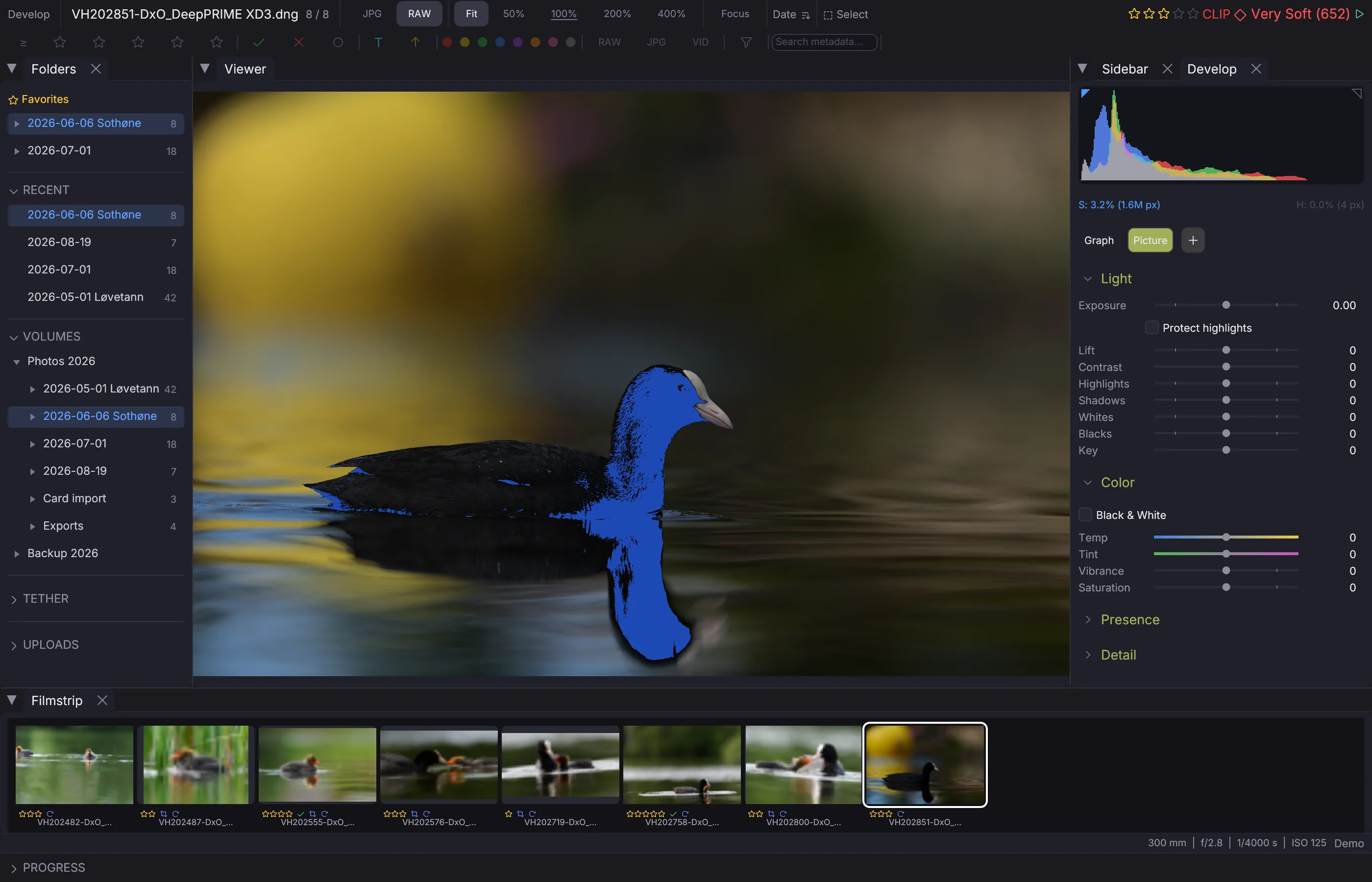
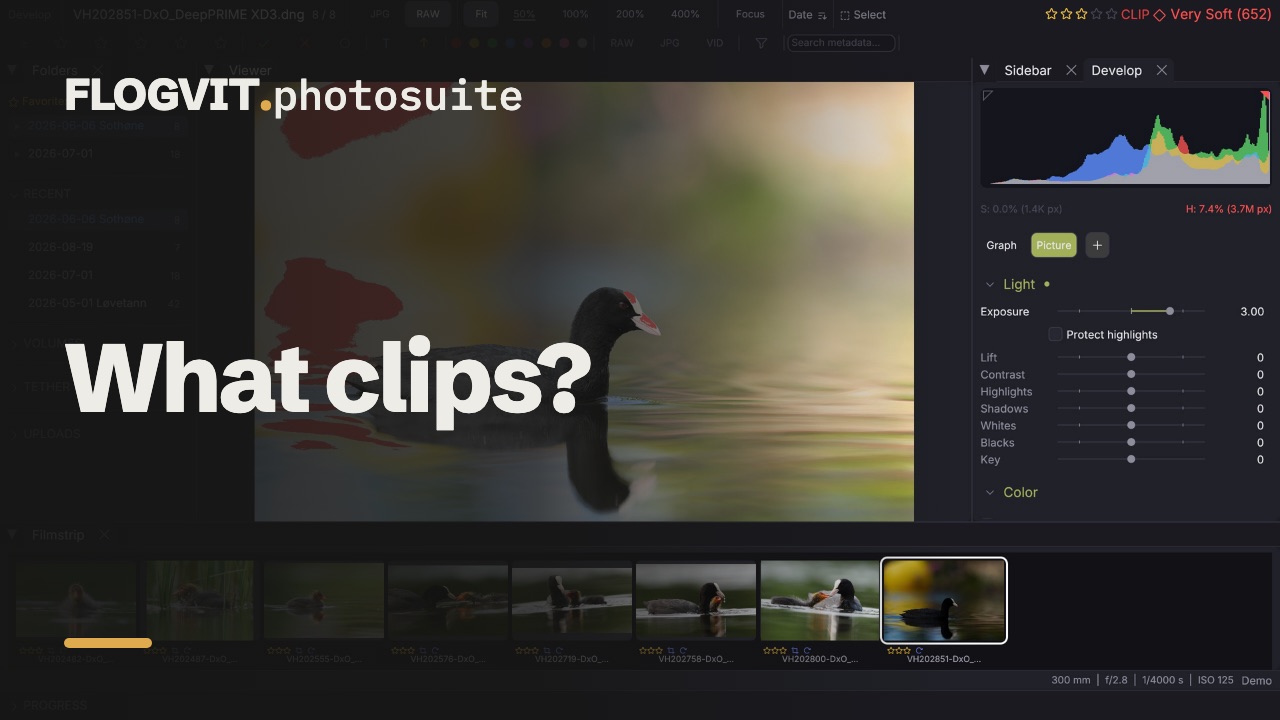
Press J to toggle the clipping overlay:
- Blown highlights are shown in red
- Crushed shadows are shown in blue
This instantly reveals exposure problems. The CLIP indicator appears in the status bar when the overlay is active.
Zebra Stripes#
 0:10
0:10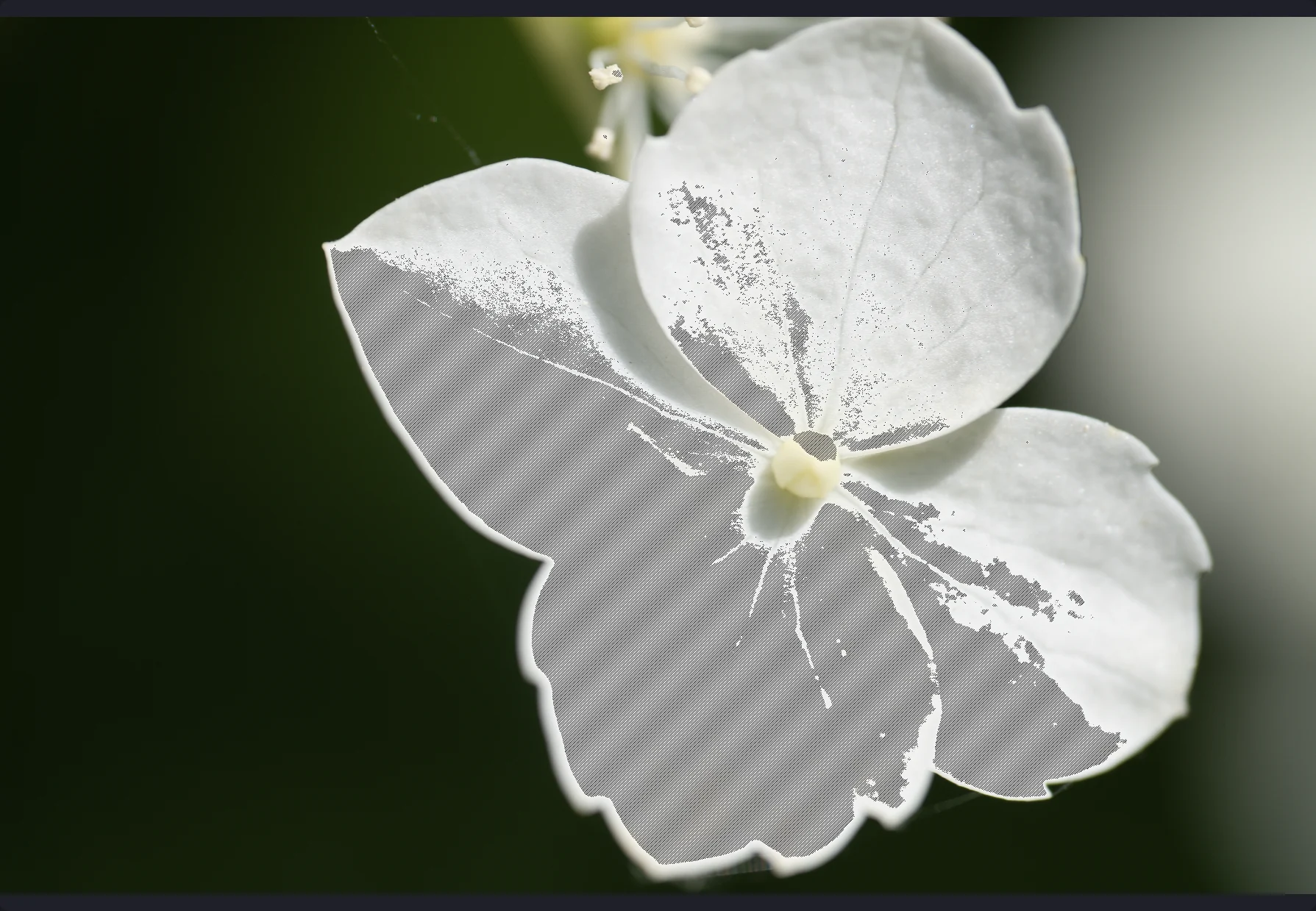
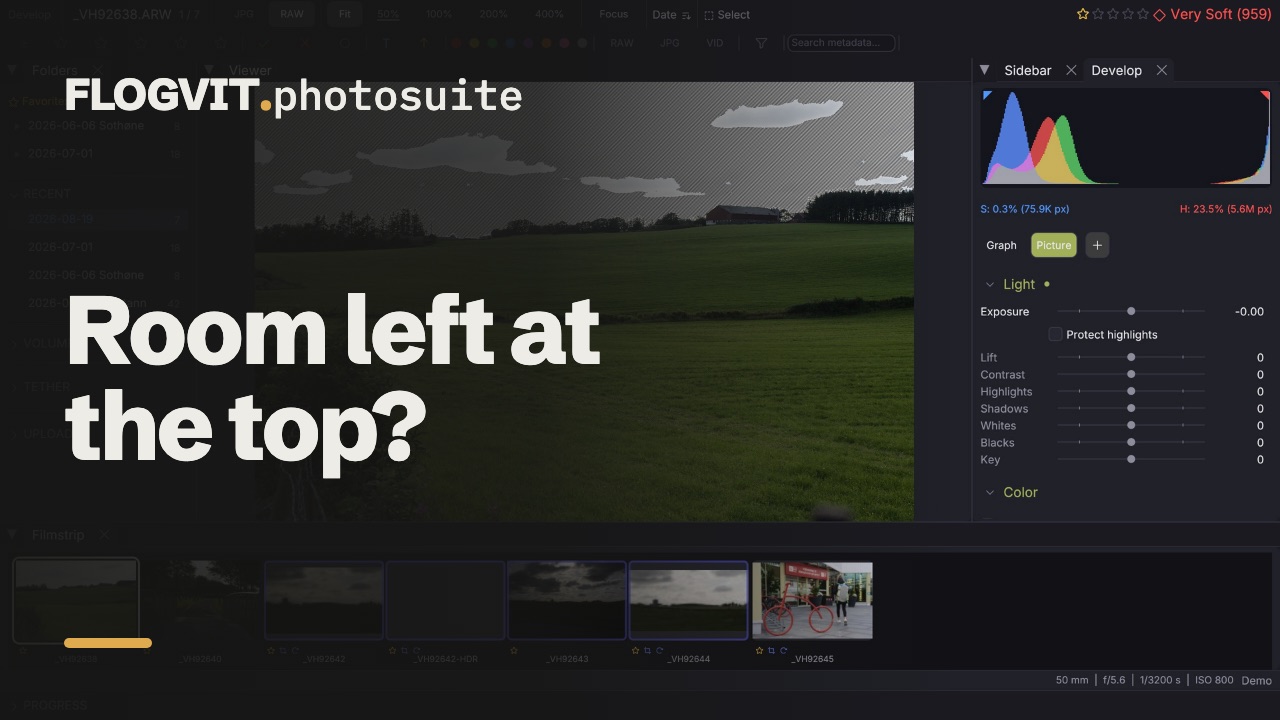
View → Overlays → Zebra Stripes lays dark diagonal stripes over every part of the picture at 95 % brightness or more, as a video camera's zebras do. The clipping display marks what is already white; zebras mark what is about to be, so you can see how much room the brightest part of a picture has left before you lift the exposure.
Focus Peaking#
 0:11
0:11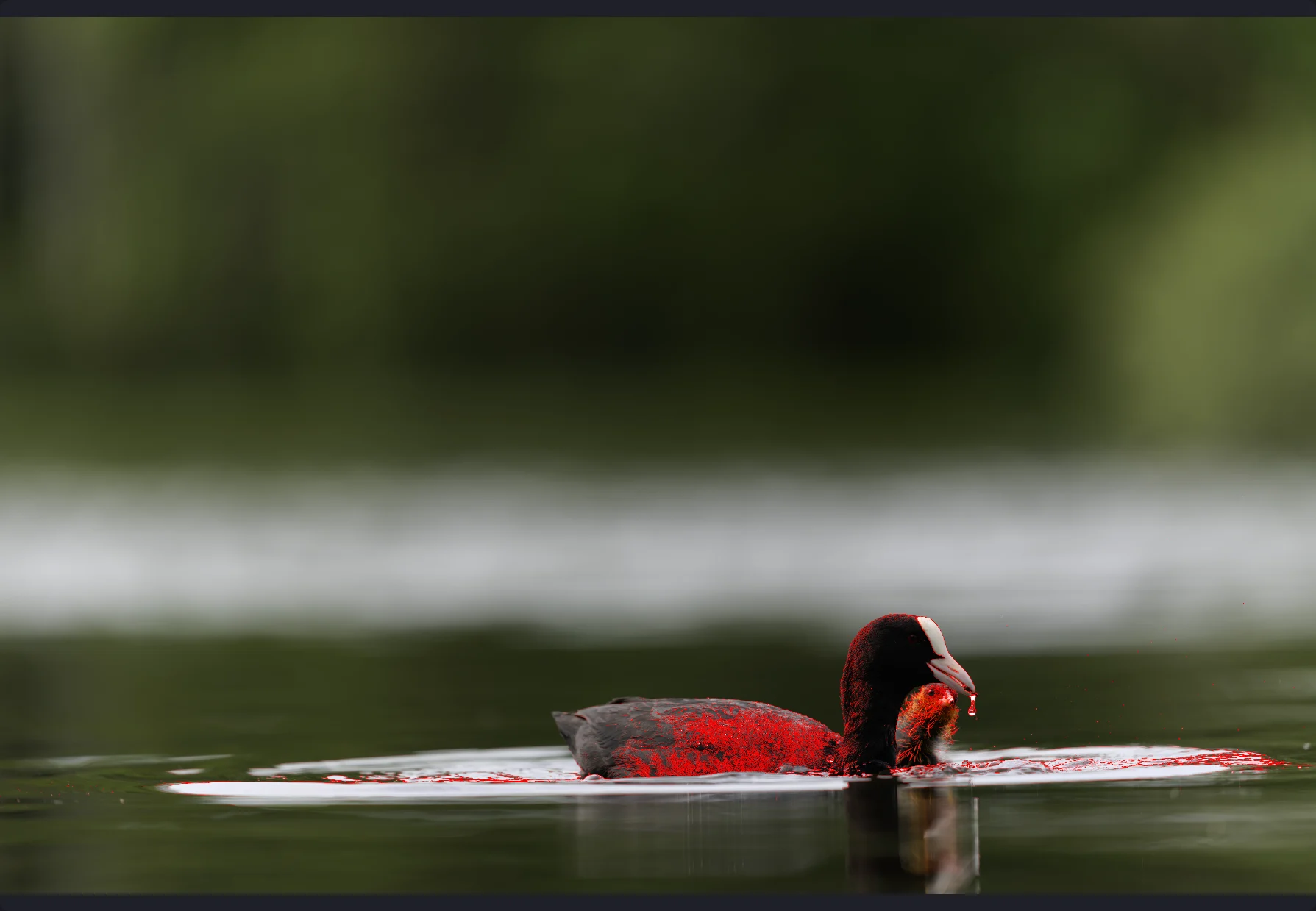
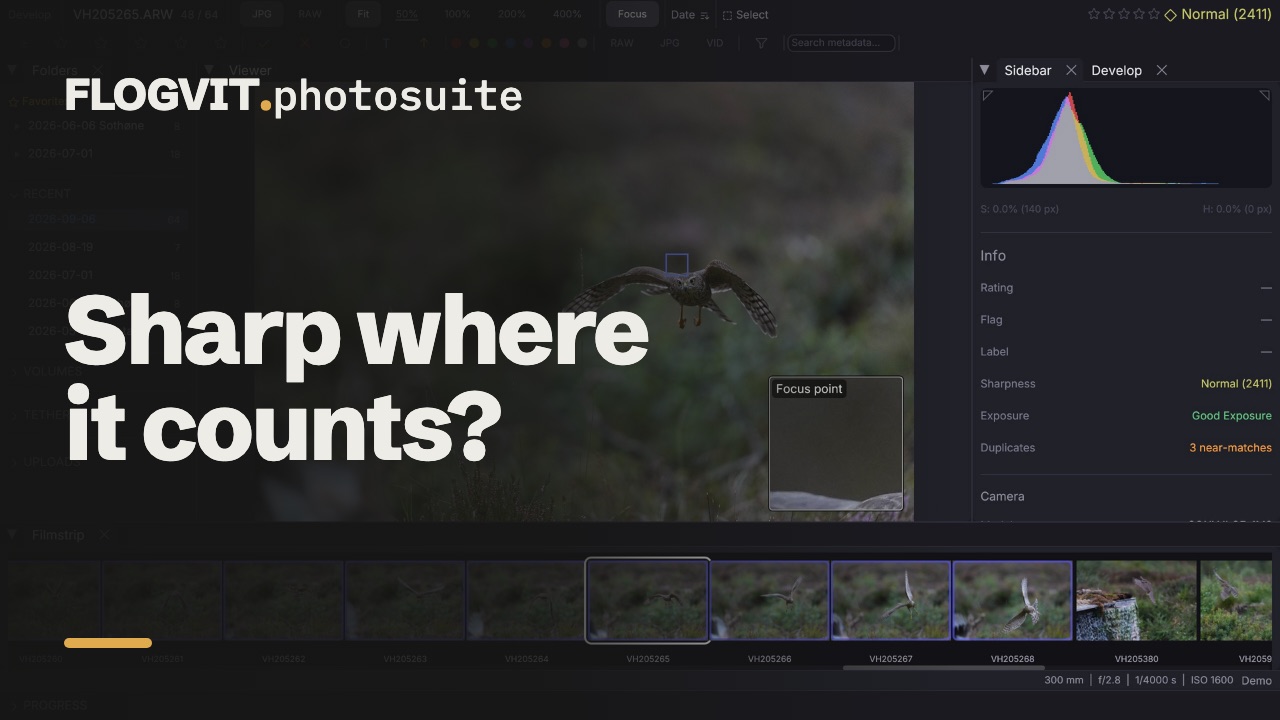
Press K to highlight in-focus edges. Sharp areas are outlined with a colored overlay, making it easy to verify focus at a glance — without zooming to 100%.
Especially useful when shooting wide open (shallow depth of field) and you need to confirm which part of the image is sharp.
Focus Box#
 0:10
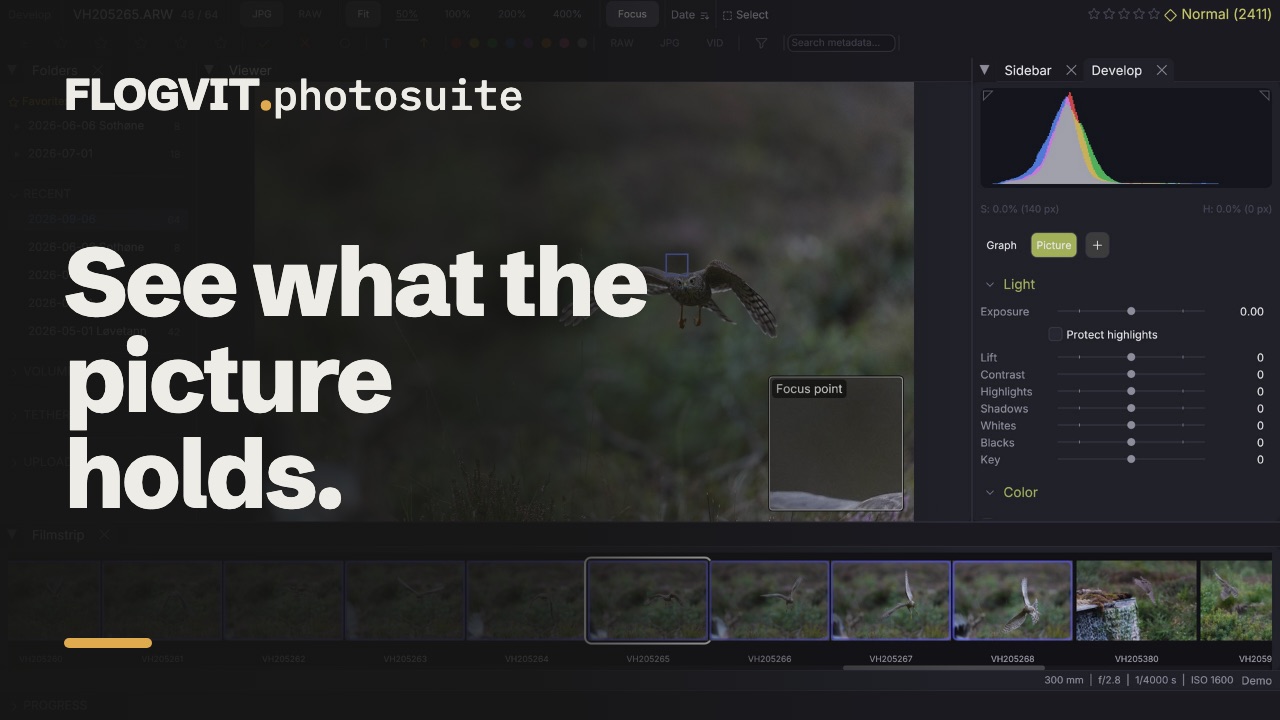
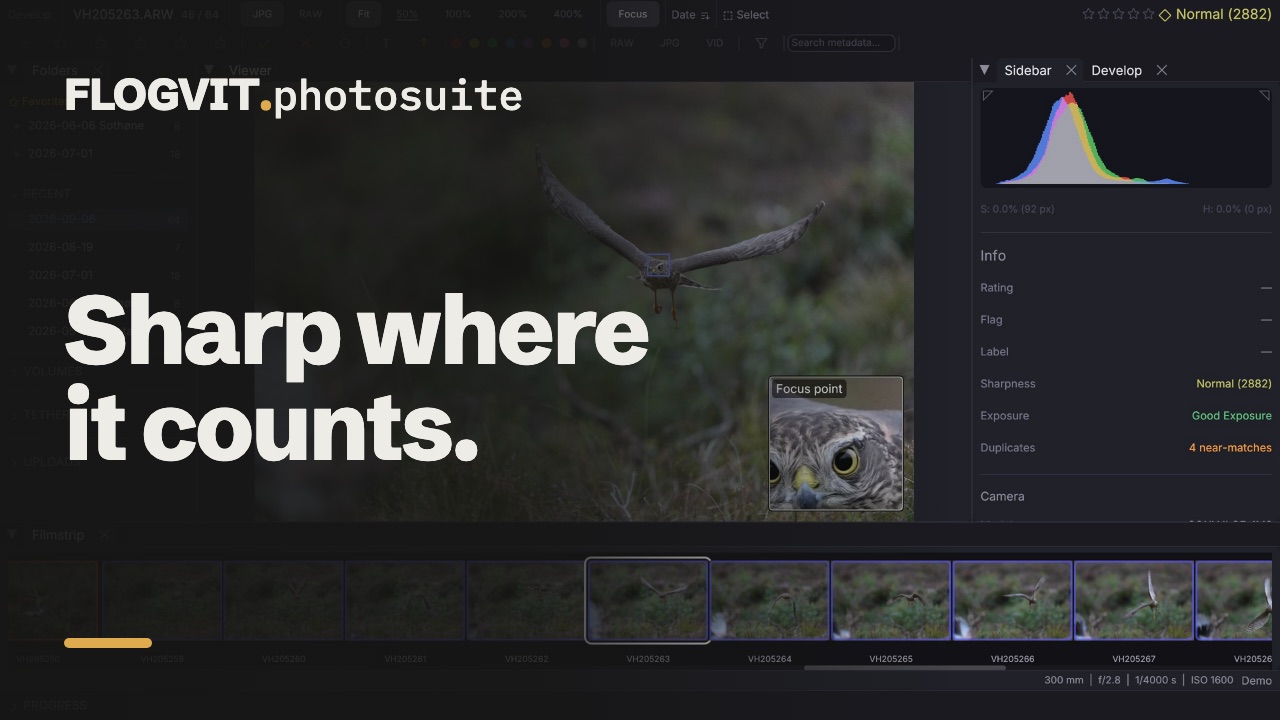
0:10Press Shift+E (or click Focus in the info bar, or View → Overlays → Focus Box) to see, in the bottom-right corner of the picture, a magnified crop of where it should be sharp. Step through the pictures and the box follows, so you can tell a sharp eye from a soft one without zooming in.
The box shows, in this order:
- Eyes: between the eyes of the largest face (on a Mac).
- Focus point: where the camera focused, when the file says (Sony, Canon, Nikon Z and DSLRs in live view, Fujifilm, Panasonic, Olympus/OM System).
- Sharpest: the sharpest spot in the picture, when neither is there.
A frame on the picture marks the part the box magnifies. The box stays on until you turn it off, also after a restart. Its magnification (1× is one picture pixel per screen pixel) and its size are in Settings → Appearance → Overlays.
Composition Guide#
Thirds, the golden ratio and the other composition guides can lie over the picture while you look at it and edit it, not only while you crop. Choose one in View → Overlays → Composition Guide, or press Shift+O to step through them: Thirds, Golden Ratio, Diagonals, Golden Triangles, Golden Spiral, Grid and off. Option+O turns the triangles and the spiral to face another corner. The guide is drawn over the picture as it is shown, so a cropped picture gets it over the crop.
Shadow Detail#
 0:10
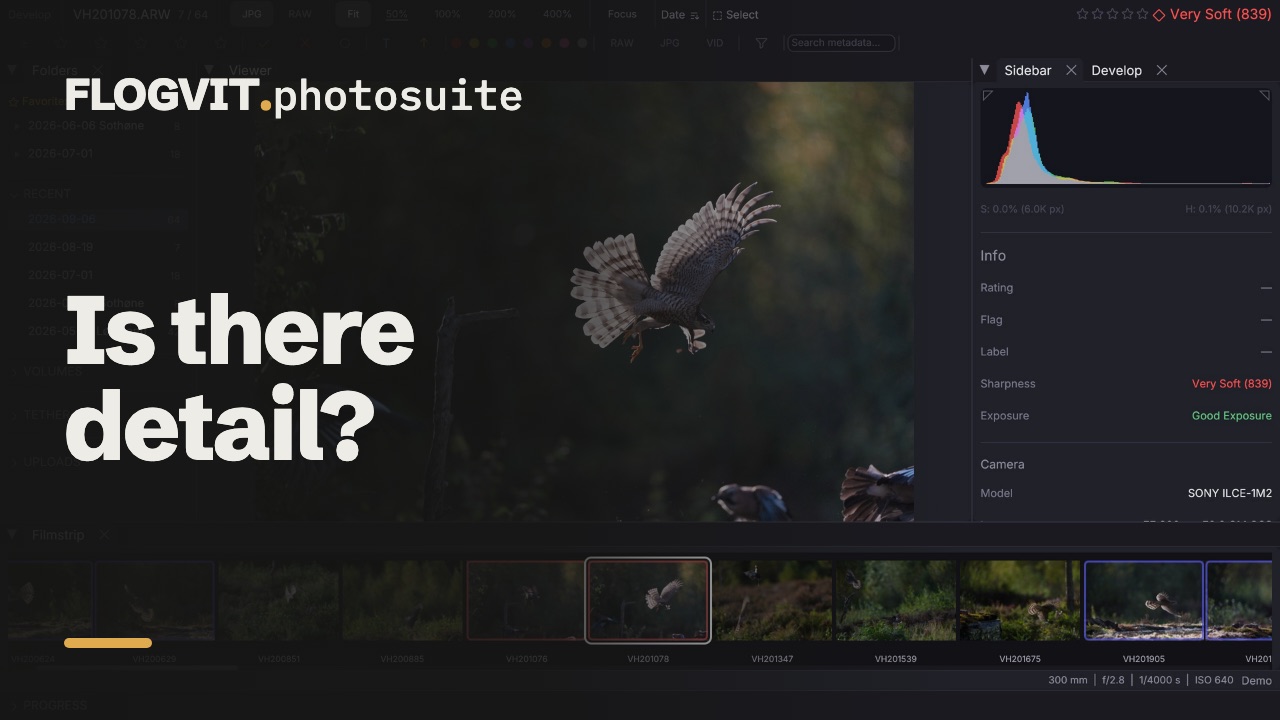
0:10Press O to brighten shadow areas and reveal hidden detail. This is a visual-only overlay — it does not modify the image. Useful for checking if shadows contain recoverable detail or are completely crushed.
Highlight Detail#
Press B to reveal detail in bright areas. Like shadow detail, this is visual-only and helps evaluate whether highlights are clipped or contain recoverable information.
Noise Map#
 0:07
0:07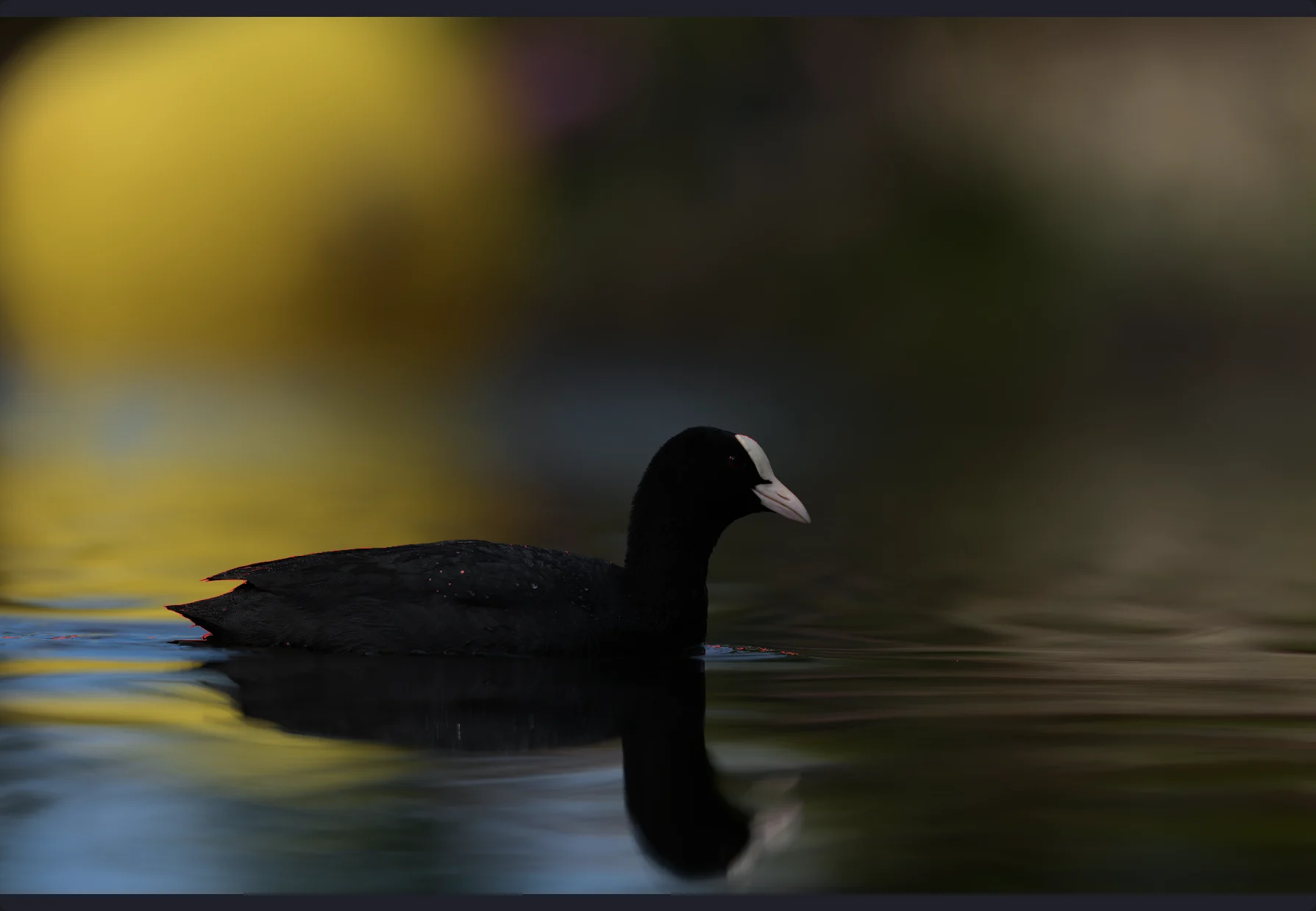
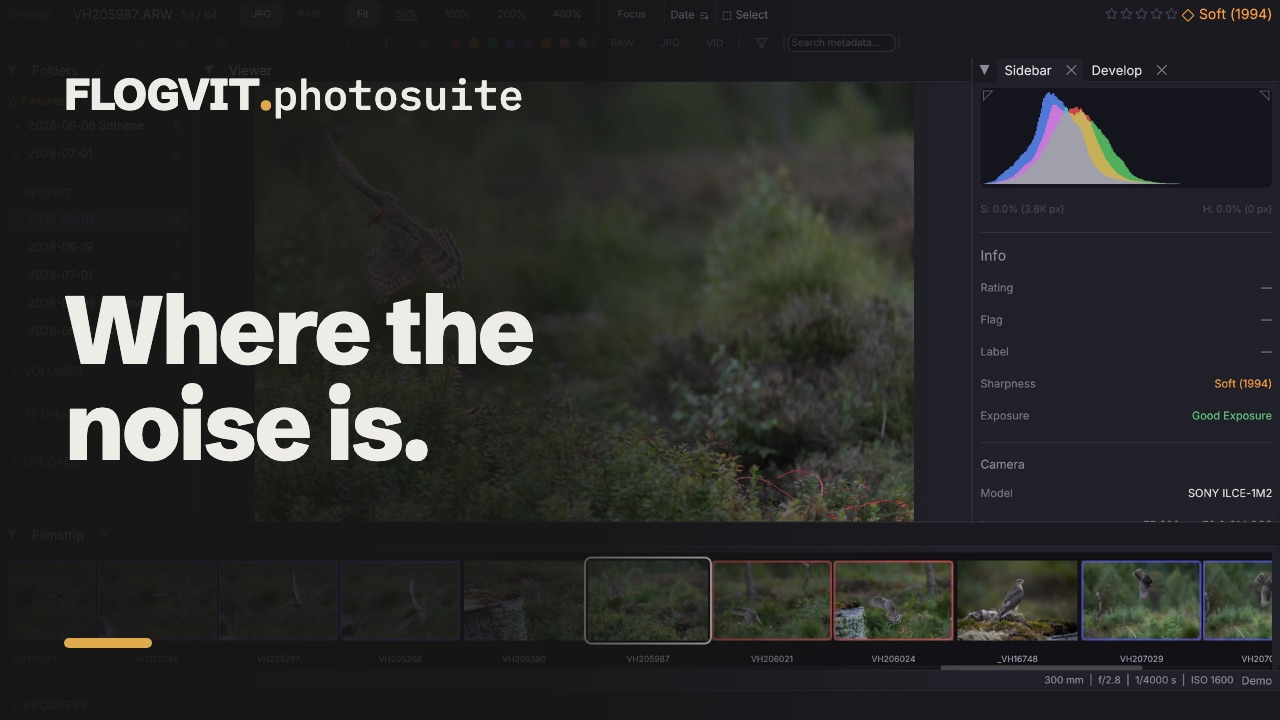
Press H to display a noise visualization overlay. High-noise areas are highlighted, helping you decide which images may need noise reduction. Particularly useful for high-ISO shots from events or low-light situations.
Color Channels#
Press ` (backtick) to cycle through individual color channels:
- RGB — Normal full-color view
- R — Red channel as grayscale
- G — Green channel as grayscale
- B — Blue channel as grayscale
Viewing individual channels helps identify color noise, chromatic aberration, or channel-specific clipping.
Exposure Compensation#
 0:11
0:11
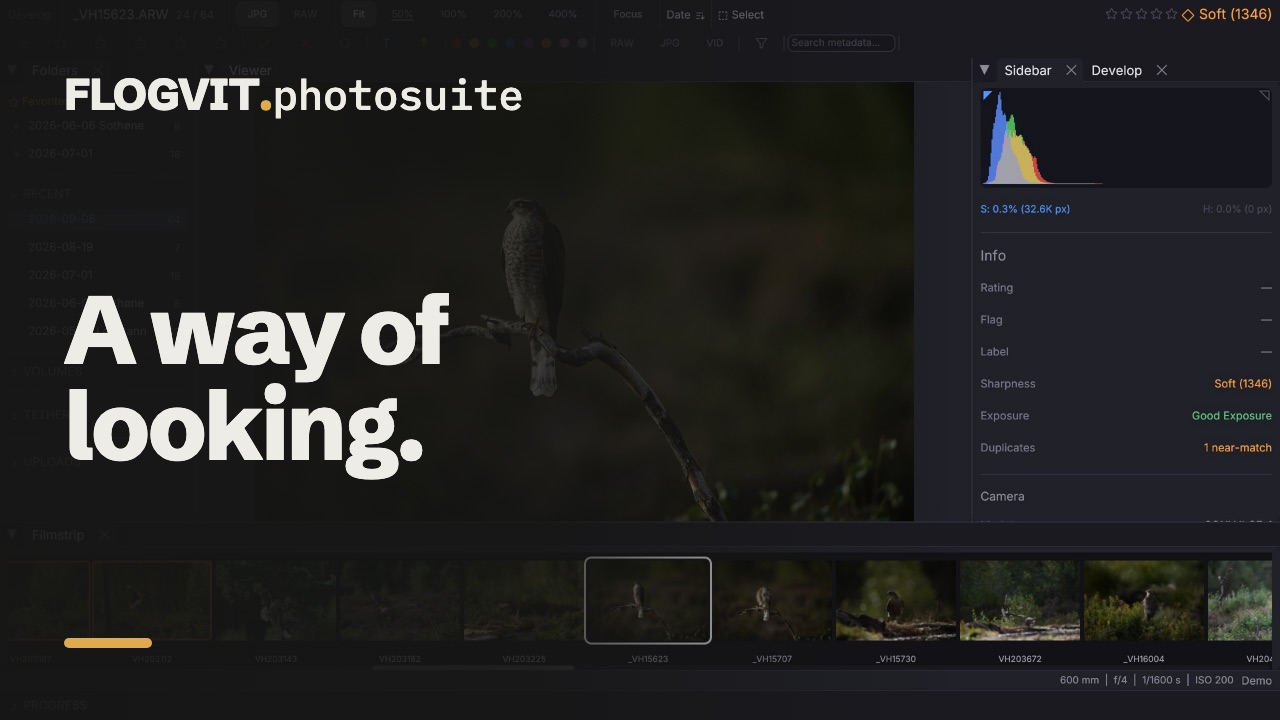
Adjust the visual brightness of the preview without modifying the image:
- + — Brighten by +0.5 EV
- - — Darken by −0.5 EV
- Backspace — Reset to original exposure
The range is ±4.0 EV. An EV indicator appears in the status bar showing the current offset. This is purely a preview tool — the original file is never changed.
False Colour#
View → Overlays → False Colour paints the picture in grey with the brightness zones an exposure is judged by: purple under black, blue near it, green at middle grey, pink where skin sits, yellow just under white, red at white. Red is what the clipping overlay and the histogram call clipped. A key along the bottom of the picture names each colour while it is on.
Scopes#
 0:10
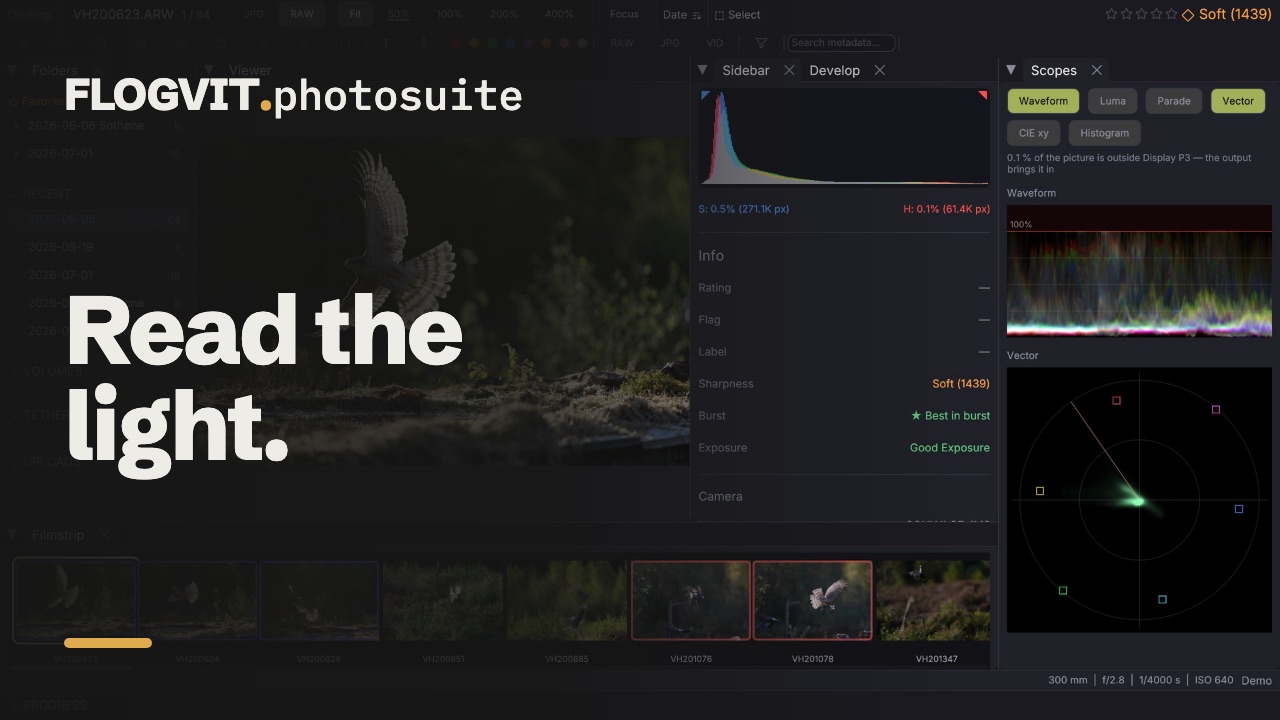
0:10View → Scopes opens the Scopes panel. Pick what it shows with the chips at the top — the choice is remembered:
- Waveform — brightness per column of the picture, red, green and blue laid over each other.
- Luma — the same, brightness only.
- Parade — red, green and blue side by side.
- Vector — hue around the circle, saturation outwards; the boxes are 75 % red, yellow, green, cyan, blue and magenta, and the line up and to the left is where skin sits.
- CIE xy — where the picture's colours are on the chromaticity diagram, with the output space's triangle bright and the working space's dim.
- Histogram — how many pixels at each level, per channel.
In Develop the scopes are read from the develop chain itself, before the picture is fitted into the output space, so they show what the output will have to pull in: the band above 100% on the waveform, colours outside the triangle on CIE xy, and a line saying how much of the picture that is. They follow the sliders as you drag. A picture with no develop render is read from the pixels on screen.
Drag on a scope to make a mask of what is there: a span of levels on a waveform or the histogram becomes a luminance mask, a region of the vectorscope a colour-range mask. The mask is selected with its coverage shown, so you see the pixels it took; set what it does under Masks.
The panel can be popped out into its own window and moved to a second screen.
await client.ui.scopes(true)
await client.ui.falseColor(true)
const scopes = await client.develop.scopes()
console.log(`${(scopes.outside_share * 100).toFixed(1)} % outside ${scopes.space}`)
Histogram#
The histogram in the info sidebar (I) shows the tonal distribution across RGB and luminance channels. Clipping indicators at the edges warn when data is being lost in shadows or highlights.
Sharpness Score#
Every image receives an automatic sharpness score, measured where the camera focused (the subject when the focus missed it). The score appears in the sidebar with a color-coded label (very soft to very sharp). You can sort by sharpness (Ctrl+S) to quickly push out-of-focus shots to the bottom.