Auto-Crop
Automatically crop around people with a single keystroke or via the API.
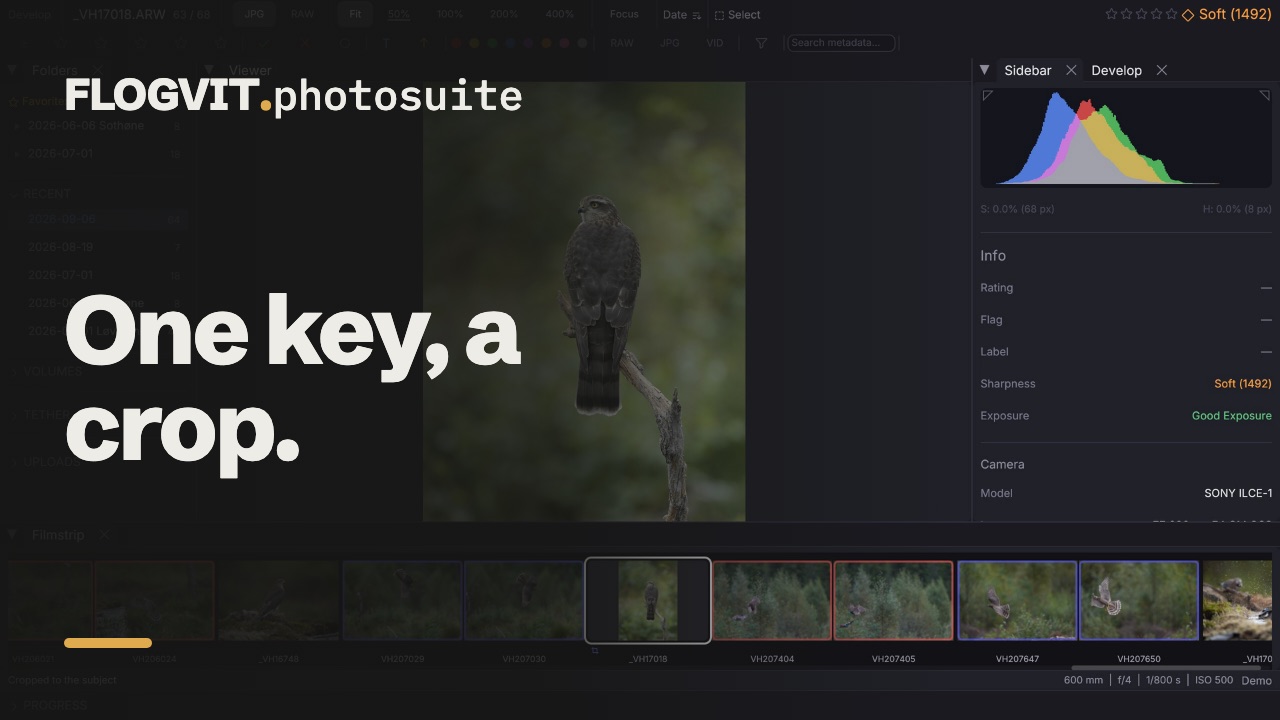 0:41
0:41Auto-crop puts a crop on a picture with one key: around the people in it, or the animal when there are no people. It learns from the crops you make, so its suggestions move toward the way you crop.
Crop one picture#
In Develop, press Shift+R (Transform → Auto Crop). The crop is applied and saved to the XMP sidecar.
- One subject: the picture is cropped.
- Several people: you get a virtual copy for each person and one for all of them together.
- Press Shift+R again on a cropped picture to take the crop off.
In the crop tool, Auto Crop in the toolbar puts the suggestion in the rectangle, and ‹ › step through the suggestions for each subject.
Crop many pictures#
Outside Develop, Shift+R crops the selected pictures (or the one in focus) as a batch. The progress panel shows how far it has come.
What it crops to#
Auto-crop finds the subjects with the detector and the classes chosen in Settings → Transform:
- The people in the picture, leaving out spectators cut off at the top edge and far out of focus behind the main subject.
- With no people, the animals.
- With neither, whatever else the detector found, apart from balls, rackets and other things people hold.
A ball or a racket is still read. It tells the crop which way the picture faces.
The crop it applies#
The crop it applies is placed by a model trained on a photographer's own crops, and then by what it has learnt from yours. In Free, it has the shape a photographer gives it. With a fixed aspect ratio, it is grown to that ratio around the subject.
When this installation has no crop model, auto-crop uses the rule alone (the subjects with some padding, never squarer than 4:3) and says so in the message after the crop.
The rules of composition#
Around that crop, auto-crop tries others, larger and smaller and moved each way, and lets the rules of composition choose among them: where the subject sits (thirds, the phi grid, the golden spiral, the diagonals, dynamic symmetry, the eye line, the horizon), the room around it (lead room, headroom, negative space, how much of the frame it fills), lines (leading lines, curves, a vanishing point), symmetry and repetition, a frame within the frame, a calm background, and the edges (bright corners, tangents, a cut through a knee or a neck, a half person at the edge).
The crop tool's toolbar says which rules the suggestion follows. Click thirds, the phi grid, the golden spiral or the diagonals there to show that guide over the crop.
How much each rule counts is learnt from your crops, one set for each kind of picture: portraits, groups, sport, wildlife, landscape, architecture. A photographer who centres does not get thirds forced on them. What a new user starts with was fitted to a photographer's own crops, where the crop the model learnt from them counts the most.
It learns from your crops#
Every crop you apply in the crop tool becomes an example, and so does every crop set over the API. Taking a crop off removes its example. Crops auto-crop made itself are not examples.
Settings → Transform → Learning from Your Crops shows:
- the crop model in use;
- how many of your crops it has learnt from;
- how well the suggestions match your crops: the average overlap with your crop (1 is the same rectangle), measured on each crop before it was learnt from, beside the model alone.
With a handful of crops the suggestions stay close to the model's; with hundreds, they follow yours. Your crops are kept in the library's database, a small copy of each picture with them, so they go into every library backup. They never leave your machine.
When a new model arrives#
An update can bring a better crop model. The app then reads your crops again with the new model, on its own, while the old one keeps answering:
- The info bar says how far it has come: Learning your crops on the new model: 340 / 1 200.
- Pause stops it until you press Resume, also after a restart. Quitting loses nothing: the next start goes on from where it was.
- When it is done, the info bar says how it went, until you dismiss it. If the new model matches your latest crops worse than the one you had, the one you had is kept, and the new one is not tried again.
Settings#
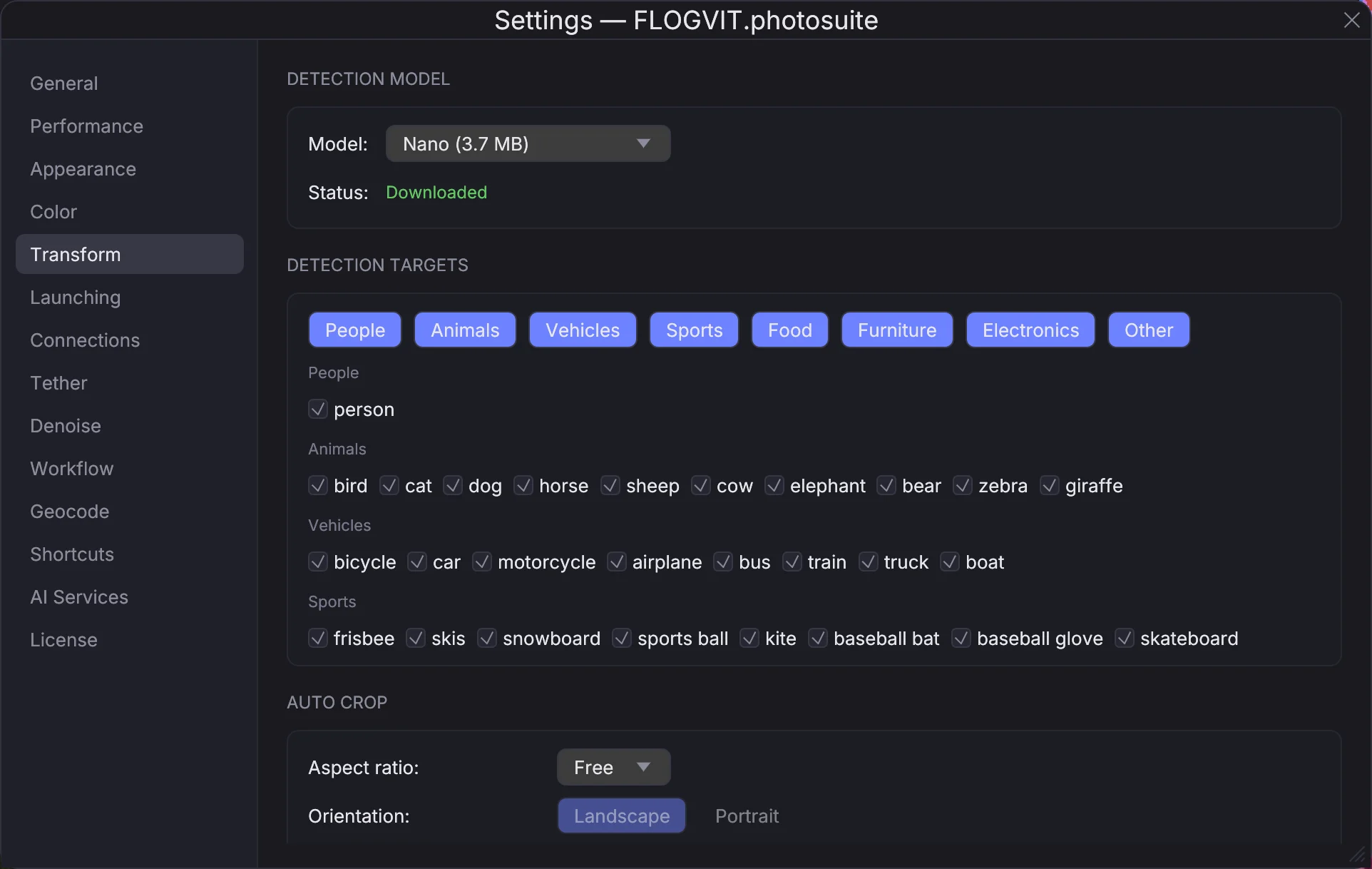
Settings → Transform → Auto Crop:
- Aspect ratio and Orientation: Free, or a fixed ratio the crop is grown to.
- Padding around detection: the air the rule leaves round each subject, for the per-subject crops. 5% is tight, 20% gives more room.
From the API#
| Route | What it does |
|---|---|
POST /api/images/current/auto-crop |
Auto-crop the picture in front, as Shift+R does in Develop |
POST /api/images/current/crop |
Set a crop; it becomes an example to learn from |
GET /api/crop/tool |
The crop tool's state; composition has every rule's score and weight for the crop auto-crop applied, and the rules it follows |
GET /api/auto-crop/learning |
The crop model, your crops, the match, and a new model being read |
POST /api/auto-crop/learning/pause, /resume |
Pause or resume reading your crops with a new model |
DELETE /api/auto-crop/learning/outcome |
Take the line about the last new model off the info bar |
The SDK has client.images.autoCrop(), setCrop(), cropTool(), autoCropLearning(), pauseAutoCropLearning(), resumeAutoCropLearning() and dismissAutoCropLearningOutcome().
Non-Destructive#
The crop is stored in the XMP sidecar, not in the original file. You can adjust or remove it at any time.