External Editor
Open any image in an external application with a single keystroke.
On this page
FLOGVIT.photosuite integrates with your favorite image editors. Open any image in an external application with a single keystroke.
Quick Open#
Press E to open the current image in your external editor. FLOGVIT.photosuite stays open and you can continue culling.
What the editor gets is the picture as you see it:
- A RAW with a RAW developer chosen (Lightroom, Capture One — the Default RAW Editor, or an editor for its file type) gets the RAW itself.
- Otherwise, a RAW, or any picture you have cropped or developed, is first rendered — with its develop, crop and orientation, in Adobe RGB, 16 bits per channel — to
<name>-edit.tifbeside it, and the editor opens that. Photoshop, Affinity or Pixelmator then start from your edit instead of the camera's RAW, and the TIFF shows up in the folder. - A finished picture you have not touched goes as it is.
Setting Up Editors#
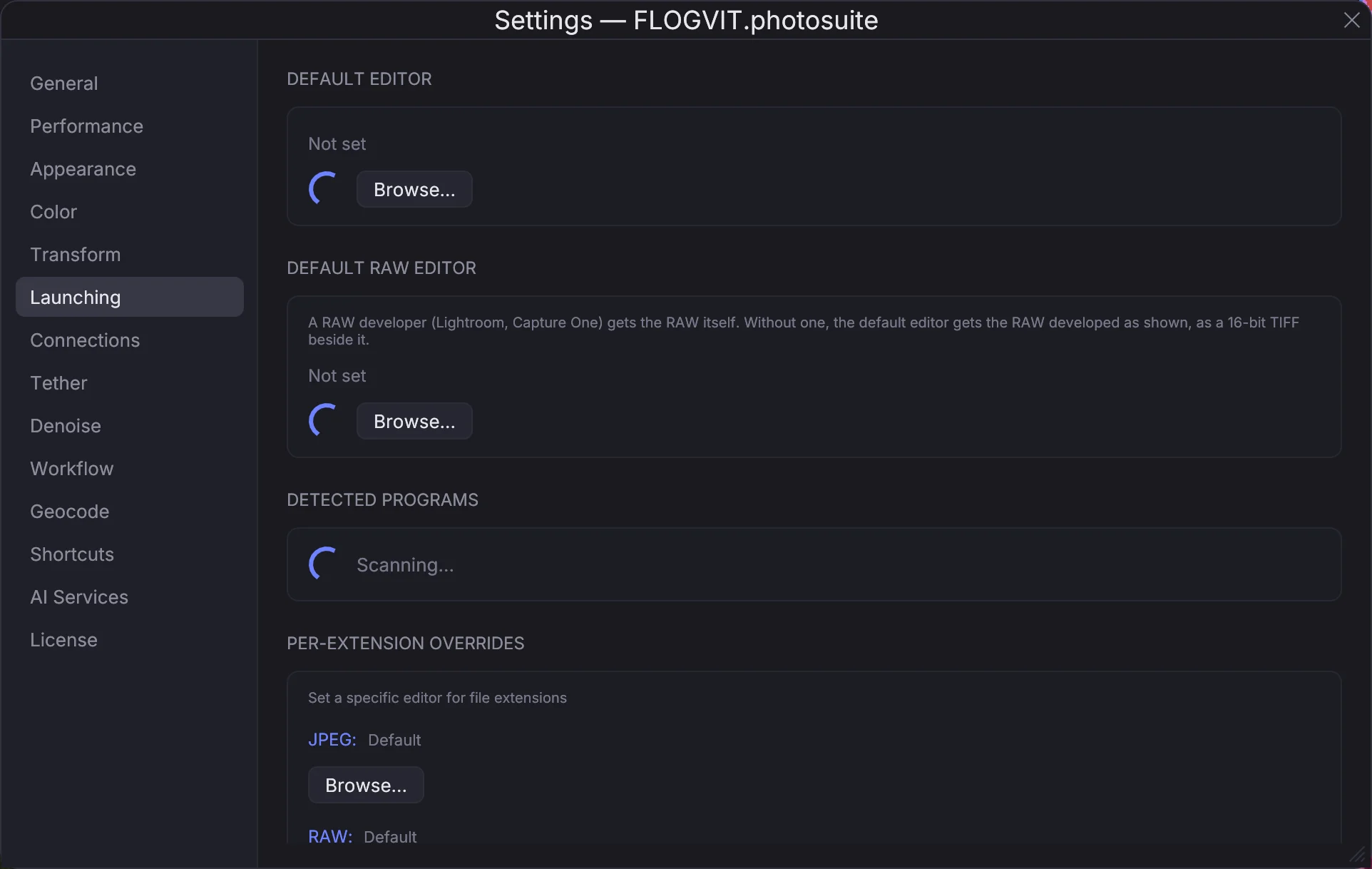
Configure your editors in Settings → Launching.
Default Editor#
The editor E opens pictures in (Photoshop, Affinity Photo, Pixelmator).
Default RAW Editor#
A RAW developer that should get the RAW file itself. Leave it empty to have RAWs developed by FLOGVIT.photosuite and handed to the default editor as a 16-bit TIFF.
Per-Format Editors#
Assign different editors to different file types:
| File Type | Example Editor |
|---|---|
| JPEG | Photoshop |
| RAW (CR3, NEF, ARW, RAF) | Lightroom, Capture One |
| TIFF / PSD | Photoshop |
| DNG | Lightroom |
Workflow#
A typical edit-round-trip:
- Cull and rate your images in FLOGVIT.photosuite
- Filter to picks (Option+P)
- Press E to open in your editor
- Edit, save, and close
- Back in FLOGVIT.photosuite, the image updates if the file changed
Context Menu#
Right-click any image and select Open in External Editor for the same functionality. The context menu also shows which editor is configured for that file type.