Keyboard Shortcuts
Complete reference for all keyboard shortcuts. Fully customizable.
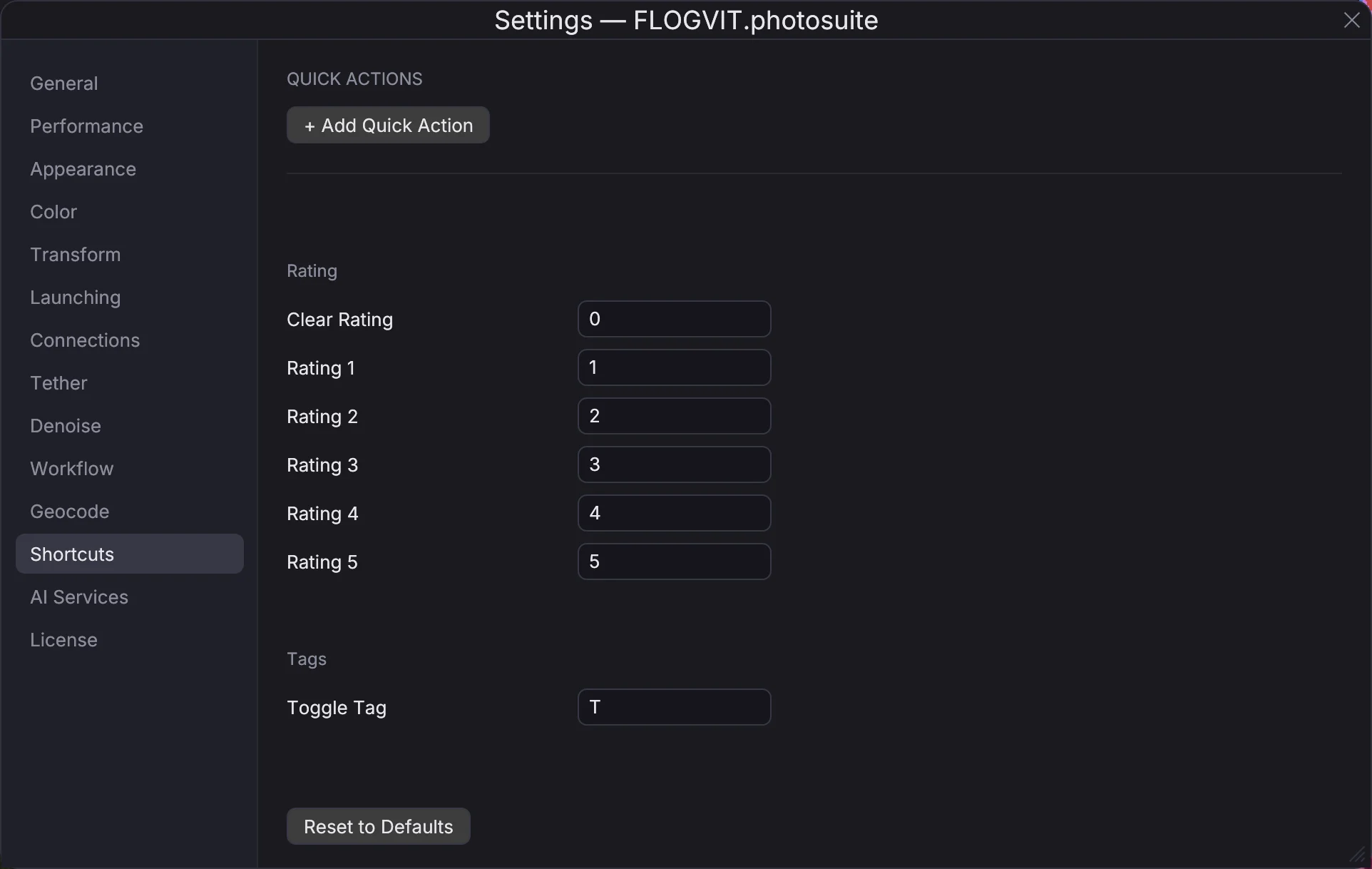
FLOGVIT.photosuite is designed for keyboard-driven workflows. All shortcuts listed below are the defaults — you can customize them in Settings (Cmd+,).
Undo#
- Cmd+Z — Undo (Edit → Undo)
- Cmd+Shift+Z — Redo
Navigation#
- ← → — Previous / Next image
- ↑ ↓ — Previous / Next row (grid)
- Space — Next image
- Backspace — Previous image
- Home — First image
- End — Last image
- Page Up / Page Down — Jump 10 images
Rating#
- 1 – 5 — Set star rating (toggle)
- 0 — Clear rating
Flagging#
- P — Toggle Pick flag
- X — Toggle Reject flag
- T — Toggle Tag
Color Labels#
- 6 — Red
- 7 — Yellow
- 8 — Green
- 9 — Blue
- Shift+6 — Purple
- Shift+7 — Orange
- Shift+8 — Pink
- Shift+9 — Gray
View Modes#
- G — Grid view
- D or Enter — Single/Develop view
- C — Toggle Compare mode
- N — Toggle N-up/Survey mode
- Shift+W — Toggle RAW Steps
- H / V — Compare split: horizontal / vertical
- + / - — Adjust N-up count (2–4)
- Shift+F — Toggle fullscreen
UI Toggles#
- I — Toggle info sidebar
- F — Toggle filmstrip
- L — Toggle folder tree
- J — Toggle clipping overlay
- Shift+E — Toggle the focus box (the eyes, the focus point or the sharpest spot, magnified)
- Option+H — Read sharpness over the whole frame (landscapes), or at the focus point
- Option+N — Outline each person with how sharp they are beside the others
- Option+D — Split bursts where the number, camera or lens changes
- Option+E — Show the burst's pick and how far ahead it is
- Option+B — Go through bursts one by one
- Option+G — Next burst to do
- Option+K — Settle the burst: keep this frame, reject the rest
- Option+Shift+K — Settle the burst: keep the pick, reject the rest
- Option+Z — Put the burst off for later
- Z — Toggle zoom (fit / the level a click zooms to)
- Cmd++ / Cmd+- — Zoom in / out through 50, 100, 200 and 400 % (the level chosen is also where a click zooms)
- Cmd+0 — Zoom to fit
Filtering#
- Option+1 – Option+5 — Filter by minimum rating
- Option+0 — Clear all filters
- Option+P — Show only picks
- Option+X — Show only rejects
- Option+U — Show only unflagged
- Option+R — Show only RAW files
- Option+J — Show only JPEG files
- </kbd> — Show or hide the filter columns above the grid
- Shift+B — Put the selected pictures in the target album, or take them out
- Shift+K — Put the painting keyword on the selected pictures, or take it off
Playback#
- Shift+S — Toggle slideshow
- Shift+A — Toggle auto-advance
- Shift++ / Shift+- — Adjust slideshow interval
Exposure#
- + — Brighten (+0.5 EV)
- - — Darken (−0.5 EV)
- Backspace — Reset exposure
Develop#
- Cmd+U — Auto Tone
- Cmd+Shift+U — Auto White Balance
- Cmd+C — Copy the selected pictures as files, to paste in Finder
- Cmd+Shift+C / Cmd+Shift+V — Copy / paste develop settings
- Option+Cmd+R — Reset Develop on the selection: develop and crop back to as shot
- Option+M / Shift+M — The selected mask's red wash / its edge while you edit it, on and off
Sort#
- Ctrl+S — Cycle sort order
- Ctrl+Shift+S — Reverse sort direction
Other#
- Cmd+O — Open folder
- Cmd+, — Settings
- Cmd+A — Select all
- Cmd+D — Deselect all
- Ctrl+Cmd+R — Batch rename
- Cmd+Shift+E — Export/copy visible
- Shift+R — Auto crop: the picture in front in Develop, the selected pictures elsewhere
- Cmd+Shift+R — Remove the crop from the selected pictures
- U — Upload to FTP
- Option+Cmd+U — Upload the queue now
- Escape — Exit current mode
Customization#
All shortcuts (except navigation keys) can be rebound in Settings → Keyboard Shortcuts. The configuration is saved to keybindings.json in the settings folder (~/Library/Application Support/flogvit/).