Coming from Lightroom
Bring your Lightroom edits, ratings, keywords and virtual copies along: from the catalog or the XMP sidecars.
Your Lightroom work comes along: the develop settings, ratings, flags, colour labels, keywords, crops and virtual copies. Nothing is changed in Lightroom or in your catalog, and you can go back.
Where Lightroom keeps your edits#
Lightroom Classic keeps everything in its catalog (.lrcat). It writes an XMP sidecar next to each picture only when Catalog Settings → Metadata → Automatically write changes into XMP is on, and that is off unless you turned it on. So for most people the catalog is where the edits are.
- Sidecars already there? Open the folder. photosuite reads Lightroom's settings from each picture's
.xmp(or from inside a DNG) and shows them in Develop. Nothing to do. - Edits only in the catalog? Import the catalog once, as below.
Import your catalog#
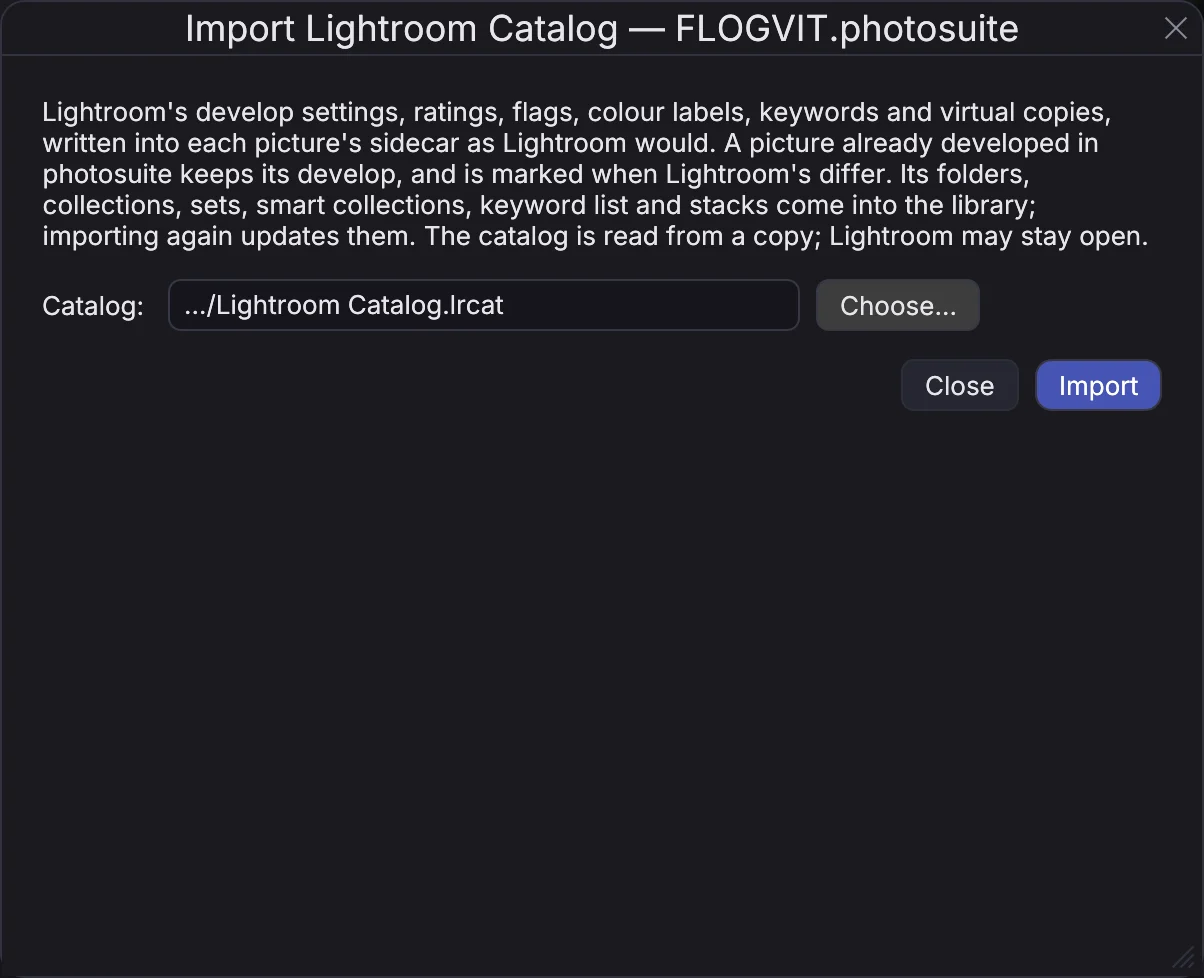
- File → Import Lightroom Catalog…
- Catalog: choose your
.lrcat(Lightroom's default place isPictures/Lightroom/Lightroom Catalog.lrcat). Lightroom may stay open: photosuite reads a copy. - With a folder open, Only the pictures under … limits the import to that folder. Untick it to bring the whole catalog.
- Import. When it is done, the dialog says how many pictures were written, how many virtual copies were added, how many AI masks it kept from the catalog, and which folders it could not find — connect the drive they are on and import again. Importing again is safe: nothing is added twice, and your photosuite edits stay.
Each picture gets a sidecar with Lightroom's settings in it, written the way Lightroom writes it. A picture you have already developed in photosuite keeps your photosuite develop and rating.
Your folders, collections and keywords#
How you organised the catalog comes into the library with it:
- Folders become library disks and folders. A folder on a drive that is not connected is added too, with its pictures as the catalog knows them and Lightroom's previews, so you can find and look at them before you connect the drive. A whole drive or your home folder is never added as one: its picture folders are.
- Collections become albums, in Lightroom's order when you sorted them by hand, and collection sets become sets. Two collections with the same name in different sets get the set's name in brackets.
- Smart collections become smart collections when every rule has a counterpart, Lightroom's own (Past Month, Recently Modified, Without Keywords, With Caption, Colored Red, Five Stars, Video Files) among them. One that does not becomes an album of the pictures it holds now, and the dialog names the rules that did not come along.
- The keyword list comes with its levels, synonyms and Include on Export, and each picture's keywords keep their place in the hierarchy.
- Stacks become stacks: the grid shows the top picture, collapsed or not as in Lightroom.
- Publish services are listed in the dialog with where they published; they are not brought in.
Importing the same catalog again updates what it brought instead of adding it twice. To see what a catalog will bring before you import it: cargo run --release -p culling --example lightroom_import -- --catalog <catalog.lrcat> reads a copy and writes nothing.
What you see in Develop#
A picture whose develop came from Lightroom says Developed from Lightroom's settings at the top of the Develop panel. Under it, settings not carried lists anything photosuite could not bring along, so nothing goes missing without you knowing. The most common:
- Depth range masks — not carried: photosuite has no depth map. Linear, radial and brush masks, AI masks (subject, sky, people), luminance and colour ranges, healing and clone spots come along.
- An AI mask Lightroom kept only in its catalog — Lightroom stores an AI mask's pixels in a
.acrfile beside the picture when it writes the sidecar, and otherwise only in the catalog. Import the catalog once and photosuite keeps its own copy of them; the import says how many it kept, and how many Lightroom itself no longer has. - A content-aware heal — comes along as a plain heal from the spot Lightroom chose.
- A creative profile (B&W, Modern, Vintage, Artistic) on a DNG's own embedded profile, or one not installed on this computer — its sliders come along, its colour table does not. On a raw file drawn with one of Adobe's profiles it comes along whole, colour tables and Amount, read from your own Lightroom or Camera Raw.
- A value past photosuite's range — set to the end of the range, and the line says so.
The picture is drawn with the profile Lightroom drew it with (Adobe Color, Adobe Standard, Camera Standard and the rest), read from your own Lightroom or Camera Raw, so its colours start where Lightroom's do. Profile at the top of the Color section shows which. A DNG from DxO PureRAW gets Lightroom's profile too, not DxO's look. If the profile is not installed on this computer, the settings not carried say so.
Like settings do not make like pixels: photosuite's tone sliders are its own, so a picture looks close to Lightroom, not identical. The white balance is turned into photosuite's using Adobe's own colour data for your camera when Lightroom is installed.
Once you change anything in Develop, the develop is photosuite's and the note goes.
Changed it in Lightroom afterwards?#
Keep using Lightroom alongside for a while if you like.
- A picture you have not edited in photosuite follows Lightroom: when Lightroom writes the sidecar again (for a DNG or JPEG, the file itself), photosuite shows the new settings.
- A picture you have edited in photosuite keeps your photosuite develop, and gets a small ↓ on its thumbnail when Lightroom's settings change in the file. The Info panel then offers Import Settings from File (take Lightroom's) or Keep photosuite's.
- Metadata → Read Metadata from File reads the selected pictures' sidecars again whenever you want, as Lightroom's own command does. What changed in the file wins. ⌘Z takes it back.
Start over without Lightroom's settings#
Not happy with how Lightroom's edits look here? Turn off Settings → General → Use Lightroom's settings. Every picture is then shown as photosuite develops it, without Lightroom's develop and crop, and you start fresh.
- Nothing in your files changes. Lightroom's settings stay in the sidecars and inside DNGs and JPEGs, also when you rate or flag a picture while the setting is off.
- Turn it on again and the pictures are as Lightroom left them.
- What you develop or crop in photosuite while it is off is photosuite's own, and stays when you turn it on again.
From a script#
POST /api/lightroom/catalog-import   {"catalog": "/…/Lightroom Catalog.lrcat", "under": "/…/2026"}
GET  /api/lightroom/catalog-import   how far it has come, and the report
POST /api/metadata/read-from-file    {"scope": "selected"}
POST /api/metadata/keep-own-develop  {"scope": "selected"}
GET  /api/images/current/profiles    the profile the picture is drawn with, and the ones it can be
PATCH /api/settings                  {"use_lightroom_settings": false}
See the API reference for the details.