Import Workflow
Import from memory cards with auto-detect, rename templates, and IPTC metadata.
 0:46
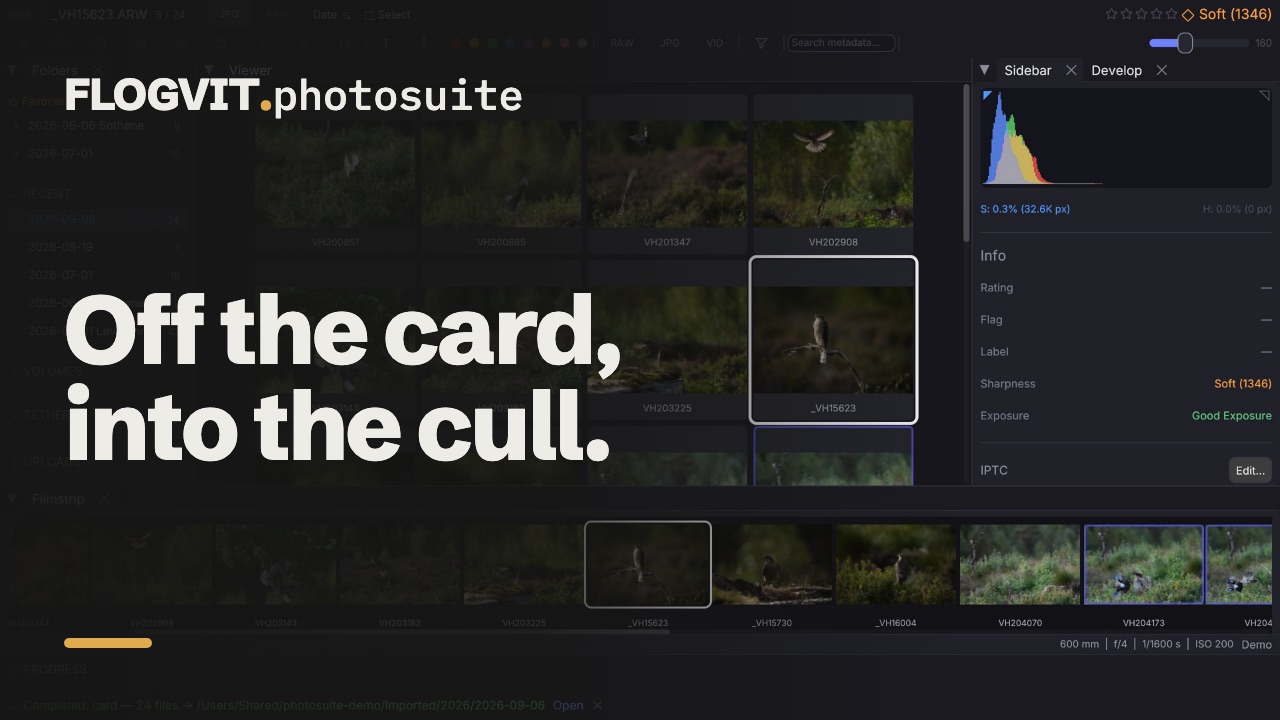
0:46FLOGVIT.photosuite copies your pictures off the memory card, checks every copy, names and files them the way you want, and lets you start culling before the last file is across.
Opening the import dialog#
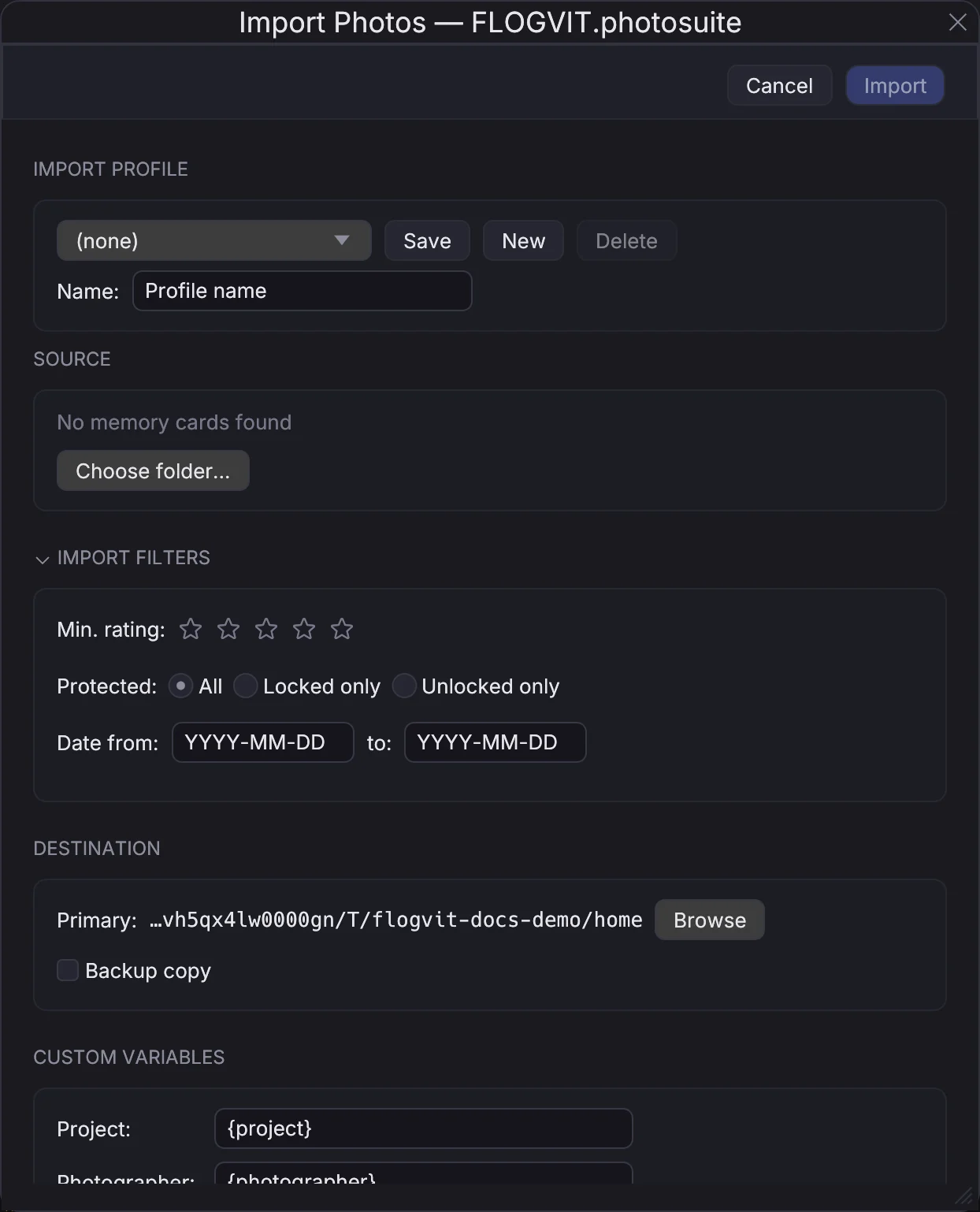
Choose File → Import... or press Cmd+I. The dialog lists every memory card it finds — SD, CFexpress, a camera over USB — with its name, how many pictures it holds, their size, where it is mounted and how much of it is free. Click a card to take it; click several to import from all of them in one go. Choose folder... imports from a folder instead.
Under Settings → General → Import you can have the dialog open by itself when a card goes in (Open import dialog when memory card is inserted), or skip the dialog and import with a saved profile (Auto-import when memory card is inserted).
Profiles#
Everything in the dialog can be kept as an import profile under a name, and the dialog starts from the one you used last. Auto-import uses the profile you choose for it, and POST /api/import takes a profile by name.
Where the files go#
- Primary — the folder the pictures are copied into.
- Backup copy — a second folder, on another disk, that gets the same files with the same names and folders.
Folder structure decides what goes between the destination and the file:
- Template — folders made from the picture: the default is
{image_year}/{image_year}-{image_month}-{image_day}, a folder per year and one per shooting day. - Flat — every picture straight into the destination.
- Preserve source — the folders as they are on the card.
The {image_…} variables are the moment the picture was taken; {year}, {month}, {day} and {date} are today, the day of the import. {camera}, {lens}, {iso}, {project}, {photographer} and the rest are in the variable picker next to the field, and the dialog shows the folder a picture will land in as you type. Project and Photographer under Custom variables fill {project} and {photographer}.
Renaming on import#
Tick Rename on import and give a file name template, for example:
{image_date}_{camera}_{seq:4}
which gives names like 2026-02-19_NIKON_Z9_0001.NEF. The extension is kept. {seq:4} is a running number with four digits; {original} is the name the camera gave the file.
On duplicate says what happens when a file of that name is already at the destination: Skip leaves it alone (so importing the same card twice copies nothing twice, and a different picture under the same name gets a new name instead), Overwrite replaces it, Rename gives the new one a free name.
Checking the copies#
Verification reads each copy back and compares it with the original — xxHash (the default, fast) or SHA-256 — or None. A copy that does not match is counted and named in the import's errors.
Delete imported files from the card after verification deletes only the files that were copied, and only when verification was on and every copy matched; one mismatch or error, and the card is left as it was. Eject card after import ejects it when the import is done.
Picking what to import#
Import filters limit the import to pictures with at least a number of stars set in the camera, to protected (locked) or unprotected pictures, and to a range of dates. The dialog counts what passes as you change them.
Metadata on the way in#
- Apply IPTC template writes a saved IPTC template — creator, copyright, keywords, caption, location and the rest — into every picture, with variables expanded per picture. What the picture already has stays; the template is added on top.
- Default values gives every imported picture a rating, flag or color label to start from.
RAW+JPEG#
A camera shooting RAW+JPEG makes two files per picture. Both are copied, together with their sidecars and voice notes, under one name and one sequence number, so they stay a pair. In the folder they show as one picture, the RAW, with the JPEG beside it.
While it runs#
The import runs in the background. The folder opens as the files arrive, so you can start culling at once; the Import Panel (View → Import Panel) shows how far each import has come and lets you cancel one.