Develop
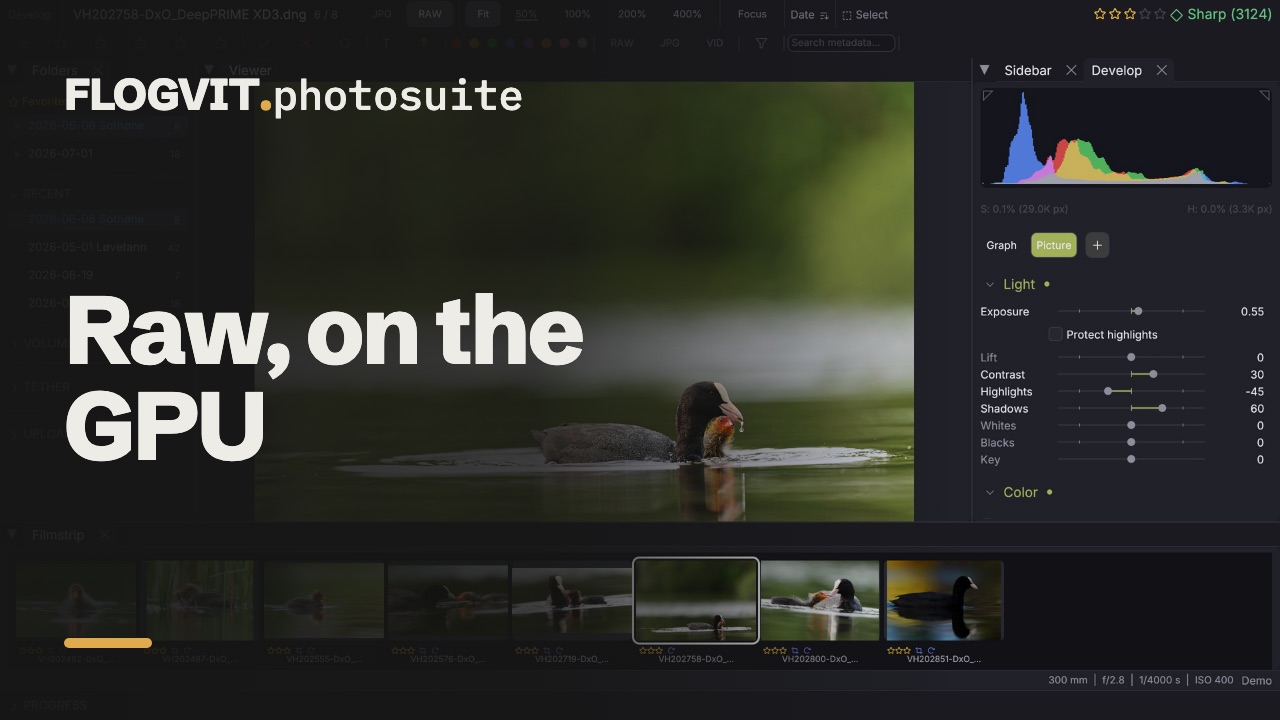
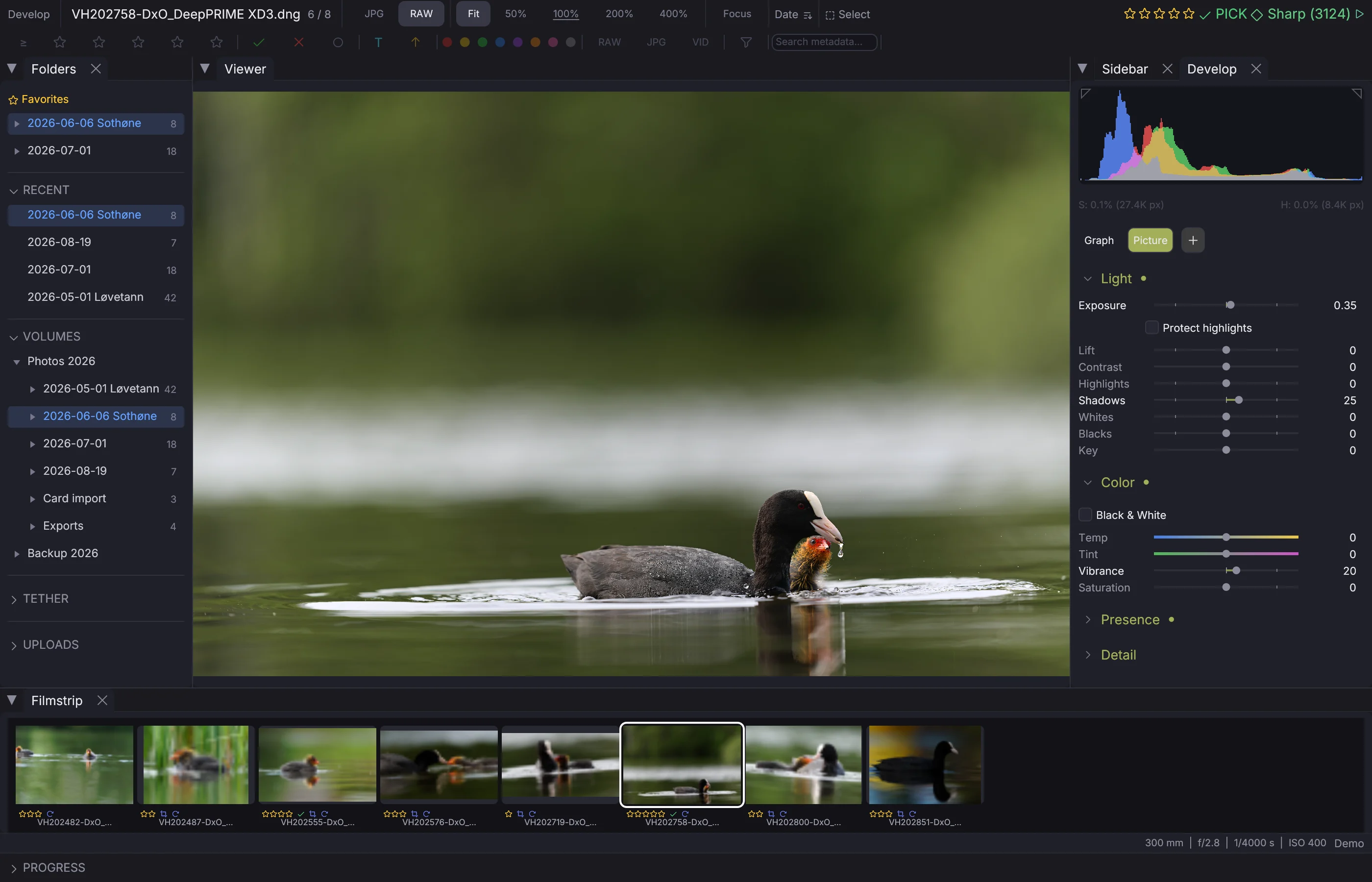
Exposure, colour, tone curve, the eight-zone mixer, detail and effects — all non-destructive, all on the GPU.
 1:31
1:31Every adjustment in FLOGVIT.photosuite is non-destructive. Nothing is written back into your RAW files: the settings live in an XMP sidecar beside each image, and the picture is rebuilt from the original every time it is shown or exported.
The whole chain runs on the GPU, with the CPU implementation kept as the reference. A test suite compares the two on every feature — masks, spot removal, perspective, the colour mixer — so the picture on screen and the picture that leaves the export are the same picture.
RAW or the camera's JPEG#
 0:11
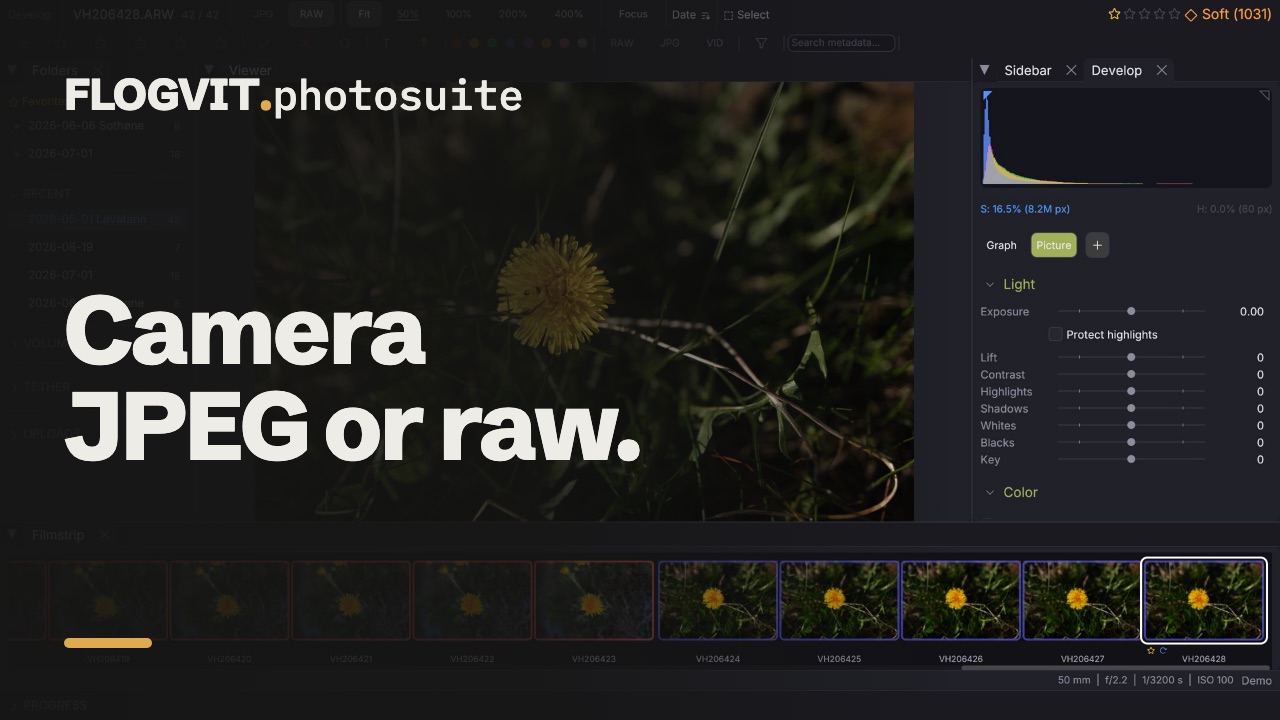
0:11Press V to switch between them, or use the Preview | RAW buttons in Develop's toolbar.
The camera's embedded preview is the default, because it is what culling is for: it is on screen in milliseconds, while converting the RAW costs 20–130 ms per frame and shows the same picture. When you start editing, switch to RAW — the develop chain has the headroom the JPEG has already thrown away, which is what makes highlight recovery and white balance work at all.
Camera profiles#
A RAW file has no single correct appearance. FLOGVIT.photosuite ships profiles that match the camera's own rendering, derived from the JPEG the camera embedded in the file, so a converted RAW starts where the photographer saw it rather than flat and grey.
Files written by another converter keep that converter's look instead. A DNG from DxO PureRAW carries the rendering DxO produced, and it is matched rather than overridden — measured against DxO's own embedded preview across a folder of files, the difference is 0.009 in display units with the profile and 0.076 without.
The profile lookup tolerates versions: a file from PureRAW 5 finds the PureRAW 6 profile if that is the one installed. A converter's colour is its product identity, not a per-release detail.
Settings → General → Camera profiles chooses the profile for every RAW. A single picture can have its own: Profile at the top of the Color section offers As in Settings, Photosuite, and, where Lightroom, Camera Raw or DNG Converter is installed, Adobe's profiles for the camera (Adobe Color, Adobe Vivid, Adobe Portrait, Camera Standard and the others Lightroom lists). A picture edited in Lightroom takes the profile Lightroom drew it with, a DxO PureRAW DNG included, so it starts in Lightroom's colours.
Light#
 0:18
0:18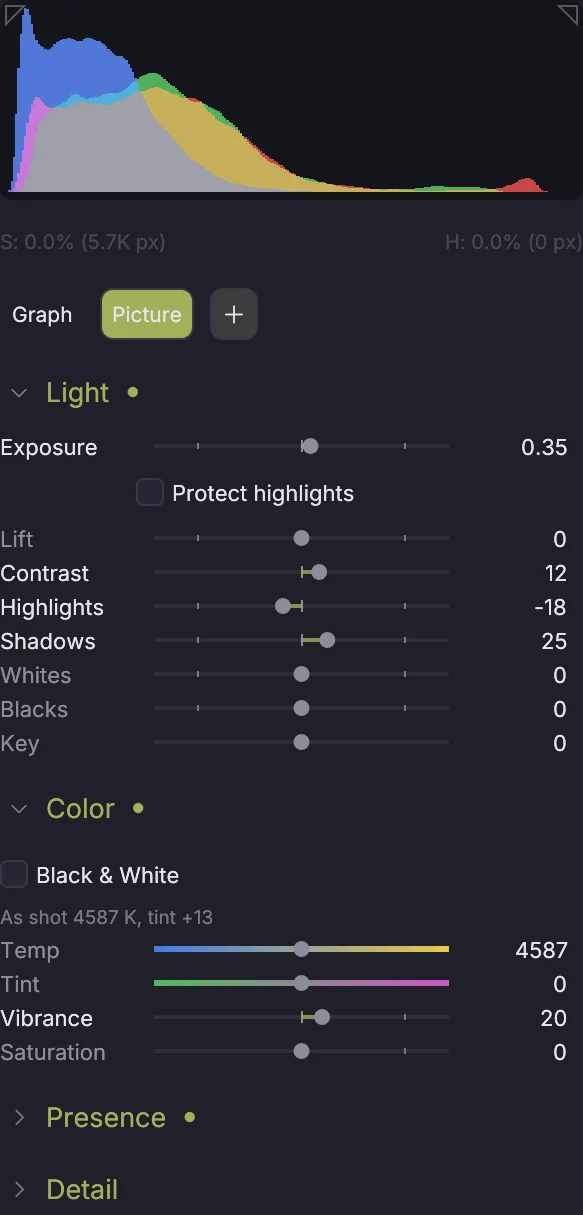
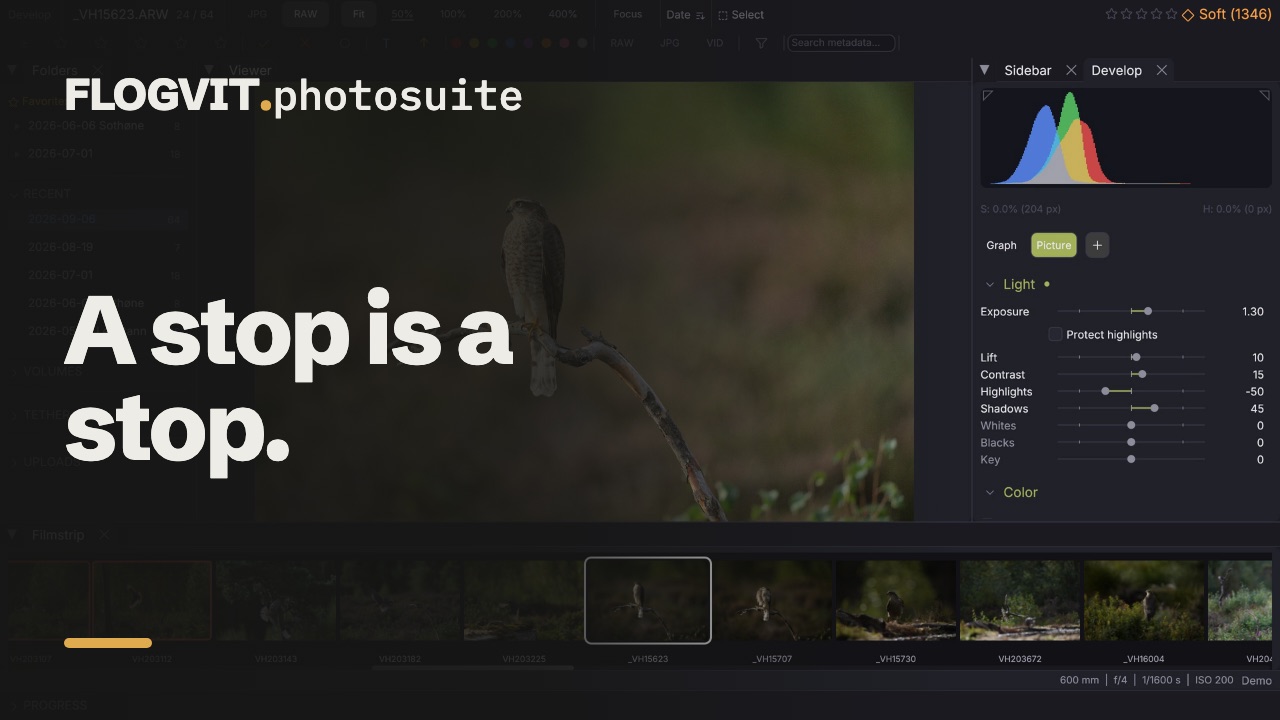
Exposure works in linear light, so it behaves like exposure rather than like a brightness slider: a stop down really is a stop down, and a highlight that was not clipped comes back.
Protect highlights, under Exposure, makes Exposure + brighten the picture without clipping anything that was not clipped: the shadows get the whole gain and the brightest tones roll off towards white instead of past it, so the picture keeps its range.
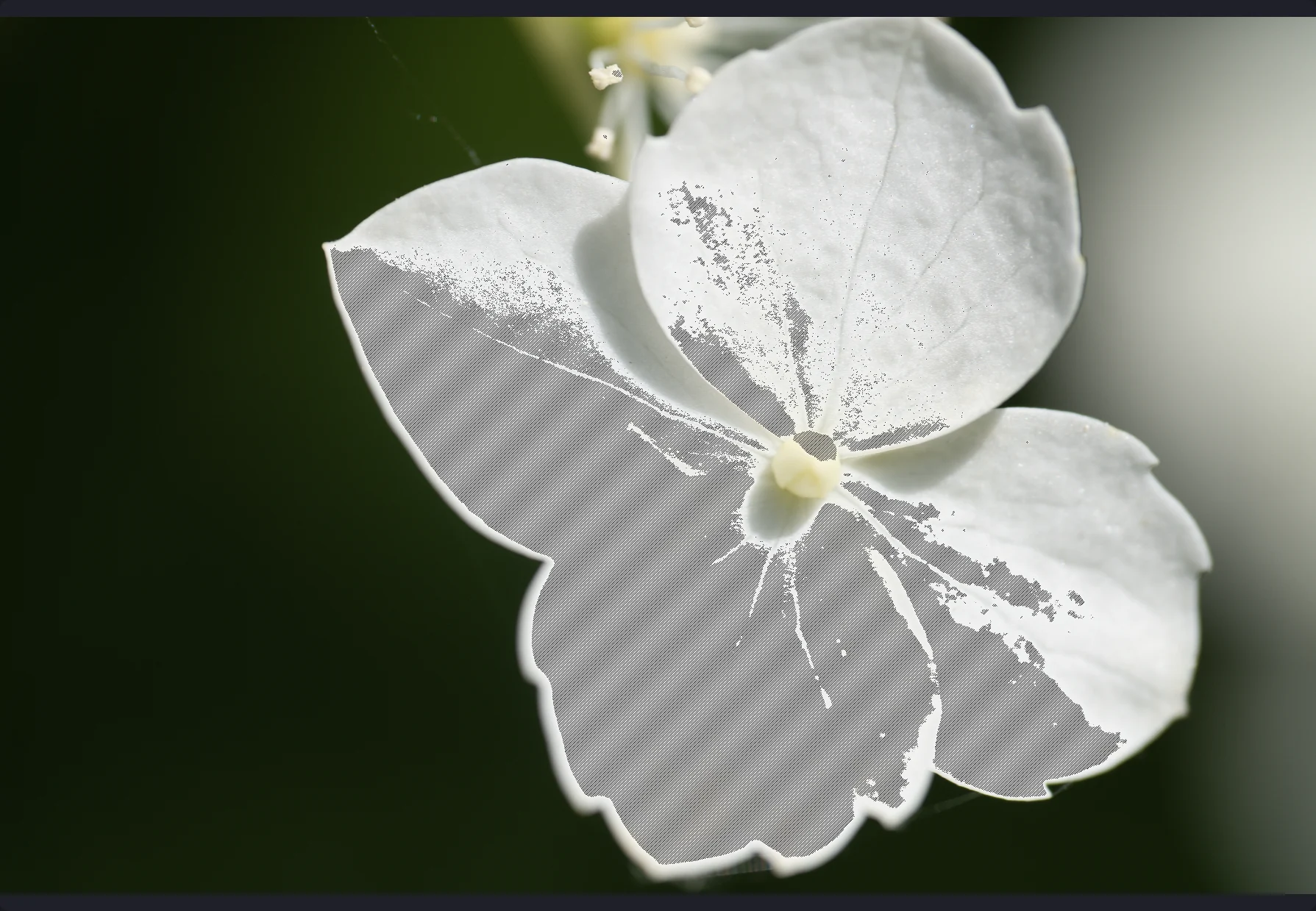
Lift brightens from the shadows up through the midtones and leaves the top where it is — the slider to reach for when a picture is dark but its highlights are right.
Contrast pivots on mid-grey as you see it. Highlights and Shadows work on the two ends of the range, and read the light around each pixel rather than the pixel alone, so a lifted shadow keeps its texture and a pulled-down sky keeps its clouds; Highlights − also brings back what the RAW holds above white. Whites and Blacks work on the brightest and the darkest tones: + lightens, − darkens, as in Lightroom.
Key makes a picture high key or low key. Towards + the tones above a threshold go to white, and the threshold comes down the further you go, while the dark tones stay as they were: a dark subject against a background that burns out. Towards − it is the other way round: the light tones stay and the rest goes to black. Colours keep their hue on the way.
Past ±100. A slider's rail covers all of its reach: −100 to +100 (Exposure ±4) keeps most of the rail and the fine moves fine, and the last stretch at each end, past a small tick, goes further: Lift to +300, Shadows to +150, Highlights to −300, Whites to +300, Blacks to −300, Exposure to ±10, Saturation and Vibrance to +300, Texture and Clarity to ±300. You can also type a value in the box beside the slider, or keep turning with the scroll wheel or a console dial. Contrast and Dehaze stop at ±100: past that their curves would turn the picture over.
Colour#
 0:17
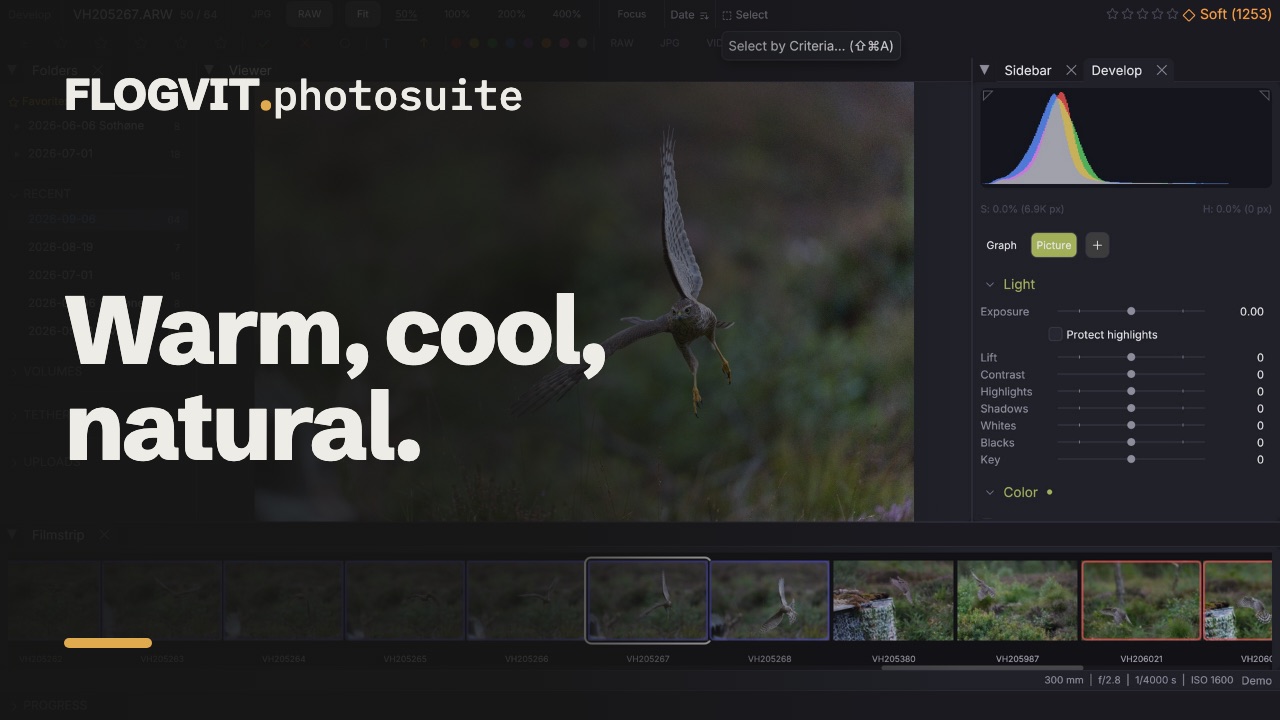
0:17Temp and Tint are white balance. On a RAW whose camera's colour is known, Temp reads in Kelvin, under the balance the camera chose (As shot), and takes a Kelvin typed into it; the rails run from blue to yellow and from green to magenta. On a RAW file they are folded into the demosaic, which is the only place they can be applied without leaving a colour cast in the detail. On an already-demosaiced file — a linear DNG from a converter — they are applied later in the chain instead, and the sliders behave the same.
Saturation moves every colour. Vibrance moves the muted ones more than the saturated ones, which is what keeps skin and plumage from going plastic.
Presence#
 0:14
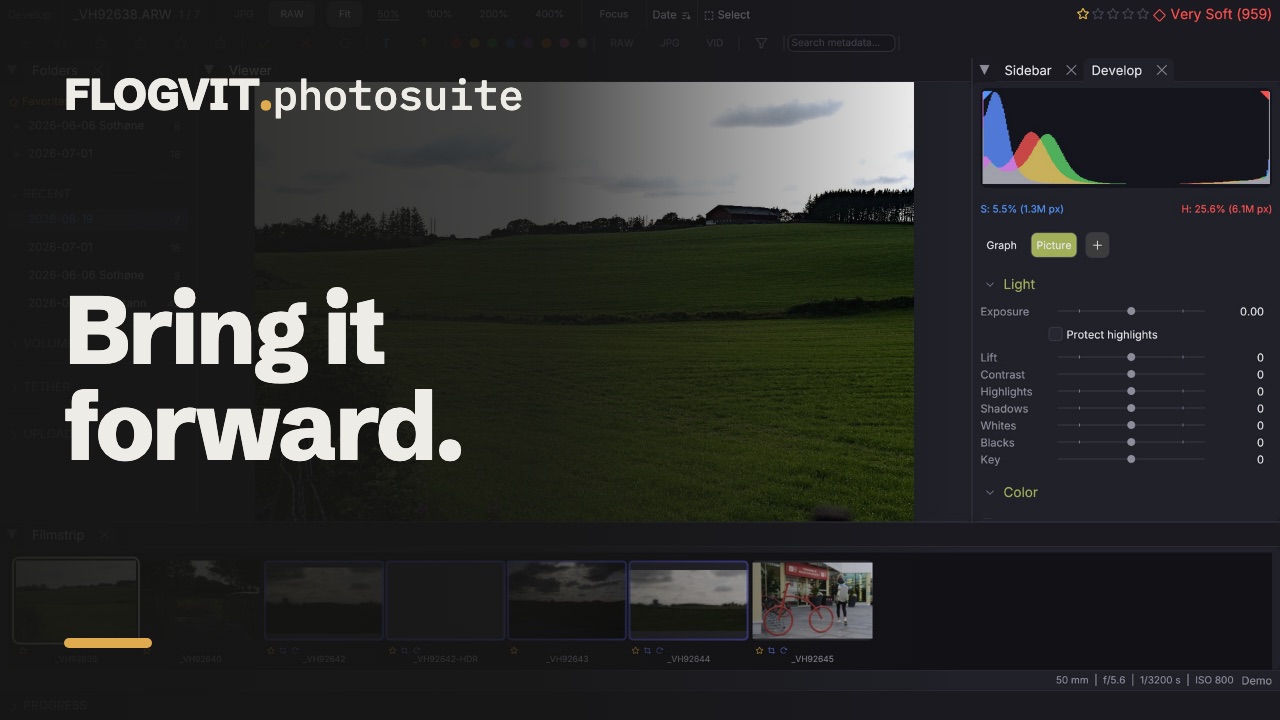
0:14Clarity is midtone local contrast at a wide radius. Texture is the same thing at a fine one — positive Texture is where local sharpening lives. Dehaze removes, or adds, the veil over a distant subject.
Detail#
 0:16
0:16Under Sharpening, Amount scales the capture sharpening every RAW render gets. Radius is how wide the sharpening reaches, Detail how much of it survives in flat areas, and Masking raises the edge threshold so only real edges are sharpened at all.
Under Noise Reduction, Luminance and Color are how much noise is taken out of the brightness and the colour; Detail moves the line between noise and texture, and Smoothness how far the colour blur reaches.
AI Denoise is learned noise reduction, for high-ISO pictures from an indoor hall, a concert or the evening. It runs on this computer — nothing is uploaded, and it needs no account or other program — on the picture's RAW data before exposure and tone, so brightening a dark picture afterwards does not bring the noise back. The slider says how much of the denoised picture is used: 100 is all of it, lower keeps some of the grain. The first change on a picture takes a few seconds (about four for 24 megapixels on Apple Silicon, longer on a PC without one); after that the slider moves freely, and a white balance change does not run it again. It is part of the develop settings like any slider: saved with the picture, copied with Paste Settings, and in every export. Send to Denoise (DxO PureRAW) is still there for those who have it.
Lens#
 0:15
0:15The camera writes its lens correction into the RAW — distortion, lateral chromatic aberration and vignetting, for the lens and focal length the picture was taken with — and FLOGVIT.photosuite develops with it, no Lightroom or lens profile needed. Correction chooses how much:
- As shot (the default): what the camera applied to its own JPEG. A correction you turned off in the camera stays off.
- All: everything the file carries, also what the camera had off.
- Off: the lens as it drew.
The line under it says where this picture's correction comes from. Where Lightroom or Camera Raw is installed, Adobe's lens profile still gives the vignetting, as Lightroom does. The distortion correction widens the picture to the frame's edge, so no corner is left empty.
The sliders work on top: Vignette scales the vignetting correction (−100 takes it away, +100 doubles it), Distortion and Chromatic Aberration → Amount add to the camera's, and Defringe → Purple and Green remove purple and green fringes.
What the file carries depends on the camera:
| Camera | Distortion | Chromatic aberration | Vignetting |
|---|---|---|---|
| Sony | ✓ | ✓ | ✓ |
| Fujifilm | ✓ | — | ✓ |
| Nikon Z | ✓ | — | — |
| Panasonic | ✓ | — | — |
| DNG (Leica, Sigma, OM System, iPhone, other phones) | ✓ | ✓ | ✓ |
| Canon, older Olympus | — | — | — |
Canon and Olympus RAWs carry no correction coefficients, only whether the camera had correction on. A phone DNG's lens shading map is always applied: it is part of reading the file.
Tone Curve#
 0:09
0:09Four parametric regions — highlights, lights, darks, shadows — and a freeform point curve, both composite and per channel. Split points move where the regions part, as the three markers under Lightroom's curve: move the shadows' split up and Shadows reaches further into the midtones.
Colour Mixer#
 0:14
0:14Eight zones: red, orange, yellow, green, aqua, blue, purple and magenta, each with hue, saturation and luminance.
They are deliberately not evenly spaced. Orange and purple sit where the eye cares most and the spectrum moves fastest — skin, rust, a bird's bill, a heather hillside. With six even zones, orange is a blend of red and yellow, so lifting a face drags every red in the frame along with it.
In black and white the same eight zones act as the channel mixer.
Colour Grading#
 0:10
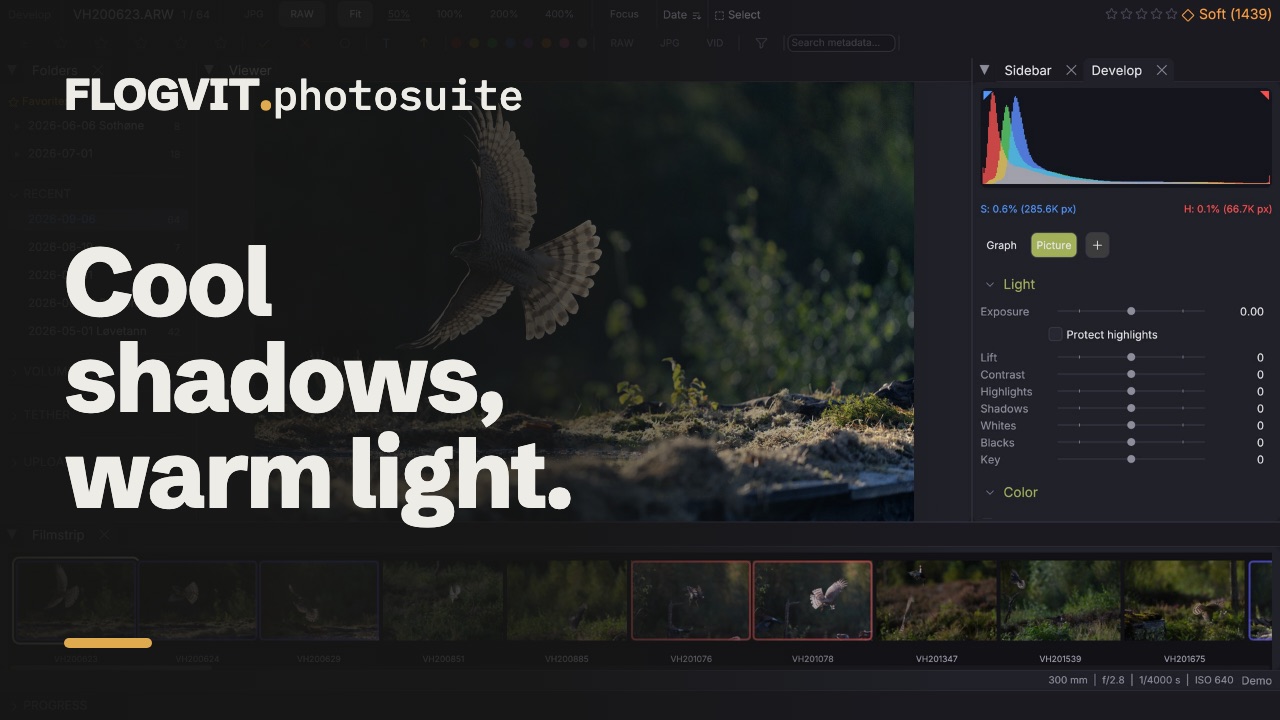
0:10Three wheels — shadows, midtones, highlights — each with hue, saturation and luminance, plus Blend for how far the ranges overlap and Balance for where the crossover sits. A fourth wheel, Global, tints every tone alike and has its own luminance.
Effects#
 0:09
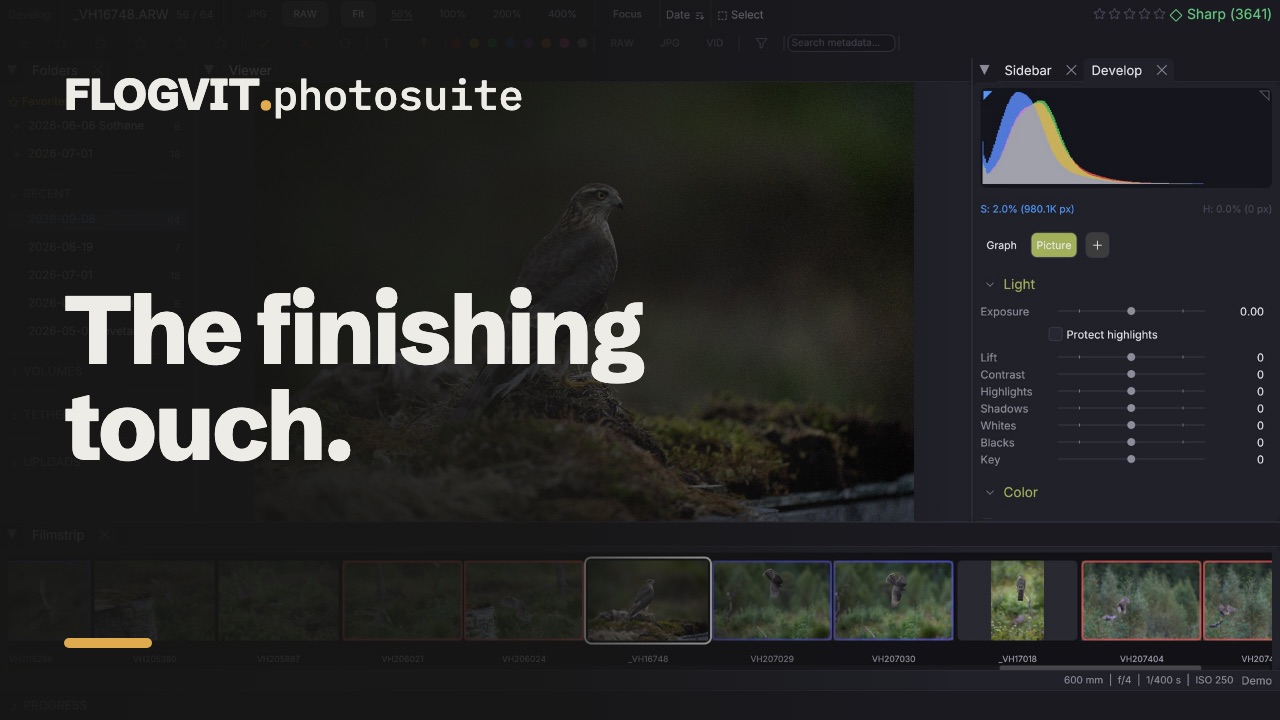
0:09Post-crop vignette with midpoint, feather and roundness, and film grain with size and roughness. Style is Lightroom's: Highlight Priority (the default) darkens the edges and spares the bright parts as far as Highlights says, Color Priority darkens and keeps every colour's hue and saturation, and Paint Overlay blends towards black or white.
Before and after#
 0:13
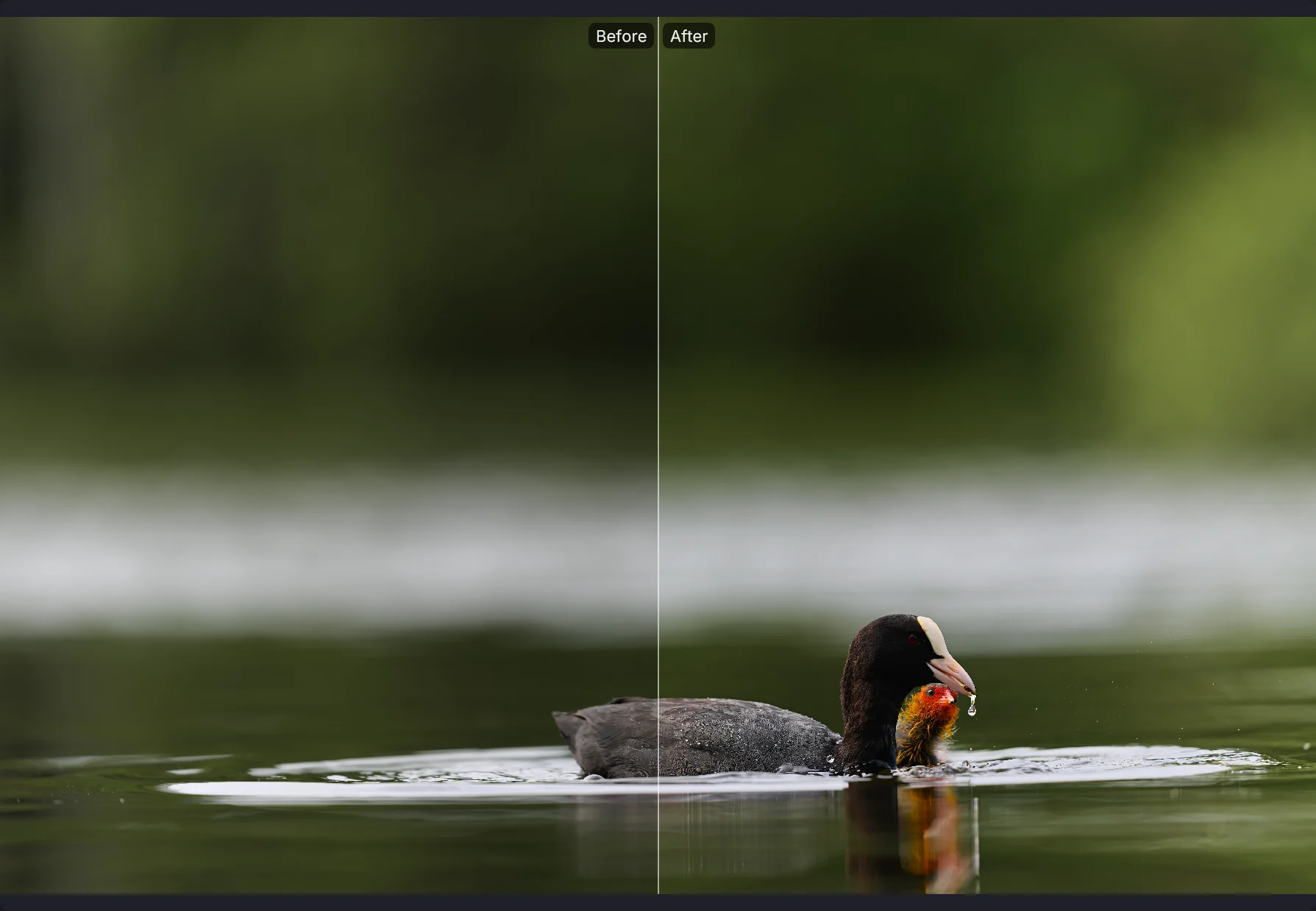
0:13Hold </kbd> to see the frame without your edits. Press Y to keep the untouched version beside the edited one, split down the middle of the same frame.
The two are not the same thing. Holding a key tells you the picture changed; it does not let you compare, because you cannot look at two things one after the other and judge a quarter of a stop between them.
Copying settings#
 0:13
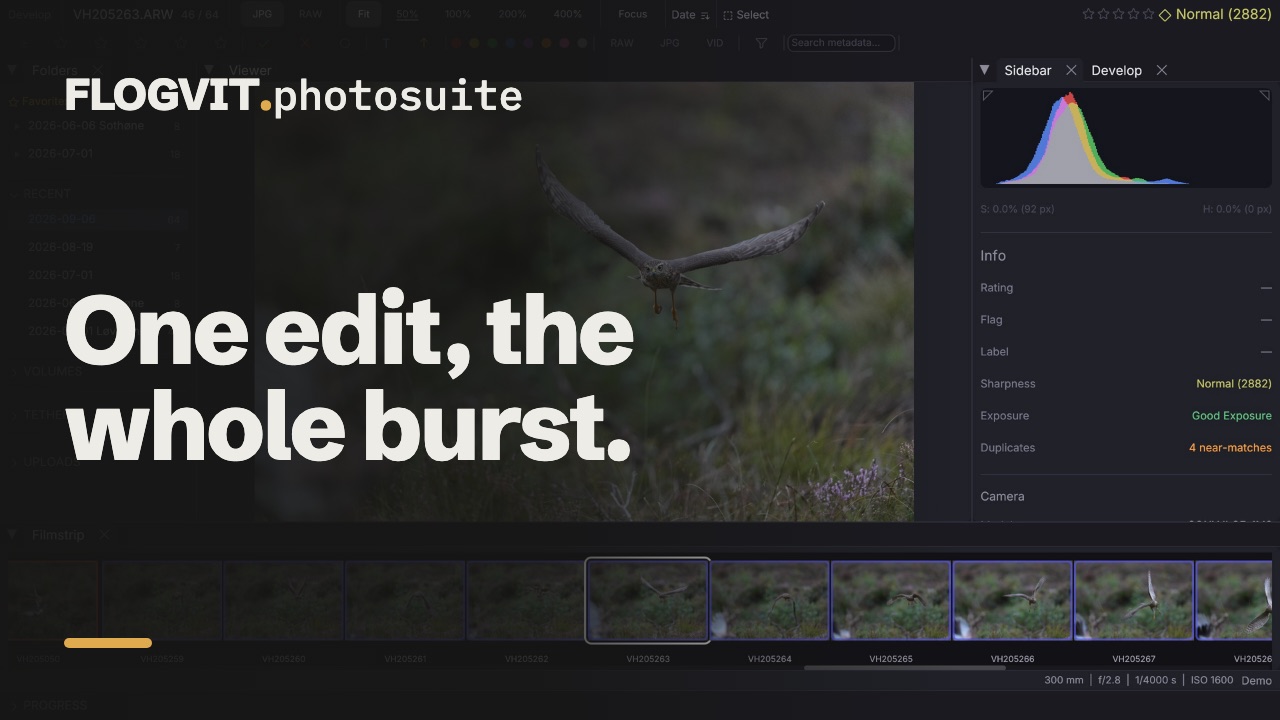
0:13Cmd+C copies the current image's settings and Cmd+V pastes them. With more than one image selected, the paste reaches all of them.
Pasting everything is right when the next frame is the same shot. When it is not, the Copy settings panel lets you paste only some of it — twelve groups, so the white balance from one frame can go across a whole shoot without taking a crop or a set of spot fixes with it.
Back to as shot#
 0:12
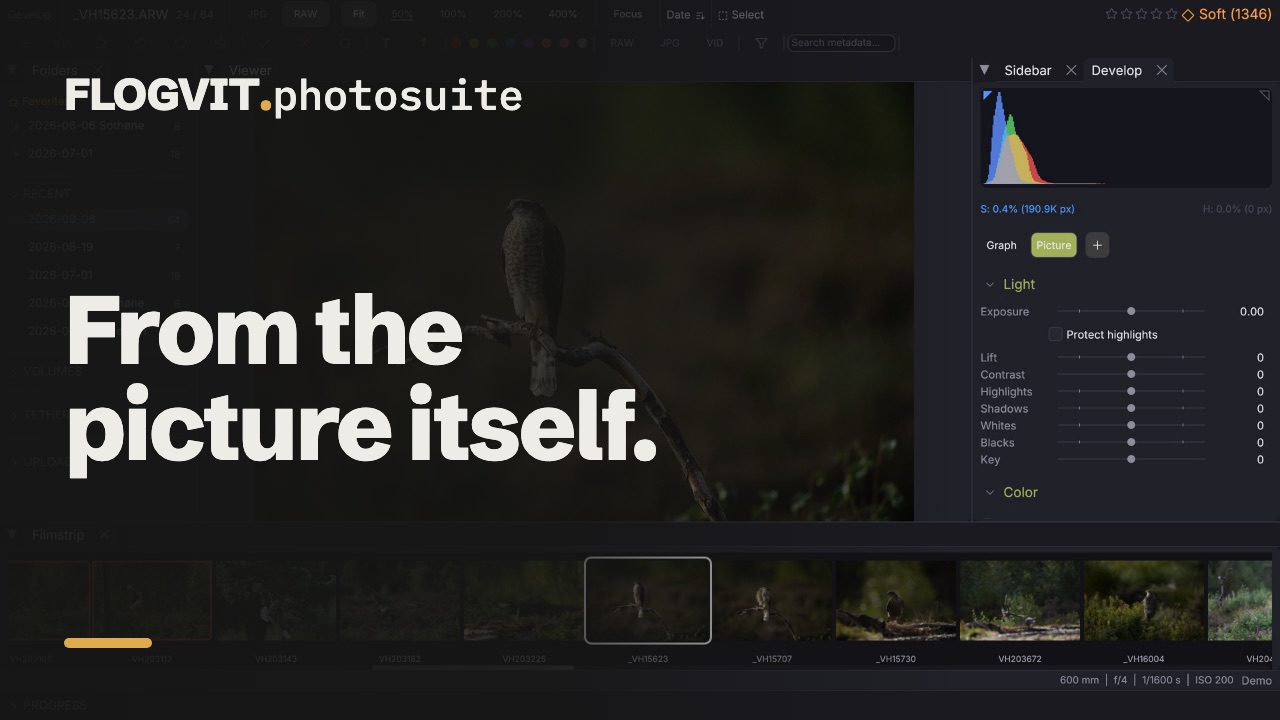
0:12Develop → Auto Tone (Cmd+U, or Auto in the panel) reads the picture the way a colourist reads the scopes: it places the brightest real detail high without clipping it and leaves lamps, the sun and LED lights out, keeps faces in the skin band of a waveform and lifts them with Lift when they fall below it, sets the black point, and takes out a colour cast that both the shadows and the highlights show. Develop → Auto White Balance (Cmd+Shift+U, Auto WB) nudges the white balance toward neutral.
Develop → Reset Develop (Option+Cmd+R), or Reset Develop when you right-click a picture, takes the selected pictures back to as shot: the develop and the crop, as Reset does in Lightroom. The rotation stays. Reset All at the bottom of the develop panel does the same for the picture in front. Each one is a step of its own in the history, so Cmd+Z brings a picture's develop back.
Presets, history and snapshots#
 0:13
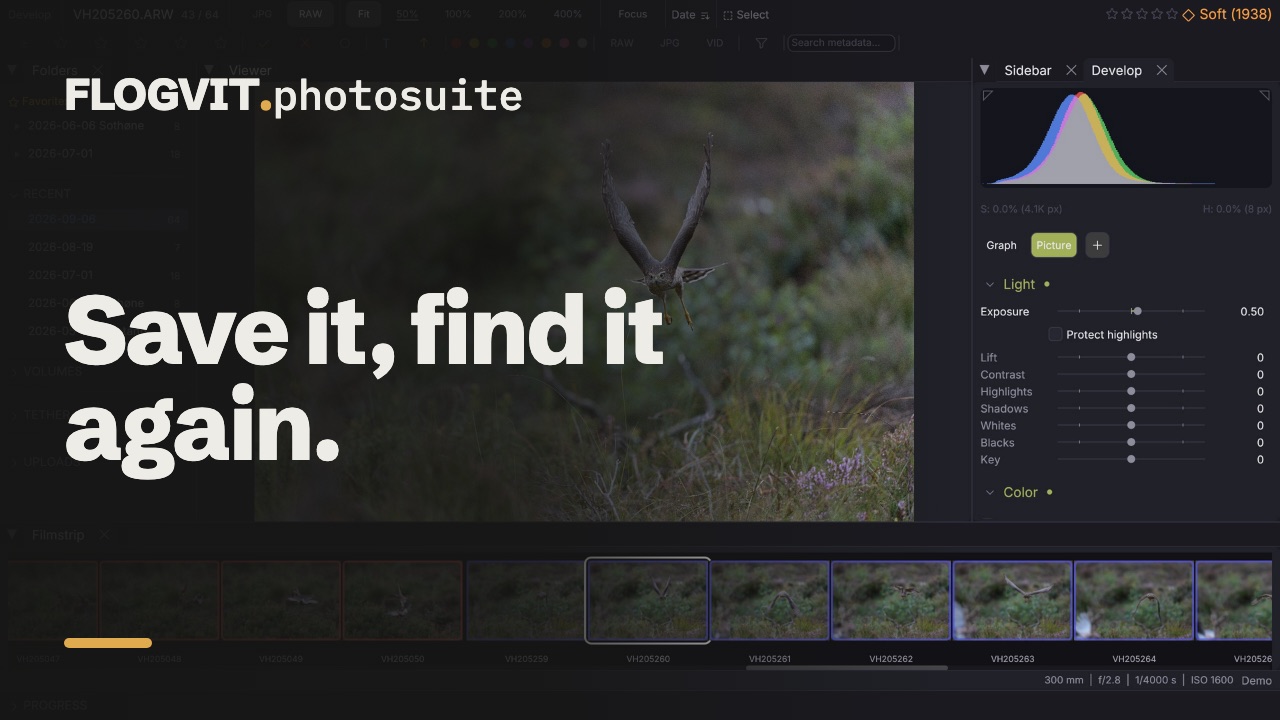
0:13Save any state as a preset and apply it to any image. A preset is colour or black and white: a colour preset on a black-and-white picture makes it colour. Type Group/Name when you save to file it under a group, or right-click a preset to move it to another group or out of any; each group folds away under its own header. The history records every committed edit for as long as the folder is open and survives a restart; clicking an entry jumps back to that state. A snapshot is a named point you can return to at any time.
Virtual copies#
 0:12
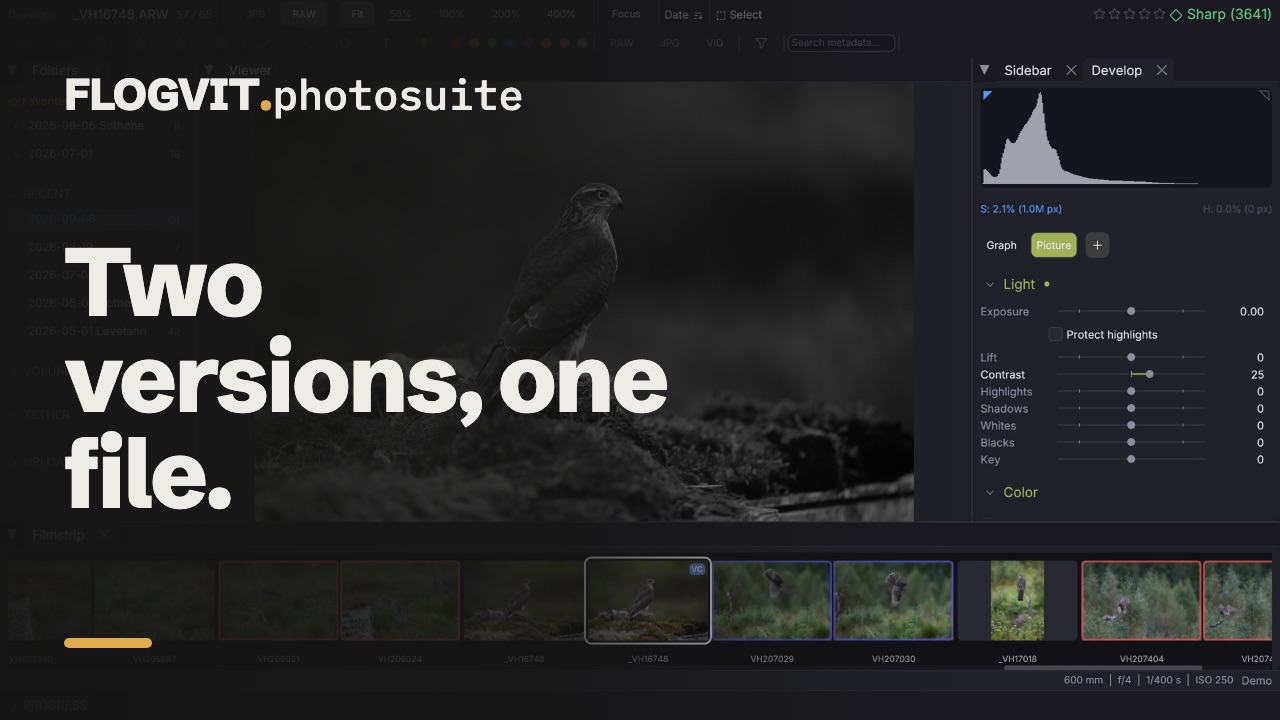
0:12Cmd+' (Photo → Create Virtual Copy) makes a virtual copy: a second version of the same file, with its own rating, flag, label, crop and — the usual reason for making one — its own develop settings. A colour version and a black-and-white one, from a single file on disk.
A new copy starts as what you were looking at, and diverges from there.
Merging: HDR and panoramas#
 0:17
0:17Develop → Merge → Merge to HDR (or right-click → Merge) takes the RAWs of an exposure bracket and makes one picture with the range of all of them: the frames are lined up (handheld is fine), and every part of the picture comes from the frames that show it best, the clipped highlights of the bright frames from the dark ones. Merge to Panorama joins overlapping frames into one wide picture: lined up on what they share, laid out on a cylinder (or a sphere, or flat with Perspective for a few frames of a building), their brightness evened out, and cut to the largest rectangle they cover.
Select the frames first. With one picture selected, Merge to HDR takes the bracket it is in (a burst whose exposures differ by more than half a stop), and Merge to Panorama its burst.
The result is a DNG beside the first frame, …-HDR.dng or …-Pano.dng, which shows up in the folder and develops like any RAW, with the camera's colours: pull the highlights down, lift the shadows, export. Each frame's lens is corrected first, as Develop would. The info bar says what the merge is doing; a 60 MP bracket takes some seconds.
The API does the same: POST /api/merge, and GET /api/images/current/bracket for the bracket the picture on screen is in.
From a script#
 0:11
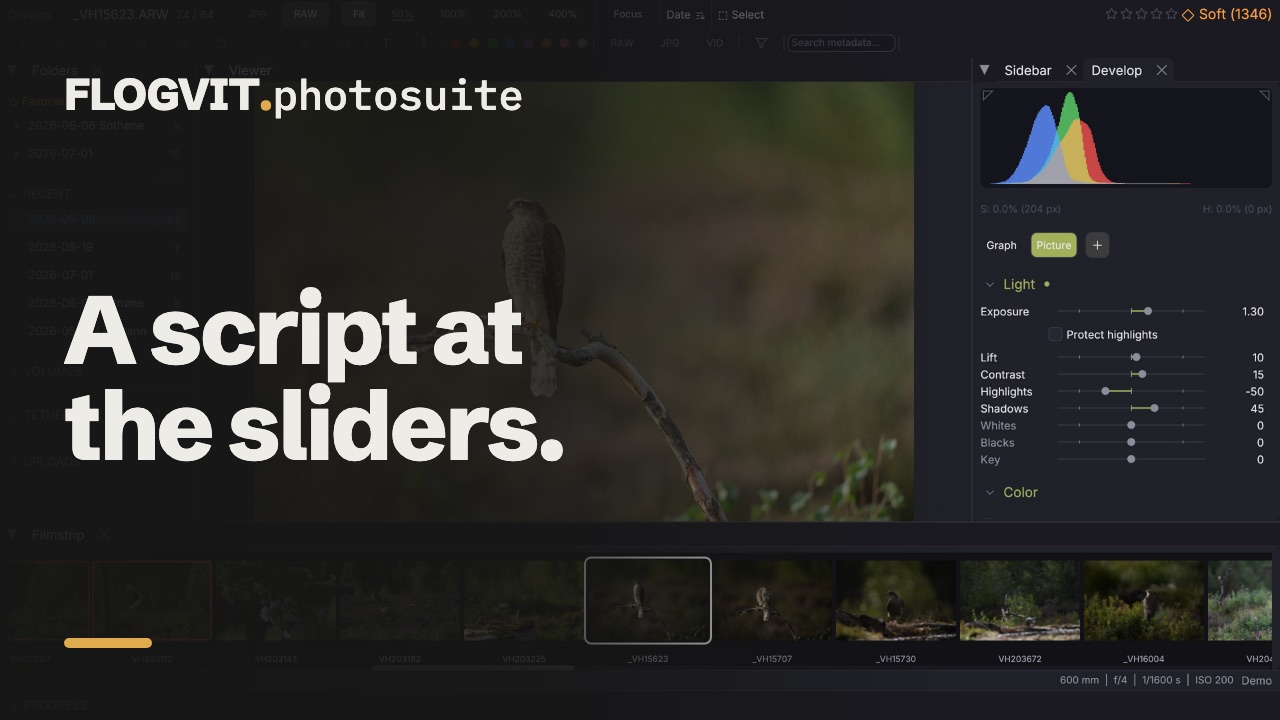
0:11Every adjustment on this page is on the REST API and in the TypeScript SDK. All 85 of them, checked by a test that fails if the renderer gains a setting the API does not expose.
await client.develop.set({ exposure_ev: 0.5, shadows: 30, vibrance: 20 })
await client.develop.paste(['color'])   // white balance only, across a selection
See API & automation for the worked examples and API Reference for every route.