Masks & Local Adjustments
Gradients, ellipses, brushes and ranges, combined with add, subtract and intersect. Subject and sky in one press.
 1:04
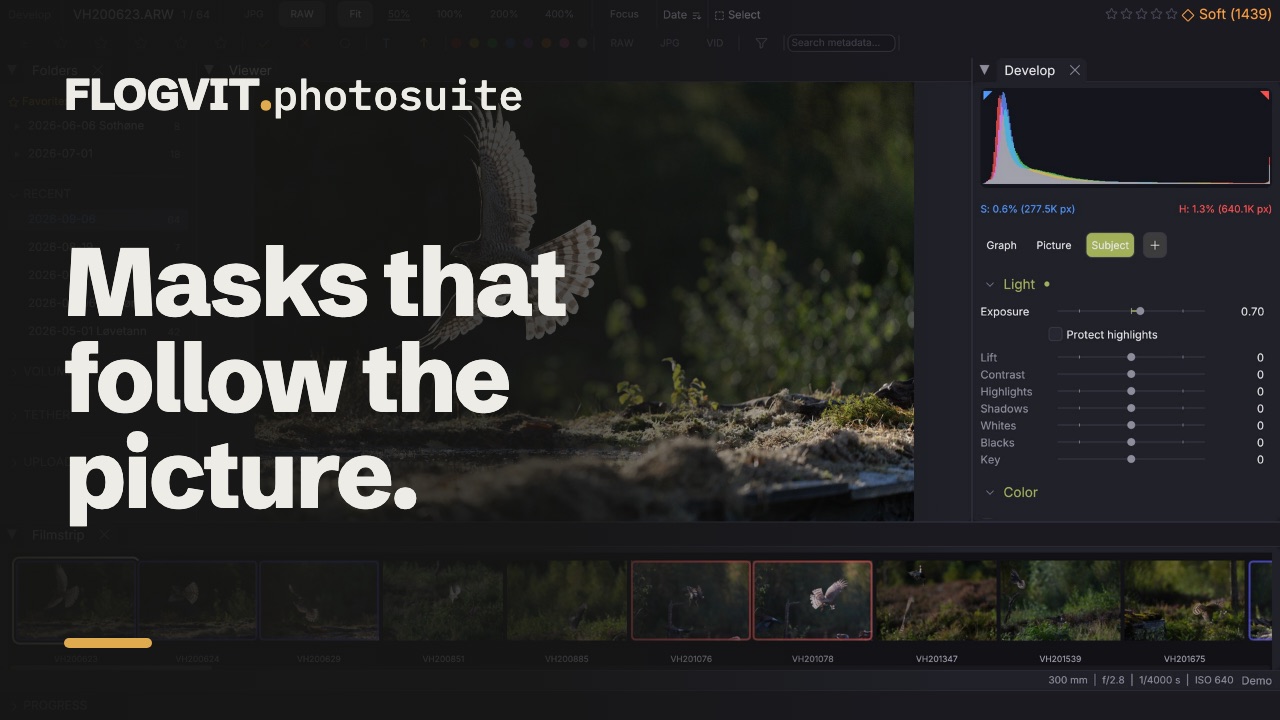
1:04A mask is a list of parts, not one shape. That is the whole design, and it is what lets you say the thing real local work is made of: a gradient over the sky, minus the spire that sticks into it. A brush stroke, narrowed to the skin tones inside it.
The parts#
Open the Masks panel in Develop and add one of six kinds.
Whole frame — every pixel: a correction over the whole picture, after the panel's own. See Nodes, Looks & Shot Match.
Linear — a gradient running from full strength at one point to nothing at another.
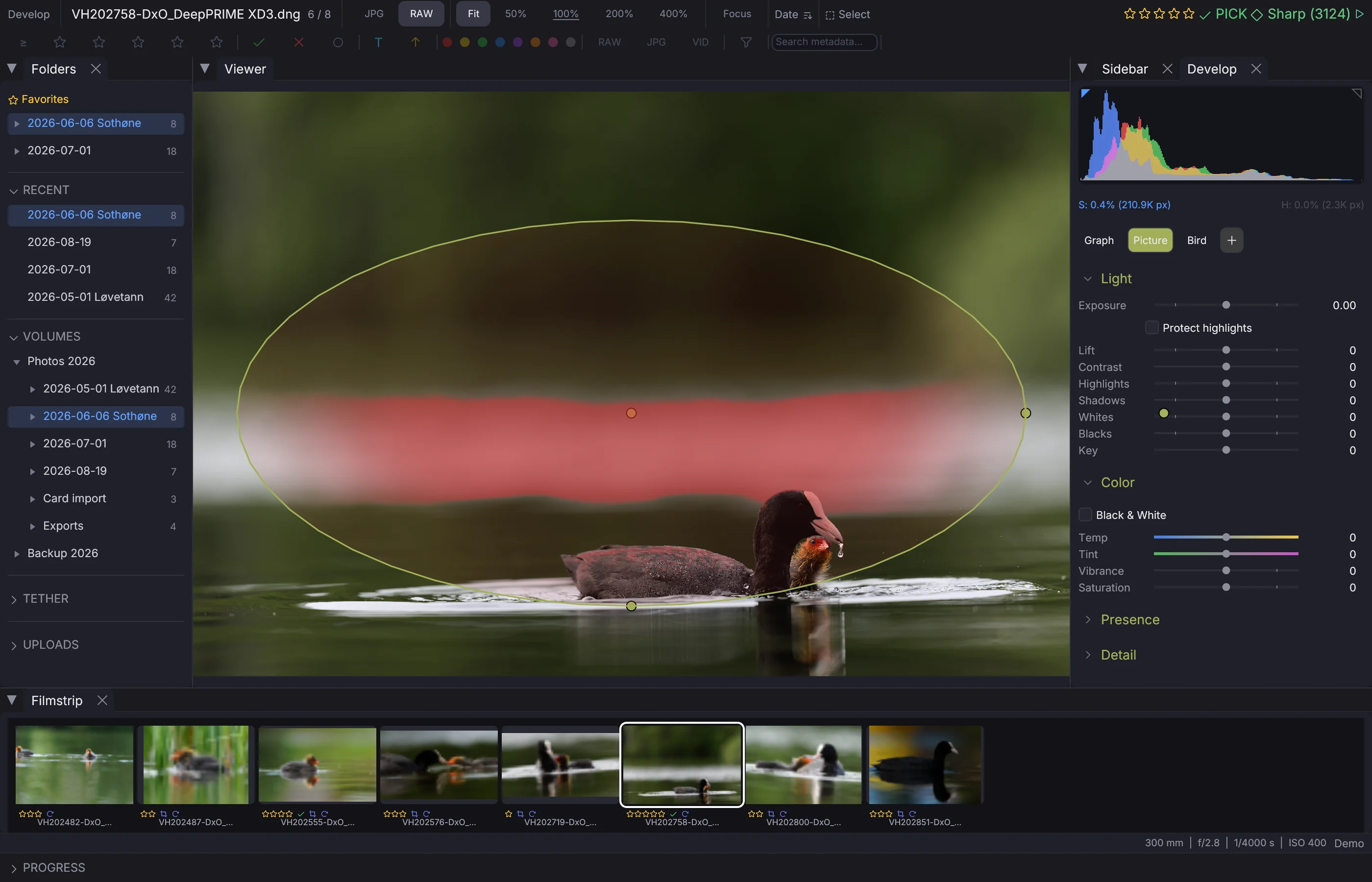
Radial — an ellipse with a feathered edge, which can be turned. A bird, a face and a horizon are diagonal more often than not, and an axis-aligned ellipse over any of them has to be made big enough to swallow the background too.
Brush — freehand, with size, softness, flow and erase. Strokes are stored as the path your hand drew rather than as a raster, so a mask costs a few hundred bytes in the sidecar instead of tens of megabytes, and a slow drag leaves the same mark as a fast one.
Luminance — everything between two brightness levels. This one follows the picture rather than a position, which is what makes "the sky but not the branches in front of it" possible at all.
Colour — everything near one hue, bounded by how saturated and how bright it has to be.
A part can also be another mask's coverage, by its name: build a face or a sky once and use it in several masks.
Combining them#
 0:14
0:14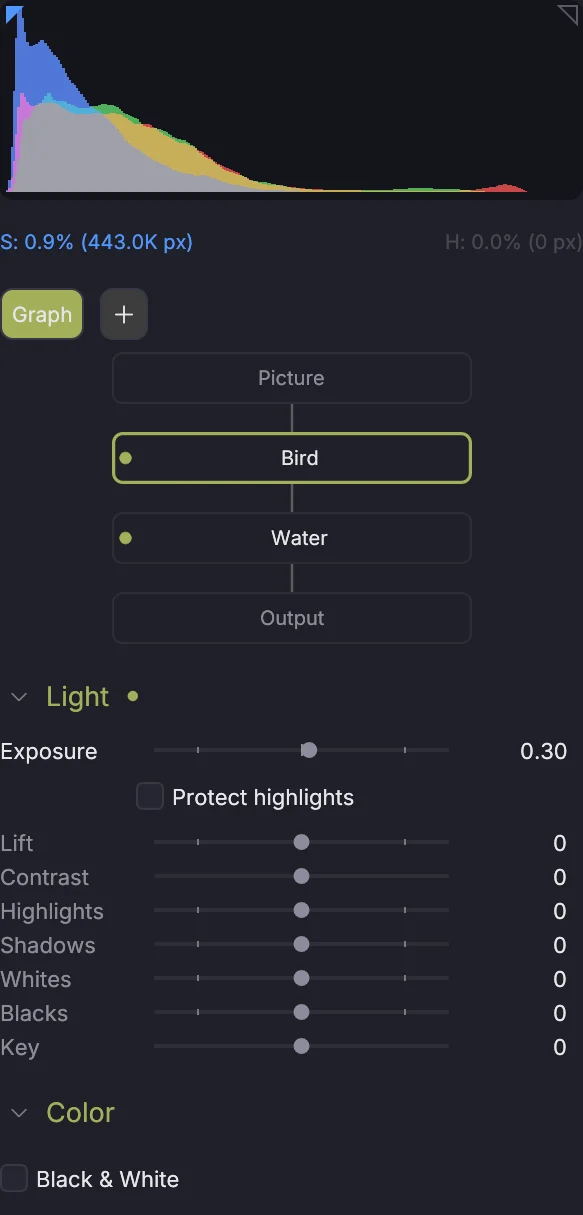
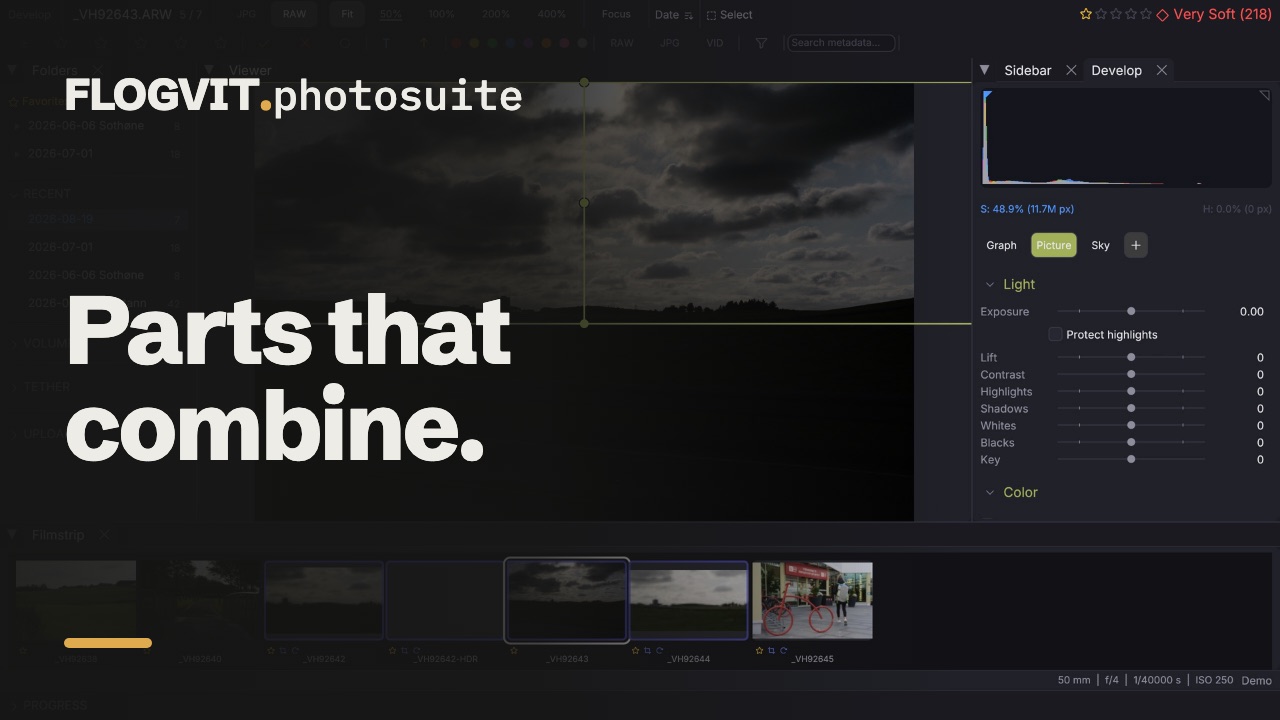
Every part after the first says how it joins what came before:
- Add — wherever either covers.
- Subtract — take this part's coverage away.
- Intersect — keep only where both cover.
And the finished mask can be inverted.
The first part always starts the mask whatever mode it carries, because a mask whose only part is "subtract" would cover nothing, and nobody building one meant that.
Seeing what it covers#
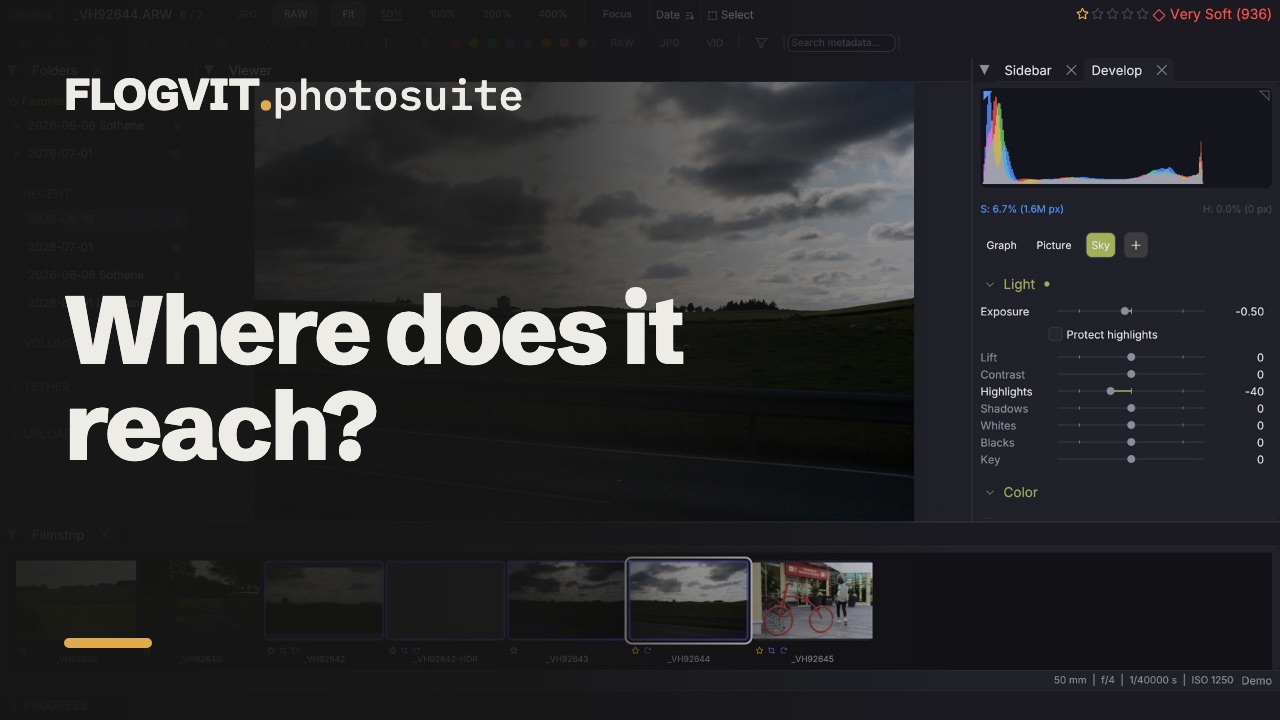 0:09
0:09Choose a mask and what it covers is washed over the picture in red; Show what it covers turns the wash on and off. As soon as one of the mask's sliders moves, the wash makes way so you see what the slider does, and the mask's edge stays on the picture as a thin red line. Choose the mask again to bring the wash back. Show the edge while editing turns the line off and on. Both are in the menu bar too, as Develop → Mask Overlay (Option+M) and Develop → Mask Edge (Shift+M).
Each mask in the list carries a small picture of what it covers, white on dark, so you can tell them apart without choosing them.
A gradient and an ellipse can be drawn as outlines. Painted coverage and a colour range cannot — without the wash you move a hue slider and guess which pixels went with it.
The edge of a found mask#
A mask found in the picture (+ Subject, + Sky, + Background, + Object, + Landscape, + People) follows the outline tightly, and so does a hard brush stroke, so an edit through one can end in a hard line. Such a mask has two sliders under Invert the whole mask, as Lightroom has on an AI mask:
- Feather softens the edge. At 100 the change fades out over 2 % of the picture's long side on each side of it.
- Shift edge moves the edge in (below 0, the mask shrinks) or out (above 0, it grows), up to 2 % of the long side: a rim of sky along a shoulder taken out, or a strand of hair the mask missed taken in.
A gradient, an ellipse and a luminance or colour range have a feather of their own. A mask that uses another by its name gets that mask's edge.
What a mask does#
Exposure (with or without Protect highlights), lift, contrast, highlights, shadows, whites, blacks, temperature, tint, saturation and vibrance are applied per pixel, weighted by coverage.
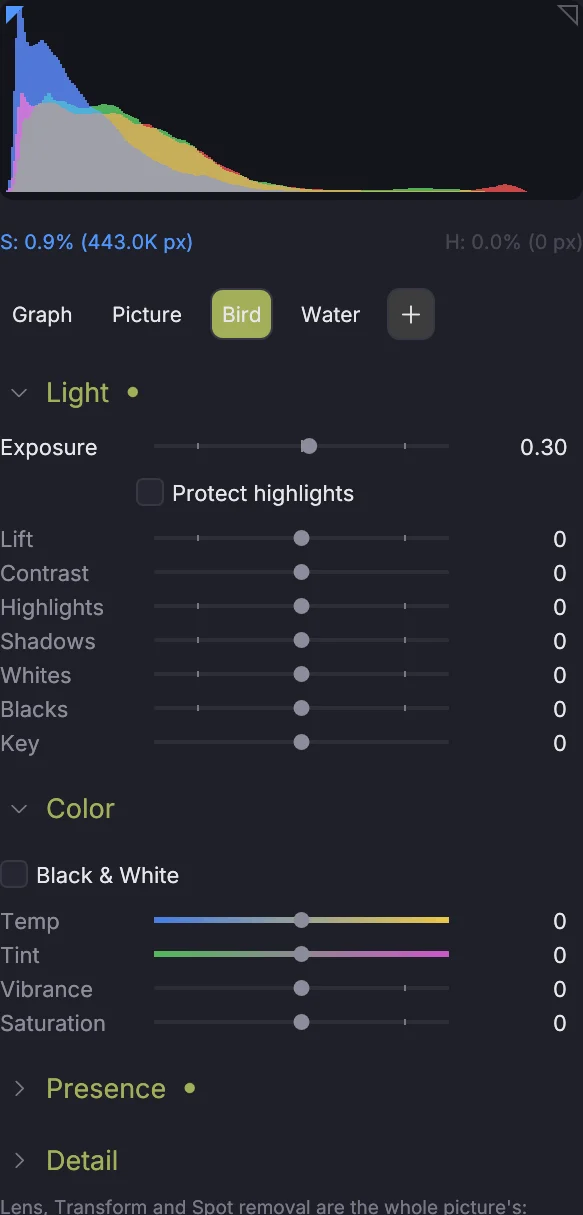
Clarity, texture, dehaze and noise reduction read the pixels around each one, so they cannot be done that way: the frame is processed with the mask's amounts and then pulled back towards the original everywhere the mask does not cover. Masks that leave them at zero cost nothing; a mask that uses any of them costs one extra pass over the frame, which is why they sit under their own heading.
A mask also carries the Color Mixer, the Tone Curve and Color Grading, faded in by its coverage.
There is no separate Sharpness slider. Positive Texture is local sharpening, and a second name for the same pass would be two controls that fight.
Subject and sky#
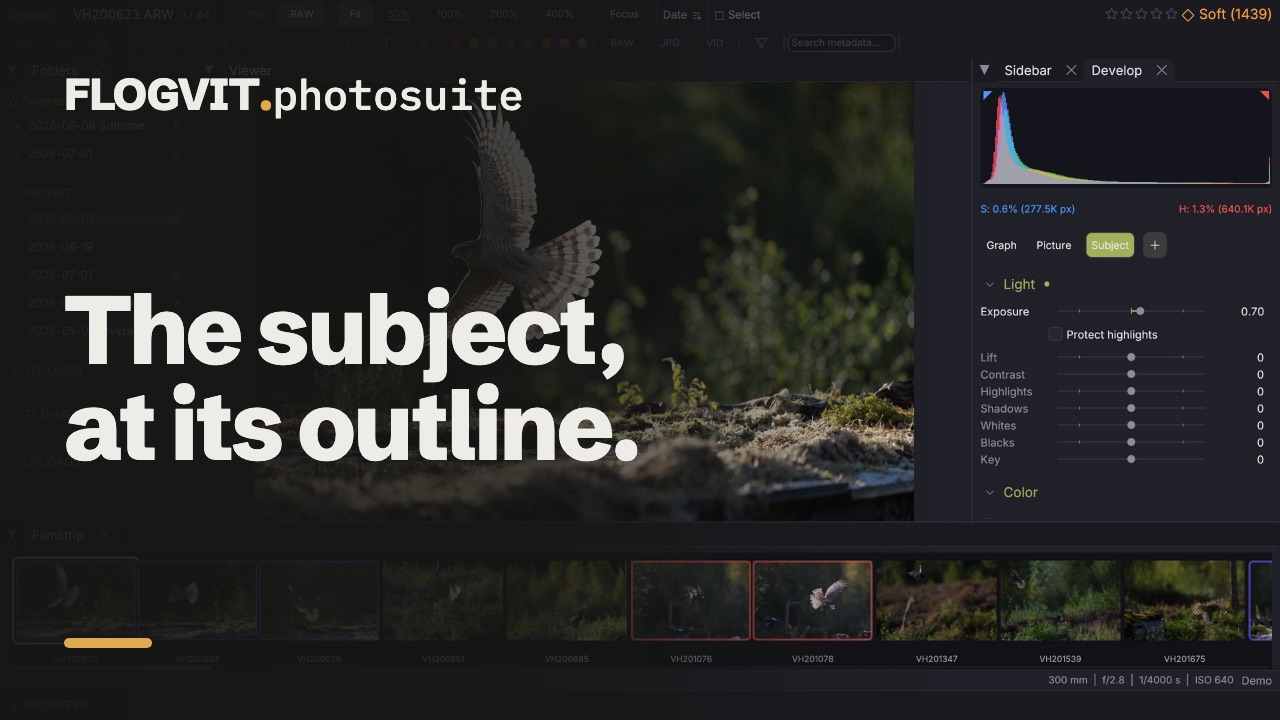 0:11
0:11+ Subject masks what stands out from the background — a bear, a bird, a person, a car, whatever it is — at its own outline, as Photos lifts a subject. Several subjects are all in the one mask. It follows the edge down to the gaps between a bird's flight feathers, so a brightened mask leaves no glow in the sky beside a wing. The first time, FLOGVIT.photosuite downloads the subject model (490 MB) and masks the picture when it is in; after that a mask takes about five seconds, and arrives on its own. While it looks, the top of the panel says what is being found and counts the seconds, and the buttons that would start another search wait until it is in.
If the subject model cannot be downloaded, it uses what the system has: on macOS 14 or newer the outline Photos lifts a subject with, softer at fine edges; on Windows or an older Mac the detector: a box, narrowed to the tones that belong to the subject rather than to what surrounds it (an ellipse intersected with that range, found by comparing the brightness inside the box with a ring just outside it). That one reports how sure the detector was and places nothing below 55% confidence. Either way, every part of the result is an ordinary mask part you can drag, retune or delete.
+ Sky masks the sky down to the horizon, clouds and all, with the trees and roofs that stand against it left out. The first time, FLOGVIT.photosuite downloads the sky model (176 MB) and masks the picture when it is in; after that it takes a moment. If the model cannot be downloaded, it reads the top of the frame instead and masks what has that colour; a top that is not one coherent colour — a forest canopy — gets no mask rather than a mask over nothing in particular.
+ Background masks everything but the subject: the subject mask turned inside out, with the same model and the same edges. When the subject is people, only the people are: the chair someone sits on is background.
Objects#
+ Object masks one thing you point out. Click it and paint roughly over the thing (a cup, a guitar, a head) with the brush; when you let go, the mask becomes the thing's own outline, cut to where you painted, so a ponytail you did not paint over stays out. Paint just past the thing's edges; a stroke that covers much of what is around it finds nothing. The first time, FLOGVIT.photosuite downloads the edge model (455 MB); after that it takes a few seconds.
Landscape#
+ Landscape masks the parts of a landscape you tick: sky, water, vegetation, mountains, architecture, natural ground and artificial ground, all of them in the one mask. The first time, FLOGVIT.photosuite downloads the landscape model (465 MB) and masks the picture when it is in; after that it takes a few seconds.
People#
+ People masks parts of a person: face skin, body skin, eyes, iris, brows, lips, teeth, hair, facial hair, clothes and the entire person, any of them together. Choose the person (0 is everyone; 1, 2 … count from the left) and tick the parts, then Add Mask. The first time on a picture the people are found (a second or two on a Mac with macOS 14 or newer; on Windows and older Macs there is no + People yet), after that it is at once.
macOS finds each person's outline and each face; models that come with FLOGVIT.photosuite take the parts from there. One tells hair, skin and clothes apart pixel by pixel, one places 478 points on each face, and one reads a face's skin, brows and lips — each turned to the face's tilt, so a baby lying on its side is found too. Face skin leaves out a beard and the neck and takes the ears; clothes leave out what a person holds or sits on, a ball, a racket or a chair, and when the subject model for + Subject is downloaded they also take in a leg in dark trousers that the outline missed. The first time you mask a person, FLOGVIT.photosuite downloads four models, the edge model (455 MB), the people model (819 MB), the beard model (330 MB) and the person edge model (490 MB), and masks the picture as found meanwhile; after that the parts follow the picture's own edges, the clothes come from the people model and a beard, a white one too, from the beard model, and the entire person follows the person edge model's edge and leaves out what they carry, a guitar or a bag, a few seconds a part, and the mask arrives on its own. A person macOS draws no outline for (it outlines four at most) is found from their face. Where a part still lands wrong, add a brush part to the mask, or subtract one.
The mask is kept with the picture as it was made, so it looks the same when the picture is opened again, on another computer and in every export.
Naming and copying#
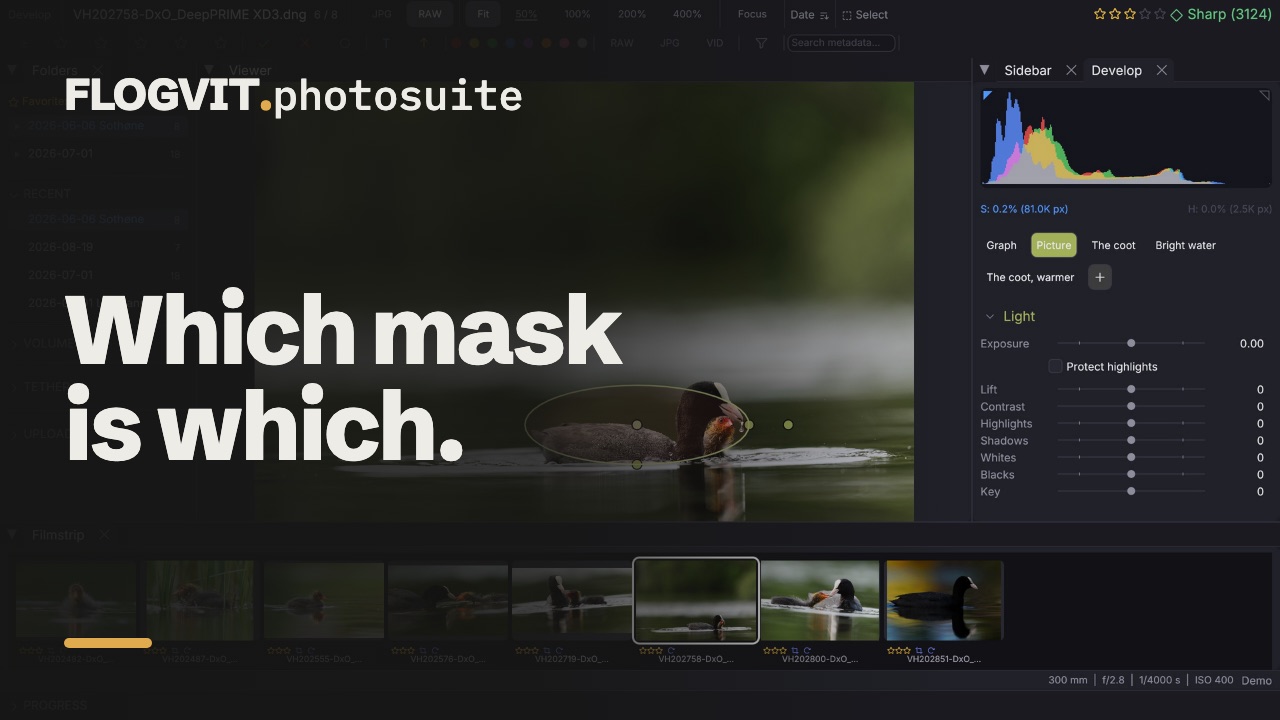 0:11
0:11Three masks called "Radial" in a list say nothing about which is the sky and which is the face, so each mask has a name. Duplicate mask copies one: an edit that differs in a single value is faster to make from a copy, and it is how two masks end up sharing a shape.
From a script#
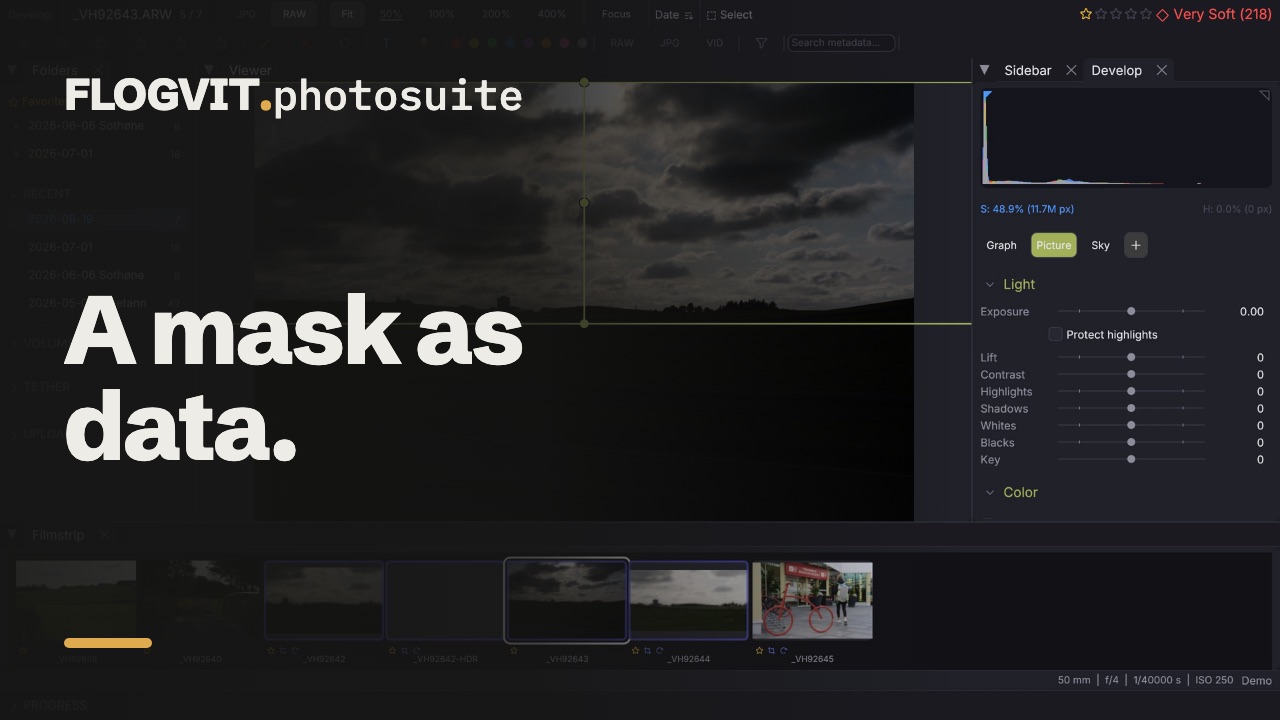 0:09
0:09await client.develop.setMasks([
{
name: 'Sky',
components: [
{ geometry: { kind: 'linear', x0: 0.5, y0: 0, x1: 0.5, y1: 0.35 } },
{ geometry: { kind: 'luminance', low: 0.45, high: 1, feather: 0.25 },
mode: 'intersect' },
],
values: { exposure_ev: -0.6, highlights: -35, saturation: 12 },
},
])
await client.develop.addSkyMask()
await client.develop.addSubjectMask()
await client.develop.setTools({ mask_overlay: true })
addSubjectMask starts looking for the subject; the mask lands on the picture when it is found, a moment later.
client.develop.addPeopleMask({ person: 1, parts: ['eyes', 'iris'] }) adds a people mask, waiting the first time while the people are found; client.develop.people() lists them.
client.develop.addObjectMask({ strokes: [{ points: [[0.4, 0.3], [0.45, 0.32]], radius: 0.05 }] }) masks the thing under strokes given in 0..1 of the picture as shown, the radius a share of its long side; client.develop.addBackgroundMask() masks everything but the subject.